
Viewing Orders of Warehouse Schedules in Transportation Logistics Module
Details
In Transportation Logistics Module, you can view the Orders of warehouse schedules added to Transportation Logistics Schedules and also for the Warehouse schedules which are displayed in the Warehouse Tasks section. Orders of warehouse schedules can be viewed in read-only mode, by selecting the respective Show Order option from within Transportation Logistics Window, Transportation Logistics Detail Window and Warehouse Schedule window.
Viewing Orders of Warehouse Schedules from within Transportation Logistics Main Window
From within the Transportation Logistics Main window, you can view the orders of Warehouse schedules which are added to a logistics schedule and also for the warehouse schedules which are listed in the Warehouse tasks section (Right-hand side section). Refer below illustrations for more information.
Steps To view order of warehouse schedules added to Transportation Logistics Schedule
-
Highlight the Order Schedule in Transportation Logistics Schedule section for which the order has to be viewed in read-only mode and use any one of the following methods.
-
Click the drop-down button present beside the Show Warehouse Schedule Order icon in the tool bar and then select the Show Logistics Schedule Order option as shown in Figure 1.0.
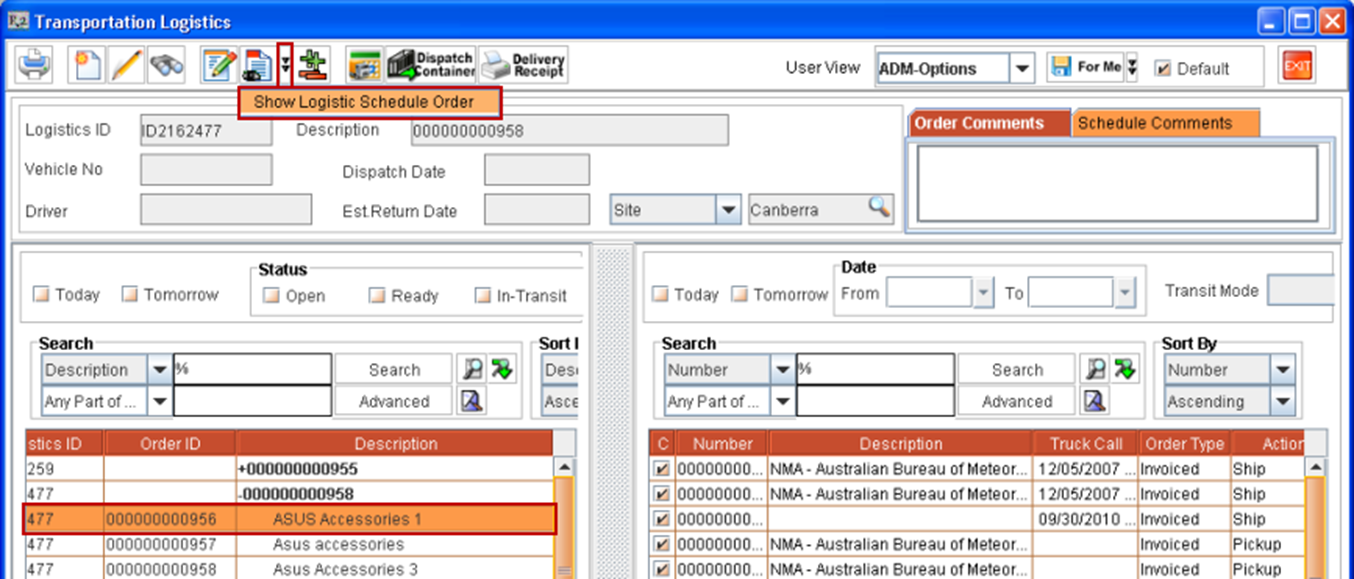
Figure 1.0 -
Select the Show Order option from right-click menu on the highlighted order schedule as shown in Figure 1.1.
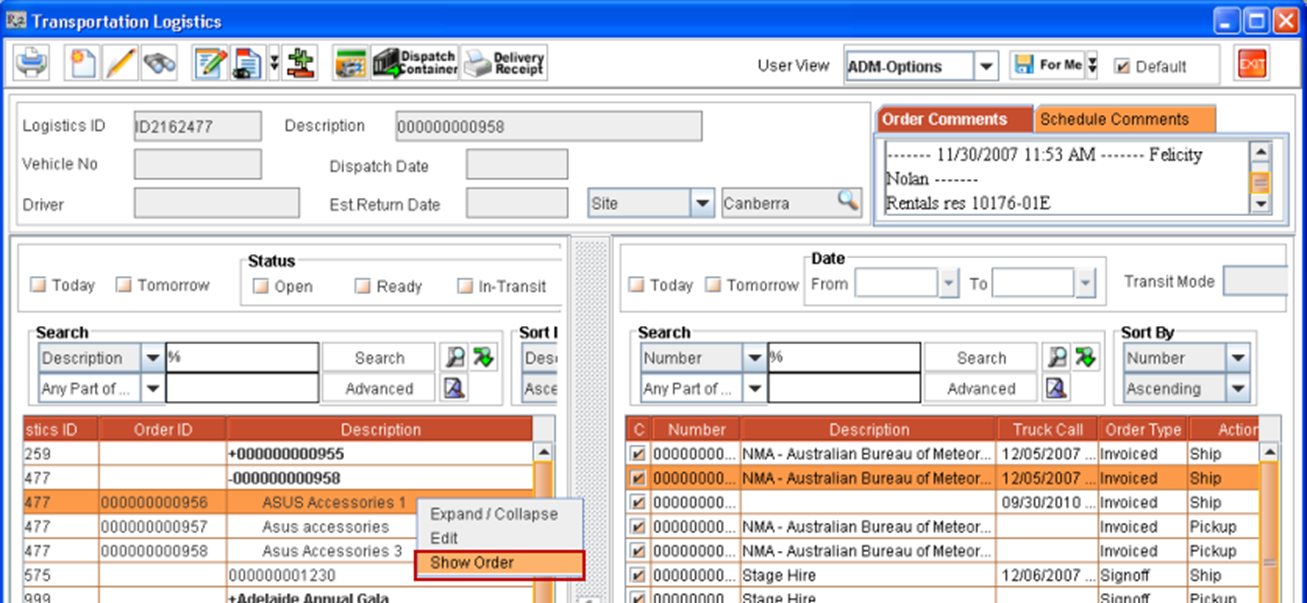
Figure 1.1 -
Use the Hot Key "ALT+SHIFT+L"
-
-
System will display the order in read-only mode for the selected order schedule.
Steps To view order of warehouse schedules listed in Warehouse Tasks section
-
Highlight the order schedule in Warehouse Schedules section for which the order has to be viewed in read-only mode and use any one of the following methods.
-
Click Show Order from Warehouse Schedule icon present in the tool bar as shown below.
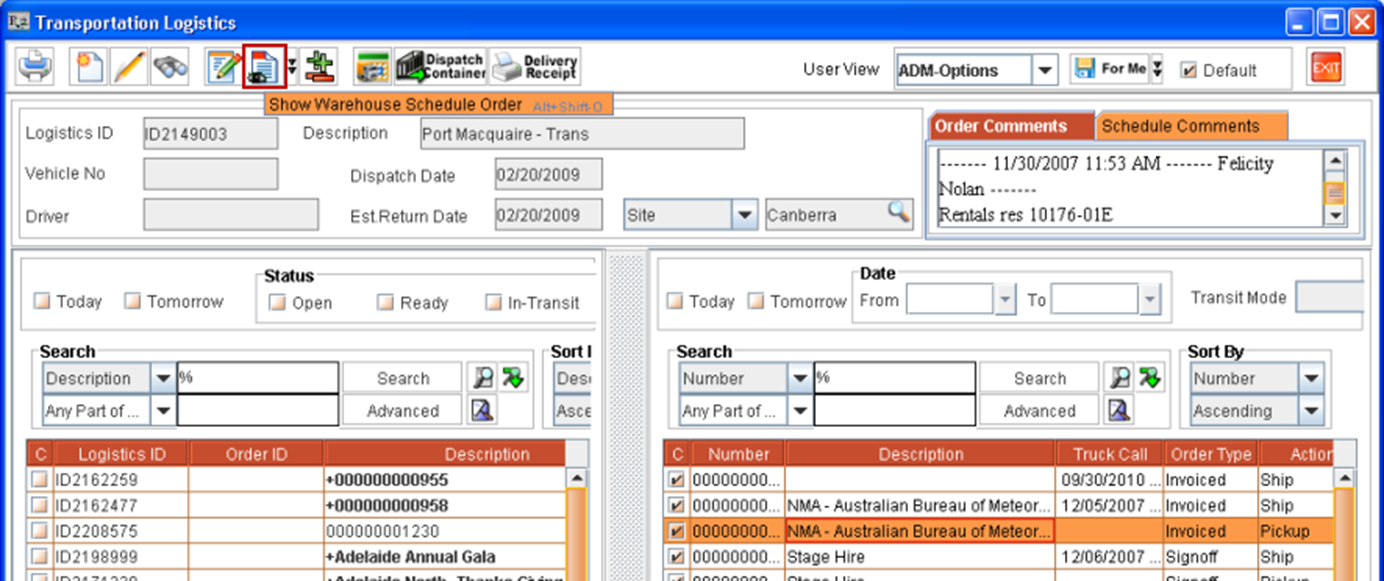
Figure 1.2 -
Select the Show Order option from right-click menu on the highlighted order schedule as shown below.
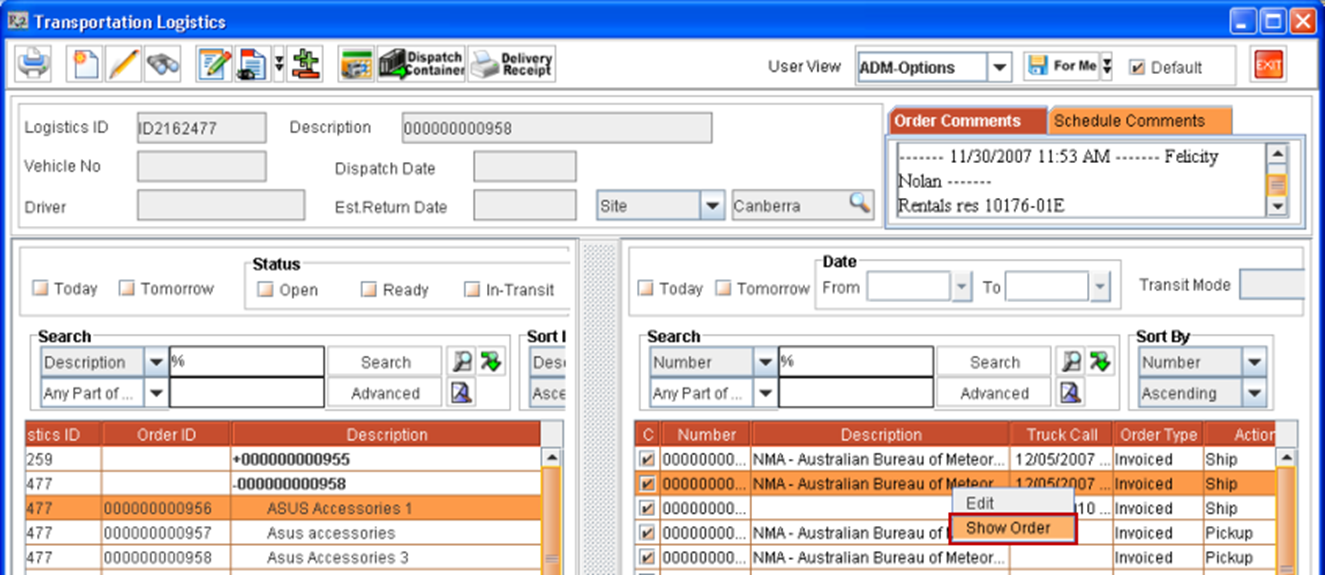
Figure 1.3 -
Use the Hot Key "ALT+SHIFT+O".
-
-
System will display the order window in read-only mode for the selected order line.
Show Order feature in Transportation Logistics Details and Warehouse Schedules windows
In Transportation Module, you can view the orders of warehouse schedules in read-only mode from Logistics Schedule window and Warehouse Schedules window, using the Show Order icon present in the Tool bar or using the right-click option Show Order or using the Hot key "Alt+Shift+O". Refer below illustrations for more information.
Steps to View orders from within Transportation Logistics Details window
-
Open a Logistics Schedule from within Transportation Logistics module main window.
-
Select the Order Schedule in the Transportation Logistics Details window for which the order has to be viewed in read-only mode and use either of the below methods.
-
Click the Show Order icon

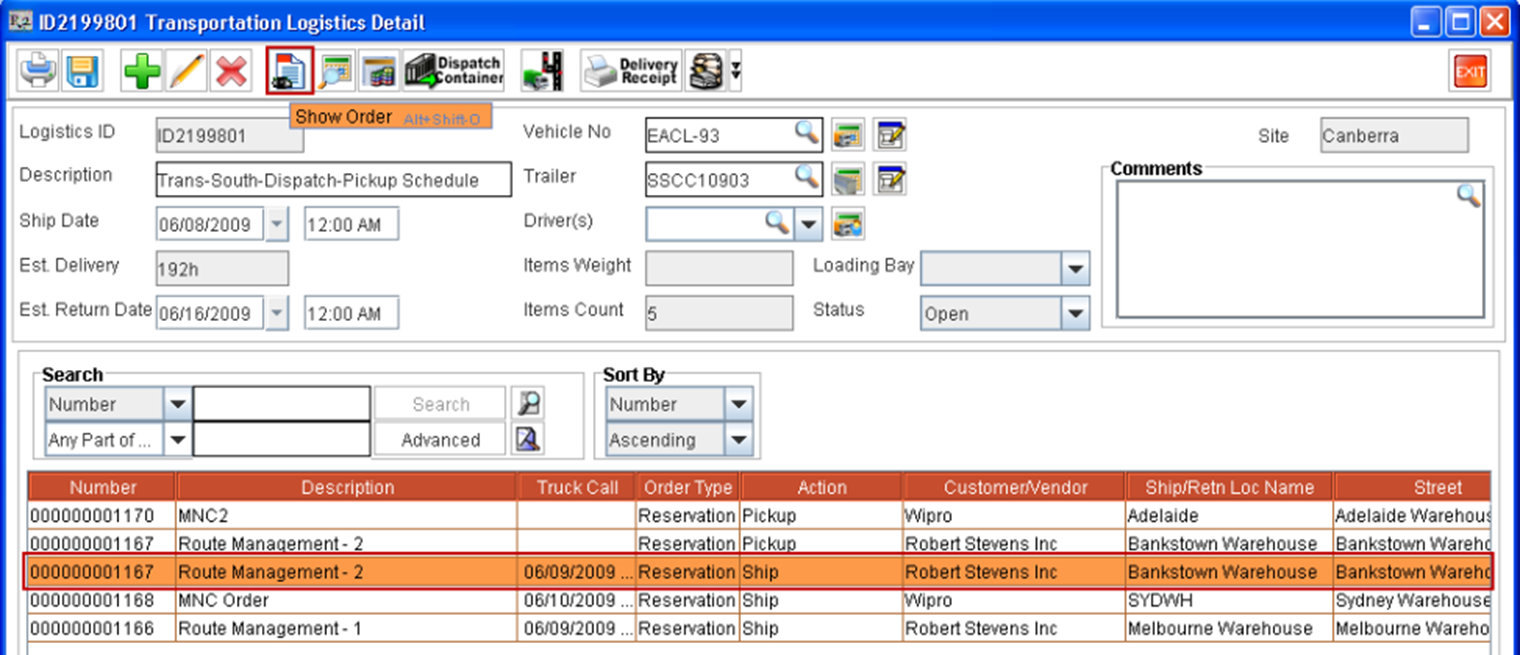
Figure 1.4 -
Select right-click option Show Order on the order schedule line as shown in figure 1.5
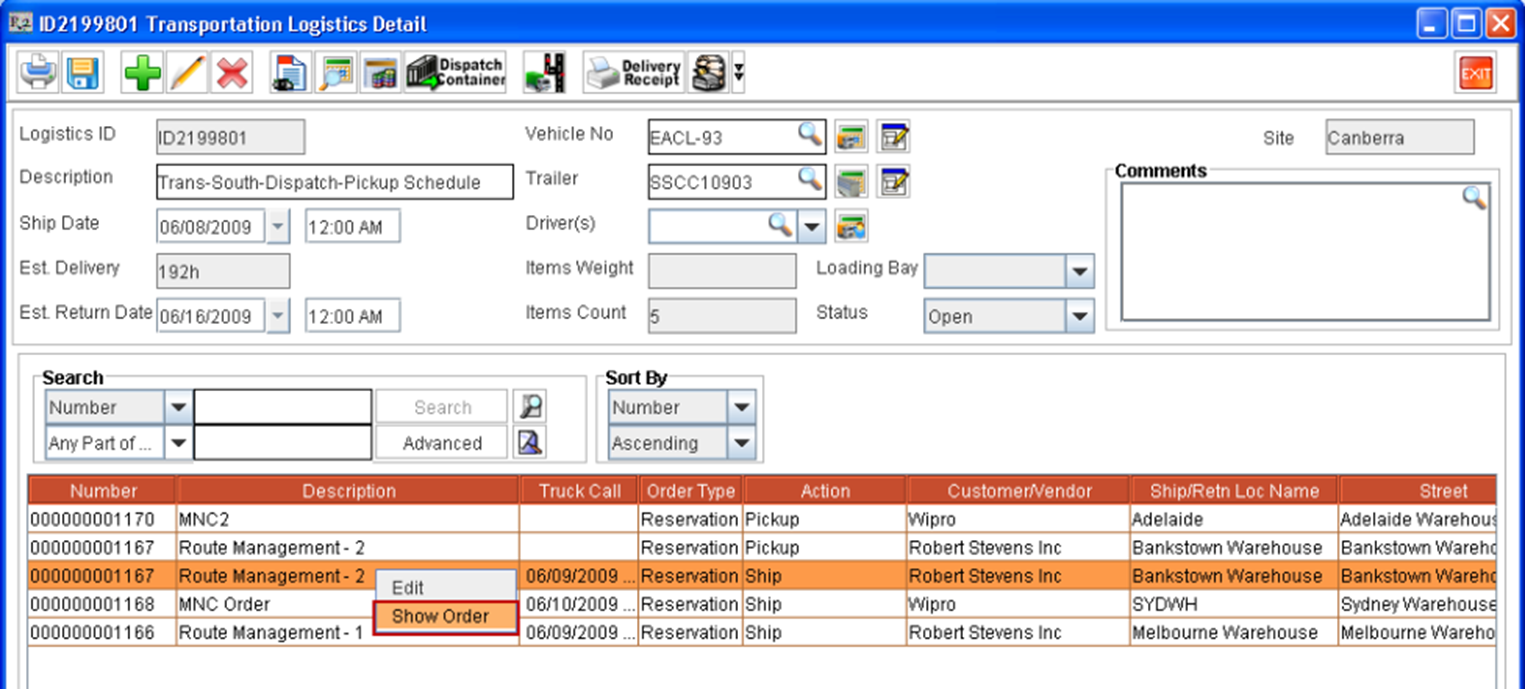
Figure 1.5 -
Use the Hot Key "Alt+Shift+O".
-
-
System will display the order in read-only mode for the selected order schedule.
Steps to View orders from within Warehouse Schedules window
-
Select an Order Schedule in Warehouse Schedules window and follow either of the below methods.
-
Click the Show Order icon
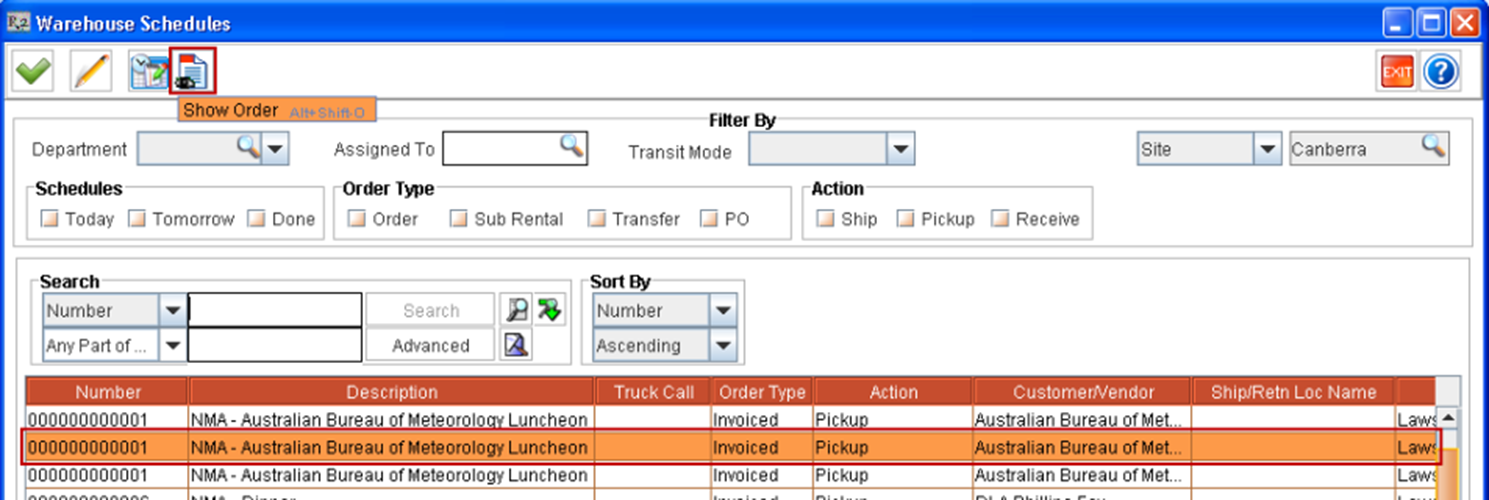
Figure 1.6 -
Select the right-click option Show on the order schedule line as shown in figure 1.7.
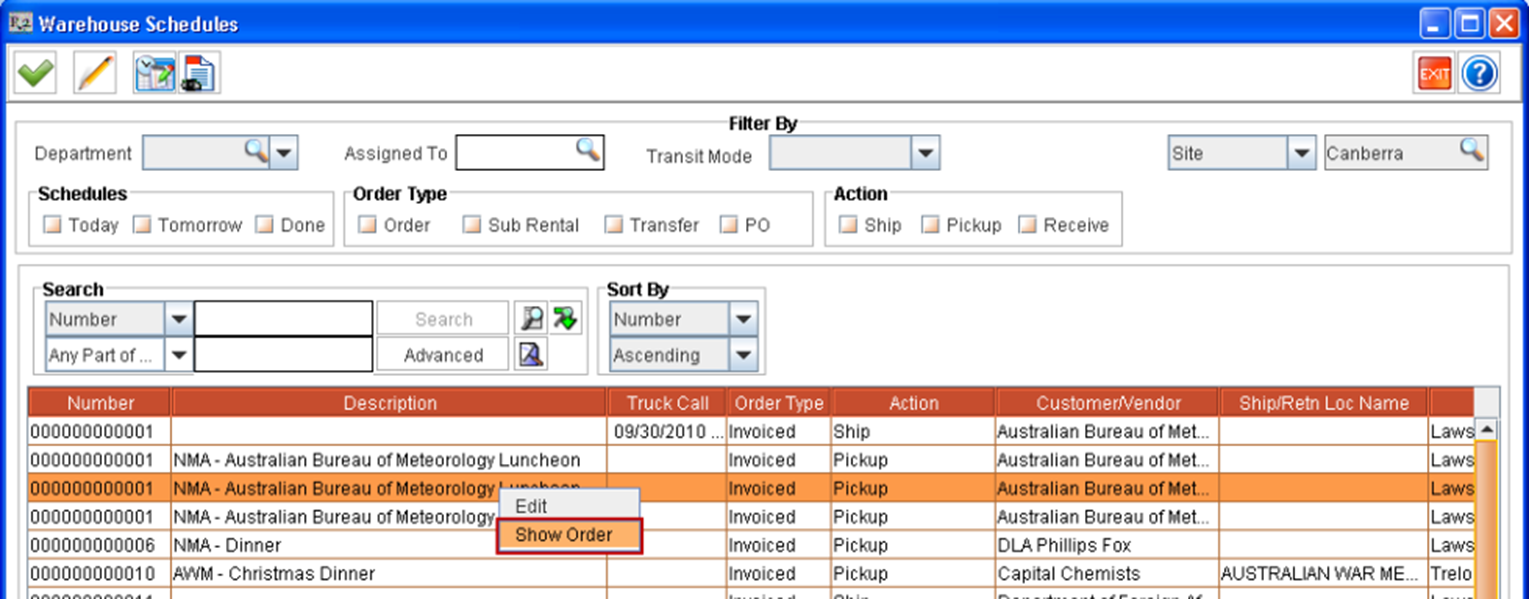
Figure 1.7 -
Use the Hot Key "Alt+Shift+O".
-
-
System will display the order in read-only mode for the selected order schedule.
Points to Note:
-
Security for all the above mentioned Show Order options are independent and on applying security for one Show Order option will not impact the applied security of the other Show Order option.
Feature Revision History
|
Revision No |
Changes in Feature |
Version |
Reference ID |
|---|---|---|---|
|
1 |
Viewing Orders of Warehouse schedules in Transportation Logistics Module |
Version 05.02.11-00 |
22968 |
|
2 |
Show Order feature in Transportation Logistics Details and Warehouse Schedules windows |
Version 05.02.12-00 |
23117 |