
Create, Track, Update, and Delete or Hold day-to-day activities and to keep a track on Appointments, Tasks, Email, etc.
This helps the user to timetable daily activities, thereby increasing the work efficiency and performance.
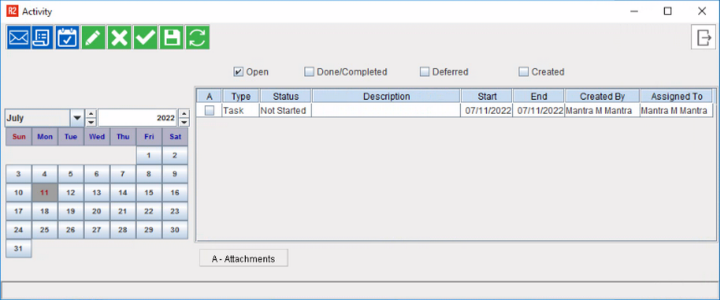
Icons
Icon
|
Description
|
|
|
New icon to add a blank line to the Grid. |
|
|
|
|
|
|
|
|
|
|
|
|
|
|
|
|
|
|
|
|
|
Activity List Grid
Field Name
|
Description
|
|
A |
A checkbox shows in this field, if there is an attachment added to the appointment. |
|
Type |
This field displays the type of activity. |
|
Status |
This field displays the status of the activity, |
|
Description |
A Short description of the activity. |
|
Start Date |
This is the starting date for the activity. |
|
End Date |
This is the end date for the activity. |
|
Created By |
Name of the person who created the activity. |
|
Assigned To |
Name of the person to whom the activity is assigned. |
Calendar Grid
It is displays the current date as selected by default.
You can click on any date in the past and the 'Activity List Grid' will display the Tasks, Emails, and Appointments created on that specific date.
Activity Module Options
-
Open: If selected, all the Task/Appointments with the open status will displayed in the activity list
-
Done/ Completed : If selected, all the Tasks/Appointments which are done/completed will be displayed in the activity list
-
Deferred: if selected, all the Tasks/Appointments which were transferred any other user, but were earlier assigned to you.
-
Created: If selected all the Tasks/Appointments which are created by the employee currently logged in will be displayed in the activity list.