-
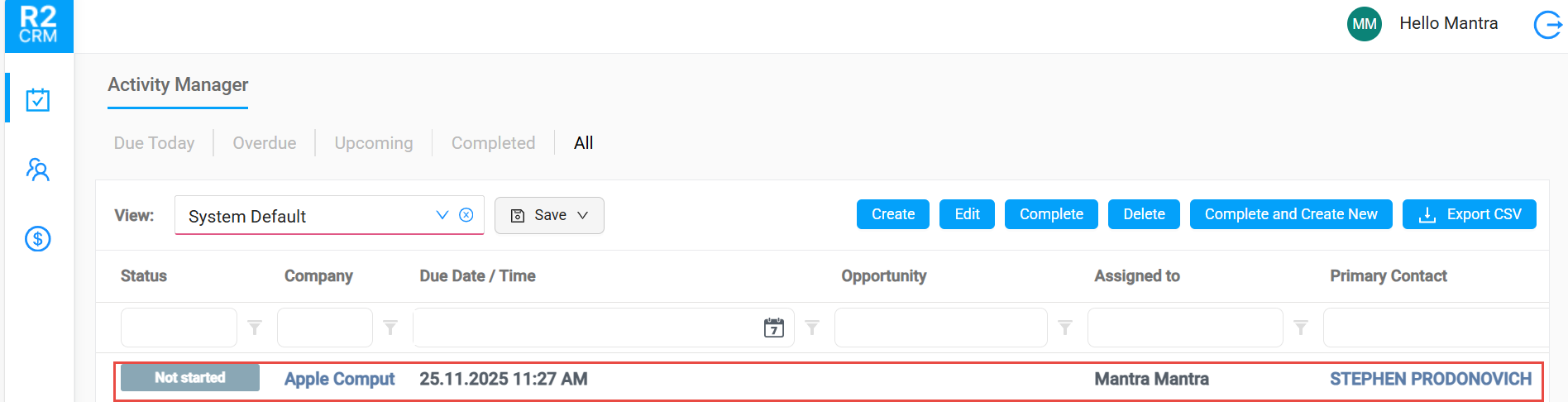
Select the task which needs to be marked as complete.
-
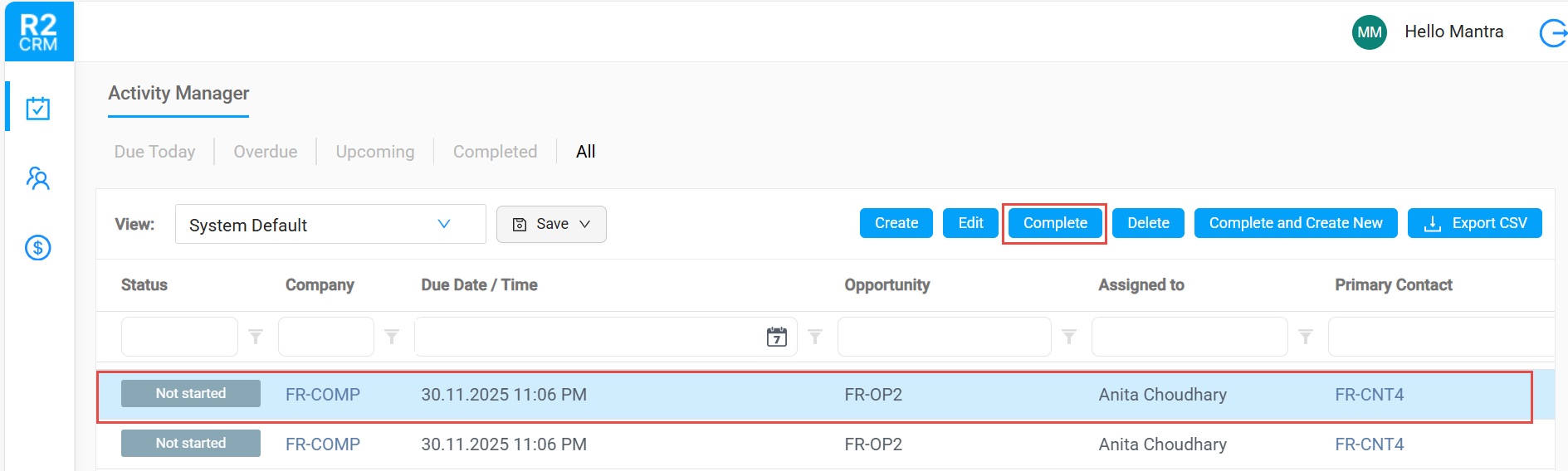
Click the Complete button a shown below.
Marking a Task as 'Complete' and Creating a New One
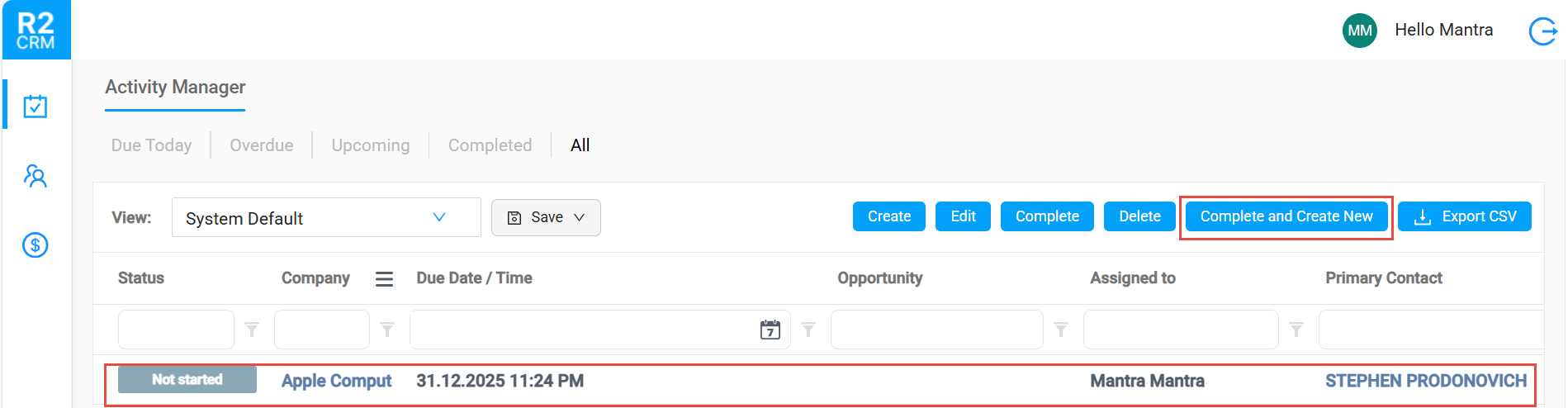
Let's assume, you have an existing task which you want to mark as 'complete', however you want to create another task with the same data of your existing task. Obviously, you would not want to enter the details all over again. This problem is resolved by the 'Complete and Create New' button (as highlighted in Figure 6.0).
This way, when you select and open a task and click the 'Complete and Create New' button, it marks the existing task as complete and copies the task information to a new task.
-
Select a task which needs to be competed.
-
Click Complete and Create New button.
-
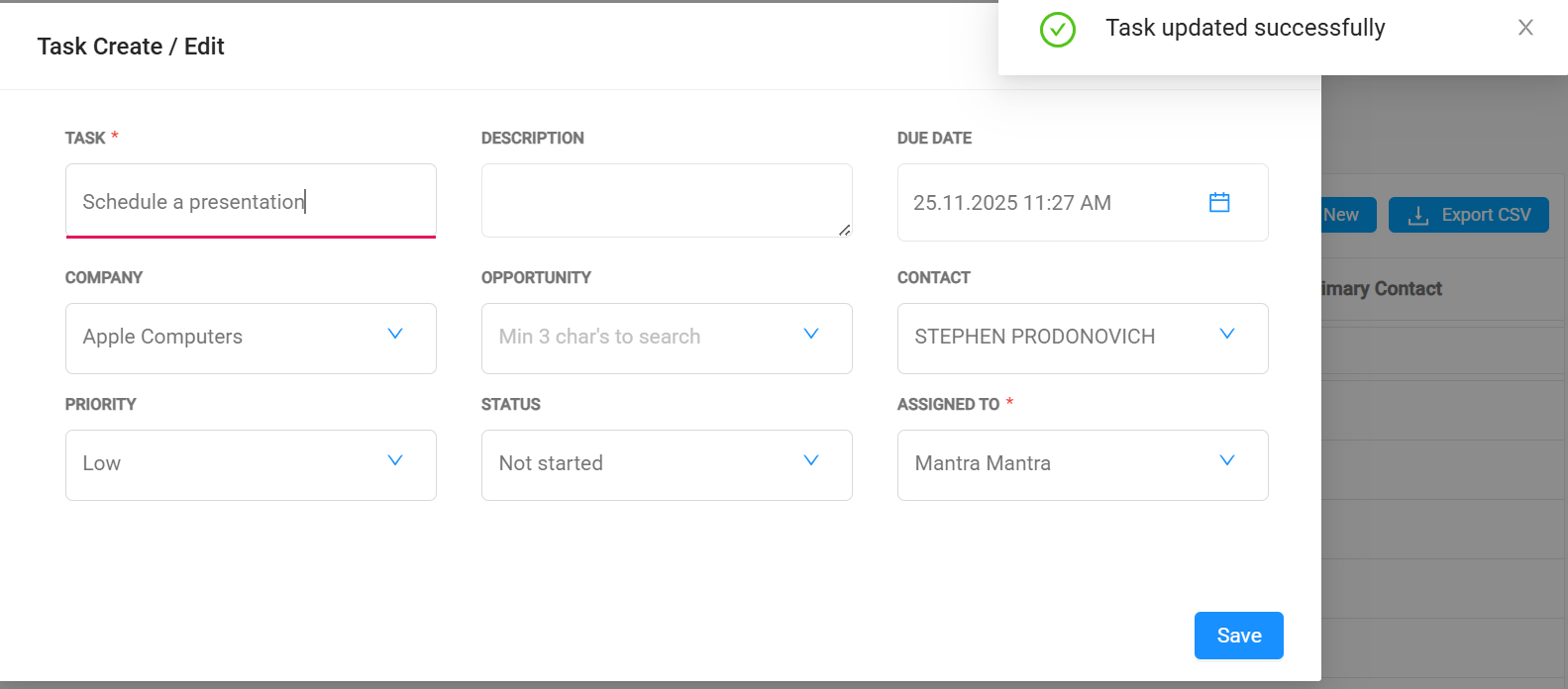
The task is marked as completed and new form displays with the details of completed task.
-
All the fields are editable.
-
Modify the necessary data and click Save button.
After saving the data, a new task is created and displayed in the search window.