When you tap on a current or upcoming job, you'll be taken to the Job Details page where you can see the order specifics, pay rates, and more. The information for both current and upcoming jobs is the same.
However, for current jobs, you can Clock In/Out and view your time logs, while upcoming jobs won’t have these options
To view job details
-
Click any Current/ Upcoming Job.
-
You will see the details for the respective job as shown below.
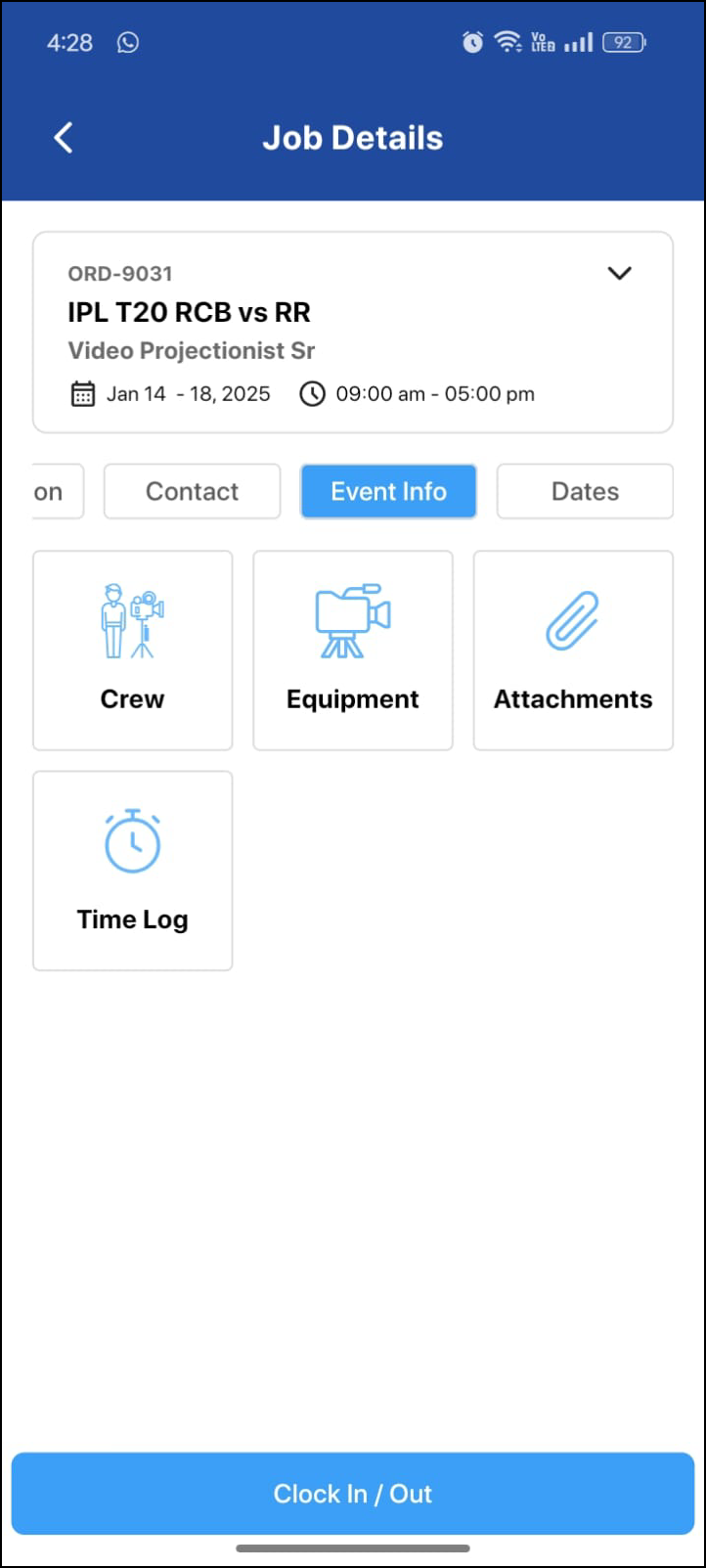
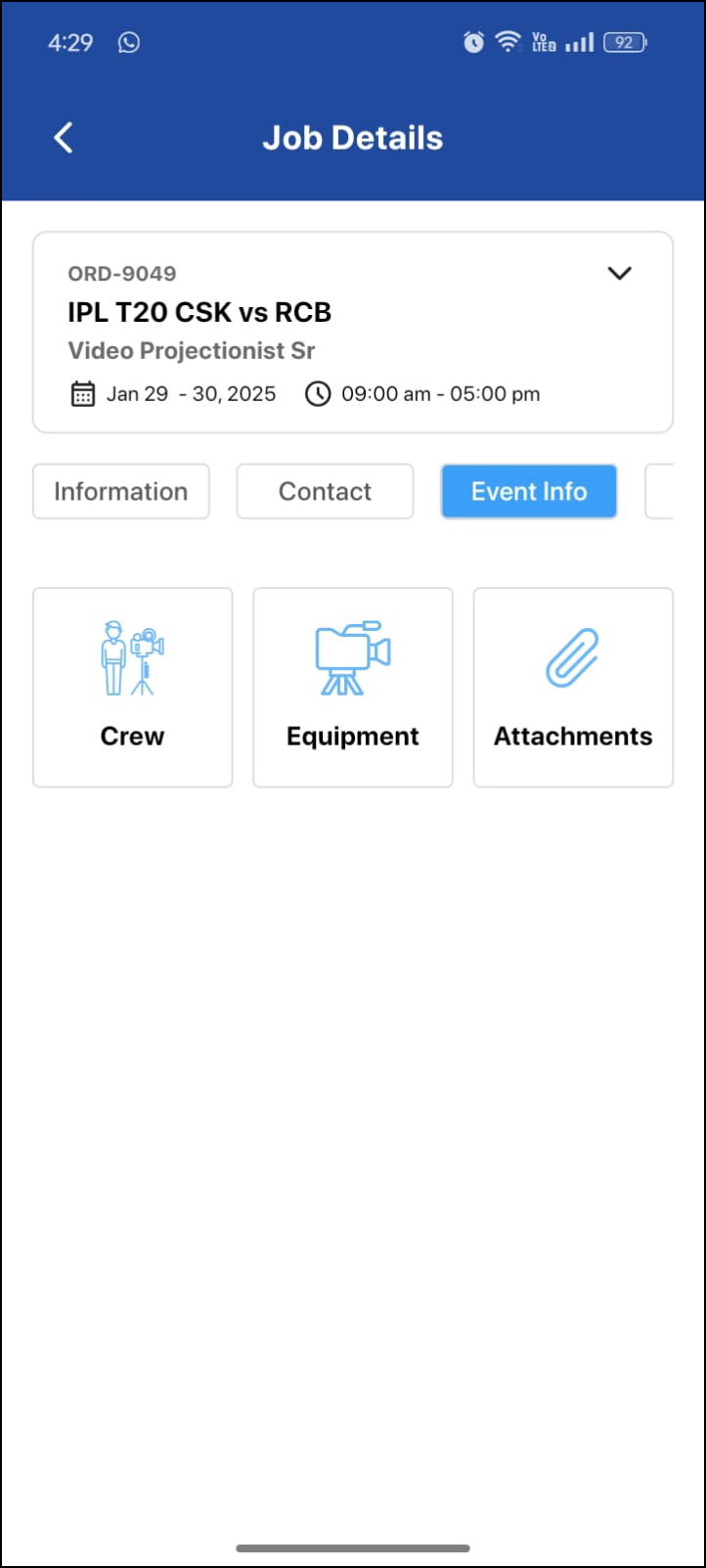
What can you see in Job Details?
Order specifications
Order specifications are nothing but the order summary details as shown in Figure 1.2
-
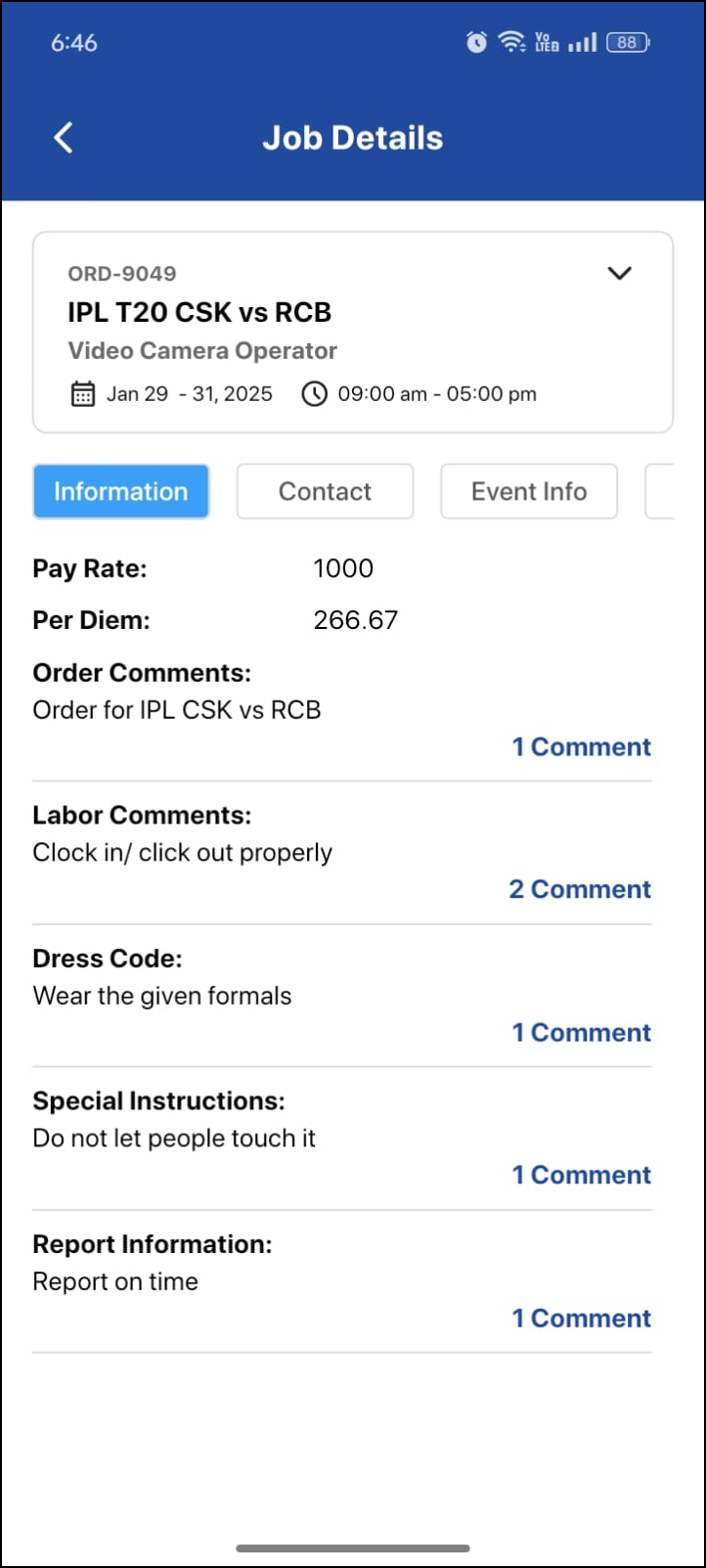
Here, you will be able to see the order#, description, accepted position, and scheduled job date and time.
-
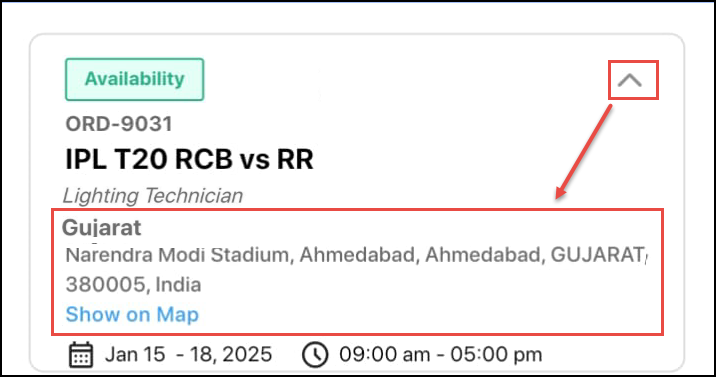
Tap the down arrow icon to expand the details section and view the show location, address, and an interactive map. Tap 'Show on map' to view the precise location.
Information
Here, you can view your Pay Rate and Per Diem details.
You'll also see comments like Order Comments, Labor Comments, Dress Code requirements, Special Instructions, and Reporting information if added by the planner for the job.
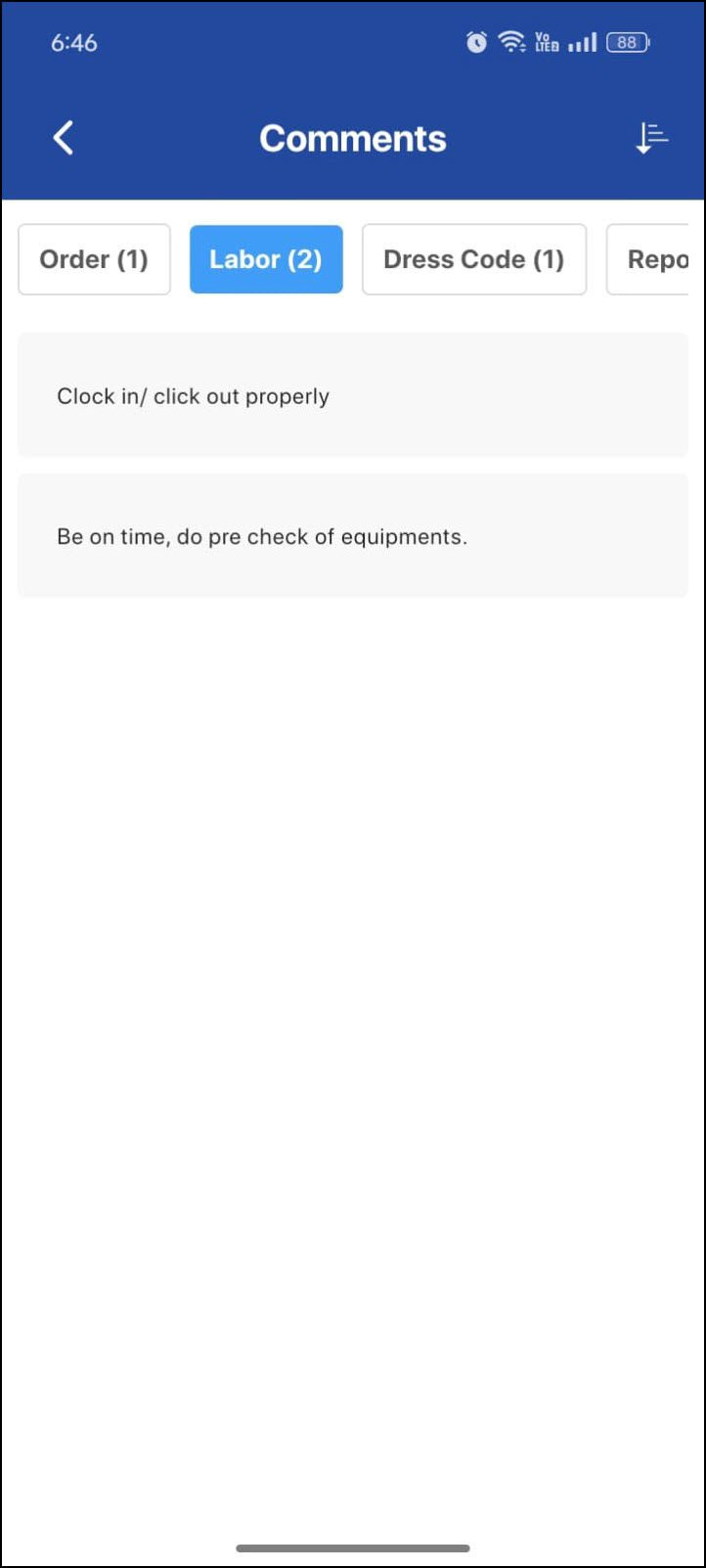
If there are multiple comments, click "comments" to open them in a new window. You can also switch between tab to see other comments.
Contacts
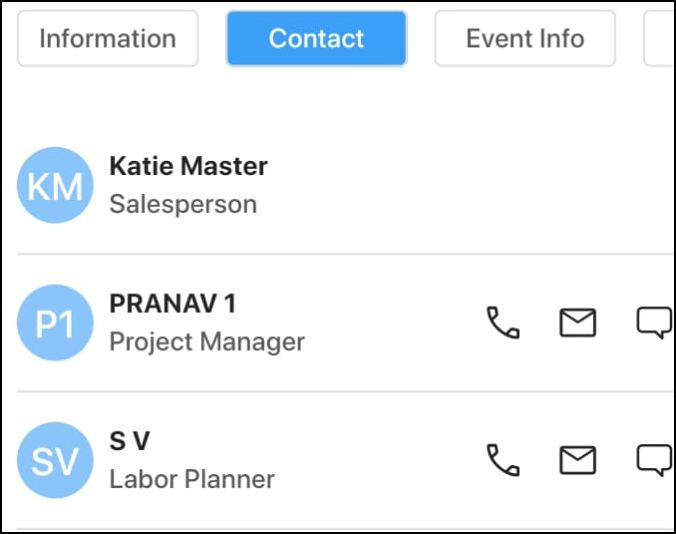
Here, contacts tab lets you to connect with Labor Planner, Salesperson, or Project Manager via Call, Email, SMS. You will see the contacts if tagged to the Order.
Event information
Here, each tile gives you the details about Travel, Crew, Equipment, Attachments, Time log, and Dates.
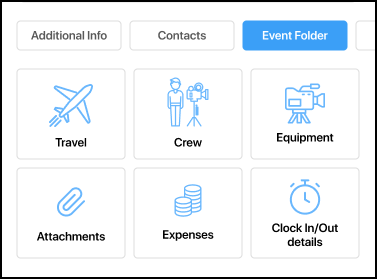
Travel
Displays the planned travel itineraries and hotel bookings for all booking lines.
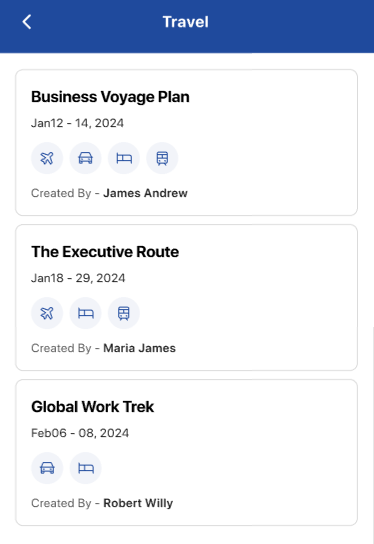
Click here to know more about Travel plan.
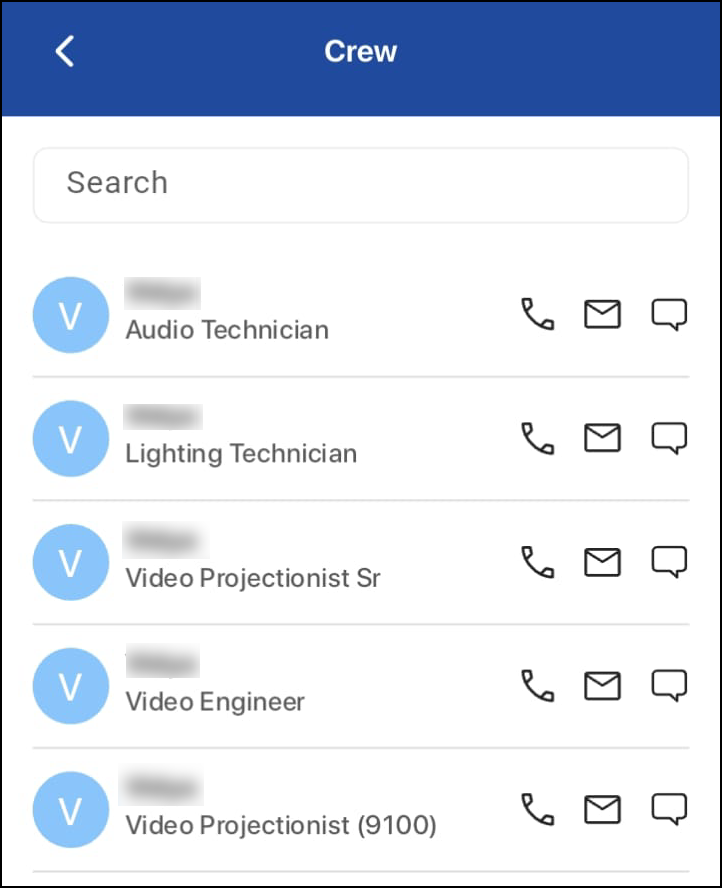
Crew
Displays all the confirmed crews on the Order. You can contact them via Call, Email, SMS.
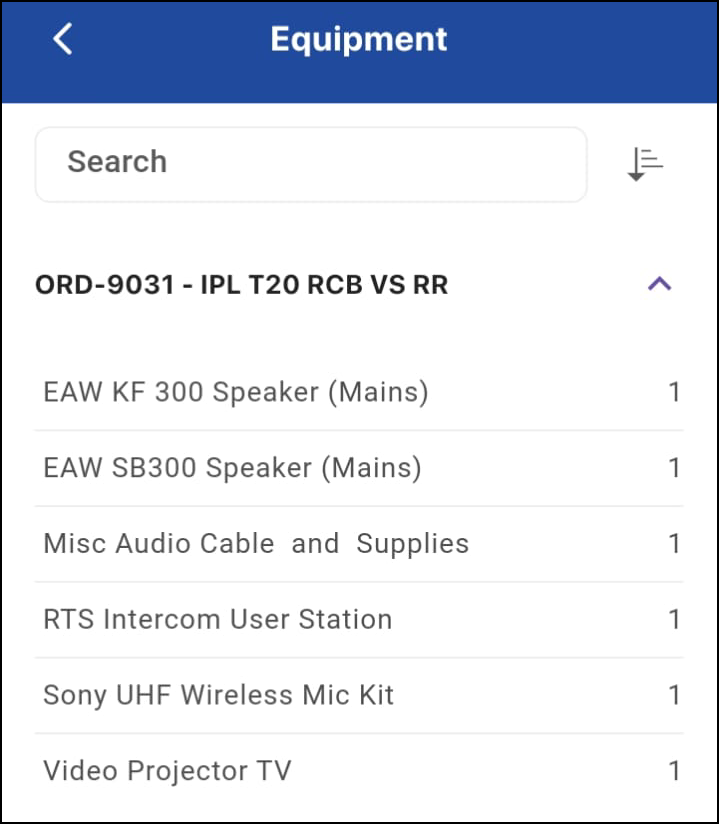
Equipment
Displays the equipment list for the event, including all orders in the event. Here, you can search for the equipment using search bar or filter option. Down arrow icon is also provided for you to expand/ collapse the list.
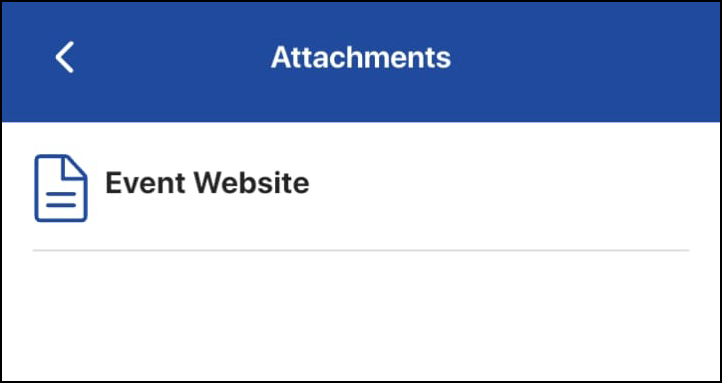
Attachments
Any web links attached to the order will be displayed here. Just tap on it to view it.
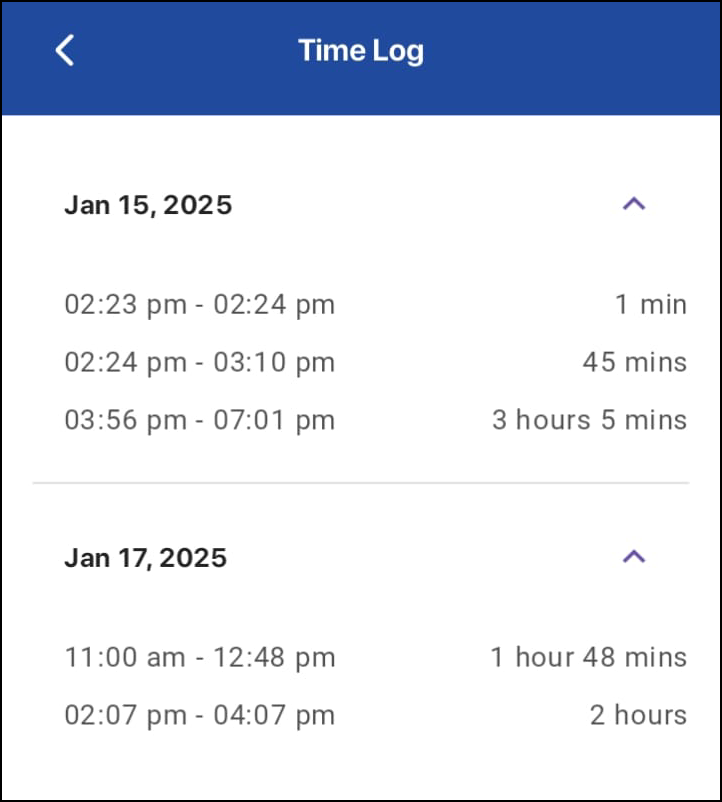
Time Log
This displays your clock-in and clock-out times for each day of the job. The Time Log tab is only available for current jobs.
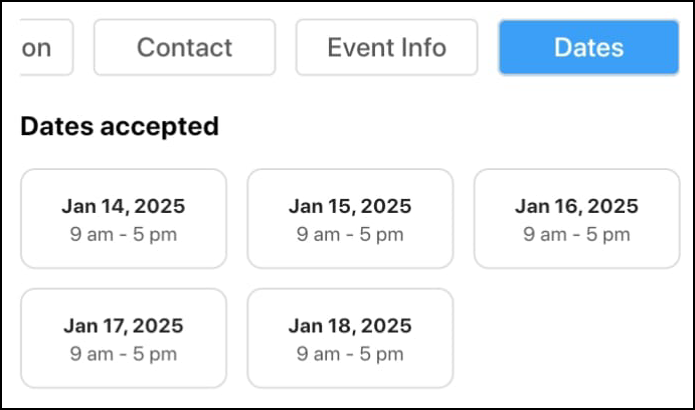
Dates Tab
This displays the dates that you have accepted for a specific job.