
Miscellaneous purchase orders will be used for non-stock items or services such as pre- production. The purchase order will be initiated from the order.
Open the order and highlight the items needed, then right click and select Create Misc PO
.png?cb=88c09106366de2dd475b1836c5333389)
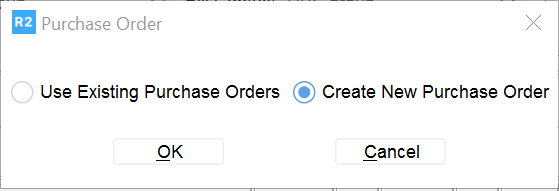
The following screen will appear. Choose the option to create a new Purchase Order.
From the vendor screen, find the vendor
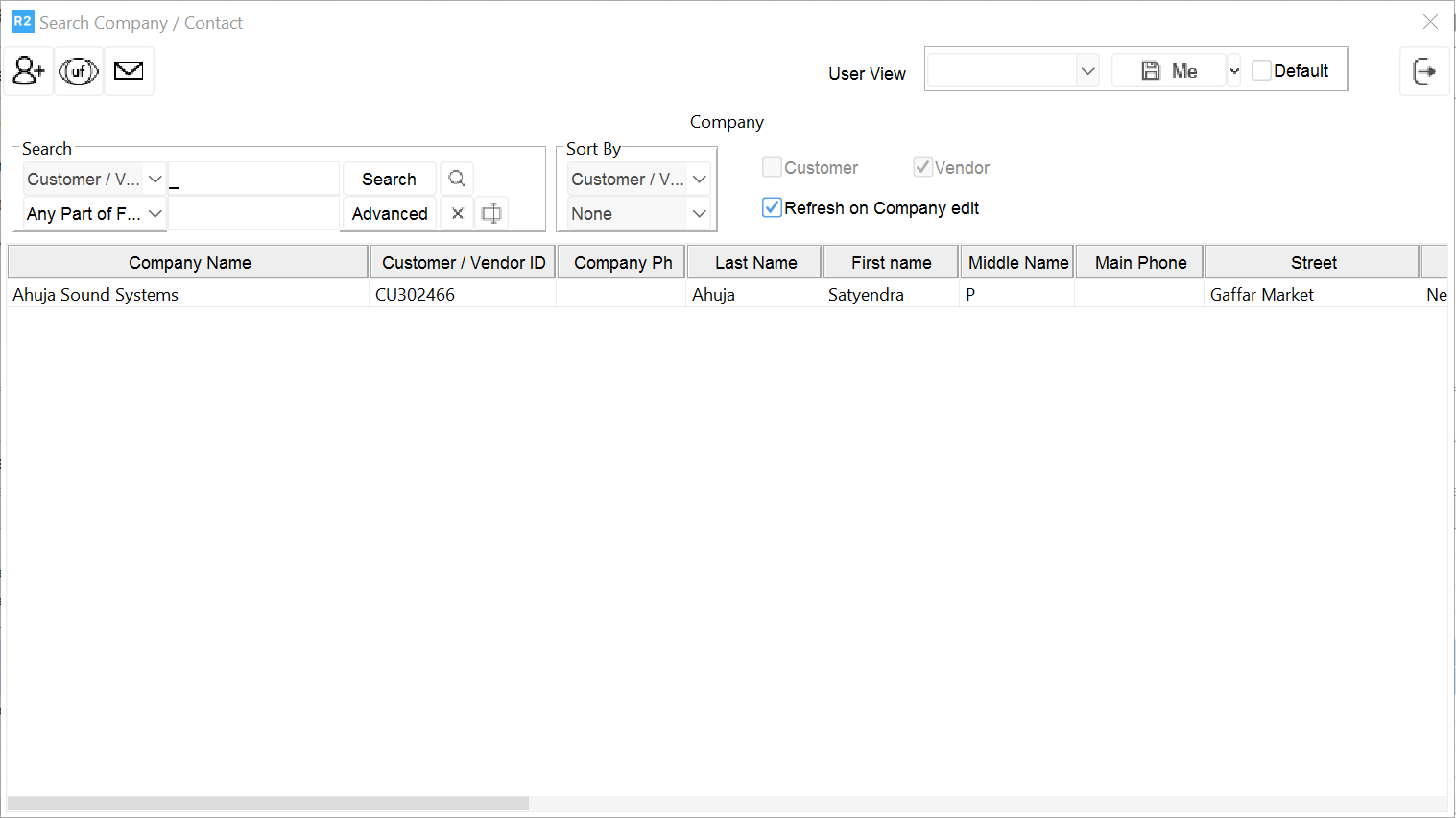
Then double click the selected vendor
Note: Highlighting a Vendor row and clicking OK will not insert the Vendor
Adding additional misc charges to an existing Miscellaneous Purchase Order requires opening the Purchase Orders and adding the misc charge.
Click on the double arrow button 
.png?cb=b8d3a91affe8182befc1ca2a45b26b3c)
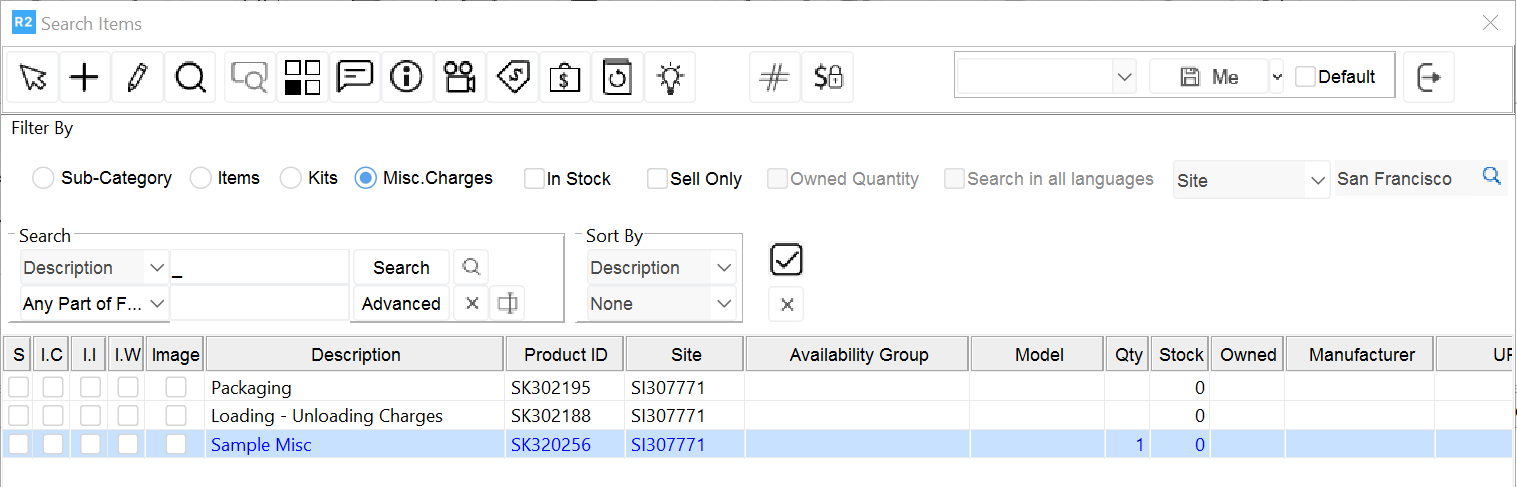
Double click to select the items and use the select key button 
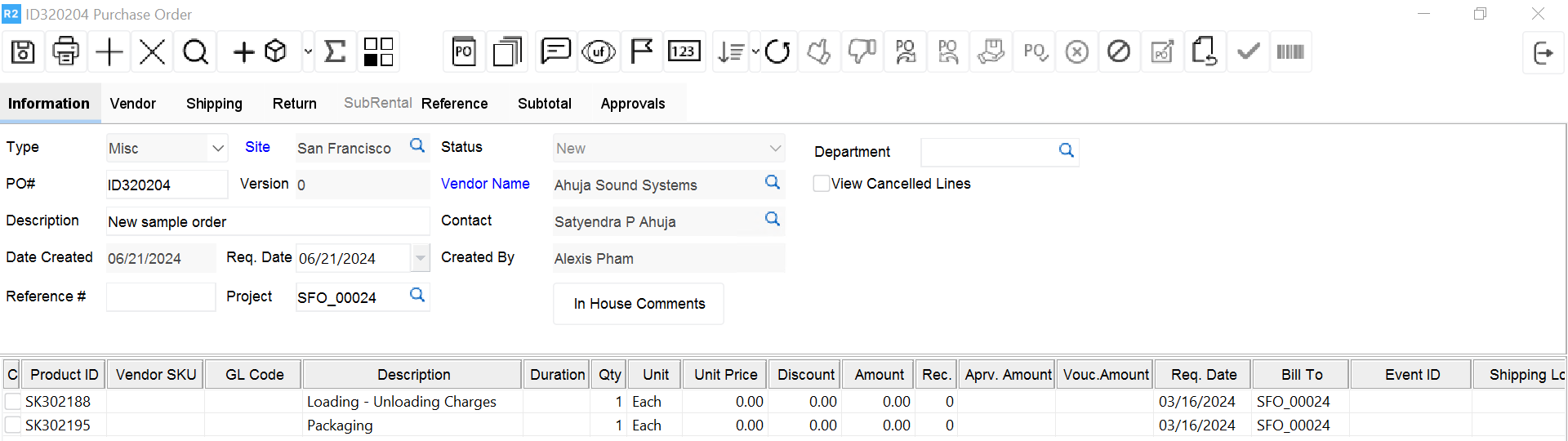
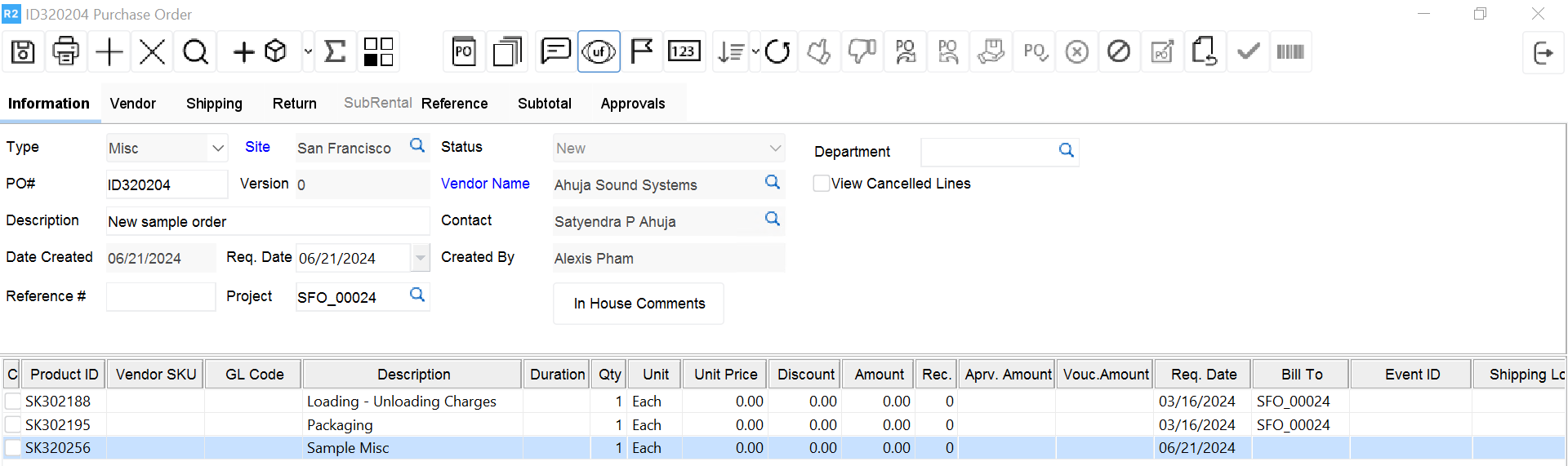
Once in the purchase order, the Bill To Column needs to be populated in order to affect the cost of the order

Highlight the item, click on Bill To Order icon 
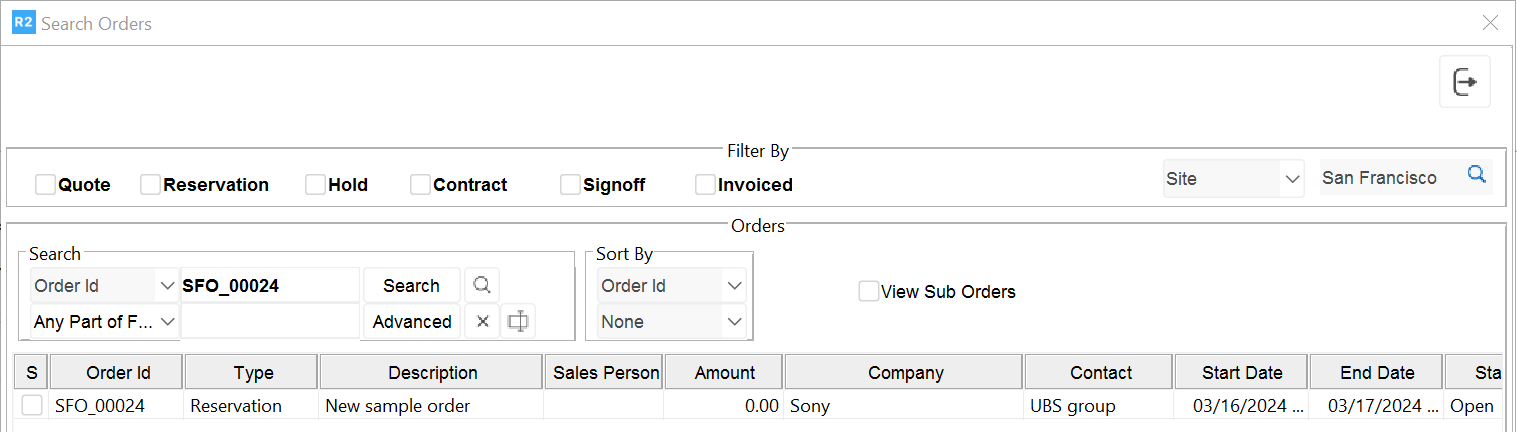
Find the order and double click to select
The row is populated and cost on the order is affected.
