
Reference No: 28981
Details
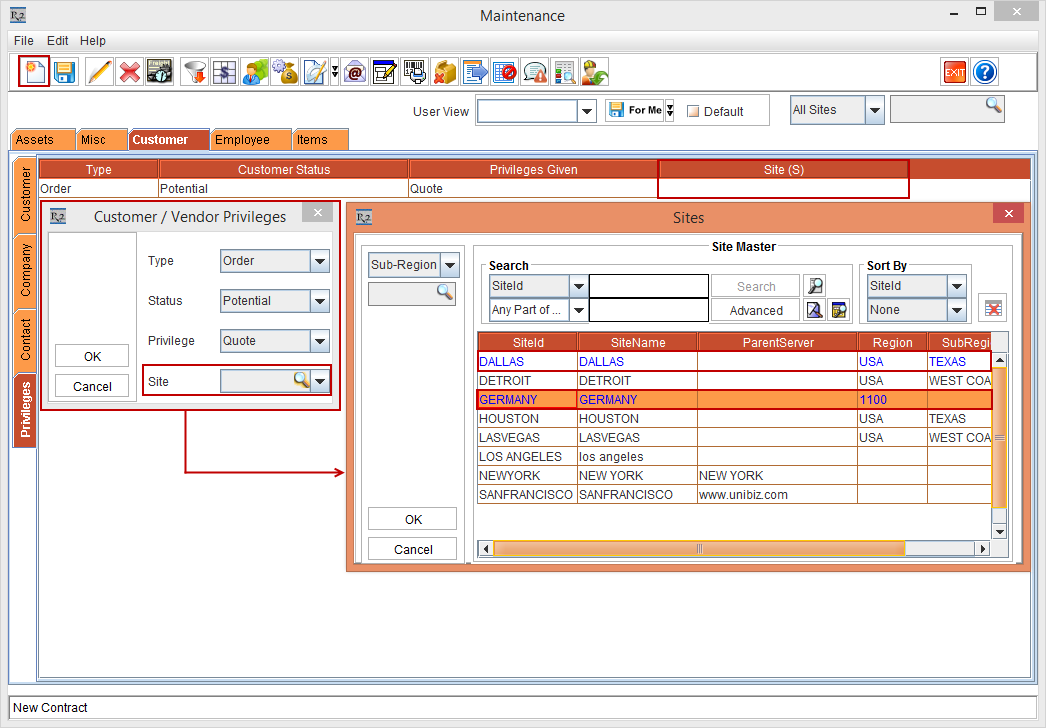
The customer/ vendor approval process is customized by predefining the customer privileges based on the Type, Customer Status, Privileges Given and tagging multiple Site (S) from the Maintenance module > Customer tab > Privileges tab, as shown in Figure 1.0.
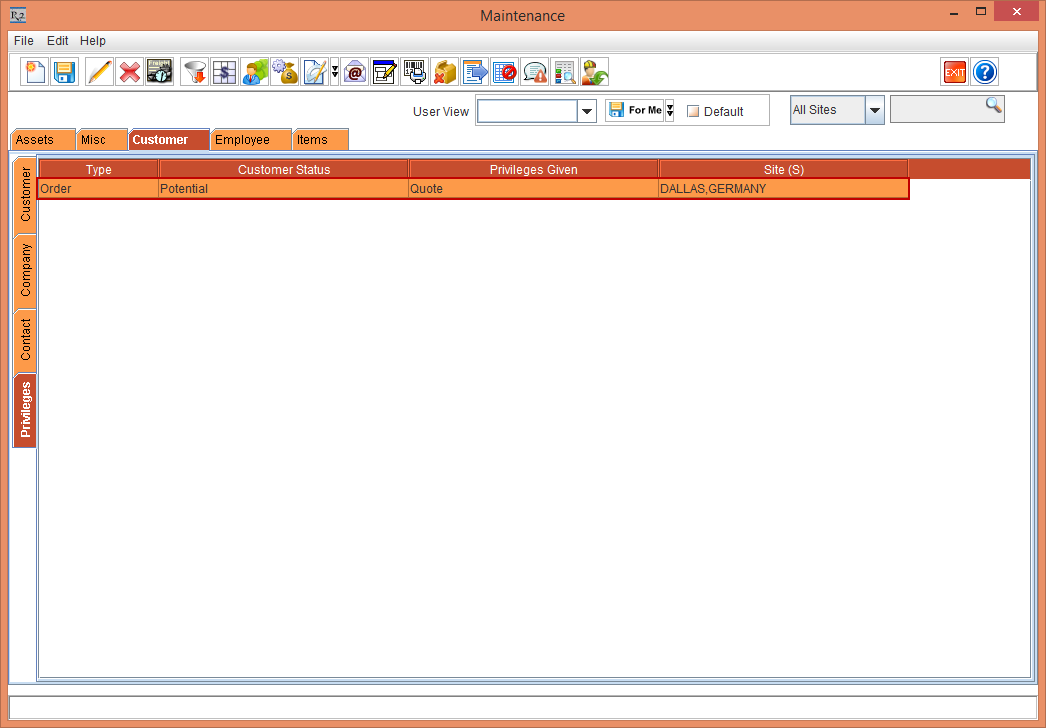
Privileges can be applied to multiple Site (S). The Site (S) column displays the multiple Site (S).
Sample Workflow
Scenario
-
Select the Maintenance module > Customer tab > Privileges tab.
-
Click the New icon. The Customer / Vendor Privileges dialog box is displayed.
-
Select the Type drop-down as Order, the Status drop-down as Potential, and the Privilege drop-down as Quote.
-
Click the Site importable button. The Sites window is displayed, as shown in Figure 1.0.
-
Tag the Site (S) [DALLAS] and [GERMANY] and click the OK button, as shown in Figure 1.0.
-
The Site (S) customer privilege is now applied to the Site (S) [DALLAS] and [GERMANY], as shown in Figure 1.1.
-
Close and relaunch the R2 application with the Site [SANFRANCISCO].
-
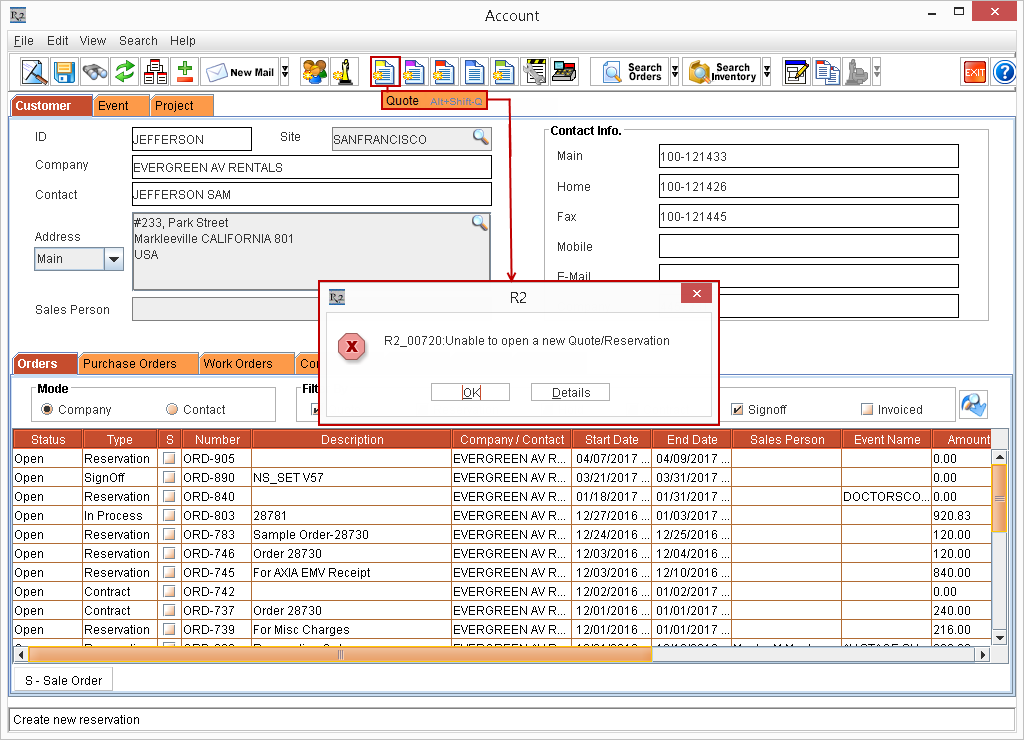
Select the Account module > tag the Company [EVERGREEN AV RENTALS] whose Status is Potential.
-
Click the Quote icon. The system displays a prompt with the message "Unable to open a new Quote/Reservation" as shown in Figure 1.2.
-
Click the Details button. The system displays a prompt with the message "Customer does not have the requisite Privilege" as shown in Figure1.3.
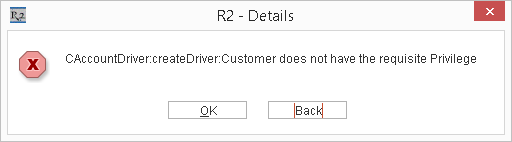
You cannot create a Quote, a Rental Reservation Order or a Meeting Order for the Site [SANFRANCISCO], as the Customer Privileges are defined for the Site (S) [DALLAS] and [GERMANY].
-
Close and relaunch the R2 application with the Site [DALLAS].
-
Select the Account module > tag the Company [EVERGREEN AV RENTALS] whose Status is Potential.
-
Click the Quote icon. The Order Information dialog box is displayed, as shown in Figure 1.4.
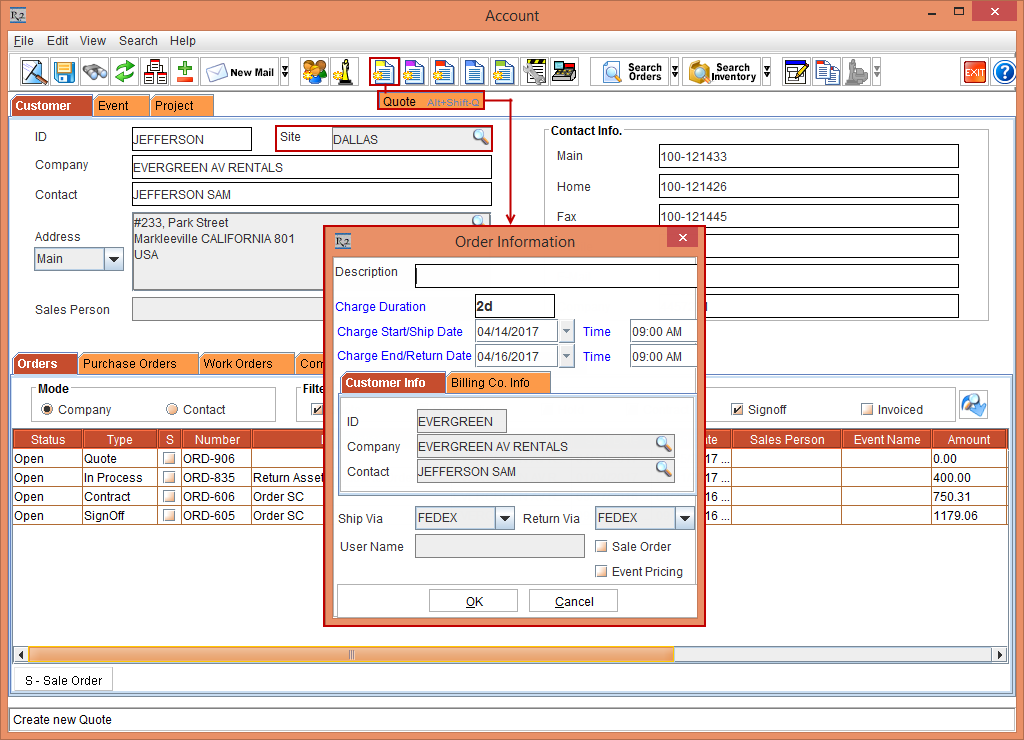
You can create a Quote, a Rental Reservation Order or a Meeting Order for the Site (S) [DALLAS] and [GERMANY], as the Customer Privileges are defined for the selected Site (S).