
Reference No: R2-8648
Version No: 06.00.04-00
Details
Support for Default Customer in POS is provided for the Company with the Category Type as Customer and Both.
The details are explained in the sample workflow given below:
Scenario 1 - POS with Company Type as Intra-Company and Intra-Company Type as All and Sales
Prerequisites
Perform the following the steps:
-
Select the Site [SAN FRANCISCO].
-
Select the Maintenance module > Customer tab > Company tab.
-
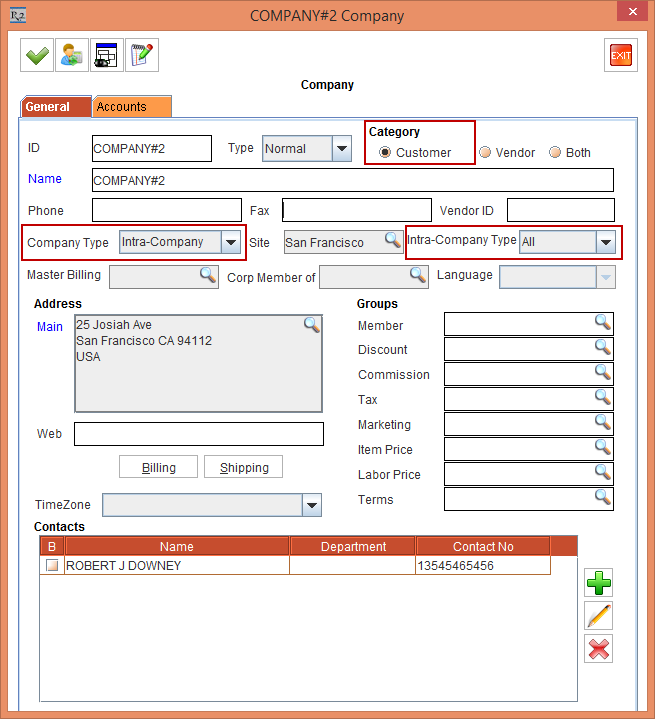
Create a Company [COMPANY#2] with Category as Customer, Company Type drop-down as Intra Company, and Intra-Company Type drop-down as All, as shown in Figure 1.0.
-
Click OK in the COMPANY#2 Company Edit window.
-
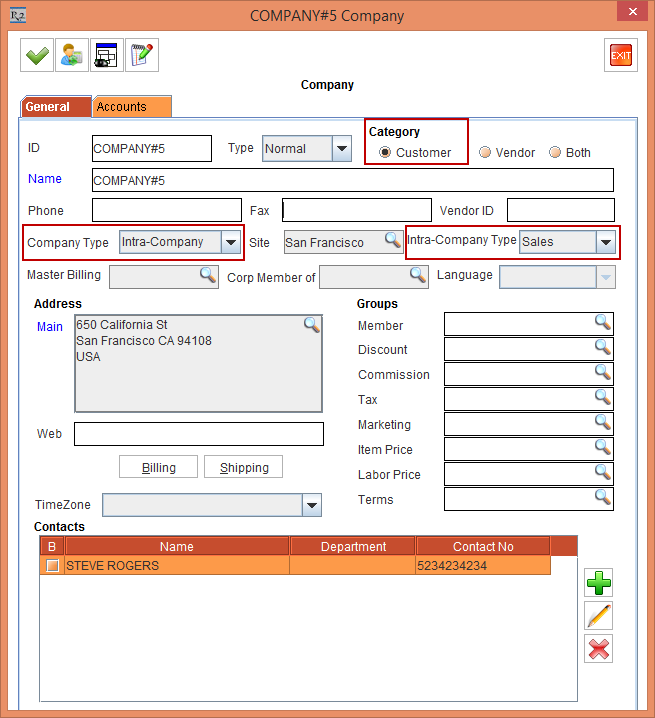
Create another Company [COMPANY#5] with Category as Customer, Company Type drop-down as Intra Company, and Intra-Company Type drop-down as Sales, as shown in Figure 1.1.
-
Click OK in the COMPANY#5 Company Edit window.
-
Exit the Maintenance module.
Sample Workflow
-
Select the Site [SAN FRANCISCO].
-
Select the Account module, click the POS icon and create a Sale Invoice.
-
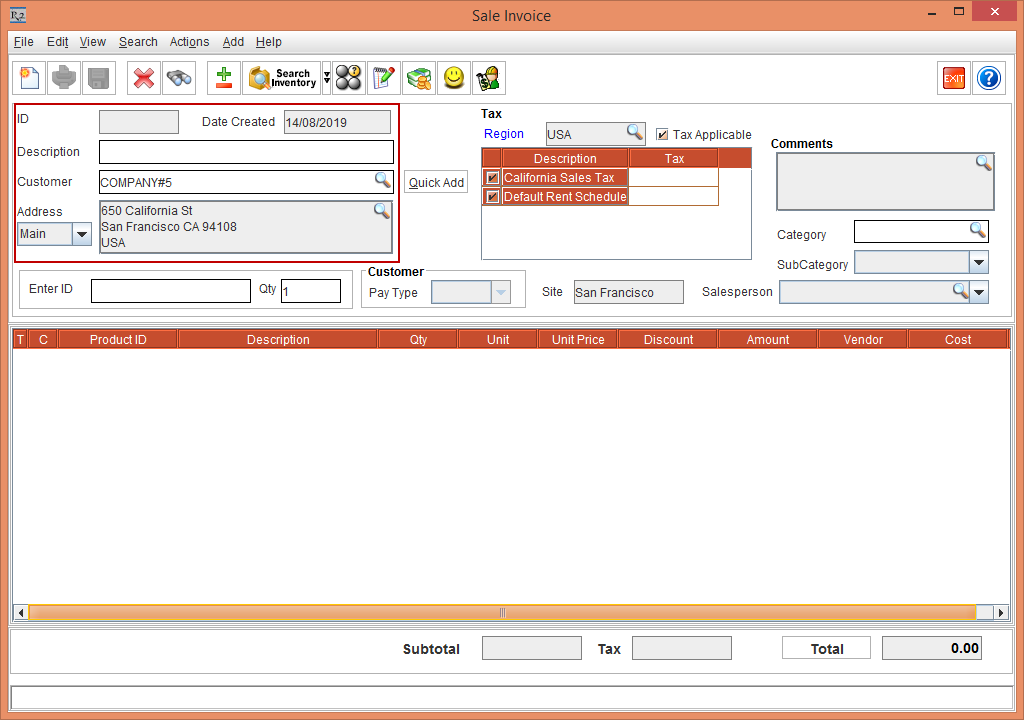
The Customer field in the Sale Invoice defaults to Customer [COMPANY#5], as shown in Figure 1.2.
The Customer [COMPANY#5] comprises of the Company Type [Intra-Company] and Intra-Company Type [Sales].
-
Exit the Sale Invoice window.
Scenario 2 - Creating POS with the Site comprising of the Intra-Company Type as All or Sales
Prerequisites
Perform the following the steps:
-
Select the Site [SAN FRANCISCO].
-
Select the Maintenance module > Customer tab > Company tab.
-
Create a Company [COMPANY#2] with Category as Customer, Company Type drop-down as Intra Company, and Intra-Company Type drop-down as All, as shown in Figure 2.0.
-
Click OK in the COMPANY#2 Company Edit window.
-
Create another Company [COMPANY#5] with Category as Customer, Company Type drop-down as Intra Company, and Intra-Company Type drop-down as Sales, as shown in Figure 2.1.
-
Click OK in the COMPANY#5 Company Edit window.
-
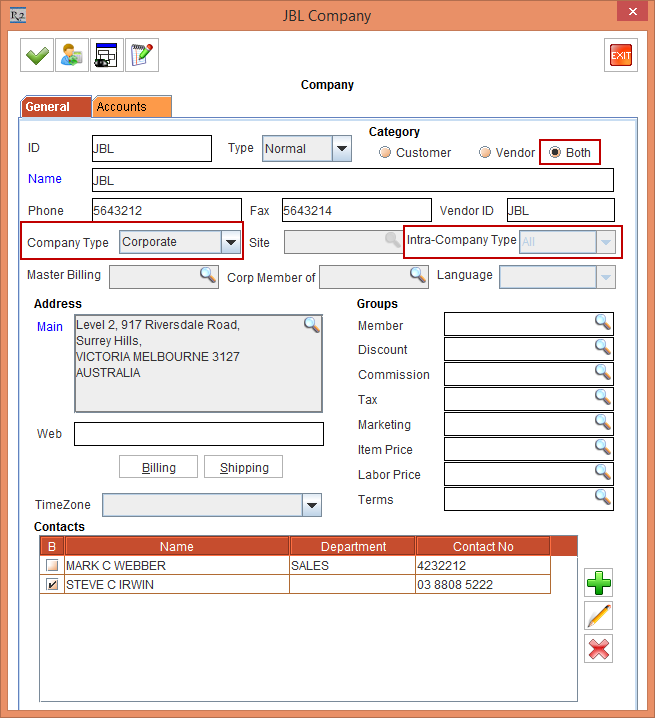
Create another Company [JBL] with Category as Both, Company Type drop-down as Corporate, and Intra-Company Type drop-down as All, as shown in Figure 2.2.
-
Click OK in the JBL Company Edit window.
-
Exit the Maintenance module.
Sample Workflow
-
Select the Site [SAN FRANCISCO].
-
Select the Account module, click the POS icon and create a Sale Invoice.
-
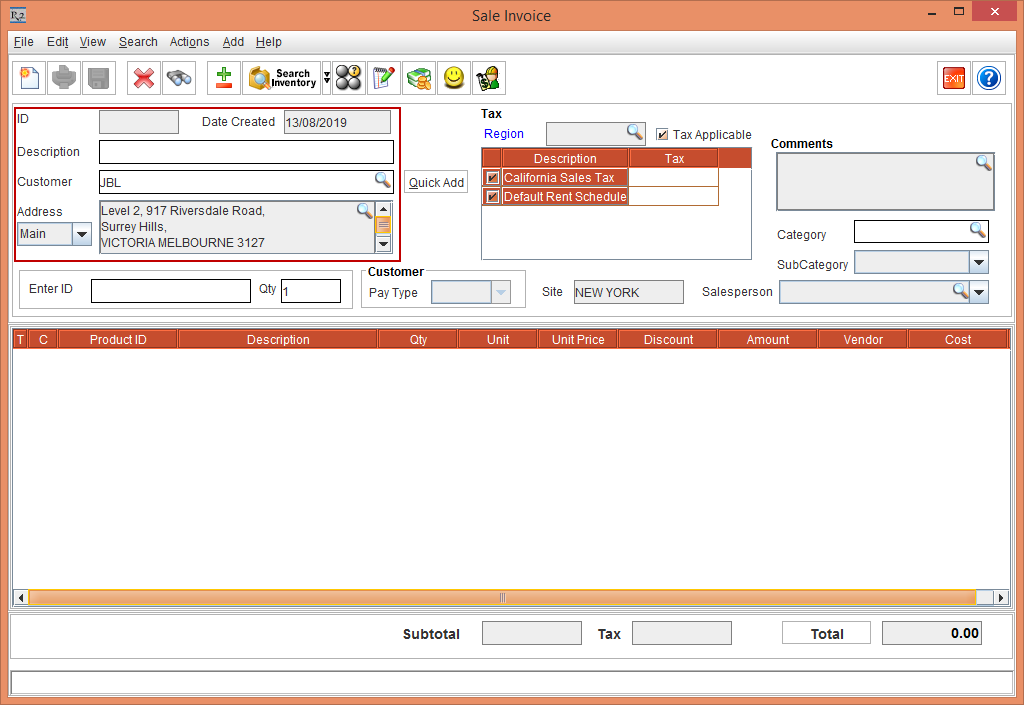
The Customer field in the Sale Invoice defaults to Customer [JBL], as shown in Figure 2.3.
The Customer [JBL] comprises of the Company Type [Corporate] and Intra-Company Type defaulted to [All].
-
Exit the Sale Invoice window.
-
The Default Customer in POS is not supported for Vendor Company Category Type.
-
The POS displays the Customer based on the preference,
-
the Company tagged in the Account window,
-
the Site with the Intra-Company Type as Sales,
-
the Site with the Intra-Company Type as All, and
-
the default Sale customer