
A Receive from Vendor task will be generated for Inventory Purchase Orders.
To receive inventory open the Receive from Vendor task. The inventory purchase order will be displayed.
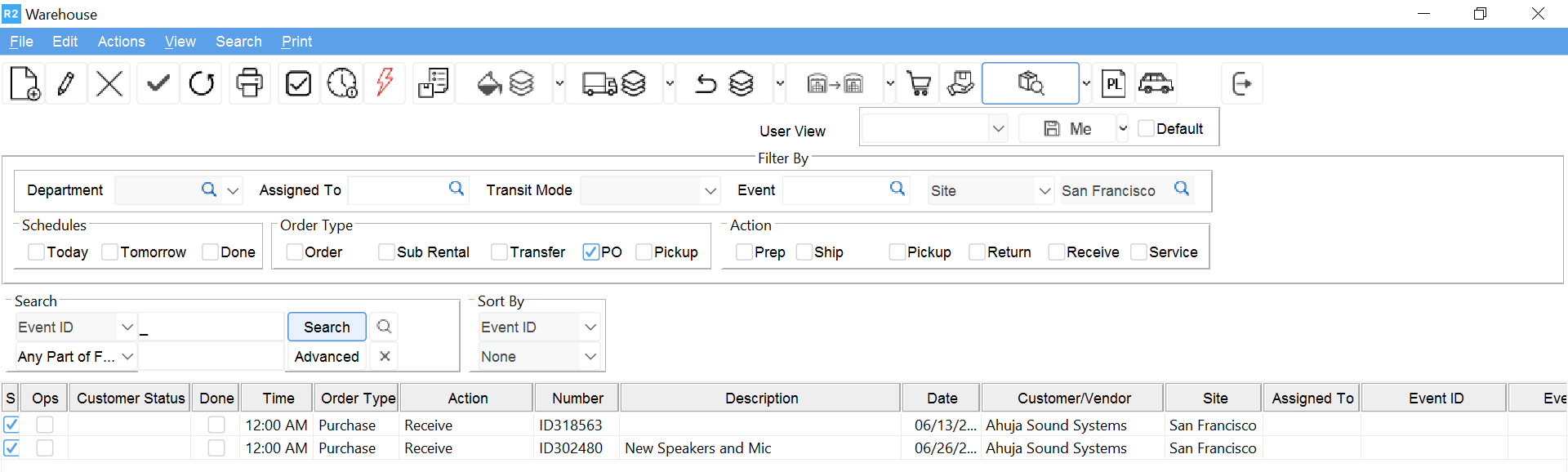
Click the Receive button 

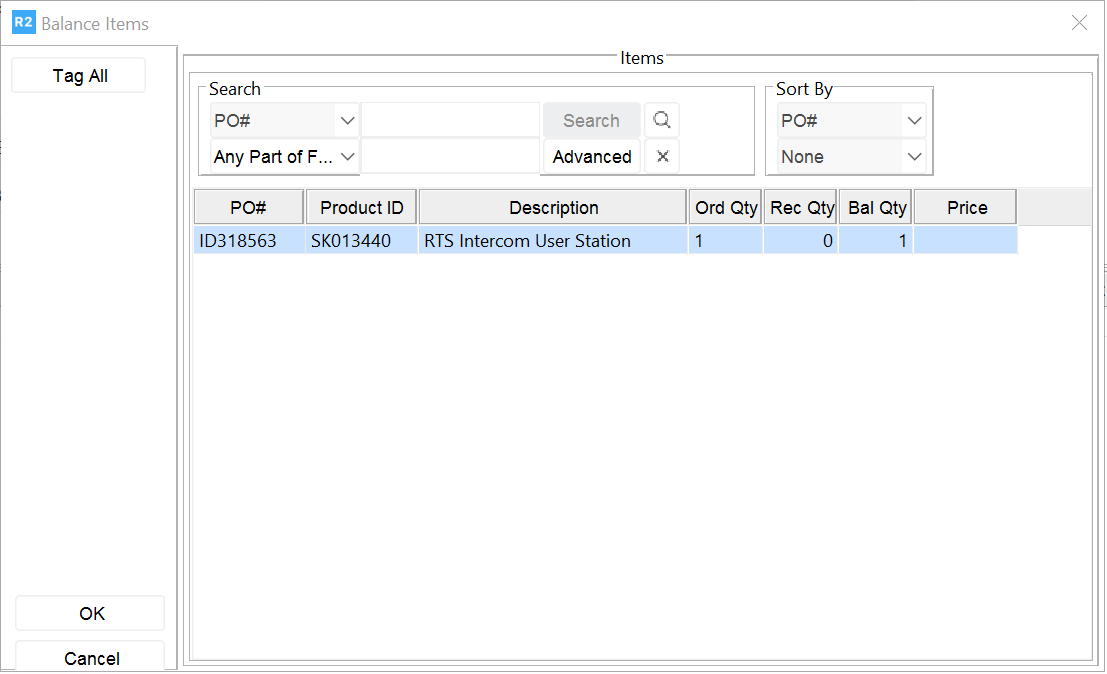
The Items in the PO will be displayed. Tag the items to receive by double clicking on the item or clicking the Tag All button. Then click the OK button.
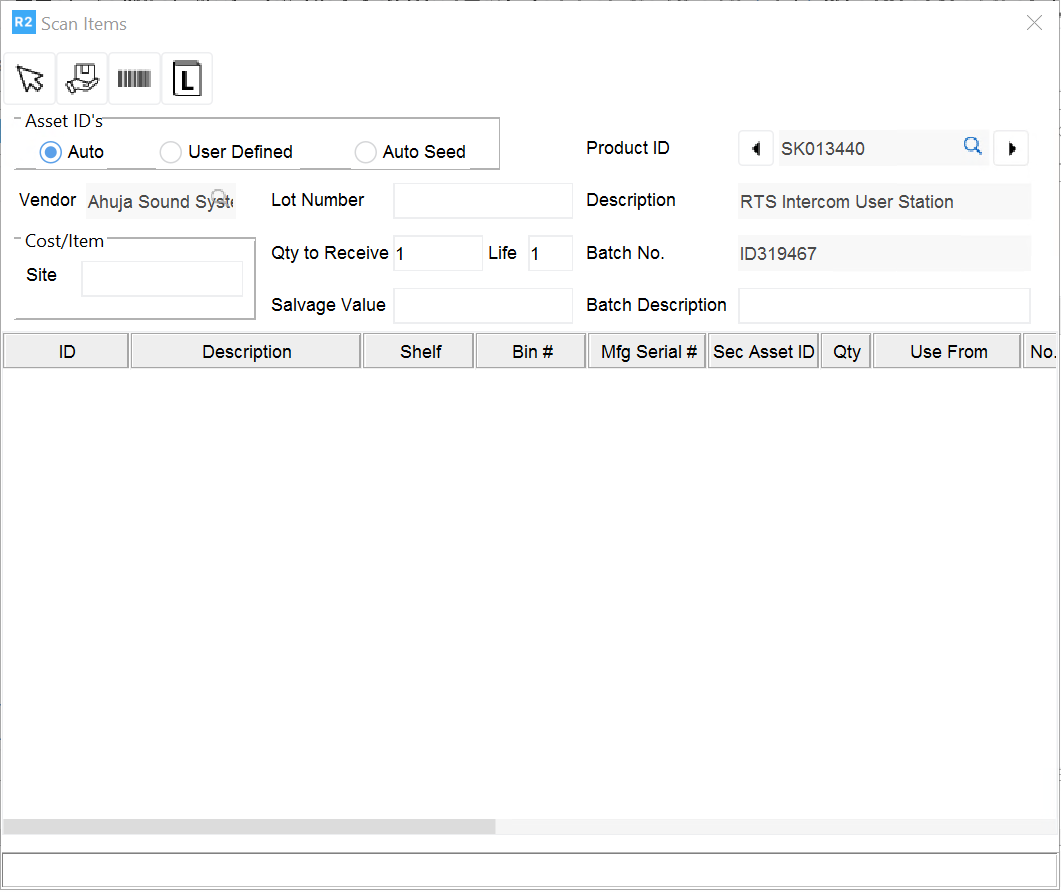
The Receive Items window will be displayed. Select the Auto option to allow R2 to auto generate a barcode number. Then click the Receive Asset 
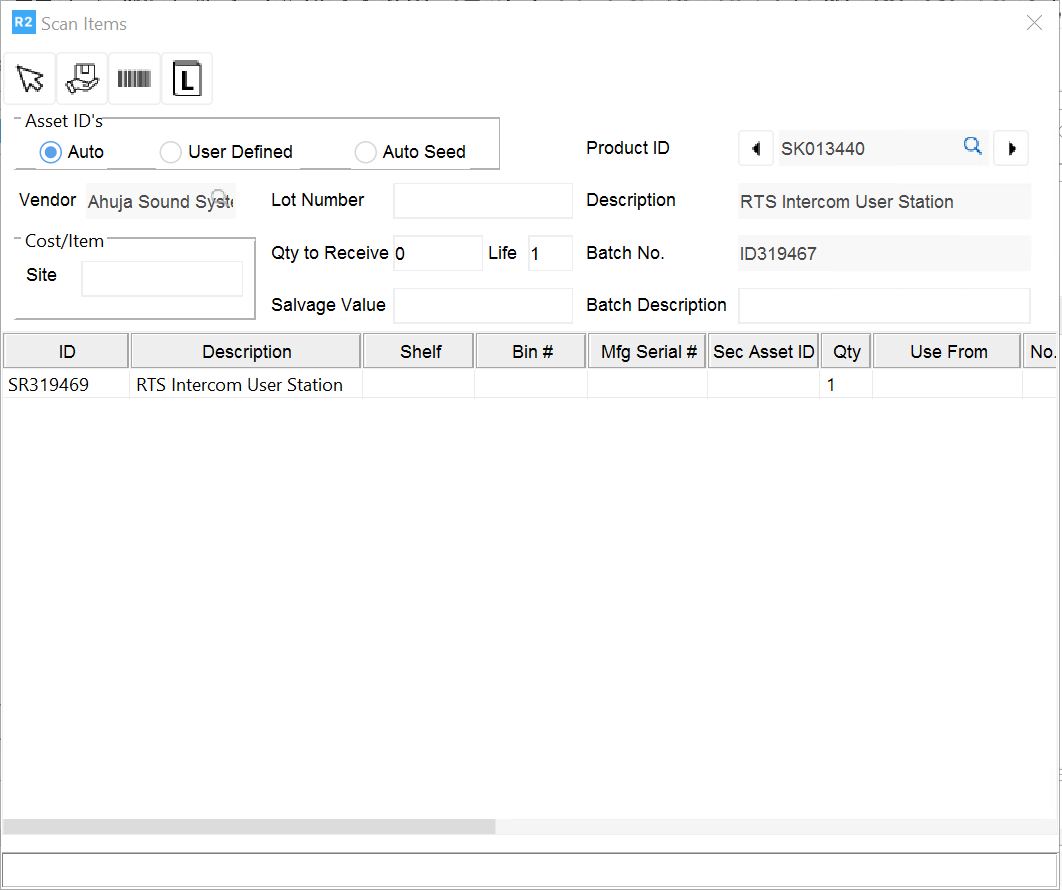
The asset is received and an Asset ID number is assigned. Enter the Shelf and Bin location and the manufacturer serial number in the appropriate fields. Then click the Accept button 
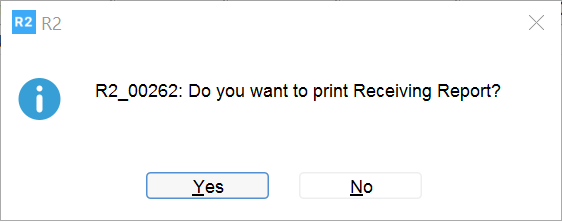
The following prompt will be displayed. Select the Yes option to print the receiving report or No to skip printing the report.
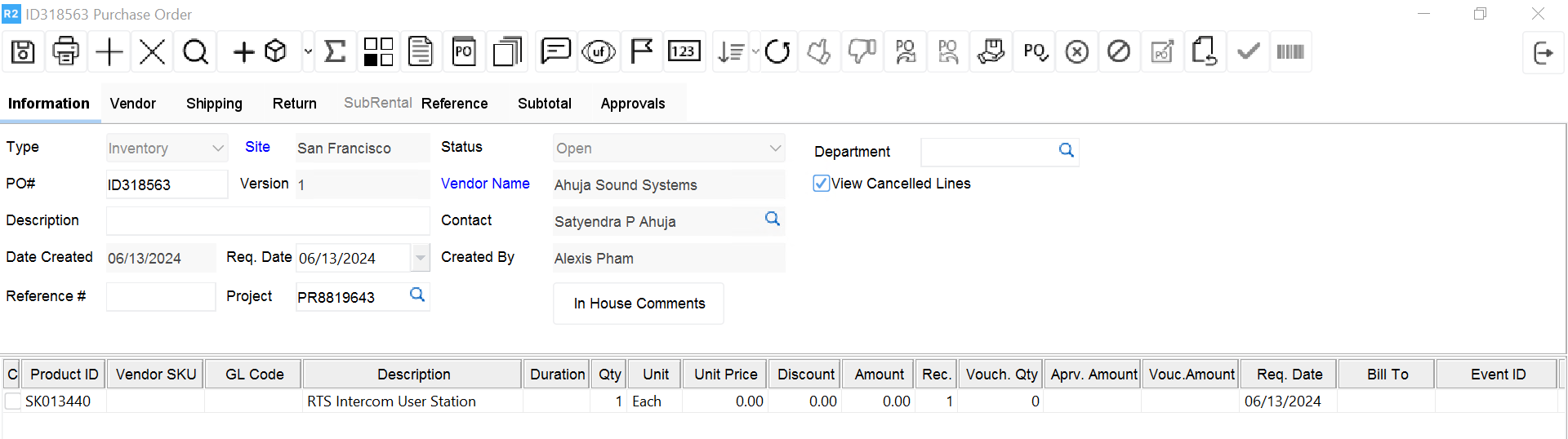
The PO items will be updated to Received.
Click the Exit button 
In order to fill P-Assigned items in an order the item needs to be reserved on the order after receiving.
To reserve a P-Assigned item open the Assign screen 
Right click on the desired item and select Reserve from the pop-up menu. The item will be reserved on the order and ready to be filled.
.png?cb=b2eae2319579bfaf906cc939d54581d8)