
You can mark an item/asset as Damaged though multiple access points in R2. Follow below section to know those.
When you mark an item/asset as Damaged, a ‘Remarks' dialog box displays as shown below for you to provide the reason for marking it as damaged. If you choose to create a Service Work Order (SWO) while marking asset as damaged, the remarks provided will be carried out to SWO> Information> Comments.
Sample Workflow
There are multiple access points where you can mark the item as Damaged. Below explain Warehouse> Return Order case.
-
In Accounts, create Reservation order and add serial items to it.
-
Fill and dispatch the items.
-
Now, the item status is changed to ‘Out’.
-
Open the Return Order, select the item and click Damaged button.
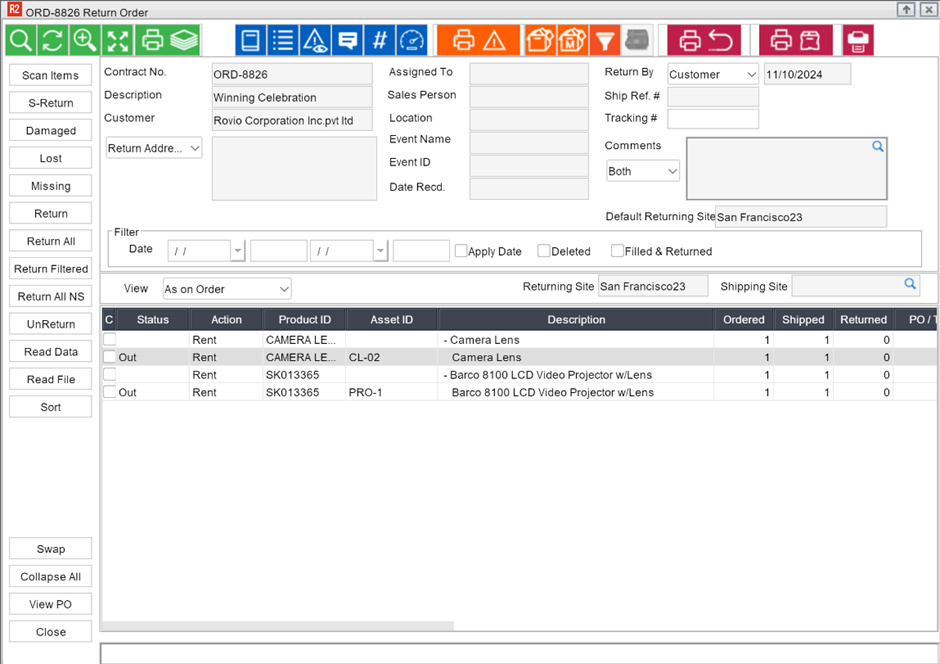
Figure 1.0: Return Order
-
Mark Damaged pop-up displays with options,
-
Return To Inventory: Select this option to return the damaged asset to inventory and flag it as Damaged. Don’t select to leave the asset onsite and flag it as Damaged.
-
Mark As NotAvailable: You can select this option when Return To Inventory is selected. Select this option to mark the asset as Not Available.
-
Create Service Work Order: Select this option to create a SWO for the Damaged asset.
-
When you select OK to proceed further, a Remarks dialog opens to provide the damage remarks to capture what is wrong with the asset.
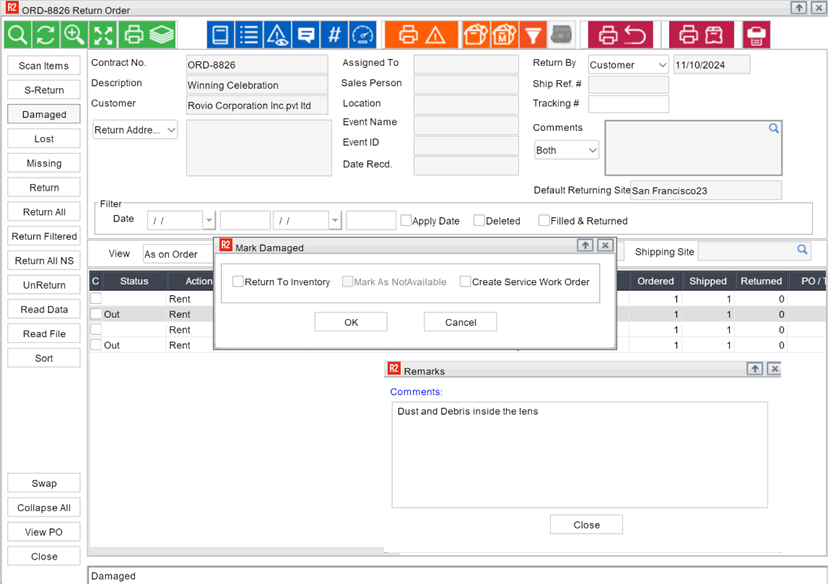
Figure 1.1: Mandatory Remarks
-
If you have chosen to create a SWO, a Service Work Order would have been created. And you can see the remarks that you entered while marking as damaged will be reflecting in the Information tab > comments section.
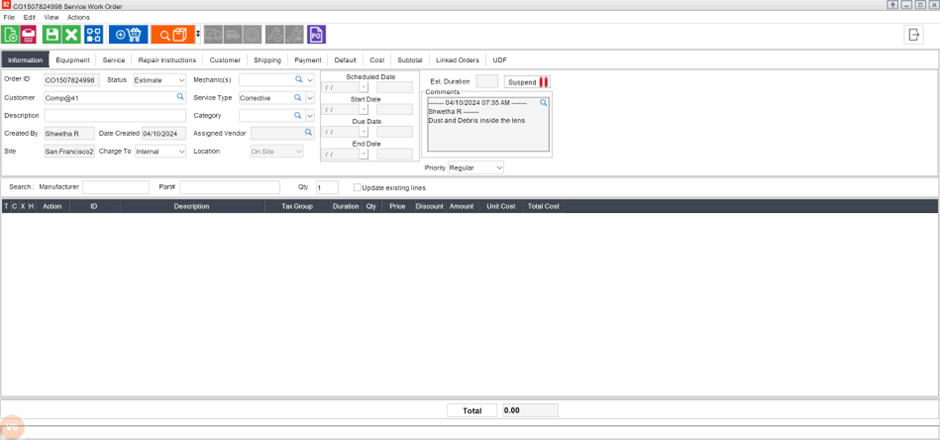
Figure 1.2: Service Work Order created
Access points where item/asset can be marked as Damaged
-
Warehouse > Actions > Mark Asset as Repair
-
Warehouse > Return task > Damaged button
-
Warehouse > Return Multiple Orders (Intelligent Returns) > Damaged button
-
Asset Edit > Damaged flag
-
Kit Asset Edit > Damaged flag
-
Item Edit > Lost/Missing > Damaged
-
Batch Return > select Damaged option > Scan
-
Batch Return > select Damaged option > Detail > Batch Return Order > tag/scan > Close
-
Physical Inventory > Discrepancy > Adjust as Repair
In some of the access points, Remarks are not supported.