
Transfer tasks will be generated for both transfer in and transfer out orders. Two way transfer or Return Transfers will automatically generate a Return transfer task.
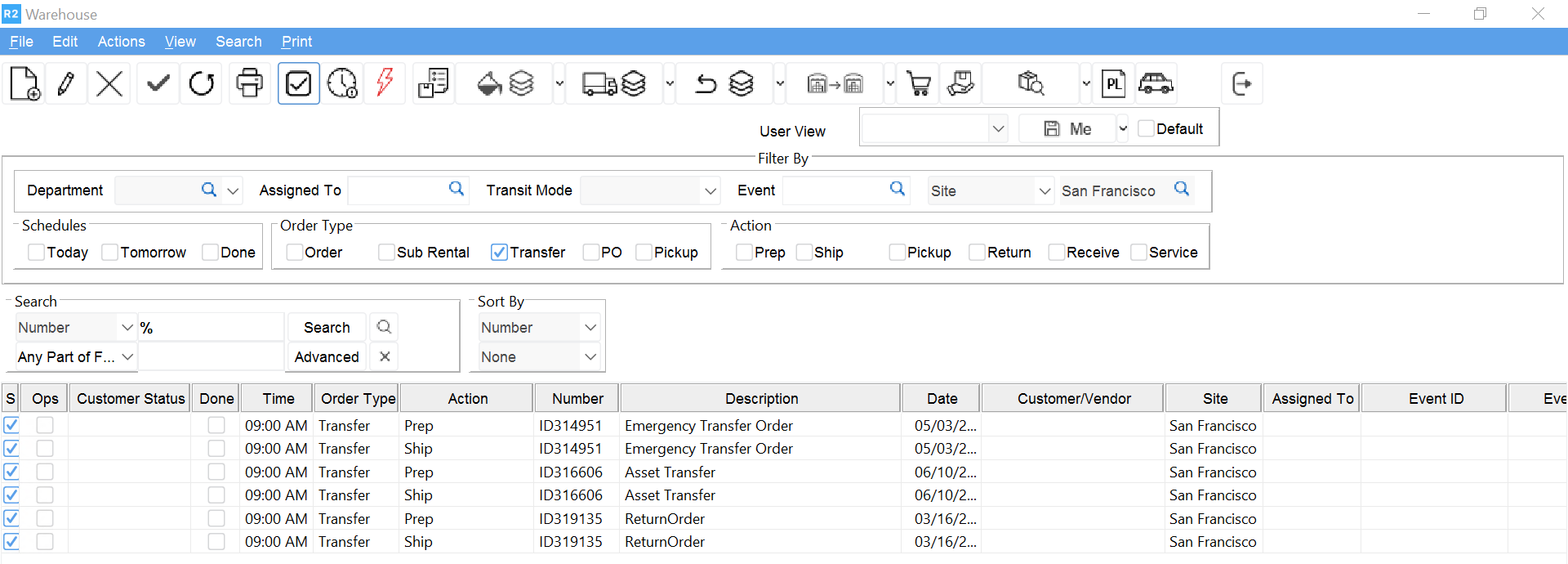
Transfer In orders will have a Receive task. If the order is a two way transfer a Prep and Ship task for the return transfer will also be generated.
Transfer Out orders will have a Prep and Ship task.
For transfer in orders where the Auto Ship/Auto Receive box was checked, the items will be received automatically as soon as the transfer site ships them.
If the transfer is not set to Auto Ship/Auto Receive, receive the items through the Receive task. Before the transfer in items can be received, they must be shipped by the transferee site.
To fill transfer out items:
-
Open the transfer Prep task
-
Click the Fill Items button
-
For serial items, scan the barcode
-
For non-serial items, enter the quantity amount in the Filled column
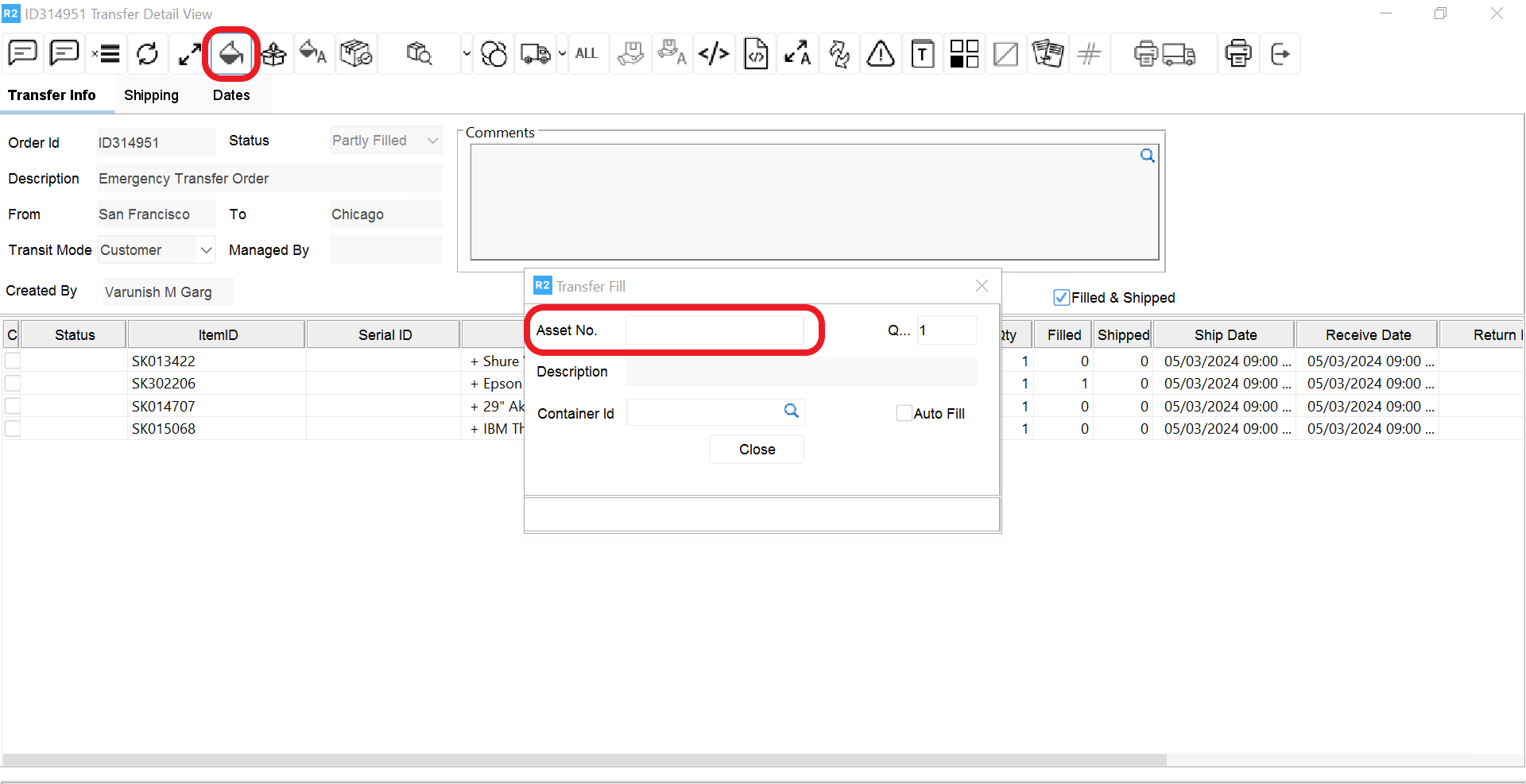
Click the Exit button 
To ship the transfer out items
-
Click the Ship button


After shipping the items, click the Exit button to return to the Warehouse and mark the Ship task as done.
To receive Transfer In items
-
Open the transfer Receive task
-
The transfer order will be displayed
-
Verify that the items were shipped.
-
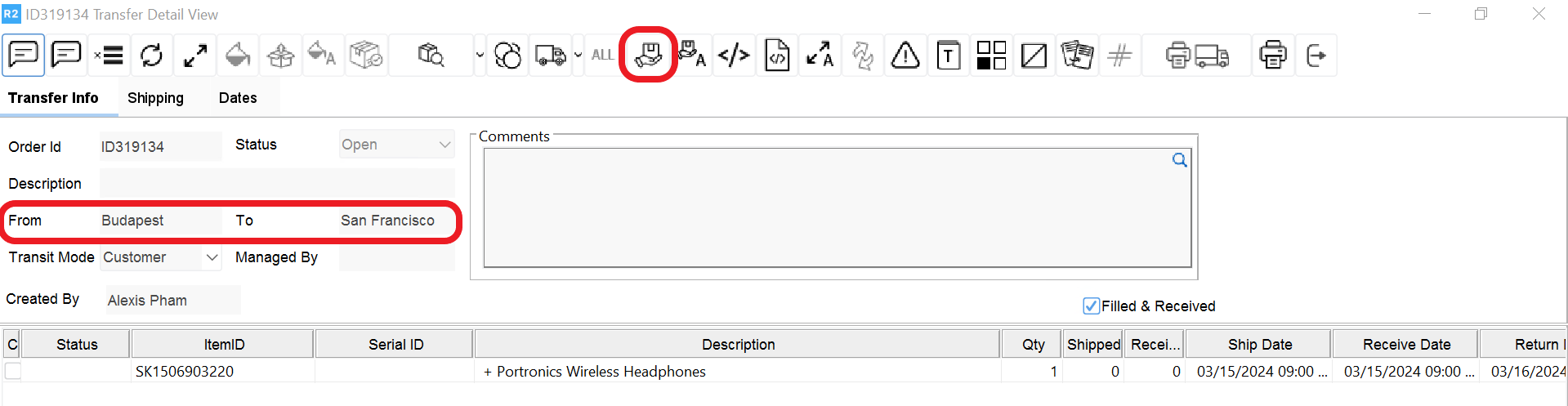
Click the Receive button

-
Scan the items received in the Transfer Receive window.
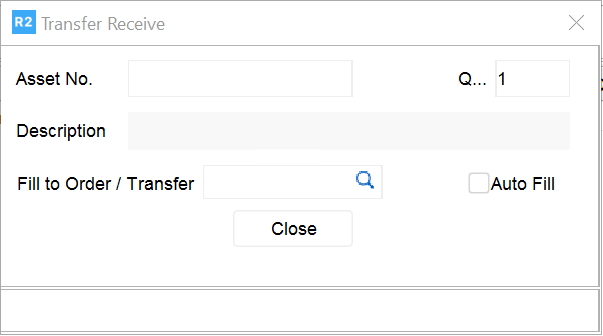
After the transfer is received, click the Exit button 