**This is a custom enhancement**
Content was last updated in 06.01.14-00
Revision History
Version No.
|
Reference No.
|
Changes
|
|
06.01.14-00 |
NA |
New CID Introduced to print total weight of all items added to an Order. |
Details:
Another CID 5302 is introduced to print the total weight of all the products (Item/Kit/Package etc.,) of the Transfer Order. This way, it helps you to plan the truck appropriately.
You have an option to filter the total weight of the products based on the following product status.
-
Filled: To print the total weight of the products which are filled.
-
Shipped: To print the total weight of the products which are shipped.
-
Received: To print the total weight of the products which are received.
-
All: To print the total wight of the products irrespective of the product's status.
Table 1.0: CID details
|
CID |
Description |
Applicable Forms |
Component type |
|
5302 |
Print total weight of all the product based on the status |
1538500 |
20 (DYNAMIC_LABEL) |
-
CID 5302 works only when it is placed below the 60900 grid panel ID.
-
It always prints the whole number because the total weight with fraction is rounded to its nearest value.
Pre-requisites
-
Do the Form setup in the Maintenance Module.
-
Create two items, one with two stocks and the other with no stocks. Also, add the weight for both the items.

Sample Workflow
-
In R2, create a Transfer Order.
-
Add the two items with the created stocks.
-
Two line are added in the Transfer Order. One with 'Reserved' status and the other with 'Not Available' status a shown below.

-
Click Print icon.
-
Select the Form from the dropdown and then again click the Print button.

-
Transfer Order Print Option window displays.
-
Here, you have the option to print the total weight of the items based on the status. Click here to know about the status filters.
-
By default, All status is selected. However, you can change it to other status as well before printing.

-
Click Run by selecting the status value as All.
-
Open the Transfer Order print.
-
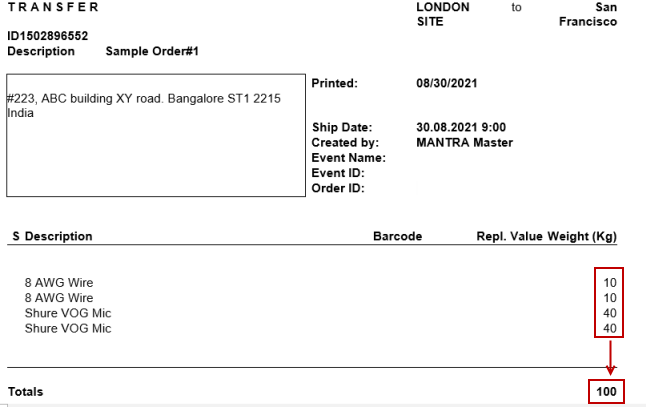
The total weight of all the items irrespective of the status prints as shown below.
-
Similarly, you can print the total weight of shipped/Filled/Received items by selecting the status in the filter.