
Content was last updated in 06.01.16-00
Revision History
Version No.
|
Reference No.
|
Changes
|
|
06.01.16-00 |
R2-17739, R2-17866 |
Support to detect and resolve the pool conflicts |
|
NA |
NA |
Introduction to Conflicts feature |
Many times, when the products sent on Orders do not return on time due to extension on Order dates, product damages, over dues, or transportation delays etc. As obvious, a product not returning on time causes the difference in its availability and affects the processing of other Orders as well.
This scenario of required quantity of a product running short is termed as Conflict.
There are two types of conflict that R2 generates.
-
Positive conflicts
When items are returned earlier than the specified return date on the order, if the same item is sub rented or is not available on another order, it causes a positive conflict.
-
Negative conflicts
When items are not returned on the specified return date on the order, and if the same item is reserved on another order, it causes negative conflicts. The quantity of Item/Asset which is unavailable, is shown in Short quantity column and is displayed in Red (Refer Table 1.0 and 2.0).
How to generate Conflicts?
The below workflow is to get the negative pool conflict.
-
Create two sites [Houston], [Dallas] and tag to the Sub-region [Texas].
-
Create an Item [Tripod stand] with quantity [1] and receive it in a single site [Houston].
-
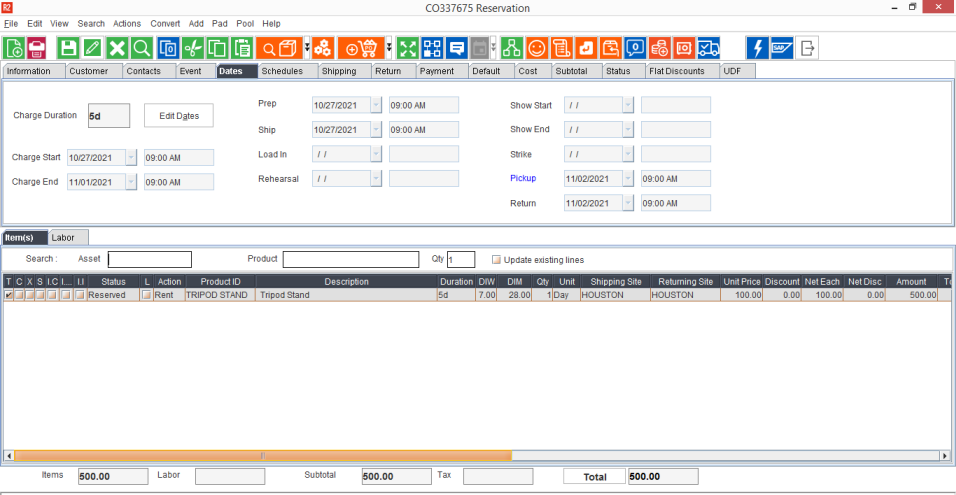
Create an Order [Rockstar Show] in Site [Houston] with the past dates [10/27/2021-11/02/2021].
-
Add the item [Tripod stand].
-
The Item status displays as 'Reserved'.
-
Save the Order.
Figure 1.0: Create Order with past dates
-
Create an Order [Engineer's Day] in Site [Dallas] with the current dates [11/03/2021- 11/08/2021].
-
Add the item [Tripod stand].
-
Item line status displays as 'Not available' due to no stock in the site.
-
Save the Order.
-
-
Click Pool in the menu bar and click Reserve Back to Pool to receive the item from other pool site.
-
The 'Shipping Site' and 'Returning Site' changes to Sub-Region [Texas] for which the site is tagged.
-
Figure 1.1: Create Order with current dates

-
In Site [Houston], open the Order [Rockstar Show] and 'Fill and Ship' the item.
-
The item line status changes to 'Out'.
-
Figure 1.2: Fill and Ship the item

-
Go to Warehouse module, click Conflicts button from the tool bar.
-
By default, you will see home site selected in the Site filter. Change it to the Sub-region/ Region for which you are detecting the conflicts.
-
Click Conflict button to detect the conflicts.
-
The pool status line displays as shown below.
-
Since the item is not yet returned on time, system detects the conflicts for the specific line.
-
Figure 1.3: Negative Conflicts

Figure 1.4: Affected & Inflicted Line details
The following screenshot display the Affected or Inflicted details for conflicts.

Conflicts window
Conflicts window displays you the details of the conflict for deep understanding on which order is affecting and which is the order being affected.
Figure 2.0: Conflicts window
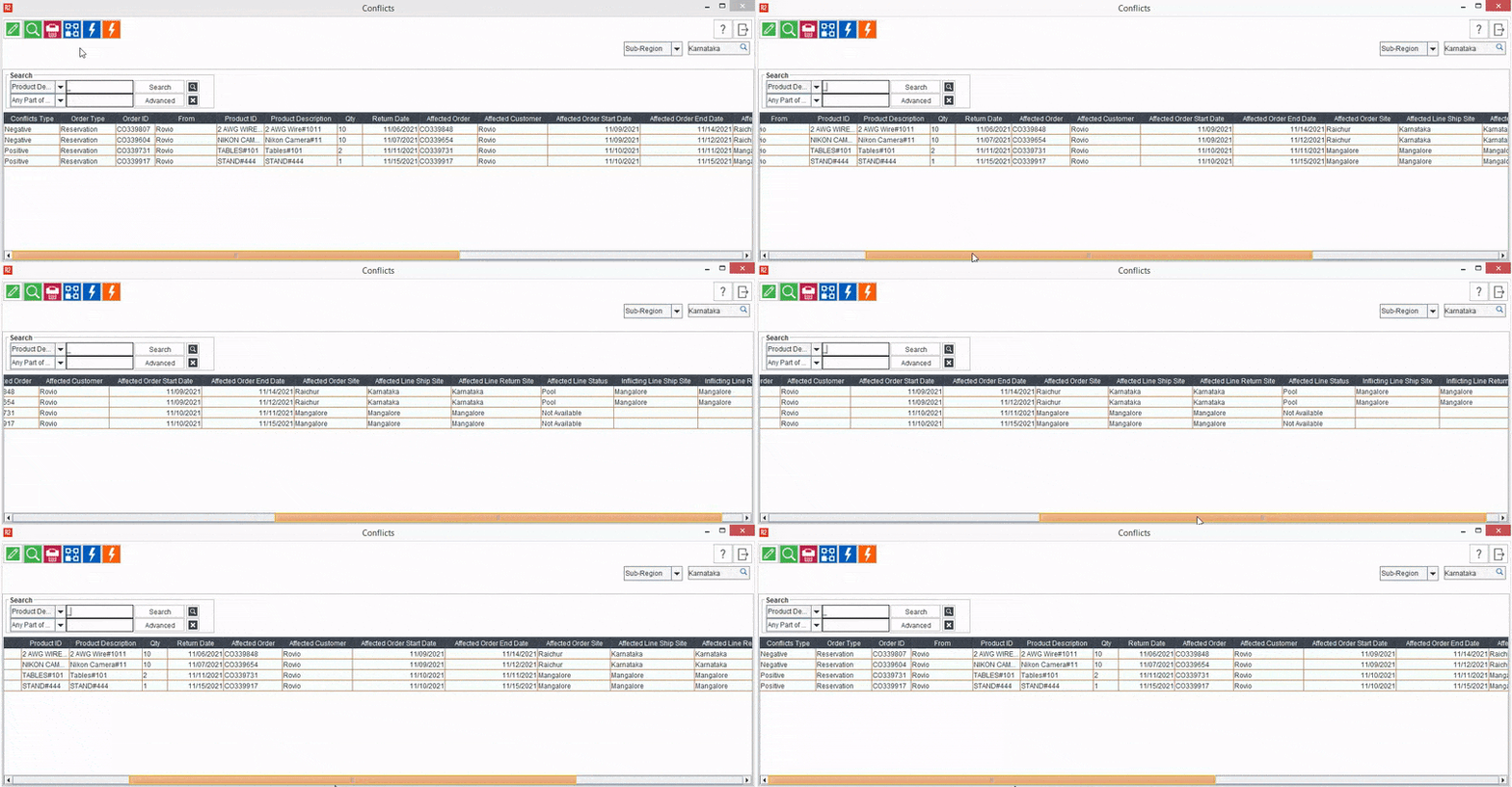
Following are the details that the conflict record displays.
-
Conflicts Type: This column present the two types of conflicts as shown below.
-
Order Type: Displays the type of the Order which is causing the conflict of the Item.
-
Order ID: Displays the ID of the Order which is causing the conflict of the Item.
-
From: Displays the company name of the inflicting Order.
-
Product ID: Displays the product ID.
-
Product Description: Displays the description of the product.
-
Quantity: Displays the shortage of the quantity that caused the conflict.
-
Return Date: Displays the return date of the order which is causing the conflict.
-
Affected Order: Displays the Order ID which is being affected.
-
Affected Customer: Displays the company name of the affected order.
-
Affected Order Start Date: Displays the start date of the affected Order.
-
Affected Order End Date: Displays the end date of the affected Order.
-
Affected Order Site: Displays the site of the affected Order.
-
Affected Line Ship Site: Displays the shipping site of the item line of the affected order.
-
Affected Line return Site: Displays the returning site of the item line of the affected order.
-
Affected Line Status: Displays the status of the item line of the affected order.
-
Inflicting Line Ship Site: Displays the shipping site of the item line which is affecting the order.
-
Inflicting Line return Site: Displays the returning site of the item line which is affecting the order.
How does generating conflict help you?
Conflicts identifies and explains item availability changes occurring after a product was reserved. A Conflict typically occurs when a reserved product becomes unavailable. Most importantly, by generating conflicts, you can see the details of the Inflicting Order* and Affected Order* of the product.
*Inflicting Order — which is affecting the other order where the same product is being allotted.
*Affected Order — which is being affected due to the order where the same product is allotted and not returned for various reasons.
See screenshot to know how these fields are depicted in conflicting order details.
Let's consider the following scenario to understand the concept of Inflicting and Affected Orders.
-
Order# O-111 and O-222 are processed from the same location. The site has 5 quantity each of Item- A, B, and C in stock.
-
O-111, has 5 quantity each of Item- A and Item- B added to it. The Order was processed on 01-11-2021 and was expected to return on 06-11-2021.
-
O-222, has 5 quantity each of Item- B and Item- C required. The Order has 06-12-2021 as its prep date.
-
However on 06-11-2021, the O- 111 has not returned. Therefore the requirement for O- 222 render as incomplete and a conflict occurs as Item- B is not available in required quantity.
-
In such scenario, we mention O- 111 as 'Inflicting Order' and O-222 as 'Affected Order', since the situation created by O-111 is impacting O- 222.
Site Conflicts
You can detect the conflicts for a single site. You will see the site conflicts, only when the conflicts happens on Orders are within the site. To generate the conflicts for a specific site, change the filter in top right corner to Site, choose the specific site from the dropdown, and then click the Conflict button.
Resolving Site conflict
Whenever a conflict occurs at site level, the system prioritizes the conflict resolution on the basis of only one preference criteria.
It considers the PrepDate in Ascending Order as 1st preference and then considers the CreatedDate in Ascending order as 2nd.
For better understanding of the Order preference for conflict resolution, lets go through few scenarios from the given figure.
Table 1.0: Sample Possible - Site Conflict scenarios
|
Order of preference for conflict resolution - PrepDate in Ascending Order (1st), CreatedDate in Ascending (2nd) |
||||||||||||||||
|
|
||||||||||||||||
|
Examples of Conflicts within the same site |
||||||||||||||||
|
Sites: San Francisco and Los Angeles.
|
||||||||||||||||
Scenario#
|
Order Site
|
Line Shipping Site
|
Order#
|
Line Status
|
Qty on Order
|
Order line Prep-Return Dates
|
Short Qty
|
Date Added
|
Order of conflict Resolution
|
Result
|
||||||
|
|
25 |
26 |
27 |
28 |
29 |
30 |
31 |
|
||||||||
|
Scenario 1: All Reserved lines |
|
|
|
|
San Francisco Avail -> |
10 |
5 |
-2 |
-10 |
-5 |
-6 |
-6 |
|
|
|
Order# O-111, O-333, and O-444 show in conflict |
|
San Francisco |
San Francisco |
O-111 |
Reserved |
8 |
|
|
|
|
|
|
|
6 |
27-Oct |
4 |
||
|
San Francisco |
San Francisco |
O-222 |
Reserved |
5 |
|
|
|
|
|
|
|
|
27-Oct |
1 |
||
|
San Francisco |
San Francisco |
O-333 |
Reserved |
7 |
|
|
|
|
|
|
|
2 |
28-Oct |
2 |
||
|
San Francisco |
San Francisco |
O-444 |
Reserved |
8 |
|
|
|
|
|
|
|
8 |
28-Oct |
3 |
||
|
Scenario 2:
|
|
|
|
|
San Francisco Avail -> |
0 |
-1 |
-1 |
-1 |
0 |
10 |
10 |
|
|
|
Order# O-222 shows in conflicts |
|
San Francisco |
San Francisco |
O-111 |
Reserved |
10 |
|
|
|
|
|
|
|
|
28-Oct |
1 |
||
|
San Francisco |
San Francisco |
O-222 |
Reserved |
1 |
|
|
|
|
|
|
|
1 |
27-Oct |
2 |
||
|
Scenario 3:
|
|
|
|
|
San Francisco Avail -> |
-9 |
-9 |
-9 |
-9 |
-9 |
10 |
10 |
|
|
|
Order# O-111 shows in conflicts |
|
San Francisco |
San Francisco |
O-111 |
Reserved |
9 |
|
|
|
|
|
|
|
9 |
28-Oct |
2 |
||
|
San Francisco |
San Francisco |
O-222 |
Reserved |
10 |
|
|
|
|
|
|
|
|
27-Oct |
1 |
||
|
Scenario 4:
|
|
|
|
|
San Francisco Avail -> |
-10 |
-10 |
-10 |
-10 |
-10 |
10 |
10 |
|
|
|
Order# O-222 shows in conflicts |
|
San Francisco |
San Francisco |
O-111 |
Reserved |
10 |
|
|
|
|
|
|
|
|
27-Oct |
1 |
||
|
San Francisco |
San Francisco |
O-222 |
Reserved |
10 |
|
|
|
|
|
|
|
10 |
28-Oct |
2 |
||
Scenario 2: All Reserved lines
To resolve the conflict, system first validates if the conflict is happened in a site or pool.
Since the conflict is within the site in scenario 2, system checks the second order of preference i.e, prep dates for both the Orders.
Since the Order# O-111 prep date is earlier, system resolves the conflict of the O-111 and then the O-222.
Pool Conflicts:
You can detect the conflicts within the pool sites. When the conflicts happens on Orders which could be based across multiple sites, but all the sites involved are a member of the same sub-region, and thereby forming a pool of sites. To generate the conflicts, change the filter in top right corner to Sub-Region, choose the specific Sub-Region from the dropdown, and then click the conflict button.
Resolving Pool conflict
Whenever a conflict occurs at Pool level, the system automatically prioritizes the conflict resolution on the basis of following two preference criterion.
The first criteria is selected on the basis of where (location) the conflict has happened.
-
First priority = Site conflicts
-
Second priority = Pool conflicts
The second criteria is selected on the basis of when (event timeline) the conflict has happened.
-
First Priority = Prep Date in ascending sequence
-
Second Priority = Order created Date in ascending sequence
The below figure lists all the possible scenarios of Negative Conflicts with Pool conflicts and the Order of preference for conflict resolution.
Table 2.0: Sample Possible - Pool Conflict scenarios
Order of preference for conflict resolution
|
||||||||||||||||
|
|
||||||||||||||||
Examples of Negative Conflicts impacted by Pool scenario
|
||||||||||||||||
Pool: California has 2 sites
|
||||||||||||||||
|
Scenario# |
Order Site |
Line Shipping Site |
Order# |
Line Status |
Quantity On Order |
Order line Prep-Return Date |
Short Quantity |
Date Added |
Order of conflict Resolution |
Result |
||||||
|
|
25 |
26 |
27 |
28 |
29 |
30 |
31 |
|
||||||||
|
Scenario 1:
|
|
|
|
|
Pool Avail -> |
-2 |
-2 |
-2 |
15 |
15 |
15 |
15 |
|
|
|
Order# O-333 shows in conflict |
|
San Francisco |
San Francisco |
O-111 |
Reserved |
10 |
|
|
|
|
|
|
|
|
28-Oct |
1 |
||
|
Los Angeles |
Los Angeles |
O-222 |
Reserved |
5 |
|
|
|
|
|
|
|
|
29-Oct |
2 |
||
|
Los Angeles |
California |
O-333 |
Pool |
2 |
|
|
|
|
|
|
|
2 |
27-Oct |
3 |
||
|
Scenario 2:
|
|
|
|
|
Pool Avail -> |
-30 |
-30 |
-30 |
15 |
15 |
15 |
15 |
|
|
|
Order# O-111, O-222, and O-333 shows in conflicts |
|
San Francisco |
San Francisco |
O-111 |
Reserved |
15 |
|
|
|
|
|
|
|
5 |
28-Oct |
1 |
||
|
Los Angeles |
Los Angeles |
O-222 |
Reserved |
15 |
|
|
|
|
|
|
|
10 |
29-Oct |
2 |
||
|
Los Angeles |
California |
O-333 |
Pool |
15 |
|
|
|
|
|
|
|
15 |
27-Oct |
3 |
||
|
Scenario 3:
|
|
|
|
|
Pool Avail -> |
5 |
0 |
-2 |
8 |
13 |
15 |
15 |
|
|
|
Order# O-333 shows in conflict |
|
San Francisco |
San Francisco |
O-111 |
Reserved |
10 |
|
|
|
|
|
|
|
|
28-Oct |
1 |
||
|
Los Angeles |
Los Angeles |
O-222 |
Reserved |
5 |
|
|
|
|
|
|
|
|
28-Oct |
2 |
||
|
Los Angeles |
California |
O-333 |
Pool |
2 |
|
|
|
|
|
|
|
2 |
27-Oct |
3 |
||
|
Scenario 4:
|
|
|
|
|
Pool Avail -> |
-2 |
-2 |
-2 |
15 |
15 |
15 |
15 |
|
|
|
Order# O-222 shows in conflicts |
|
San Francisco |
San Francisco |
O-111 |
Reserved |
10 |
|
|
|
|
|
|
|
|
28-Oct |
1 |
||
|
Los Angeles |
Los Angeles |
O-222 |
Reserved |
7 |
|
|
|
|
|
|
|
2 |
27-Oct |
2 |
||
|
Scenario 5:
|
|
|
|
|
Pool Avail -> |
5 |
-5 |
-12 |
-2 |
8 |
15 |
15 |
|
|
|
Order# O-111 and O-333 shows in conflict |
|
San Francisco |
California |
O-111 |
Pool |
10 |
|
|
|
|
|
|
|
10 |
27-Oct |
3 |
||
|
San Francisco |
San Francisco |
O-222 |
Reserved |
10 |
|
|
|
|
|
|
|
|
28-Oct |
1 |
||
|
Los Angeles |
Los Angeles |
O-333 |
Reserved |
7 |
|
|
|
|
|
|
|
2 |
28-Oct |
2 |
||
|
Scenario 6:
|
|
|
|
|
Pool Avail -> |
10 |
-5 |
-10 |
-5 |
10 |
15 |
15 |
|
|
|
Order# O-222 shows in conflicts |
|
Los Angeles |
California |
O-111 |
Pool |
5 |
|
|
|
|
|
|
|
|
27-Oct |
2 |
||
|
San Francisco |
California |
O-222 |
Pool |
15 |
|
|
|
|
|
|
|
10 |
28-Oct |
3 |
||
|
San Francisco |
San Francisco |
O-333 |
Reserved |
5 |
|
|
|
|
|
|
|
|
28-Oct |
1 |
||
|
Scenario 7:
|
|
|
|
|
Pool Avail -> |
10 |
-5 |
-15 |
-10 |
5 |
15 |
15 |
|
|
|
Order# O-222 and O-333 shows in conflicts |
|
Los Angeles |
California |
O-111 |
Pool |
5 |
|
|
|
|
|
|
|
|
27-Oct |
1 |
||
|
San Francisco |
California |
O-222 |
Pool |
15 |
|
|
|
|
|
|
|
5 |
27-Oct |
2 |
||
|
San Francisco |
California |
O-333 |
Pool |
10 |
|
|
|
|
|
|
|
10 |
27-Oct |
3 |
||
|
Scenario 8:
|
|
|
|
|
Pool Avail -> |
-15 |
-15 |
-15 |
15 |
15 |
15 |
15 |
|
|
|
Order# O-222 and O-333 show in conflict |
|
San Francisco |
California |
O-111 |
Pool |
5 |
|
|
|
|
|
|
|
|
27-Oct |
1 |
||
|
Los Angeles |
California |
O-222 |
Pool |
15 |
|
|
|
|
|
|
|
5 |
27-Oct |
2 |
||
|
San Francisco |
California |
O-333 |
Pool |
10 |
|
|
|
|
|
|
|
10 |
27-Oct |
2 |
||
|
Scenario 9:
|
|
|
|
|
Pool Avail -> |
-30 |
-30 |
-30 |
15 |
15 |
15 |
15 |
|
|
|
Order# O-111 and O-222 show in conflicts |
|
Los Angeles |
California |
O-111 |
Pool |
15 |
|
|
|
|
|
|
|
15 |
29-Oct |
3 |
||
|
San Francisco |
California |
O-222 |
Pool |
15 |
|
|
|
|
|
|
|
15 |
28-Oct |
2 |
||
|
San Francisco |
California |
O-333 |
Pool |
15 |
|
|
|
|
|
|
|
|
27-Oct |
1 |
||
|
Scenario 10:
|
|
|
|
|
Pool Avail -> |
5 |
0 |
-10 |
0 |
5 |
15 |
15 |
|
|
|
Order# O-333 shows in conflicts |
|
Los Angeles |
California |
O-111 |
Pool |
10 |
|
|
|
|
|
|
|
|
27-Oct |
1 |
||
|
San Francisco |
California |
O-222 |
Pool |
5 |
|
|
|
|
|
|
|
|
27-Oct |
2 |
||
|
San Francisco |
California |
O-333 |
Pool |
10 |
|
|
|
|
|
|
|
10 |
27-Oct |
3 |
||
|
Scenario 11:
|
|
|
|
|
Pool Avail -> |
-10 |
-10 |
-10 |
15 |
15 |
15 |
15 |
|
|
|
Order# O-333 shows in conflicts |
|
Los Angeles |
California |
O-111 |
Pool |
10 |
|
|
|
|
|
|
|
|
27-Oct |
1 |
||
|
San Francisco |
California |
O-222 |
Pool |
5 |
|
|
|
|
|
|
|
|
27-Oct |
2 |
||
|
San Francisco |
California |
O-333 |
Pool |
10 |
|
|
|
|
|
|
|
10 |
28-Oct |
3 |
||
|
Scenario 12:
|
|
|
|
|
Pool Avail -> |
0 |
0 |
0 |
15 |
15 |
15 |
15 |
|
|
|
Order# O-222 shows in conflicts |
|
San Francisco |
San Francisco |
O-111 |
Reserved |
8 |
|
|
|
|
|
|
|
|
28-Oct |
1 |
||
|
Los Angeles |
Los Angeles |
O-222 |
Reserved |
7 |
|
|
|
|
|
|
|
|
27-Oct |
2 |
||
|
Scenario 13:
|
|
|
|
|
Pool Avail -> |
-2 |
-2 |
-2 |
15 |
15 |
15 |
15 |
|
|
|
Order# O-222 and O-333 show in conflicts |
|
San Francisco |
San Francisco |
O-111 |
Reserved |
8 |
|
|
|
|
|
|
|
|
27-Oct |
1 |
||
|
Los Angeles |
Los Angeles |
O-222 |
Reserved |
3 |
|
|
|
|
|
|
|
2 |
28-Oct |
2 |
||
|
Los Angeles |
Los Angeles |
O-333 |
Reserved |
6 |
|
|
|
|
|
|
|
|
27-Oct |
3 |
||
-
Scenario 2: Reserved + Pool lines
For all the three Orders, the prep dates are same and need 15 stock items.
In this case, system first resolves the conflict for site level orders, Hence Order# O-111 and Order# O-222 takes preference.
Again, since the prep dates for both the orders are same, system considers the date on which the Order was created.
Hence, within the site level orders, system resolves the Order# O-111 first. since the created date for that order is earliest one among the two site level orders.
Next, the system proceeds to resolve for Order# O-222 since it is next in line for site level conflict.
In the end, the system picks Order# O-333 since its is pool order and carries the least preference as per the defined criteria.
-
Scenario 7: All Pool lines
Since all the Orders O-111, O-222, and O-333 has pool lines, system considers the prep date in ascending sequence to resolve the conflict.
-
Scenario 11: All Pool lines and same prep date
Since all the Orders O-111, O-222, and O-333 has pool lines and prep dates and created date are same, system resolves them on the basis on the timeline sequence they were created.
If Site restriction is defined for an employee
Additionally, if the Site policy is defined for an employee, only the records belonging to the allowed site displays in the conflicts window.
Table 3.0: Conflicts records displays based on the site policy
Site tagged in Site Policy
|
Conflicts displayed in Conflicts window for the employee
|
|
Region |
Employee can view the conflict records for the allowed region. |
|
Sub-Region |
Employee can view the conflict records for the allowed sub-region. |
|
Site |
Employee can view the conflict records for the allowed site. |
|
All Sites |
Employee can view all the conflicts regardless of the Site/ Sub-Region/ Region. |
Along with site policies defined, employee is allowed to view the conflict records for the site tagged on employee edit window as well.
The Site Policy defined makes no difference for conflicts generation. System just controls the visibility of the data of the logged in employee based on the site policy