
Content was last updated in 06.01.17-00
Revision History
Version No.
|
Reference No.
|
Changes
|
|
06.01.17-00 |
R2-17740 and R2-17895 |
Change in Design how PAT Testing is executed. |
|
NA |
NA |
Content ported from previous release pertaining to same topic. |
Multi-Language support has been provided to all the skip prompt messages in PAT.
Sample Workflow
-
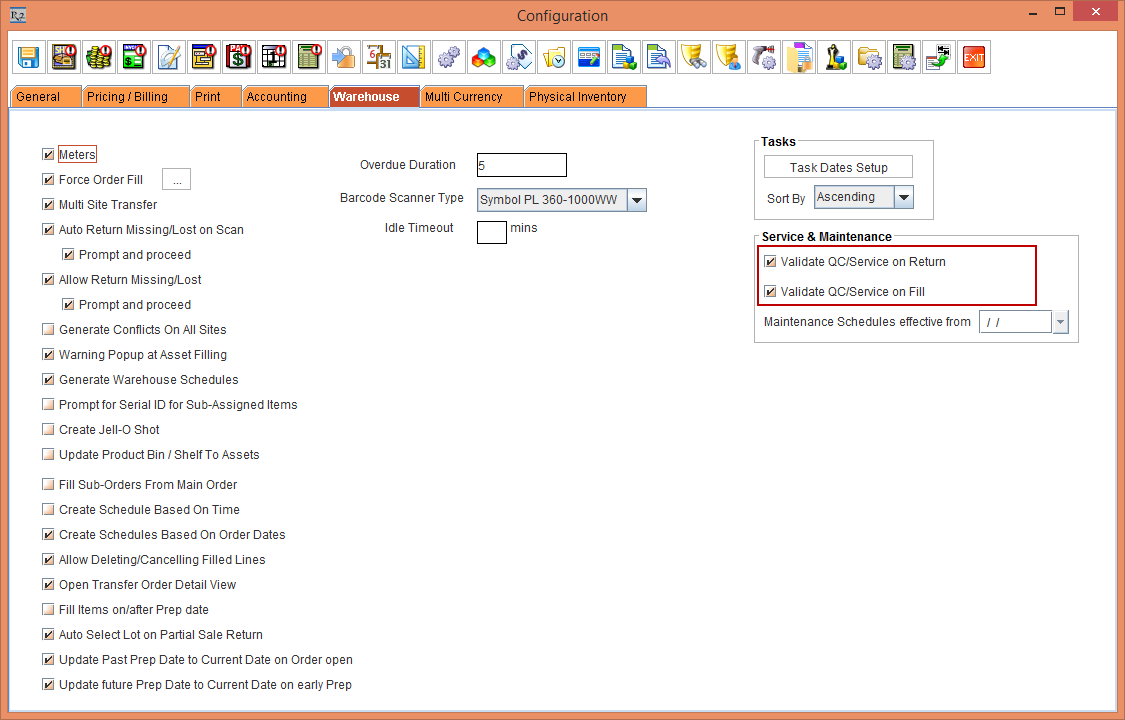
Select the Warehouse tab > select the check boxes Validate QC/Service on Return and Validate QC/Service on Fill, shown in Figure 8.0
-
Save and exit the Configuration module.
-
Relaunch the R2 Application.
-
Select the Maintenance module > click the Multi-Language Messages button. The Multi-Language Captions window is displayed.
-
Select the MessageCode [R2_01555] with the Message Description "Asset is due for Service. Do you want to mark it as QC Needs Service as per its Maintenance setup?"
-
Enter the Description in the French column as [L'actif est dû pour le service. Voulez-vous le marquer comme QC Needs Service conformément à sa configuration de maintenance?], as shown in Figure 8.1.

-
Save and Exit the Multi-Language Captions window.
-
Relaunch the R2 Application.
-
Create a serial Item [CRANE#P].
-
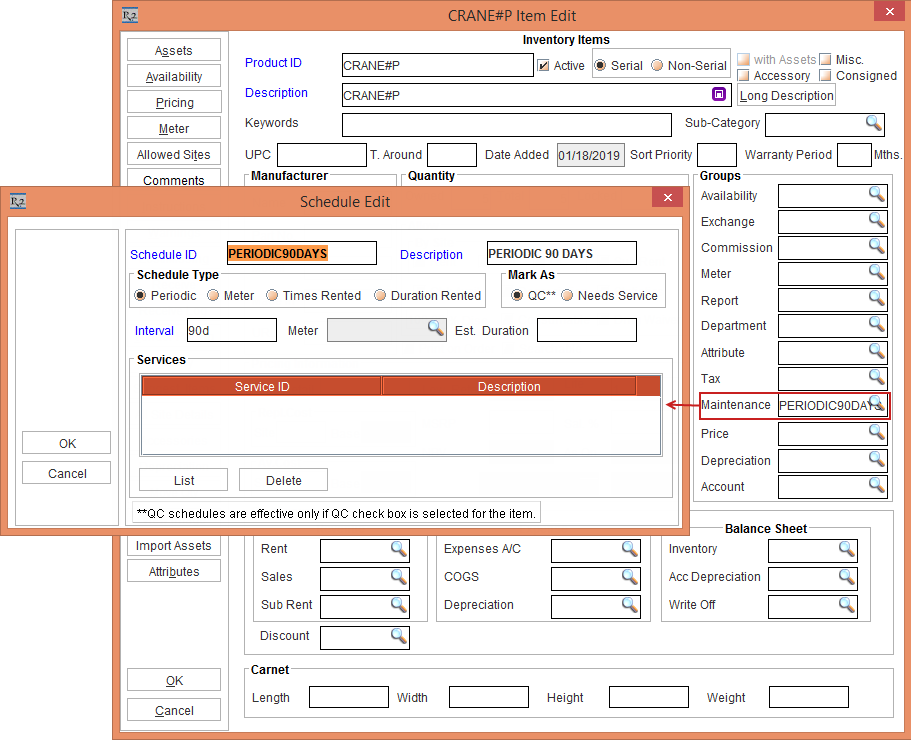
Tag Maintenance Group [PERIODIC90DAYS] with Maintenance Schedule Periodic 90Days to Item [CRANE#N], as shown in Figure 8.2.
-
Receive the Assets [CRANE#P01] and [CRANE#P02] for [CRANE#P] on the Date [18-Jan-2019]. Based on Maintenance setup, the Asset is on QC on [18-April- 2019].
-
On the Date [19-April-2019], reserve two quantity of [CRANE#P] on [ORD-1319] from [19-April- 2019] to [29-April- 2019].
-
On the Date [19-April-2019] open the Prep Task of [ORD-1320] and scan the Asset [CRANE#P01] that is in QC Status to fill it. The system displays a prompt with the message, “R2_10555:Asset is due for Service. Do you want to mark it as QC Needs Service as per its Maintenance setup?" with the "Skip this prompt for all the Assets scanned during this session" check box with the Yes, Skip Service & Fill, Suspend & Fill, and Do Nothing buttons, as shown in the Figure 8.3.

Select Yes option to Fill the Asset.
-
Select Skip Service & Fill option will skip the Service and fills the Asset .
-
Select Suspend & Fill option will suspend the Service and fills the Asset.
-
Select the Do Nothing option will not do anything to the Asset.
-
Select the "Skip this prompt for all the Assets scanned during this session" check box to skip the prompt for all the Assets in all the future scans in the same session.
-
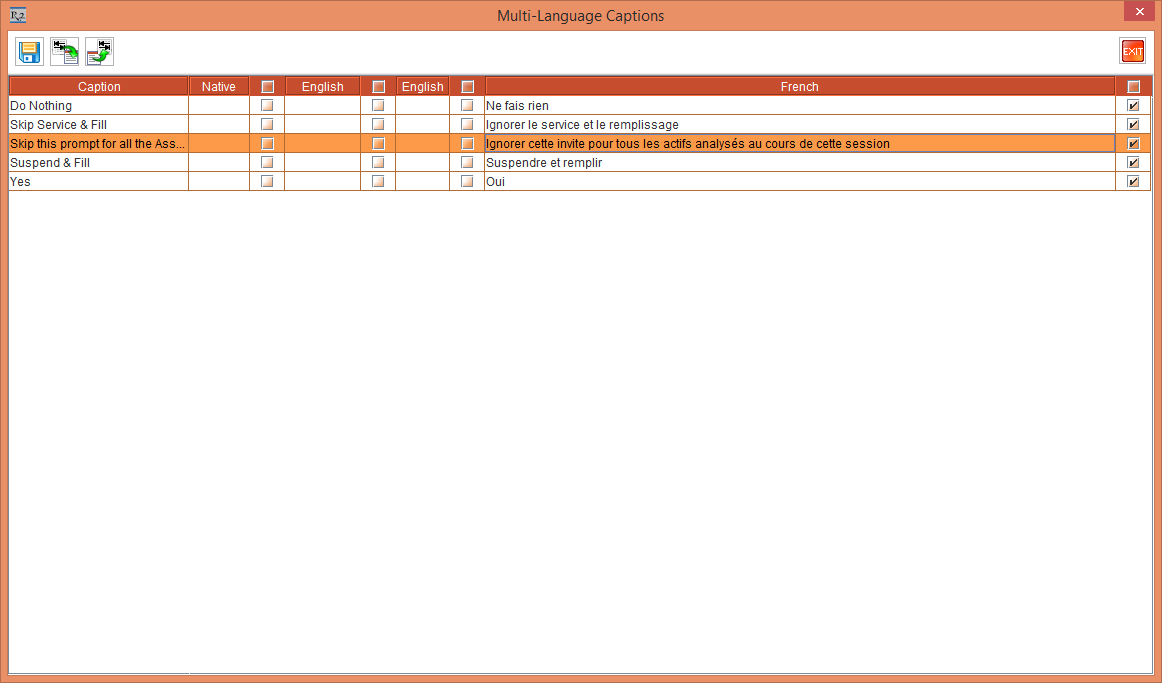
Press the F8 button from the Keyboard. The Multi-Language Captions window is displayed. Enter a Description and enable the French column, by clicking the check box, as shown in Figure 8.4.
-
Click Save and Exit the Multi-Language Captions window.
-
Close the Fill Order window and Ship the Item [CRANE#P].
-
From the R2 Launchpad, select the Language drop-down as French, as shown in Figure 8.5.

-
Select the Account module. The Accounts window is displayed.
-
Select the Search Orders button > Search Orders window > Search and open the Order [ORD-1320].
-
On the Date [18-April-2019] open the Prep Task of [ORD-1320] and scan the Asset [CRANE#P01].
-
The system displays a prompt with the Multi-Language Caption applied to the message “L'actif est dû pour le service. Voulez-vous le marquer comme QC Needs Service conformément à sa configuration de maintenance?" with "Ignorer cette invite pour tous les actifs analysés au cours de cette session" check box and [Oui], [Ignorer le service et le remplissage], [Suspendre et remplir], and [Ne fais rien] buttons, as shown in the Figure 8.6.

-
Select the "Ignorer cette invite pour tous les actifs analysés au cours de cette session" check box and click the Oui button.
-
Close the Fill Order window.
-
Save and Exit the Order [ORD-1320].
The Multi-Language support has been implemented for additional Prompts and Messages as follows:
-
Messages: The Multi-Language in the prompt messages is implemented by modifying the messages in the desired Language from the Maintenance module > click the Multi-Language Messages button > Multi-Language Captions window.
-
Skip Prompt Check Box Messages and Buttons: The Multi-Language in the Skip Prompt check box messages and the buttons in the prompt is implemented by modifying the messages in the desired Language from the Multi-Language Captions window that is displayed by pressing the F8 button from the Keyboard.
The below table briefs the Multi-Language implementation in the Prompts and Messages:
Table 1.0 Multi-Language implementation for Additional PAT Messages
|
Sl No. |
Messages |
|
|
R2_01735:Asset [ASSET_ID] is OUT on Order# [ORDER_ID] and will be Returned on [ORDER_LINE_END_DATE]. Would you like to Return and Fill? |
|
|
R2_01736:The Asset [ASSET_ID] is OUT on Order# [ORDER_ID] and is due for service, Do you want to Return and mark it as QC/Needs Service? |
|
|
R2_01737:Some of the Assets on Order [ORDER_ID] needs QC/Service. Do you want to ignore QC/Service and import? |
|
|
R2_01738:Order belongs to [ORDER_SITE] site. Do you want to return it to [WAREHOUSE_SITE] site? |
|
|
R2_01739:Product [PRODUCT_ID] belongs to [ORDER_SITE] site. Do you want to Return it to [WAREHOUSE_SITE] site? |
|
|
R2_01740:Asset [ASSET_ID] is [ASSET_STATUS] on Order [ORDER_ID]. The Asset needs QC/Service. Do you want to ignore QC/Service and fill? |
|
|
R2_01741:Asset [ASSET_ID] is [ASSET_STATUS]. The Asset needs QC/Service. Do you want to ignore QC/Service and fill? |
|
|
R2_01742:Asset [ASSET_ID] is in Repair status. Are you sure to transfer? |
|
|
R2_01743:Asset [ASSET_ID] is marked as Damaged. Are you sure to transfer? |