
The user can swap any asset thorough the Fill Order and Return Order window.
To Swap Assets in Fill Order
-
Click on the item line in Order Fill which you want to swap
-
Click the Swap button in the window.
-
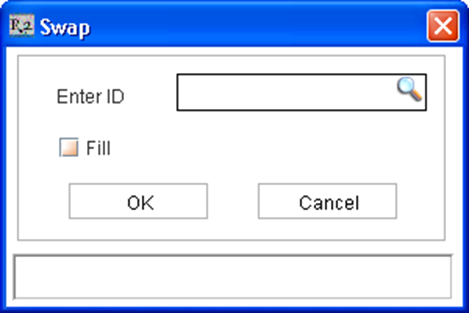
The Swap dialog will be displayed.
-
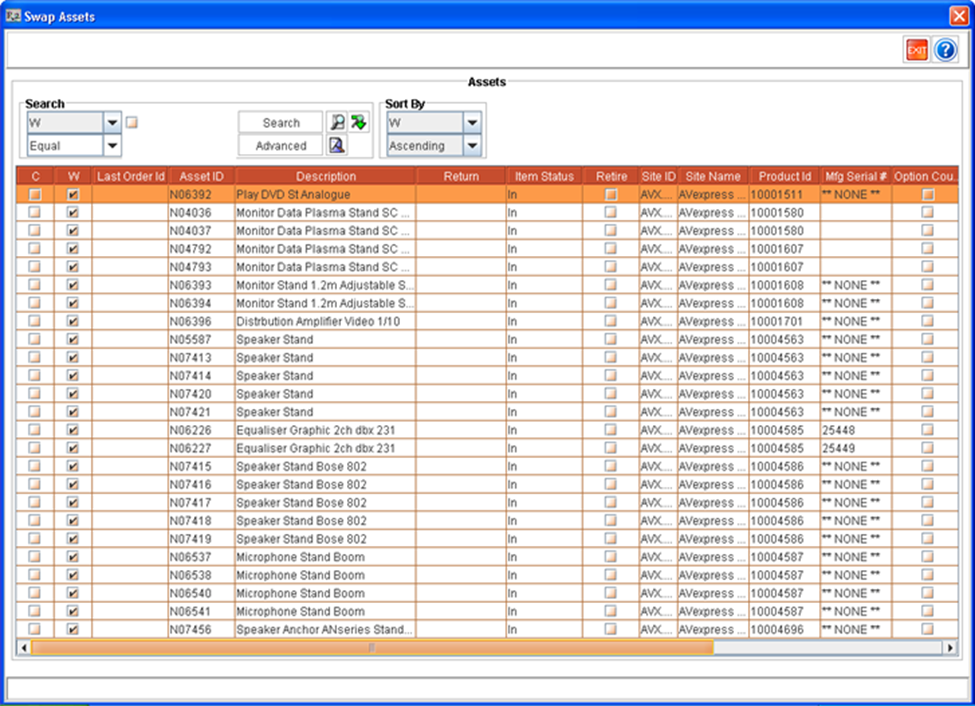
Click on the importable button to display the Swap Assets window.
-
From the list of assets tag a an asset which can be exchanged.
-
The selected item line in Order Fill will be substituted with the asset selected in Swap Asset window.
To Swap Assets in Return Order
-
In the Return Order, click on the item line that you want to swap
-
Click the Swap button in the window.
-
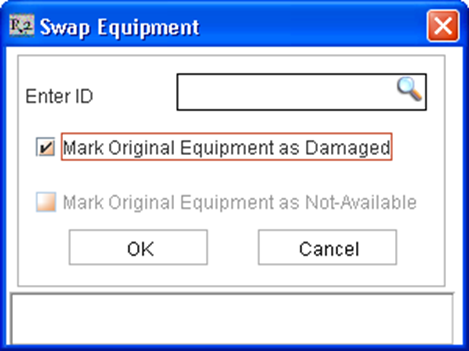
The Swap Equipment dialog will be displayed. Here, you can mark the item that you are swapping as Damaged by selecting the mark Original Equipment as damaged check box.
-
Click on the importable button to display the Swap Assets window.
-
From the list of assets tag an asset which can be exchanged.
-
The selected item line in Return Order will be substituted with the asset selected in Swap Asset window.