
Content was last updated in 06.23.08-00
Revision History
Version No.
|
Reference No.
|
Changes
|
|
0623.08-00 |
17690 |
Content ported from previous release pertaining to the same topic |
Select any Order Id or Event Id and click on Details button, The Batch Return Order is displayed.
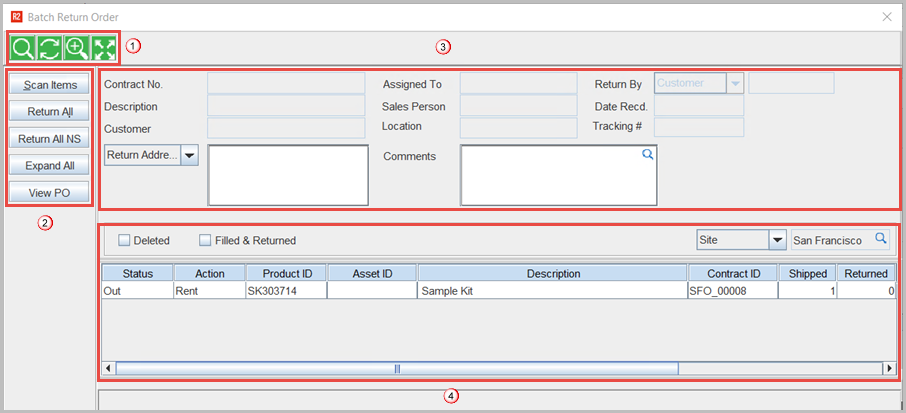
Icon information
Table1.0 Icon Information
Icon
|
Description
|

|
Click on the Find icon to perform a search in the Batch Return Order gird. |

|
Click on the Refresh icon, to refresh the window and view the changes made. |

|
Click on the Zoom In/Out icon to zoom the Batch Return Order gird, by doing this the header of the window will be hidden and the Item grid will be displayed in the entire window. |

|
Click on the Expand/Collapse icon, to expand the item header of the selected line in the Grid, or collapse the expanded line. |
Features/Functionality of Buttons
Scan items: User can return only selected items listed in the Batch Return Order window, below are the detail on returning selected items
-
To return only one item or selected items, double click on the lines to return. The line color changes to blue and the line gets tagged. Click on the Close button to Return the tagged items.
-
If the All Sites option is selected, on tagging an item line and clicking on close in the Batch Return Order window system will the prompt message
'Some assets do not belong to the current site. Do user want to return it to <Current Site>'.
-
On selecting 'Ok' the items will be returned to the current site.
-
On selecting 'Return to Order Site' the items will be returned to the Site in which the Order was created.
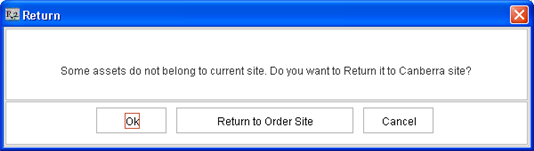
The prompt will be displayed only once, even if multiple items are returned from different sites and based on the selection made the first time items will be returned.
-
On double clicking the header of a Serial Item, all the assets of the Serial item will be tagged and can be returned by closing the Batch Return Order window.
Return All: By using the Return All feature, user can Return All the items listed in the Batch Return Order window.
-
The Return All button will be available only if the option Fill All / Return All is set as True in Configuration Warehouse.
-
By selecting All Sites option in the Site filter field and clicking on the Return All button, items dispatched for an event/order across all Sites will be returned.
-
If All Sites option in the Site filter and Return All feature is used without refreshing the Batch Return Order window, system will Return all the items dispatched for an event across all Sites will be returned.
Return All NS: This feature is used to Return All Non-serial items listed in the Batch Return Order window.
-
By clicking on the Return All NS button, system will return all non serial items listed and close the Batch Return Order window.
-
While returning items of other sites using the Return All NS feature, system will automatically return the items to the Order site.
-
If All Sites option in the Site filter and Return All NS feature is used without refreshing the Batch Return Order window, system will Return all the items dispatched for an event across all Sites will be returned.
Expand All:
-
When clicked on the Expand All button, all the item headers in the gird will be expanded and will display the detail of the assets dispatched .
-
The label of the Expand All button will change to Collapse All as shown in the image below when the item header is expanded. By clicking on Collapse All button user can collapse the item headers.
View PO: On selecting a line in the Batch Return Order gird and clicking on the View PO button, system will display the Purchase Order linked to the particular item line if any.
Order/Event Details
Table 1.1 Order/Event Details
Field name
|
Description
|
|
Contract Number |
Contract number shows the Order Contract Id. |
|
Description |
Description of the return order . |
|
Customer |
Customer details of an order. |
|
Assigned To |
The employee who is assigned to return order. |
|
Sales Person |
Sales Person of an order either Sales person is Employee or Customer or others. |
|
Location |
It shows the order to be returned to this particular location |
|
Returned By |
The Items returned by If Customer is selected, by default Items returned by Customer. |
|
Date Recorded |
Date of the Return Order created. |
|
Tracking |
Tracking ID of Order return |
|
Return Address/Ship Address |
Select address from drop down whether it is return address or ship address. |
|
Comments |
Comments given in return orders. |
Batch Return List
If an event/order ID is selected, all orders created in the Current Site for the particular Event/ Order will be listed in the Batch Return Order window.
By selecting the All Sites option in the Site filter and clicking on the Refresh button of the Batch Return Order window user can view all the items dispatched for the Event/Order.
Filter Options
Deleted: Items deleted on an Order can be viewed by selecting the Deleted check box and clicking on the Refresh icon in the tool bar.
Filled & Returned: Items that are of status Filled and Returned can be viewed by selecting the Filled & Returned check box and clicking on the Refresh icon in the tool bar.
In a Batch Return Order window, the child items of a Kit and the Package header will not be displayed.