PackNShip app provides the following features while Preparing an order:
From the Prep/Fill Order screen you can also generate a document called Picklist.
To generate one, please click on the icon.
1. Picking an Asset
-
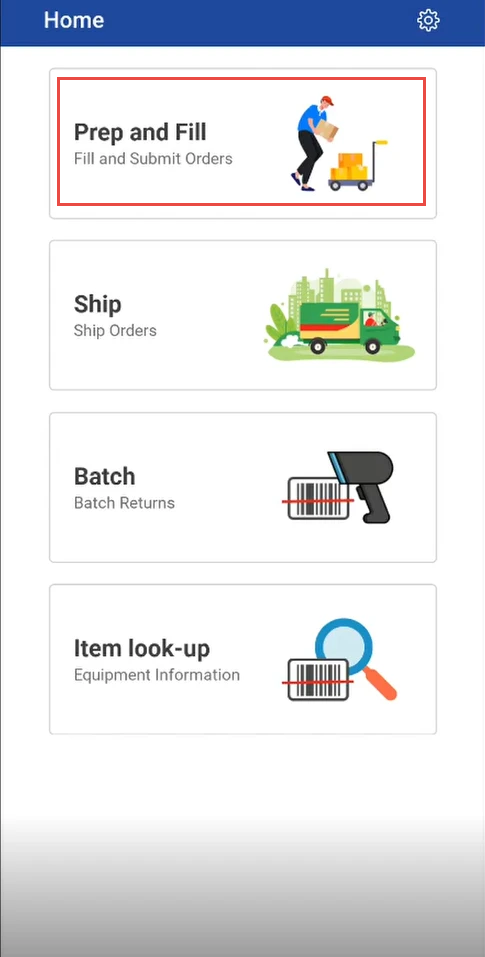
Tap on Prep and Fill
-
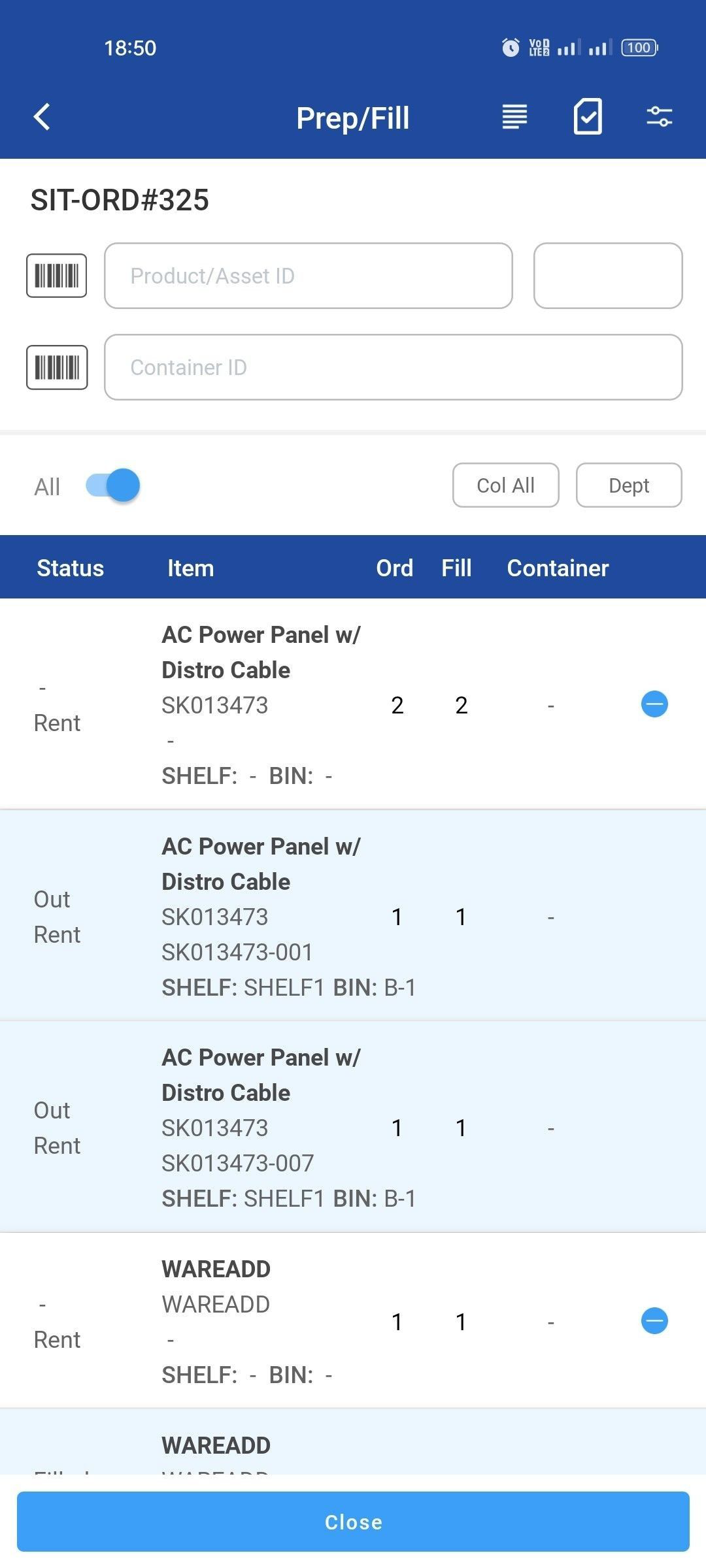
Select any Item line to fill
-
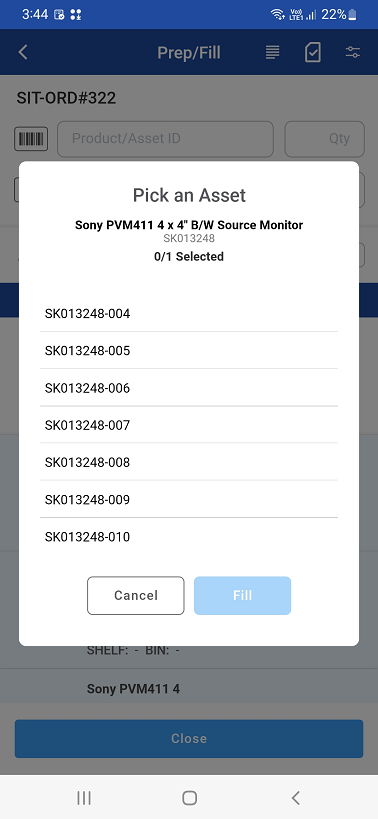
Select/pick an asset from Pick an Asset window
-
Click Fill
2. Picking an serial/ non-serial item
-
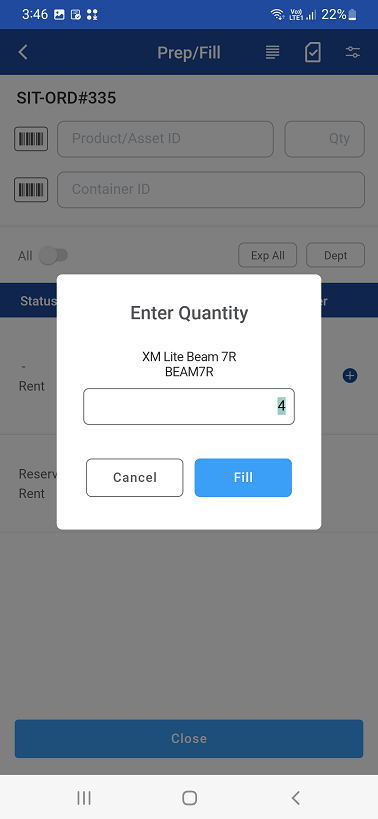
Tap a order line and fill items by providing the quantity
-
Click Fill.
3. Scan barcode to fill an asset/item
-
You can use barcode scanner to scan barcode of an asset or an item and fill it to order line(s)
-
You can associate a container to the item/asset while scanning them.
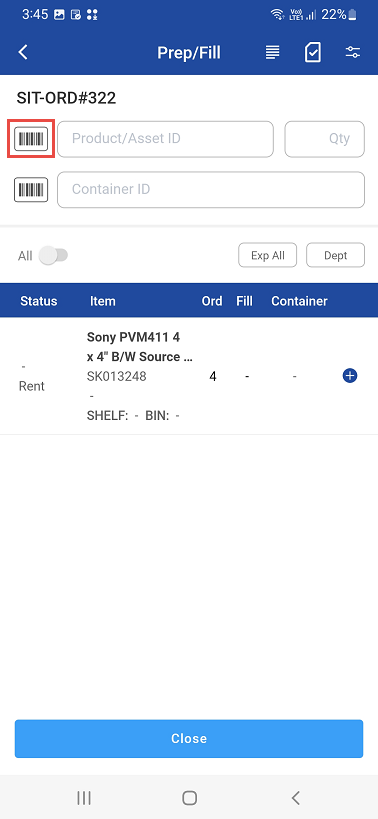
4. Scenario’s occurred during scanning an item
Scenario 1: When you scan a product/asset id then item adds with Filled Qty.
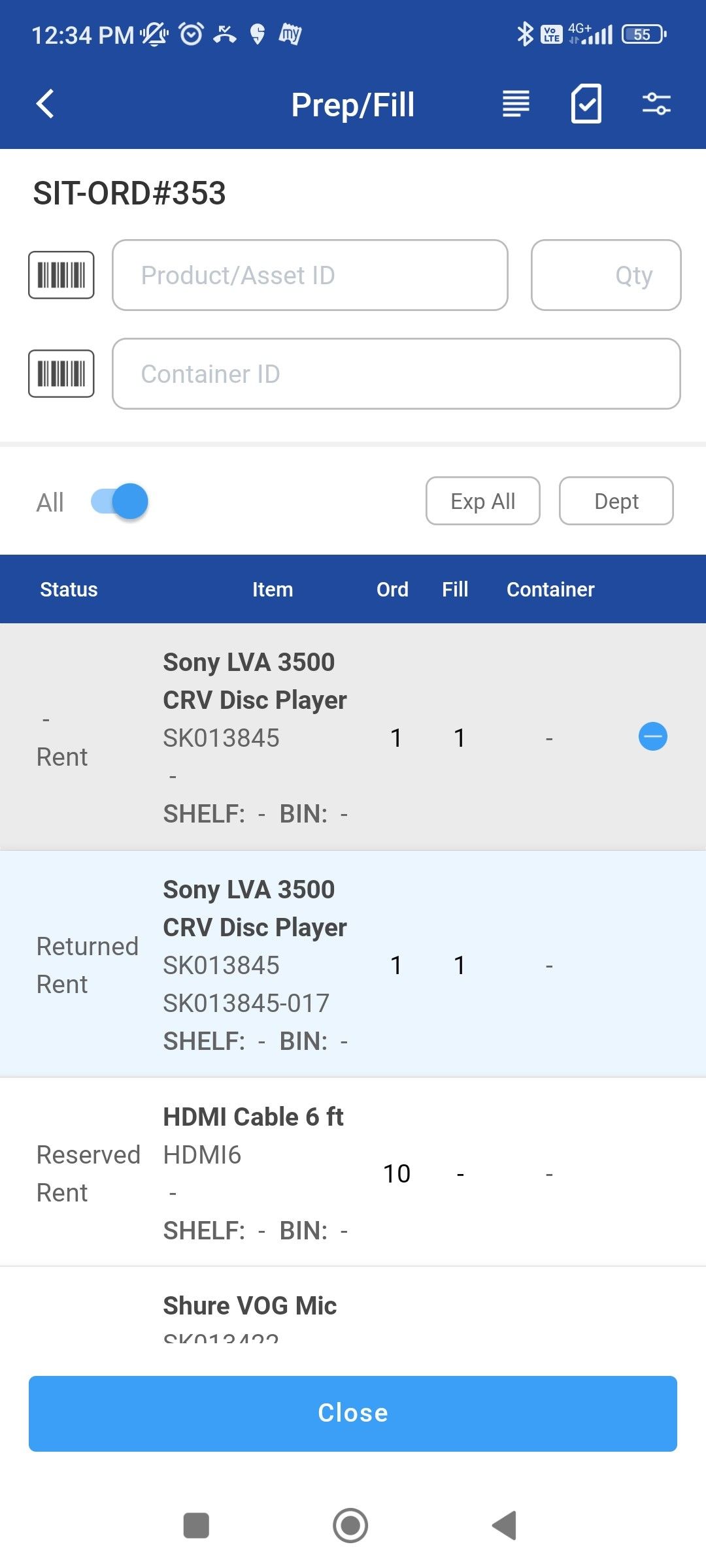
Scenario 2: Tap on a non-serial item, if the quantity field is entered with excess quantity than the items in the order, then the below error is displayed.
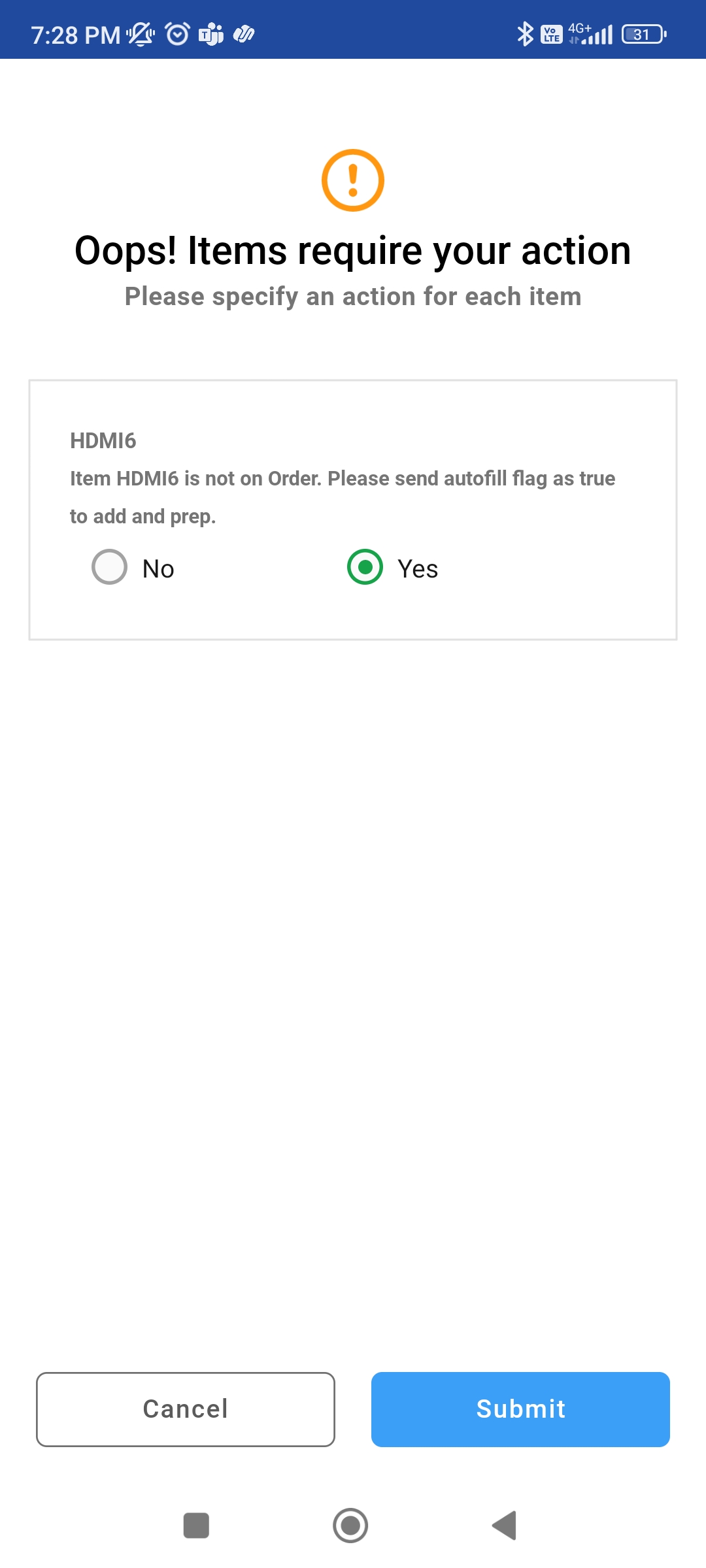
Scenario 3: If you scan a serial item that is not in order, then below error is displayed.
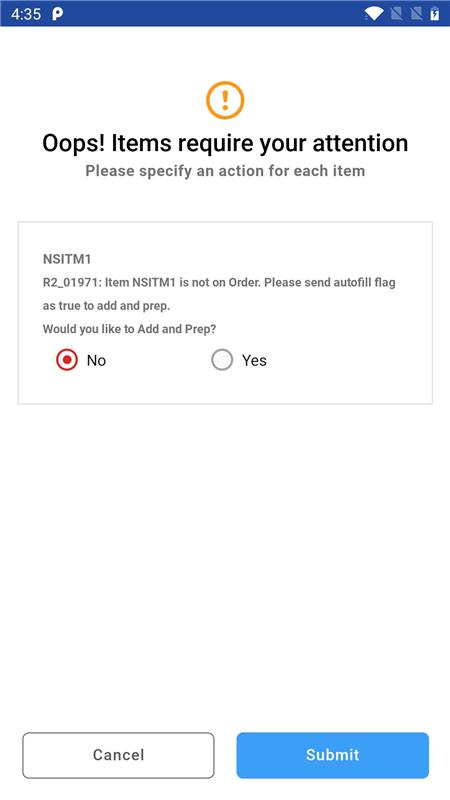
Scenario 4: If you scan an asset that is already filled, then below error is displayed.
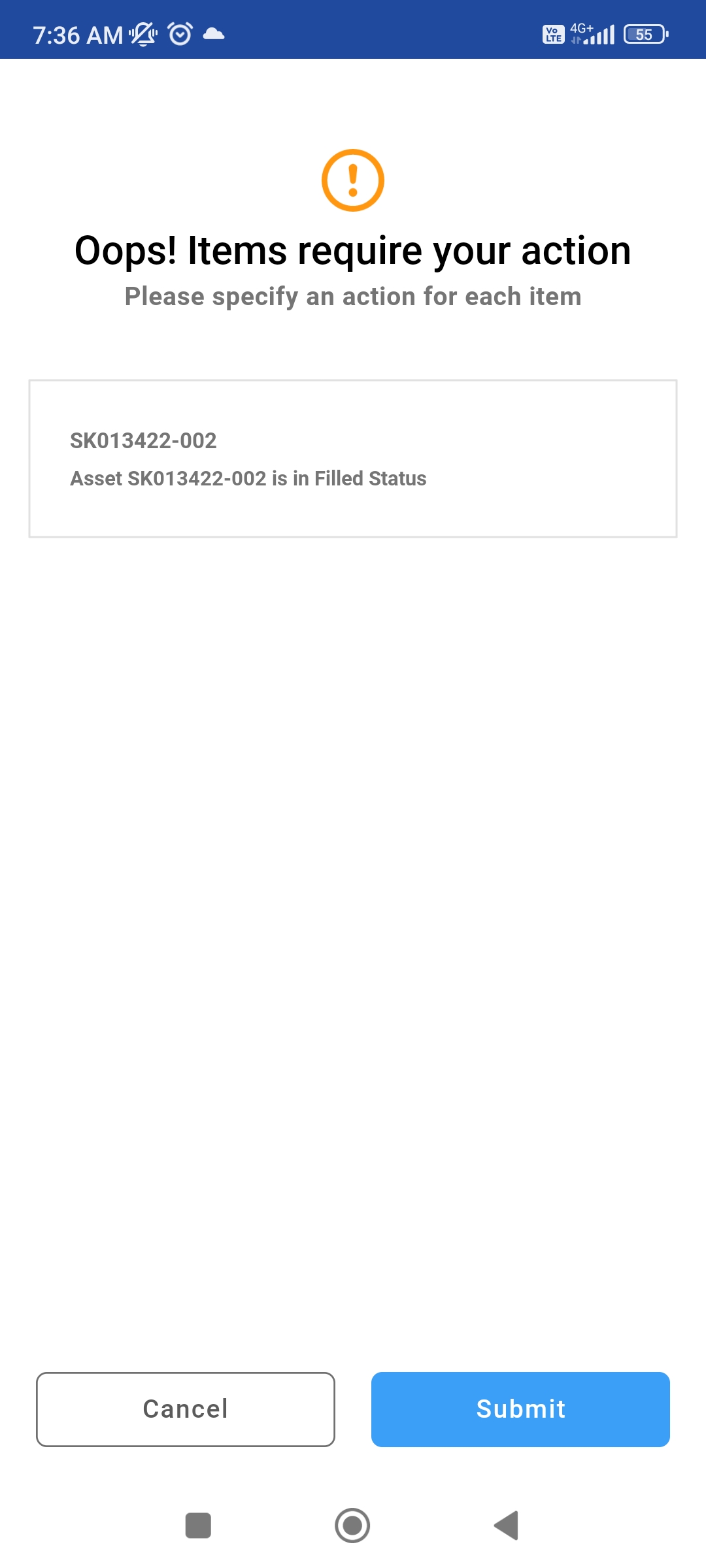
Scenario 5: If you scan or pick an asset that’s due for service, then below error is displayed.
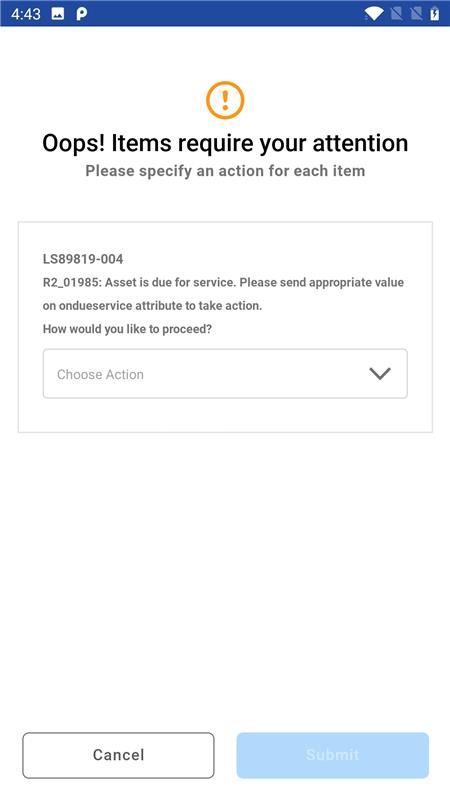
-
Choose the action required.
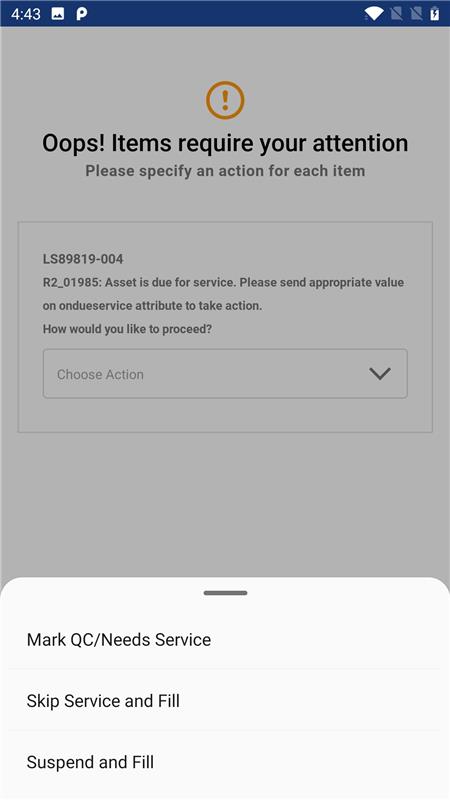
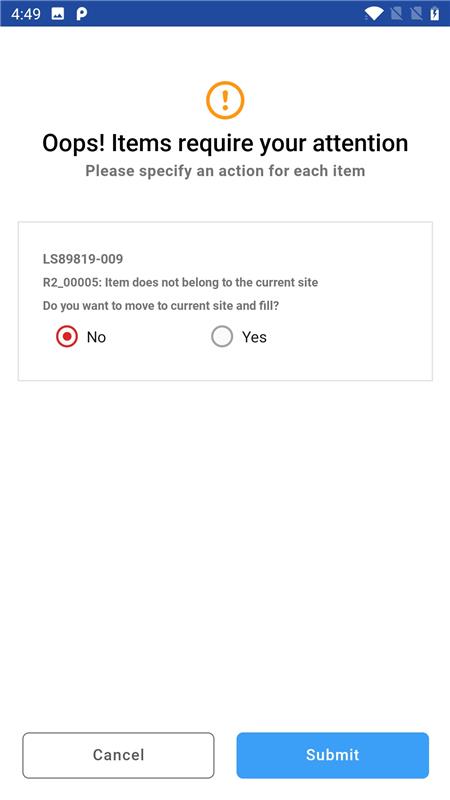
Scenario 6: If you scan or pick an asset that is not in current site, then below error is displayed.
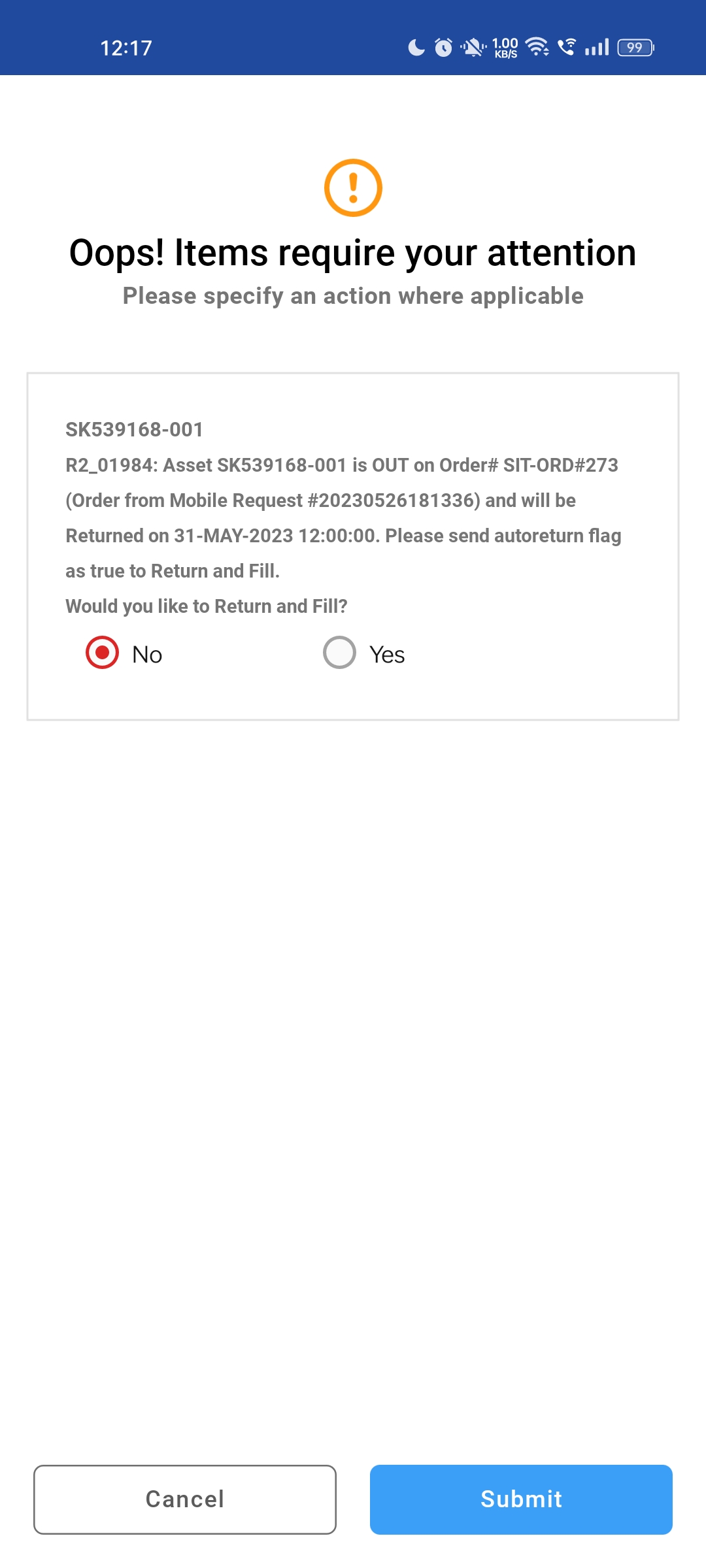
Scenario 7: If you scan an item that’s already out on another order
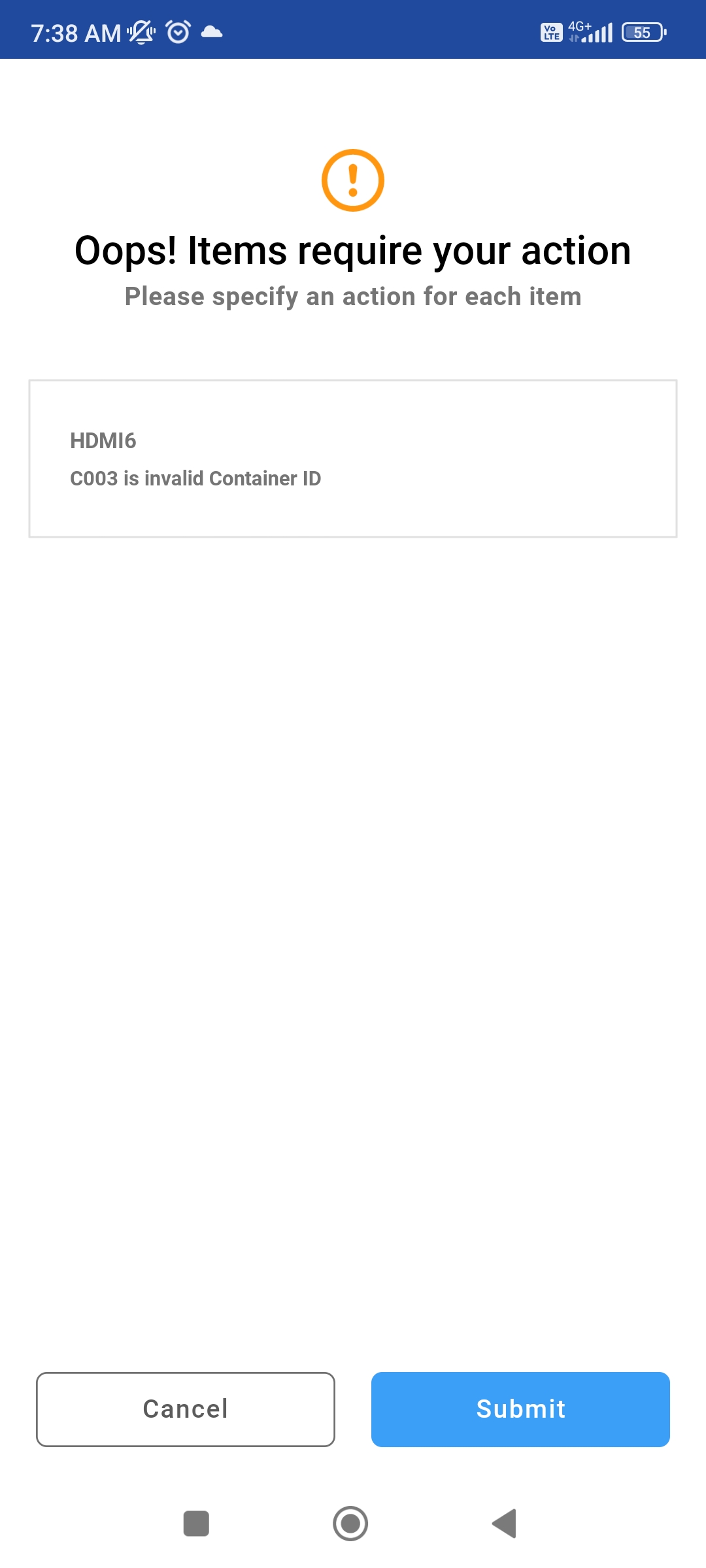
Scenario 8: If you given an invalid Container Id.
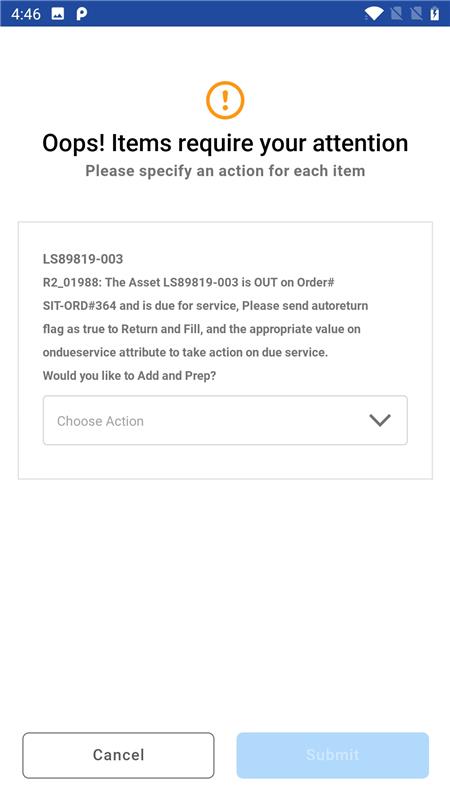
Scenario 9: If Item is out on another order and service is due
-
Choose option from below
![Choose option for service (auto return [and fill] will be implicitly sent to api).png](/__attachments/a_ca6990d3256dfec91703e59449be8801f262134c61fd492edb2438102d748216/Choose%20option%20for%20service%20(auto%20return%20%5Band%20fill%5D%20will%20be%20implicitly%20sent%20to%20api).png?cb=159b8af1bd50a96d444b254f9cc5ff2b)
-
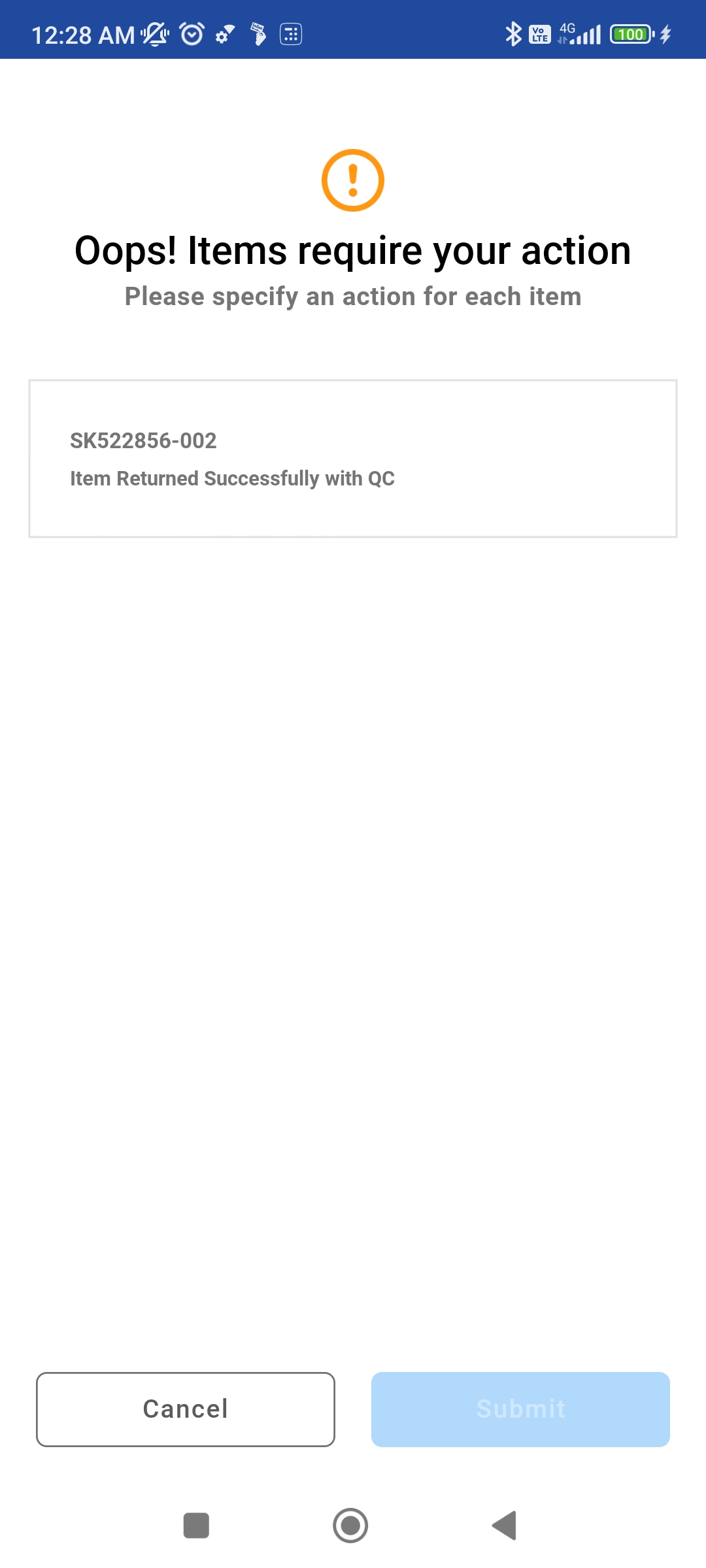
Service due acknowledgement when “Mark QC/Needs Service” is selected.