
Prerequisites
-
Select the Maintenance module > Items tab.
-
Create a Non-Serial Item [JBL LIVE] receive 4 Qty.
-
Save and Exit the Maintenance module.
Sample Workflow
-
Select the Account module. The Account window is displayed.
-
Tag a Company [JBL] and create a Rental Reservation Order [ORD-996] for 2 days duration.
-
Search and add the Non-Serial Item [JBL LIVE] with 2 Qty. Click the Fill And Ship All icon to fill and ship the Items.
-
Select the View menu > Return Order option.
-
Select the Non-Serial Item [JBL LIVE] line and click the Missing button. The Non-Serial Item [JBL LIVE] is modified to Missing.
-
Select the Non-Serial Item [JBL LIVE] line in Out Status and click the Lost button. The Remarks window is displayed.
-
Enter the Remarks "The Non-Serial Item [JBL LIVE] is marked as Lost."
-
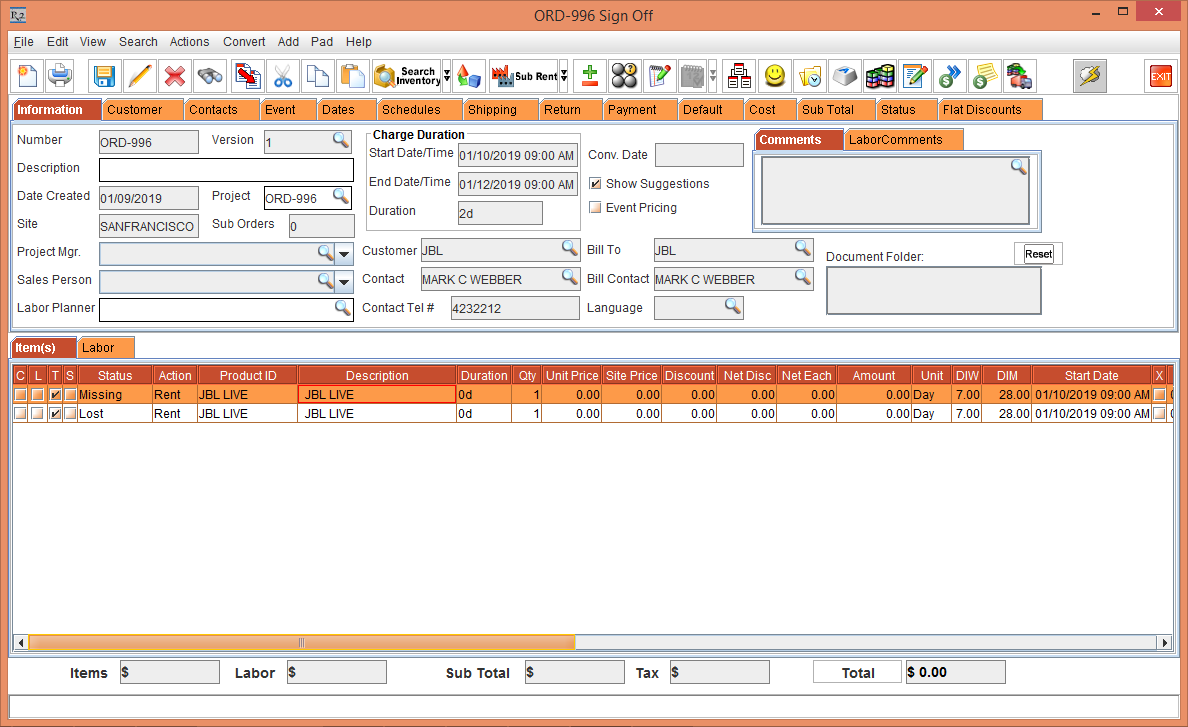
Close the Return Order window. The Order [ORD-996] comprises of Items in Missing and Lost Statuses, as shown in Figure 2.0.
Figure 2.0 Order [ORD-996] comprises of Items in Missing and Lost Statuses
-
Select the Non-Serial Item [JBL LIVE] line and click the Availability icon. The Availability is displayed, as shown in Figure 2.1.
Figure 2.1 Non-Serial Item [JBL LIVE] Availability

-
Close the Availability window.
-
Save and Exit the Order [ORD-996].
-
Select the Physical Inventory module > New icon. The Physical Inventory window is displayed.
-
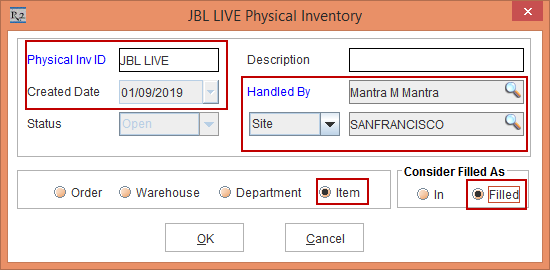
Enter the Physical Inv ID [JBL LIVE].
-
Select the Handled By [MANTRA], Site [SANFRANCISCO], the Item radio button, and the Filled radio button within the Consider Filled As section, as shown in Figure 2.2.
Figure 2.2 Physical Inventory window with Physical Inv ID [JBL LIVE]
-
Click OK. The Search Items window is displayed.
-
Search and tag the Non-Serial Item [JBL LIVE].
-
Click OK. The system displays a prompt with the message "R2_00602:Do you want to Start Physical Inventory?" with Yes and No buttons.
-
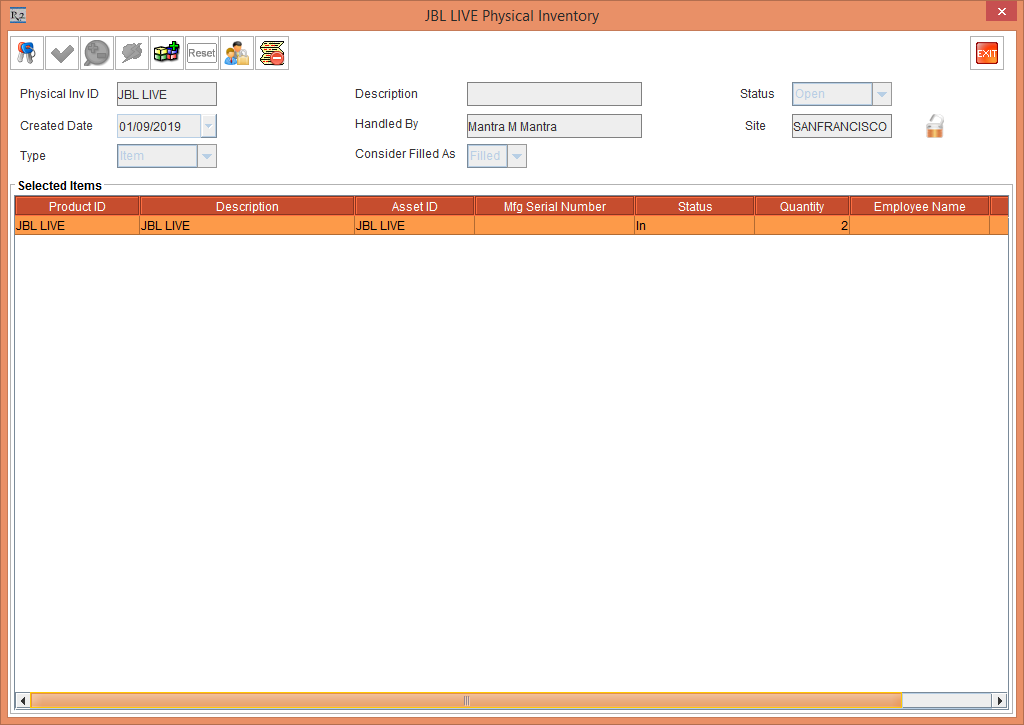
Click Yes. The JBL LIVE Physical Inventory window is displayed with the Non-Serial Item [JBL LIVE] with 2 Quantity that are in the Status [In] and are not present in the Order [ORD-996], as shown in Figure 2.3.
Figure 2.3 JBL LIVE Physical Inventory window with the Non-Serial Item [JBL LIVE] Status [In] and not present in the Order [ORD-996]
-
In the JBL LIVE Physical Inventory window, click the Start icon.
-
Click the Discrepancy icon. The Discrepancy window displays the Non-Serial Item [JBL LIVE] with the Status [In] that are not included in the Order [ORD-996] with the Discr. Qty column displaying as 2 Qty. The Lost and Missing Qty is excluded from the Discrepancy window, as shown in Figure 2.4.
Figure 2.4 Discrepancy window for the Non-Serial Item

-
Exit the Discrepancy window.
-
In the JBL LIVE Physical Inventory window, click the Scan Item icon. The Scan Items window is displayed. Scan the Asset No./Product No. [JBL LIVE] with Non-Serial Qty [4], as shown in Figure 2.5
Figure 2.5 Scan Items window

-
The Scan Items window Status bar message is displayed as "Scanned Successfully" for the scan.
-
Close the Scan Items window.
-
In the JBL LIVE Physical Inventory window, click the Discrepancy icon.
-
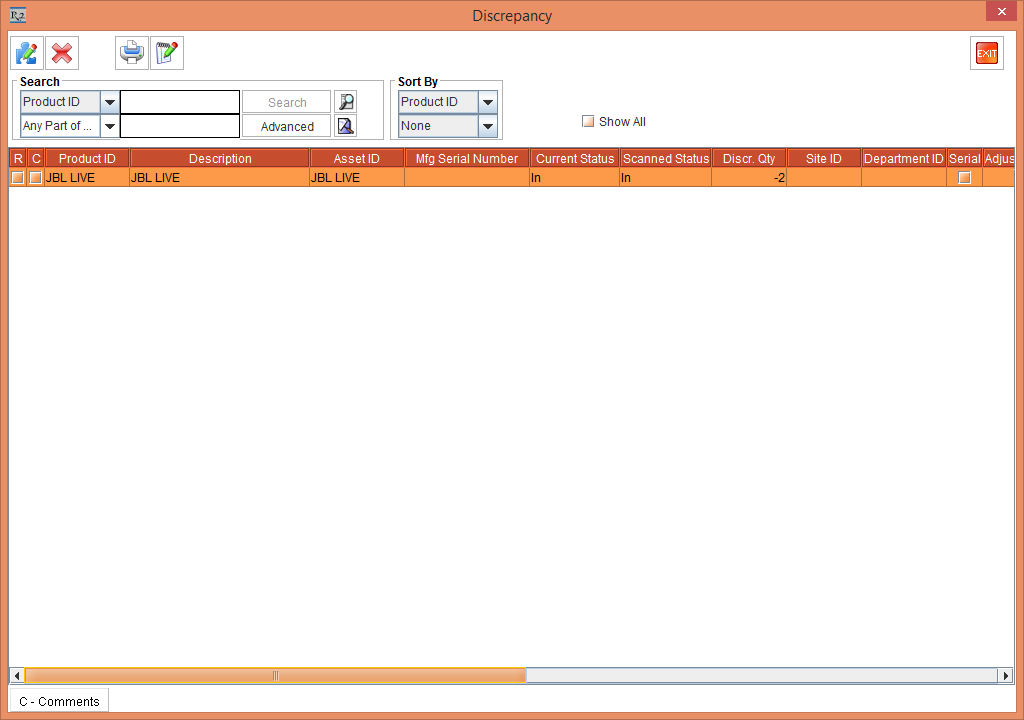
The Discrepancy window is displayed with the Non-Serial Item [JBL LIVE] with the Discr. Qty column displaying as -2 Qty, as shown in Figure 2.6.
Figure 2.6 Discrepancy window with the Non-Serial Item [JBL LIVE] with the Discr. Qty column displaying as -2 Qty
-
Select the Non-Serial Item [JBL LIVE] line and click the Adjust icon. The Adjust Non-Serial dialog box is displayed with the Discrepancy Quantity [-2] and Adjusted Quantity [0] along with the below sections, as shown in Figure 2.7.
-
Mark - As In section with the fields such as, From Filled, From Out, From Missing, From Lost, From Damaged, Receive New.
-
Mark - As section with the fields Missing, Lost, and Damaged.
Figure 2.7 Adjust Non-Serial window

-
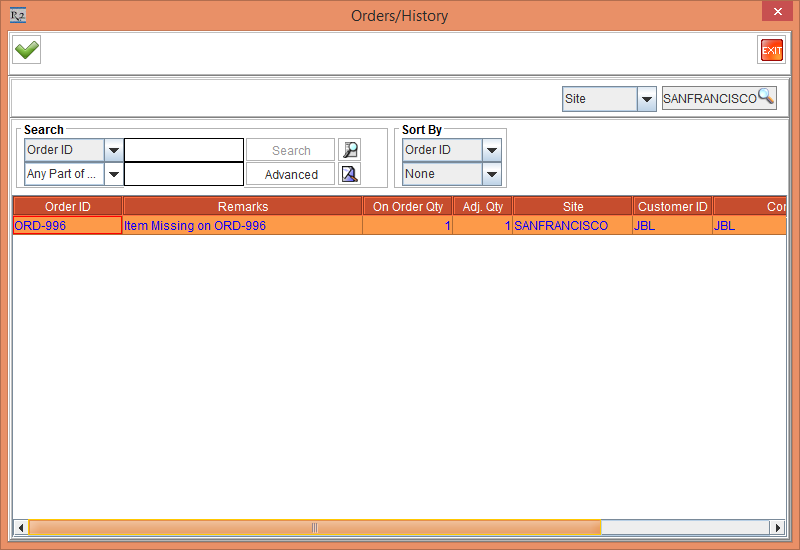
Click the From Missing More button. The Orders/History window is displayed. The On Order Qty is displayed 1, as shown in Figure 2.7.
-
Double-click and tag the Order [ORD-996] line, as shown in Figure 2.8.
Figure 2.8 Orders/History window with the On Order Qty as 1
-
Click OK.
-
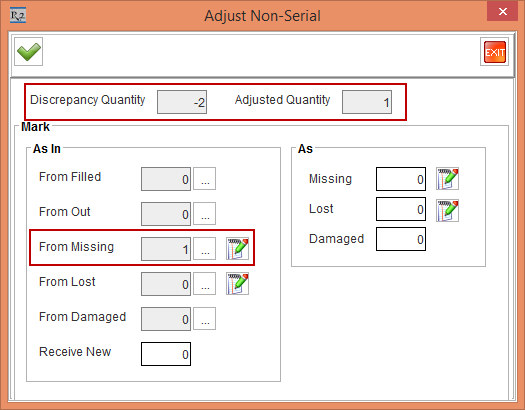
The From Missing Qty is displayed as 1 with the Discrepancy Qty as -2, and Adjusted Qty as 1, as shown in 2.9.
Figure 2.9 Modified From Missing Qty to 1 in the Mark - As In section of the Adjust Non-Serial window
-
Click the Comments button > the Remarks window is displayed.
-
Enter the Remarks "Marking the Missing Non-Serial Item [JBL LIVE] to In" as shown in Figure 2.10.
Figure 2.10 From Missing Remarks window

-
Click Close.
-
Click the From Lost More button. The Orders/History window is displayed. The On Order Qty is displayed 1, as shown in Figure 2.10.
-
Double-click and tag the Order [ORD-996] line, as shown in Figure 2.11.
Figure 2.11 Orders/History window with the On Order Qty as 1
-
Click OK.
-
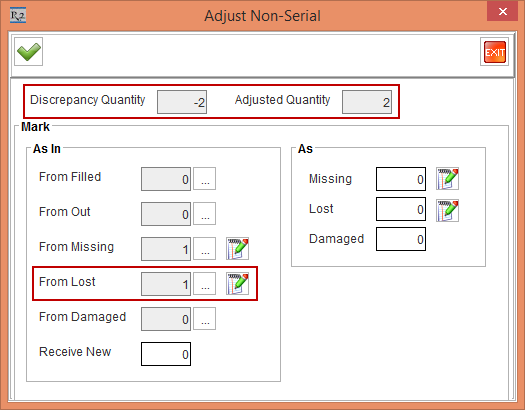
The From Lost Qty is displayed as 1 with the Discrepancy Qty as -2, and Adjusted Qty as 2, as shown in 2.12.
Figure 2.12 Modified From Lost Qty to 1 in the Mark - As In section of the Adjust Non-Serial window
-
Click the Comments button > the Remarks window is displayed.
-
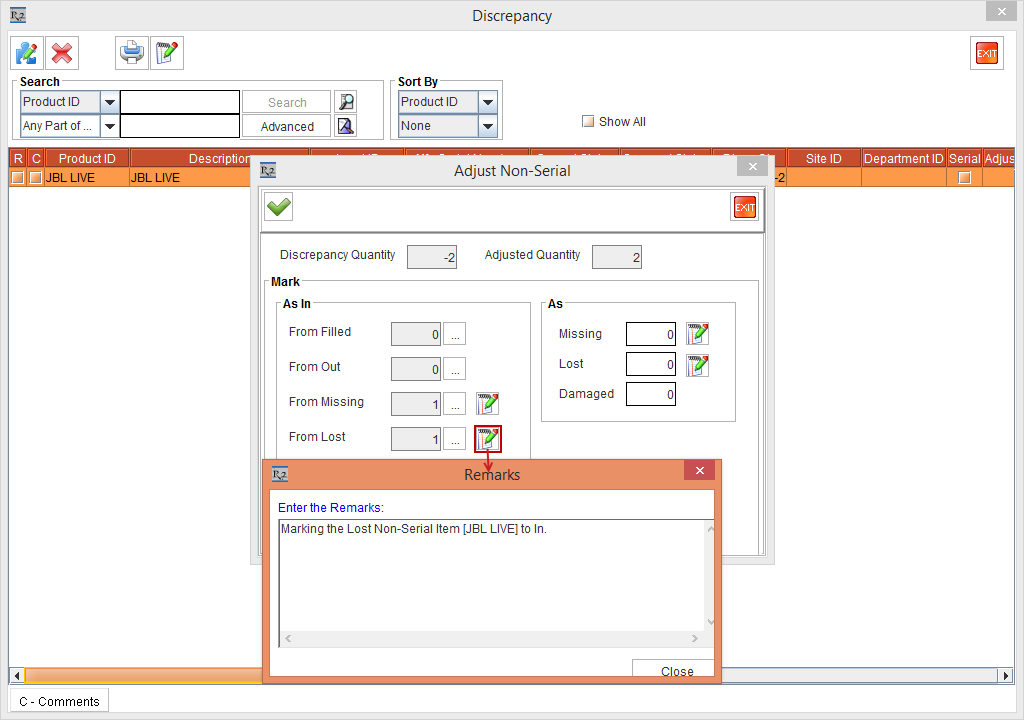
Enter the Remarks "Marking the Lost Non-Serial Item [JBL LIVE] to In" as shown in Figure 2.13.
Figure 2.13 From Lost Remarks window
-
Click Close.
-
Click OK in the Adjust Non-Serial window.
-
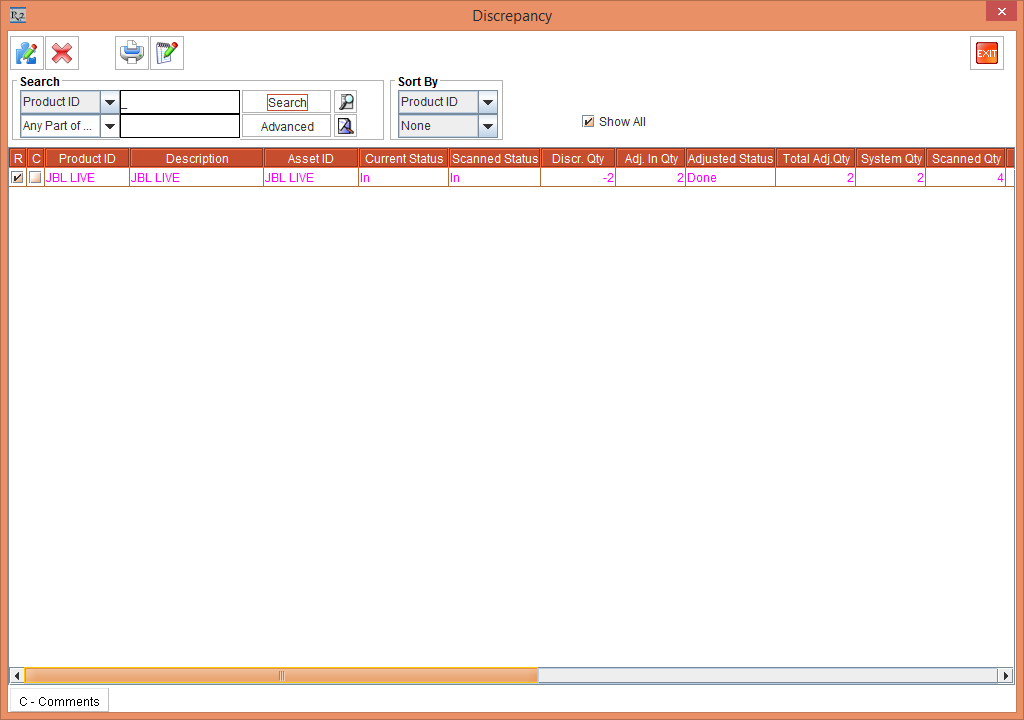
In the Discrepancy window, select the Show All check box and perform a blank search. The Adjusted Non-Serial Item [JBL LIVE] is displayed, as shown in the Figure 2.14.
Figure 2.14 Discrepancy window displaying the Adjusted Asset lines
-
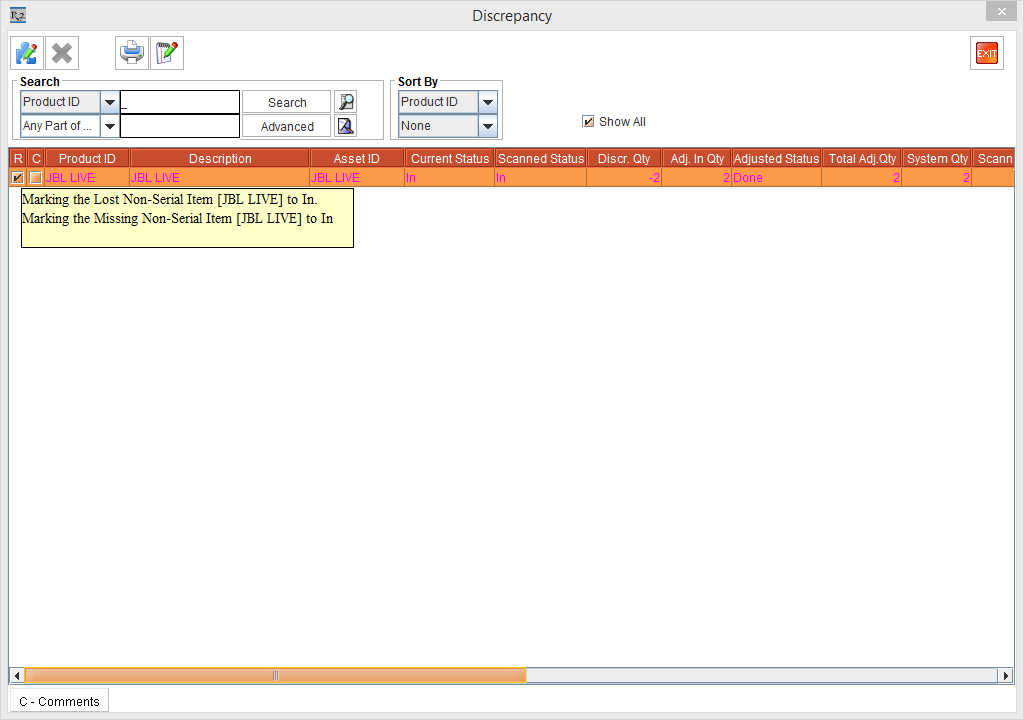
The captured Remarks provided while adjusting the Non-Serial Items can be viewed by clicking the Remarks [R] column. Select the Non-Serial Item [JB LIVE] line and click the Remarks [R] column.
-
A Tooltip is displayed with the Comments "Marking the Lost Non-Serial Item [JB LIVE] to In. and Marking the Missing Non-Serial Item [JB LIVE] to In" entered while marking the Lost and Missing Non-Serial Item [JB LIVE] to In status respectively, as shown in Figure 2.15.
NOTE: If the Remarks are entered, the check box in the Remarks [R] column is displayed as selected.
Figure 2.15 Tool Tip in the Remarks [R] column displayed
-
Exit the Discrepancy window.
-
Click the Complete icon in the JBL LIVE Physical Inventory window.
-
The system displays a prompt with the message "R2_00601: This completes Taking Physical Inventory, are you Sure?" with Yes and No buttons.
-
Click Yes.
-
Exit the JBL LIVE Physical Inventory window.
-
Select the Account module > Search Orders button > Search Orders window is displayed.
-
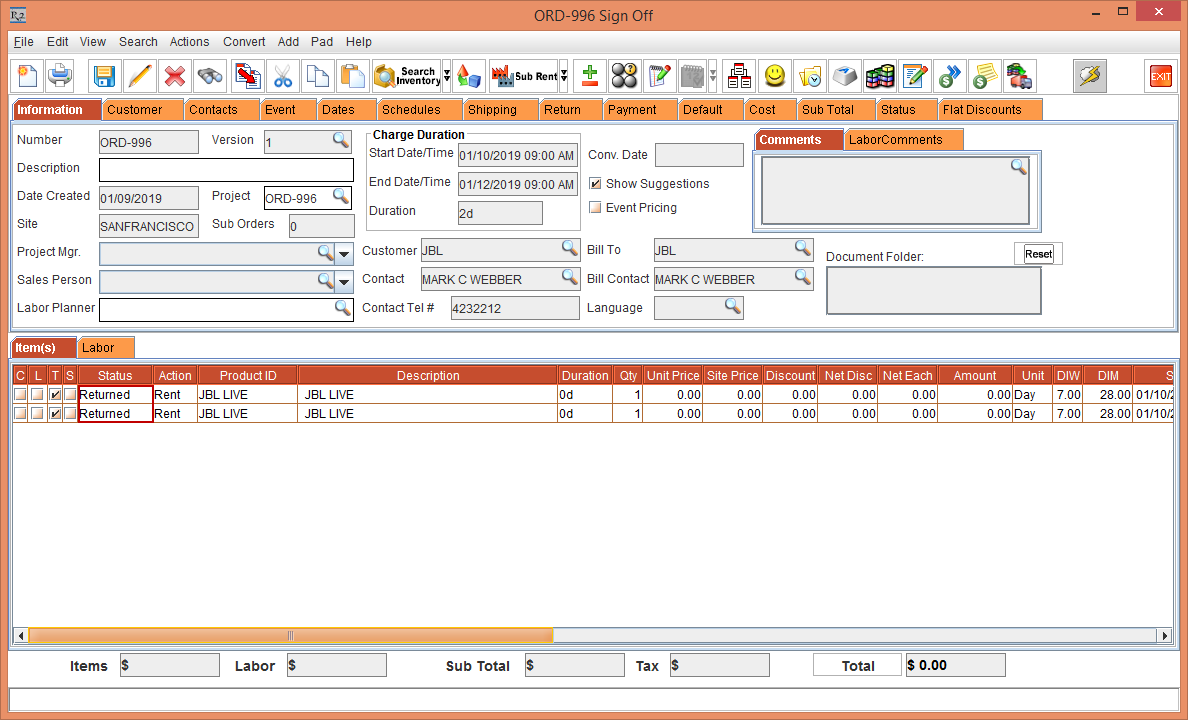
Search and open the Order [ORD-996]. The Non-Serial Item [JBL LIVE] Status that was in Missing and Lost is now modified to Returned, as shown in Figure 2.16.
Figure 2.16 Non-Serial Item [JBL LIVE] Status in Missing and Lost is now modified to Returned
-
Select the Non-Serial Item [JBL LIVE] line and click the Availability icon. The Availability is displayed, as shown in Figure 2.17.
Figure 2.17 Non-Serial Item [JBL LIVE] Availability

-
Close the Availability window.
-
Select the Search menu > Items window. The Search Items window is displayed.
-
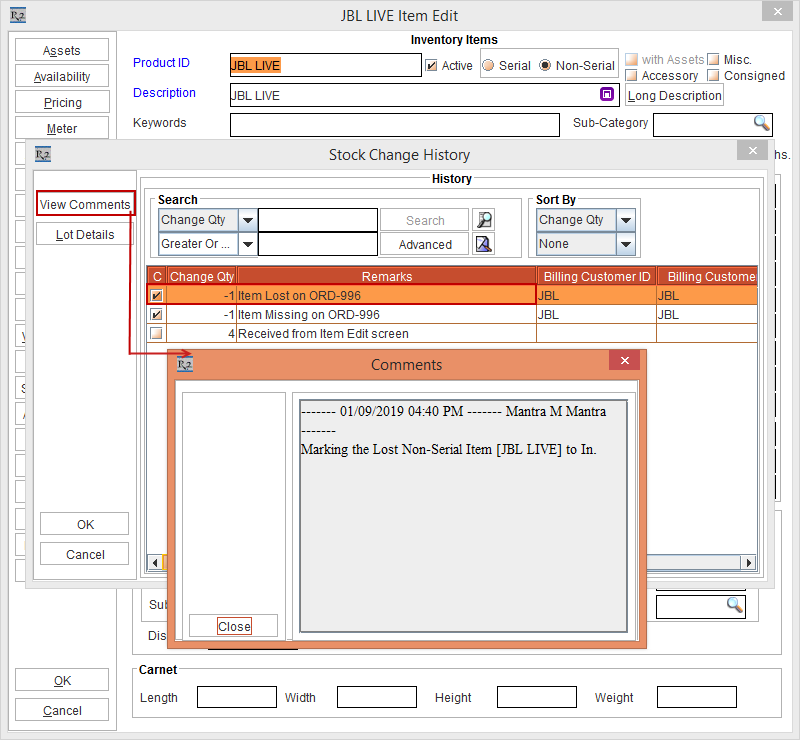
Edit the Non-Serial Item [JBL LIVE] and click the History button. The Stock Change History window is displayed.
-
Select the line with the Remarks [Item Lost on ORD-996] and click the View Comments button. The Comments window is displayed with the Comments "Marking the Lost Non-Serial Item [JBL LIVE] to In," as shown in Figure 2.18.
Figure 2.18 Non-Serial Item [JBL LIVE] Edit > History button > Stock Change History window > View Comments button > Comments
-
Close the Comments window and Click OK in the Non-Serial Item [JBL LIVE] Edit window.