
Reference No: R2-3614
Version No: 06.00.04-00
Details
Support for the Equipment Usage View is provided in the Warehouse [Prep Task], [Ship Task], [Pickup Task] and [Return Task] windows, the Intelligent Returns window [Return / Receive Item window] and the Transfer Order window.
The details are explained in the sample workflow given below:
Support for Equipment Usage View in Warehouse
Prerequisites
-
Select the Maintenance module > Items tab > Items tab.
-
Create Serial Items [SONY CONSOLE], [SONY WIRELESS HP], [SONY MDR], [LG STAR], [LG LSA] and [LG WM] and receive 10 Qty.
-
Save and Exit the Maintenance module.
Sample Workflow
-
Select the Account module. The Account window is displayed.
-
Tag a Company [EVERGREEN AV RENTALS].
-
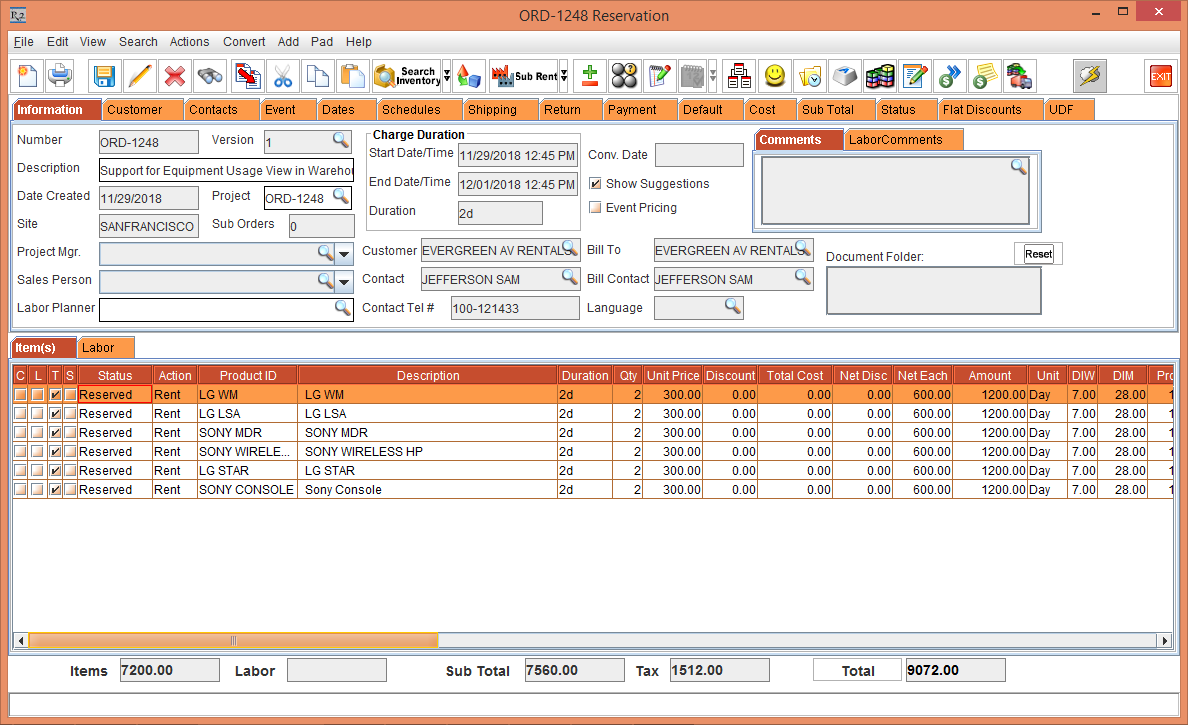
Create a Rental Reservation Order [ORD-1248] for 2 days duration.
-
Add the Serial Items [SONY CONSOLE], [SONY WIRELESS HP], [SONY MDR], [LG STAR], [LG LSA] and [LG WM] with the Qty as 2 and the Unit Price [300.00] respectively, as shown in Figure 1.0.
-
Save and Exit the Order [ORD-1248].
-
Select the Warehouse module. The Warehouse window is displayed.
-
Search for the Order [ORD-1248]. The [Prep Task], [Ship Task], [Pickup Task] and [Return Task] for the Order [ORD-1248] is displayed.
-
Select and open the [Prep Task]. The Fill Order [ORD-1248 Order Fill] window is displayed.
-
Fill the 1 Qty of the Serial Item [SONY WIRELESS] comprising of the Asset [SONY WIRELESS HP#02] and fill 1 Qty of the Serial Item [SONY MDR] comprising of the Asset [SONY MDR#02]. The Status is modified from Reserved to Filled, as shown in Figure 1.1.

-
Select all the Serial Items [SONY CONSOLE], [SONY WIRELESS HP], [SONY MDR], [LG STAR], [LG LSA] and [LG WM] and perform a right-click.
-
The Equipment Usage View option is displayed, as shown in Figure 1.2.

-
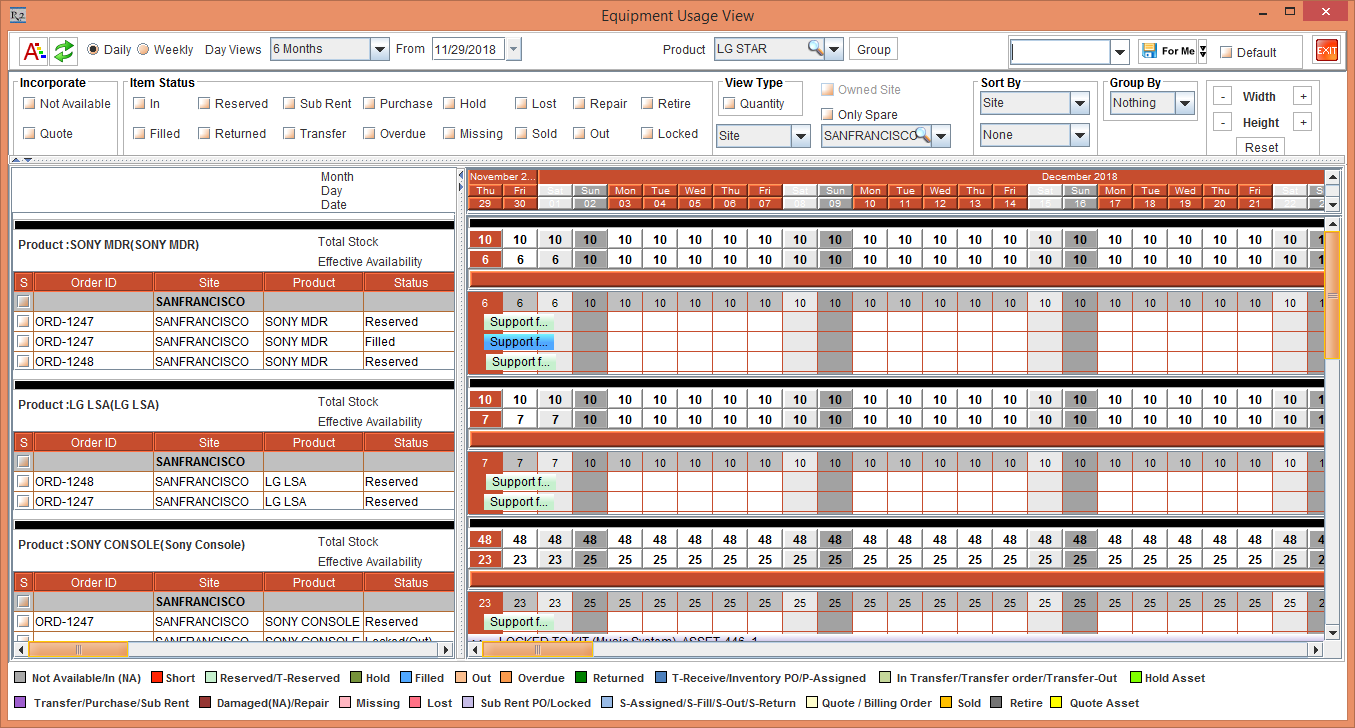
The Equipment Usage View window tagged to Order [ORD-1248] with all the Serial Items [SONY CONSOLE], [SONY WIRELESS HP], [SONY MDR], [LG STAR], [LG LSA] and [LG WM] is displayed, as shown in Figure 1.3.
The From date value in Equipment Usage View window is defaulted from the first selected line start date in Prep/Fill/Ship/Return.
-
All the right-click operations in the Equipment Usage View such as Reserve, Hold, Not Available, Sub-Rent, Transfer, Purchase, Edit Order Dates, Edit Order Line Dates, Create Quote, Create Hold, and View/Edit Order for the Items tagged to another Order can be performed, if that Order is not locked by any User.
The right-click operations in the Equipment Usage View such as Reserve, Hold, Not Available, Sub-Rent, Transfer, Purchase, Edit Order Dates, and Edit Order Line Dates for the same Order or the Order that is locked by any user cannot be performed.
-
Exit the Equipment Usage View window.
-
Close the Fill Order [ORD-1248 Order Fill] window.
The above workflow is applicable for the following:
-
The Order > View menu > Fill Order/ Ship Order/ Return Order options: Where when the Equipment Usage View window is opened from the parent window, it cannot be minimized and the View/Edit option is also disabled.
-
The other Warehouse Tasks such as, Ship Task, Pickup Task and Return Task.
-
The Intelligent Returns window [Return / Receive Item window].
Support for Equipment Usage View in Transfer Orders
Prerequisites
-
Select the Maintenance module > Items tab > Items tab.
-
Create Serial Items [SONY CONSOLE] and [SONY WIRELESS HP] and receive 10 Qty.
-
Save and Exit the Maintenance module.
Sample Workflow
-
Select the Account module. The Account window is displayed.
-
Select the File menu > New menu > Transfer Order sub-menu > Transfer Out option. The Transfer Order Information dialog box is displayed.
-
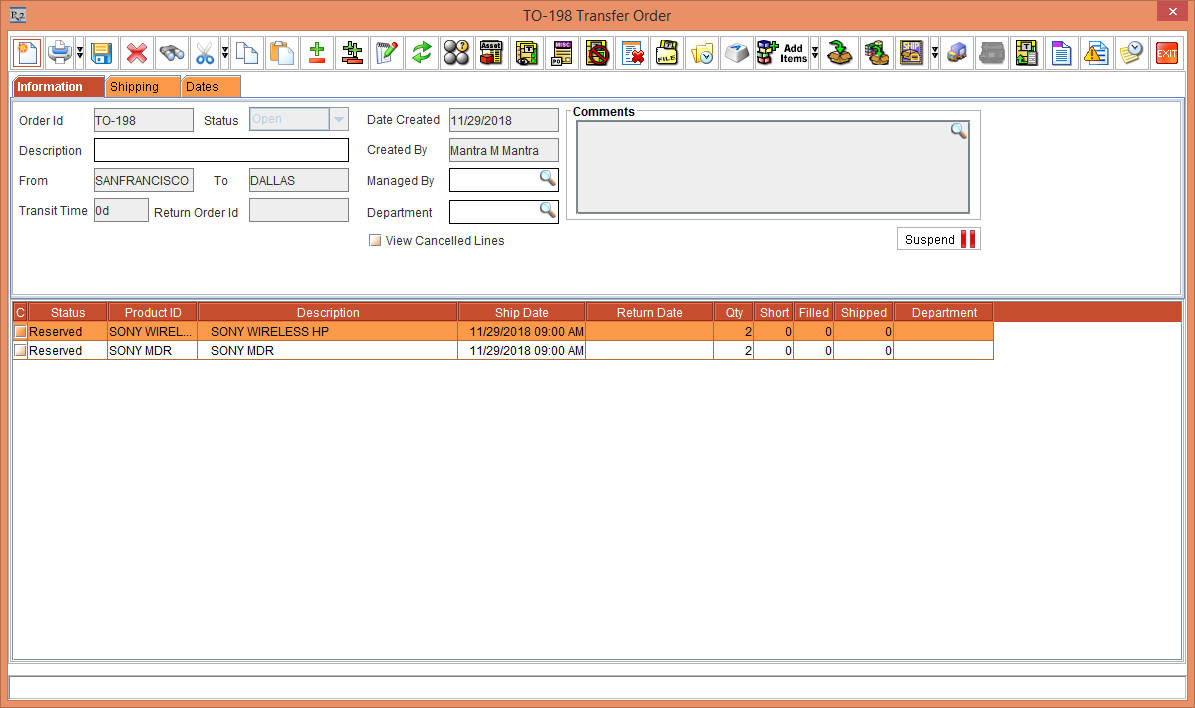
Create a Transfer Order [TO-198] with the From Site [SANFRANCISCO] and To Site [DALLAS].
-
Add the Serial Items [SONY WIRELESS HP] and [SONY MDR] with the Qty as 2, as shown in Figure 2.0.
-
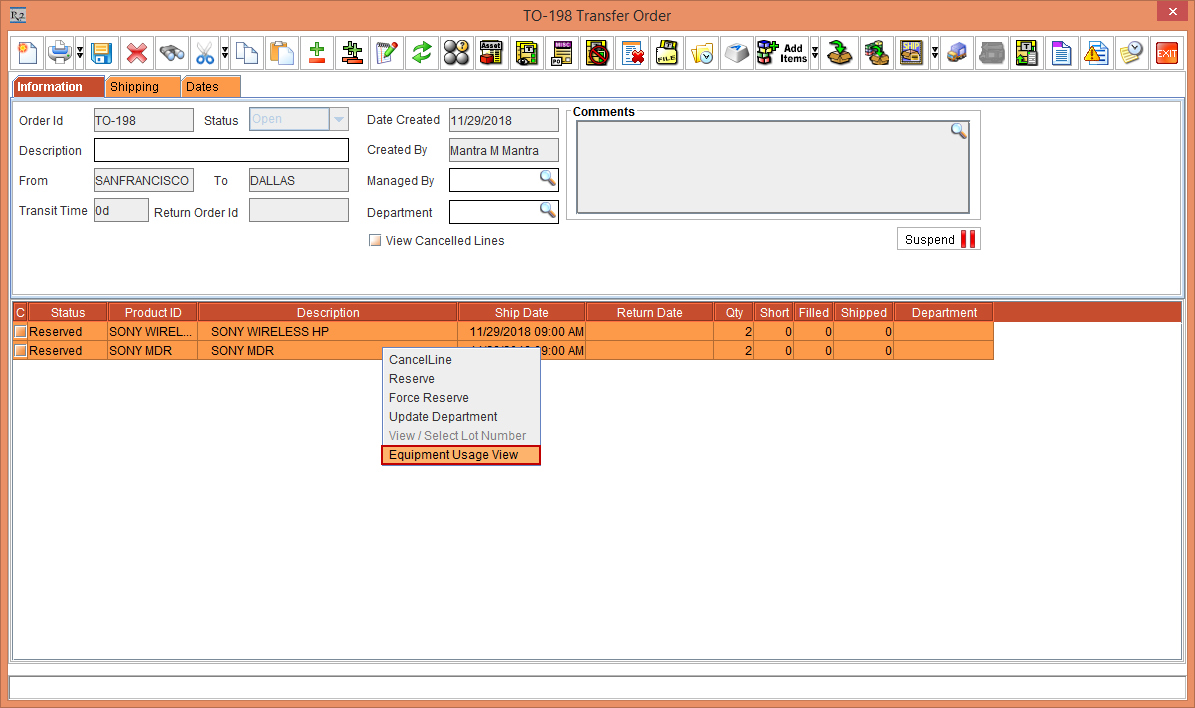
Select all the Serial Items [SONY WIRELESS HP] and [SONY MDR] and perform a right-click. The Equipment Usage View option is displayed, as shown in Figure 2.1.
-
Select the Equipment Usage View option.
-
The Equipment Usage View window tagged to Transfer Order [TO-198] with the Serial Items [SONY WIRELESS HP] and [SONY MDR] is displayed, as shown in Figure 2.2.
The From date value in Equipment Usage View window is defaulted from the first selected line start date in Prep/Ship.

-
All the right-click operations in the Equipment Usage View such as Reserve, Hold, Not Available, Sub-Rent, Transfer, Purchase, Edit Order Dates, Edit Order Line Dates, Create Quote, Create Hold, and View/Edit Order for Transfer Order cannot be performed.
-
Exit the Equipment Usage View window.
-
In the Transfer Order [TO-198] window, select the Serial Items [SONY WIRELESS HP] and click the Fill icon. The Transfer Fill dialog box is displayed.
-
Enter the Asset ID [SONY WIRELESS HP#03] and press the Enter key using the Keyboard. The Asset ID [SONY WIRELESS HP#03] gets filled.
-
In the Transfer Order [TO-198] window, click the Detail View icon. The Transfer Detail View [TO-198 Transfer Detail View] window is displayed.
The Transfer Detail View for Prep and Ship can be opened from the Warehouse module also in which the Equipment Usage View window is displayed as a frame.
-
Select all the Serial Items [SONY WIRELESS HP] and [SONY MDR] and perform a right-click. The Equipment Usage View option is displayed, as shown in Figure 2.3.

-
Select the Equipment Usage View option.
-
The Equipment Usage View window displayed in the Transfer Detail View [TO-198 Transfer Detail View] window with the Serial Items [SONY WIRELESS HP] and [SONY MDR] is displayed, as shown in Figure 2.4.
-
All the right-click operations in the Equipment Usage View such as Reserve, Hold, Not Available, Sub-Rent, Transfer, Purchase, Edit Order Dates, Edit Order Line Dates, Create Quote, Create Hold, and View/Edit Order for the Transfer Detail View [TO-198 Transfer Detail View] window cannot be performed.
-
Exit the Equipment Usage View window.
-
Exit the Transfer Detail View [TO-198 Transfer Detail View] window.
-
Exit the Transfer Order [TO-198] window.