Reference No: 29110
Details
The support for Key-In the Shipping Quantity and Partial Quantity in Warehouse Ship Task window for Non-Serial Items . The details are explained in the sample workflow given below:
Sample Workflow
-
Create an Order [ORD-1018] > Add the Non-Serial Items [SONYCAP] with 1 Qty and [CISCO WAP121 ACCESS PO] with 5 Qty > select Action > Fill All.
-
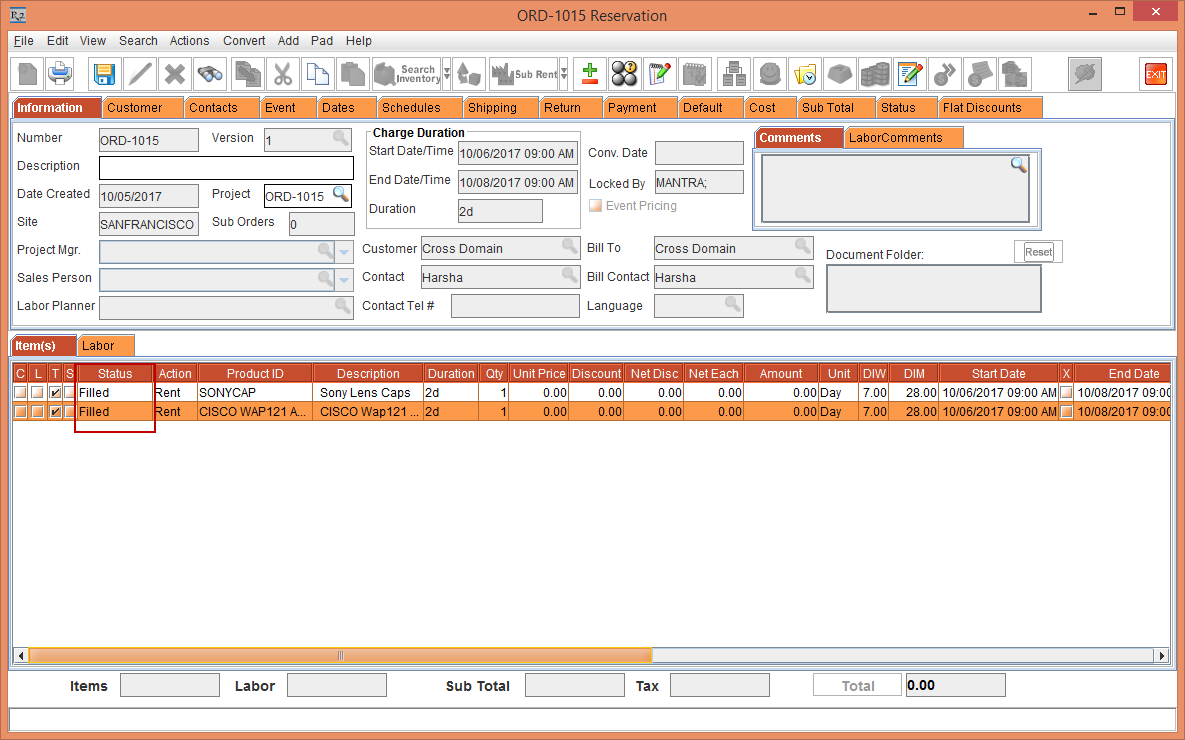
The system displays a message "R2_00641:This will Fill all the items in the Order. Do you want to continue?" > click the Yes button > the Item lines Status changes to Filled as shown in Figure 1.0.
-
Save and exit the Order [ORD-1018].
-
Select the Warehouse module > select View > Ship > Ship Order > the Search Ship Order window will open > search the Order [ORD-1018] as shown in Figure 1.1.

-
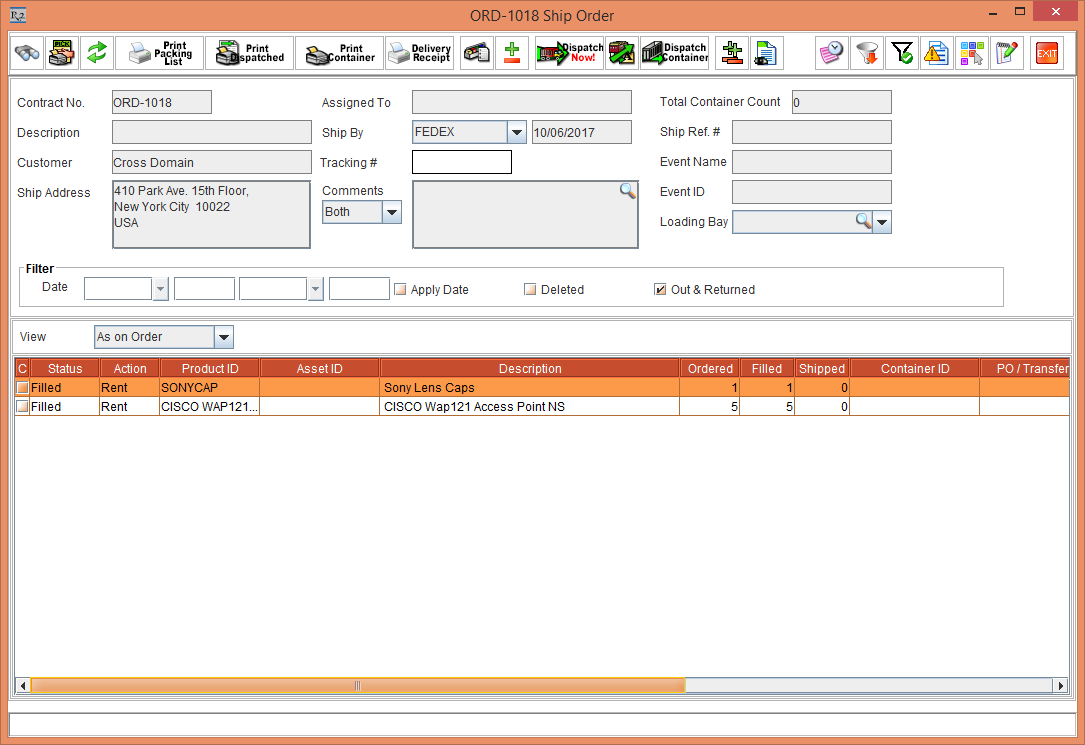
Double-click the Order [ORD-1018] > the Ship Order window will open as shown in Figure 1.2.
-
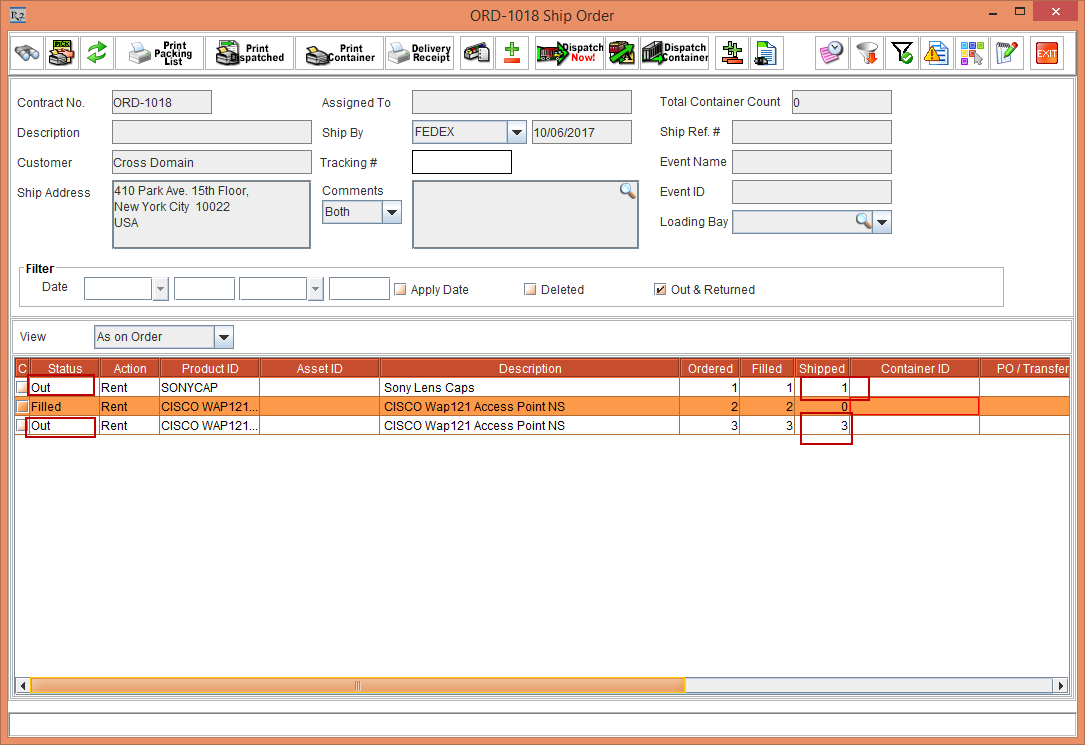
Enter the Qty as 1 in the Shipped column for the Items [SONYCAP] and Qty as 3 for [CISCO WAP121 ACCESS PO]. The system displays the Status as Out for the Item [SONYCAP] and Item [CISCO WAP121 ACCESS PO] is divided into 2 lines with one line show Status as Out and one line show Status as Filled. As shown in Figure 1.3.