
Reference No: R2-12141
Version No: 06.00.06-00_P03
Details
Operations Order Description is displayed in the following manner: Ops For <Main Order ID> + <Main Order Description>.
-
Main Order ID: Primary Order ID number generated and assigned to a specific order.
-
Main Order Description: Short Order Description as provided for this specific order while creating the order.
The Order Description must not be left blank, otherwise this feature will not be useful.
Pre-requisites:
Equipment Pool option must be enabled (R2 Launch Pad > Configuration Module > Warehouse Tab) before any feature related to E-pool can be used.
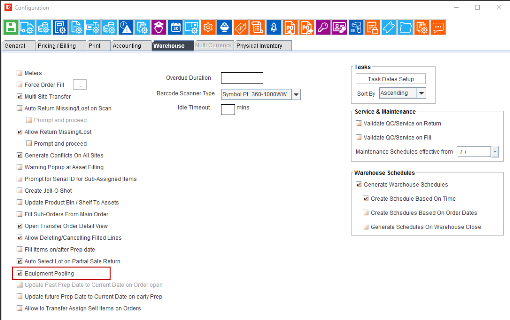
Change In UI [Field Functionality Enhanced]
Sample Workflow:
-
Go to R2 Launch Pad > Account Module > Search/Select A Company.
-
Create/Open an Order. Add the Kits, items, and sections to the order (as required).
-
Add at least one item/kit that requires transfer from another site under the same sub-region.
Note:
-
Ensure the Tax Region is selected, in the Shipping Tab.
-
Right-click on this line-item (From Step #3) and select Generate Ops Order.
-
Click Yes, in the next dialog box. Then Click Ok,
-
Now the Status of Line-item, from Step #3, is displayed with a *
-
To view the Ops Order Generated, go to Pool Menu > View Ops Order.
Both Ops Order and the Parent Order Can be seen in the Figure 1.0.

-
Go to R2 Launch Pad > Account Module > Search An Order.
-
Use the Order ID to search for the Ops Order, in Description
