-
Click on the New icon to create a new service ticket.
-
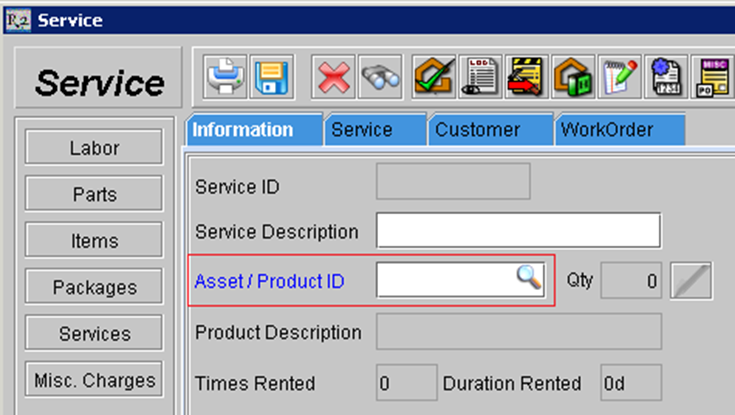
Click on the magnifying glass next to the Asset / Product ID field to select the asset being serviced / checked-in.
-
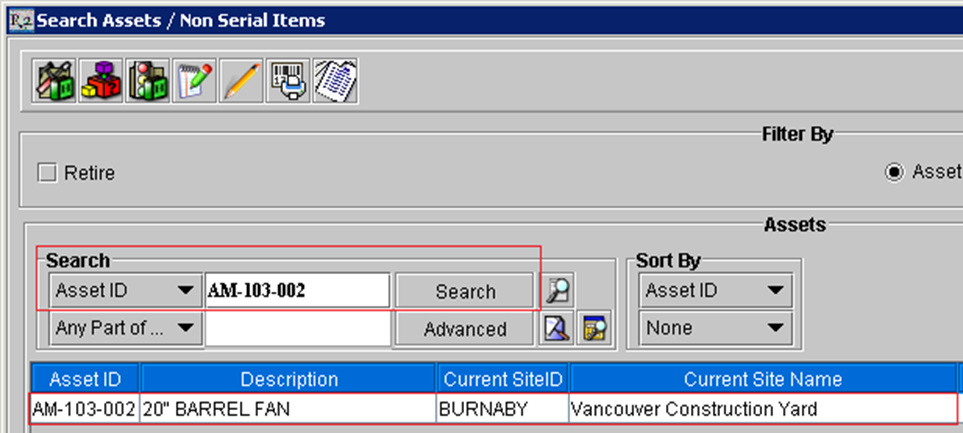
Search by Asset ID to locate the unit to be serviced, and double-click to select the asset.
-
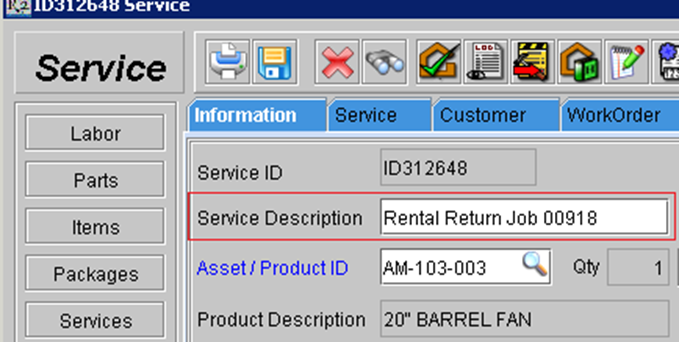
Enter a brief Service Description. This can be the rental / job number that the equipment was returned from.
-
Click on the magnifying glass next to the Comments field to enter additional notes about the service, if necessary.
-
Click on the Add icon

-
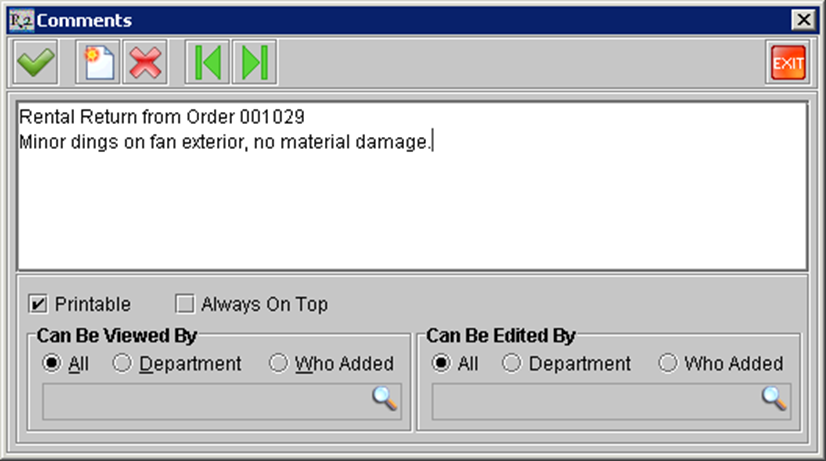
Type your comment and tic the Printable box if you want the comment visible on the printed service ticket.
-
Click on the OK icon

-
-
Select the Type for the work order – the options are Preventive, Corrective, and Manufacturer Recall.
-
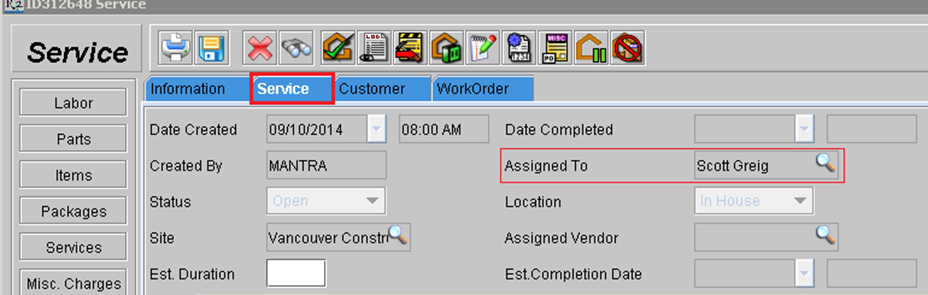
Click on the Service tab to select the service technician for this ticket.
-
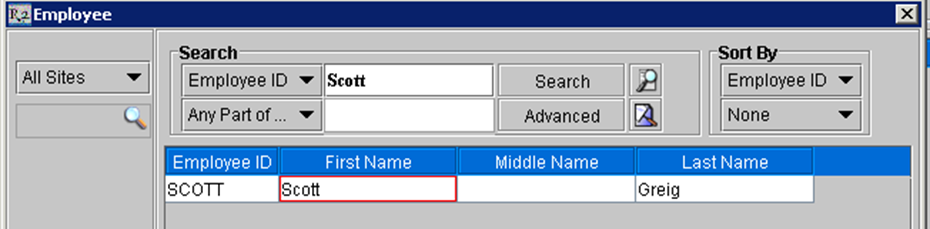
Click on the magnifying glass next to Assigned To. This will surface the employee search screen.
Search for the employee who is servicing the unit and double-click on their name.