Query filters are used to extract specific data from a database. You can configure these filters to narrow down results, making it easier and more convenient to retrieve the desired output.
-
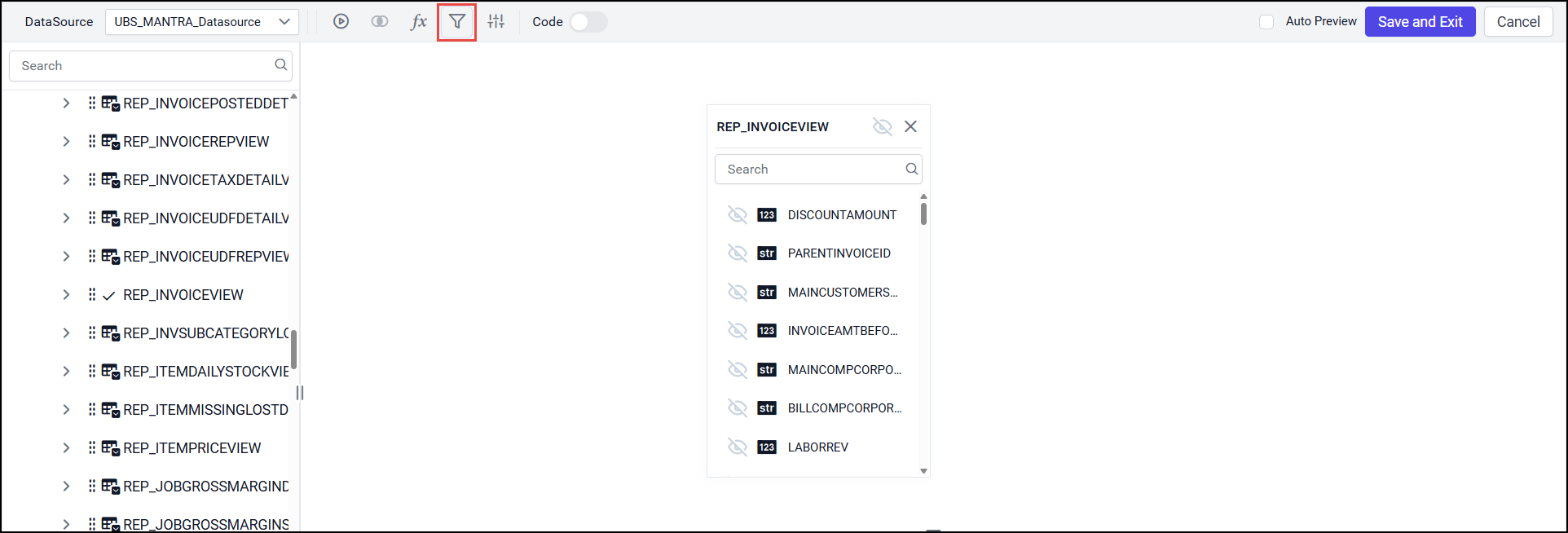
Click on Filters icon
-
Click on ADD.
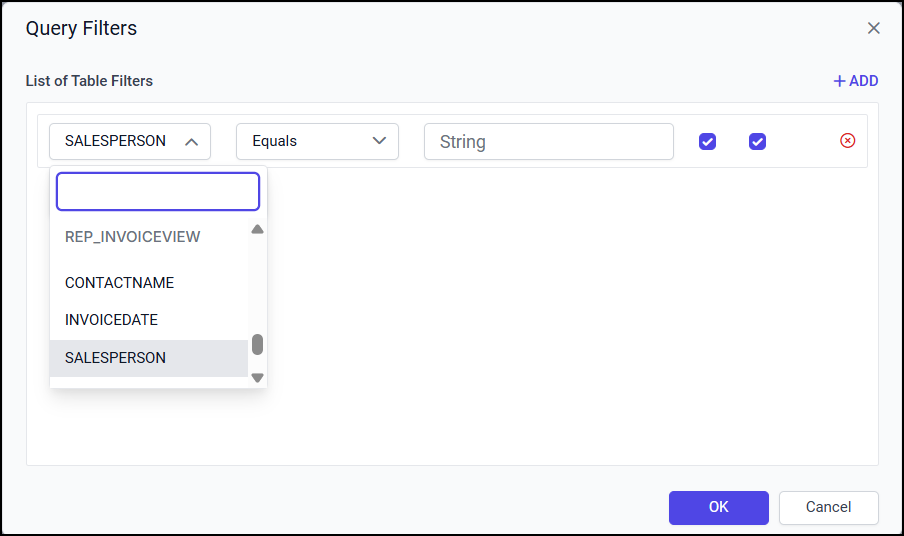
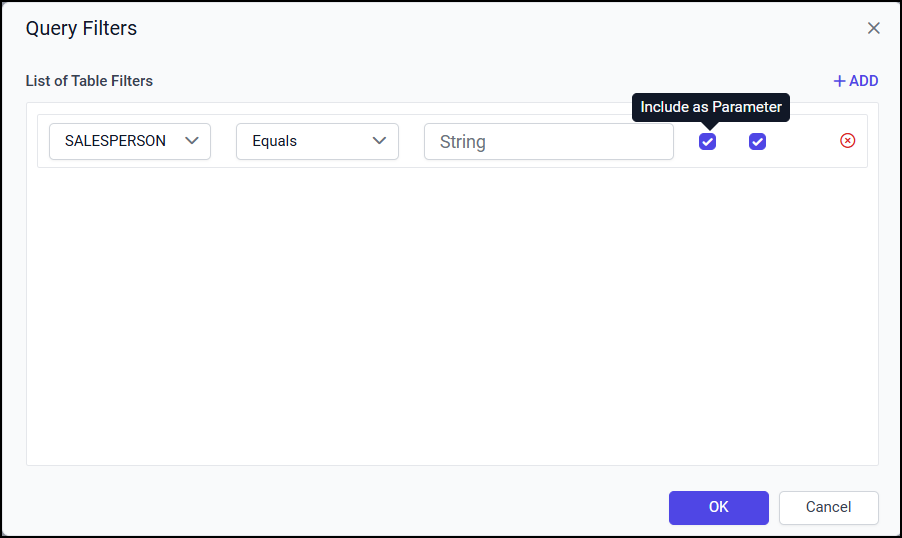
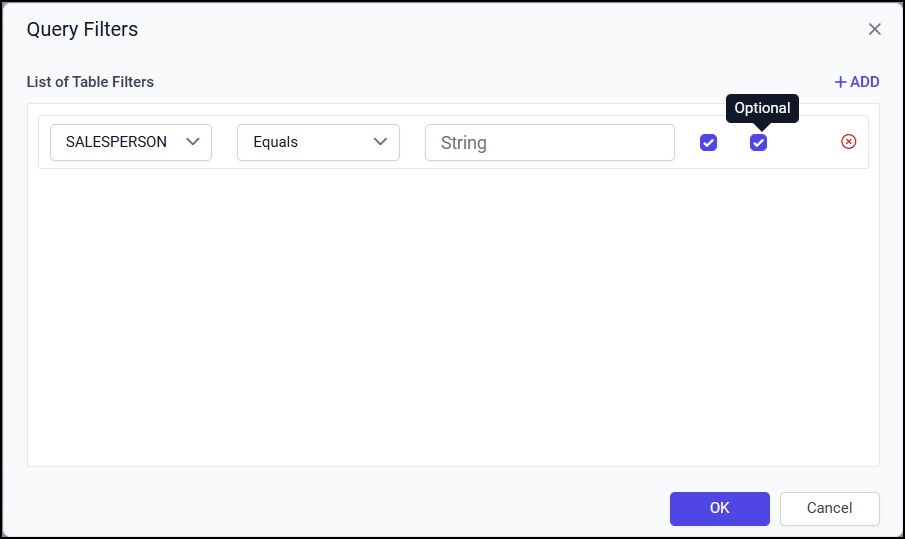
For example, if you want to generate a report based on the Salesperson’s name and let the user choose the name from a dropdown:-
Select "SALESPERSON" from the Filter dropdown – this is the field you want to filter.
-
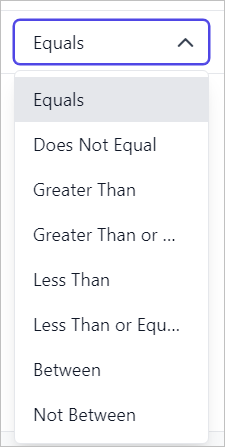
Set Operator to "EQUAL" – so the report only shows data for the selected salesperson.
-
Set Value Type to "STRING" – because the salesperson's name is text.
-
Set "Include as Parameter" to true – this allows the user to choose the name when running the report.
-
Set "Optional" to true – this makes the parameter show up as a dropdown, letting the user select a salesperson instead of typing it.
-
-
You can add more filter, Click 'ADD' to add more Filters.
-
You can see a dropdown on the top of the second row to choose AND or OR condition from the dropdown and with that you can filter out data based on the query condition.
-
Click OK and select Run icon to view the filtered data based on the condition in the data preview.
-
When you click on save and Exit, the changes will be saved.
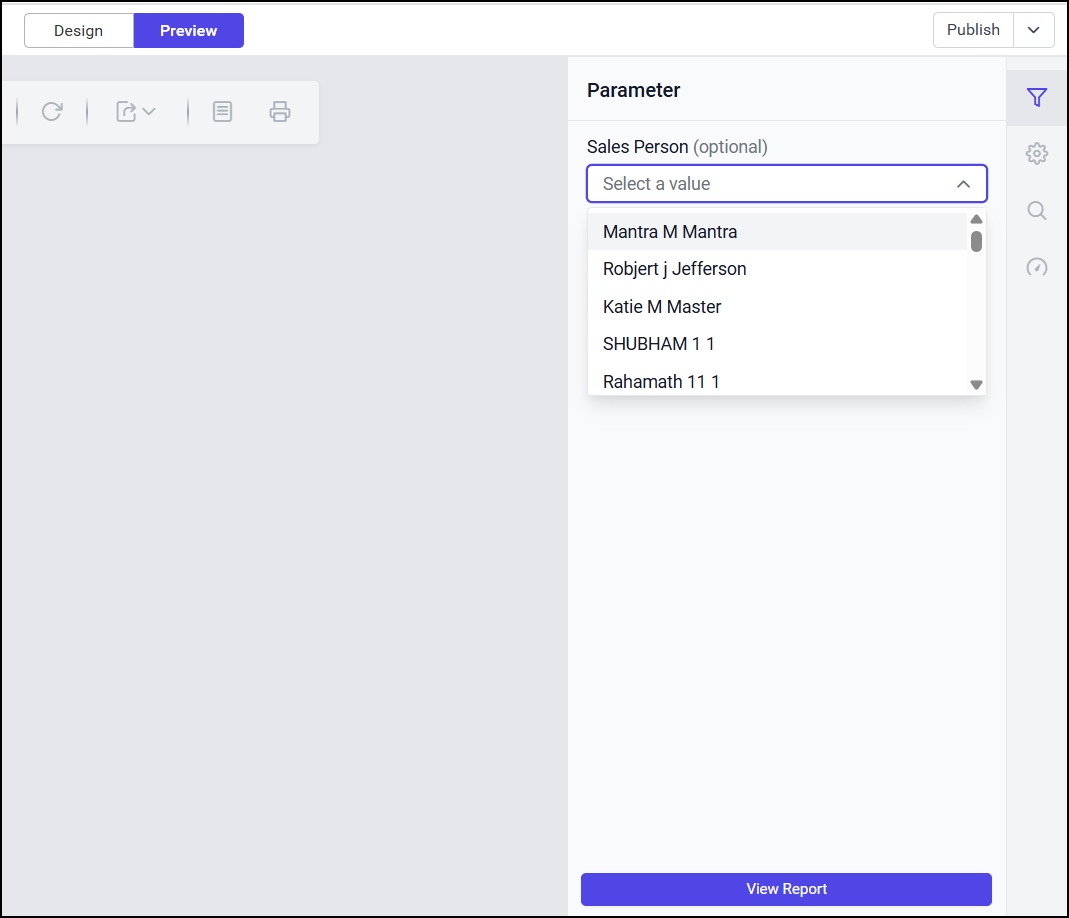
You can view dataset filters while creating report as shown below, select Sales Person’s name from the dropdown.