
To add Vendor Pricing for an item
-
Click the Vendor Pricing button in the Item edit window.
-
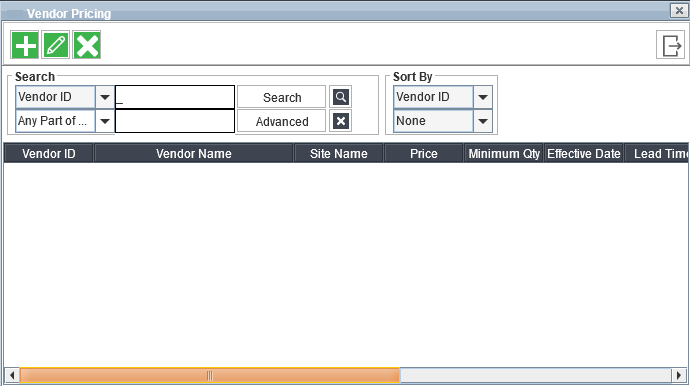
The Vendor Pricing dialog displays all vendors currently associated with the selected item, if any.
-
-
Click Add. Another Vendor Pricing dialog displays.
-
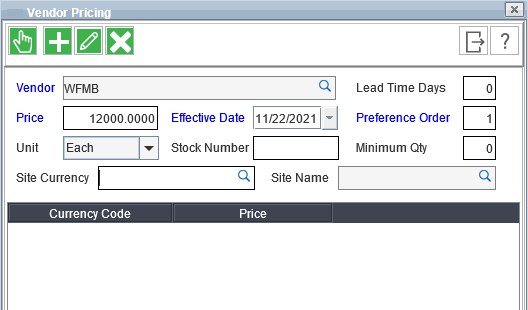
Enter or select information in all fields, the fields that appear in blue are mandatory fields.
-
Vendor: The identification number of the vendor.
-
Price: The price of the item.
-
Effective Date: The date from which the vendor pricing will be effective.
-
Preference Order: You can enter the order in which you want the pricing to be displayed while P-Assigning items.
-
-
Click OK to exit and save your new vendor pricing.
-
To delete a vendor pricing definition, click the Delete button.