
Content was last updated in 06.01.17-00
Revision History
Version No.
|
Reference No.
|
Changes
|
|
NA |
28533 |
Processing Multiple Return Orders |
You can now perform returns on Multiple Orders in a single step.
On scanning an Asset with Status as Out in an Order from the Warehouse module > Actions > Return / Receive Item, the support has been provided for the following operations:
-
View list of all the Orders of the Project/Event
-
Select one or more Orders from the list and return the Assets/Non-Seral Items/Kits on the selected Orders from single window.
-
Same window will have an option to return the Sub-Rented Items on the selected Orders.
The details are explained in the sample workflow given below:
Sample Workflow
-
Create a Project [Project Summer Shows – 2017].
-
Create two Events for the Project as [Event Coldplay Tour] and [Event One Direction Tour].
-
Create three Orders for Event [Event Coldplay Tour] and two Orders for Event [Event One Direction Tour].
-
Add Items and then fill and ship all Items in these Orders, as shown in Figure 1.0, Figure 1.1, Figure 1.2, Figure 1.3 and Figure 1.4.
Figure 1.0 Order [Coldplay Order#1] for Event [Event Coldplay Tour] of Project [Project Summer Shows – 2017]
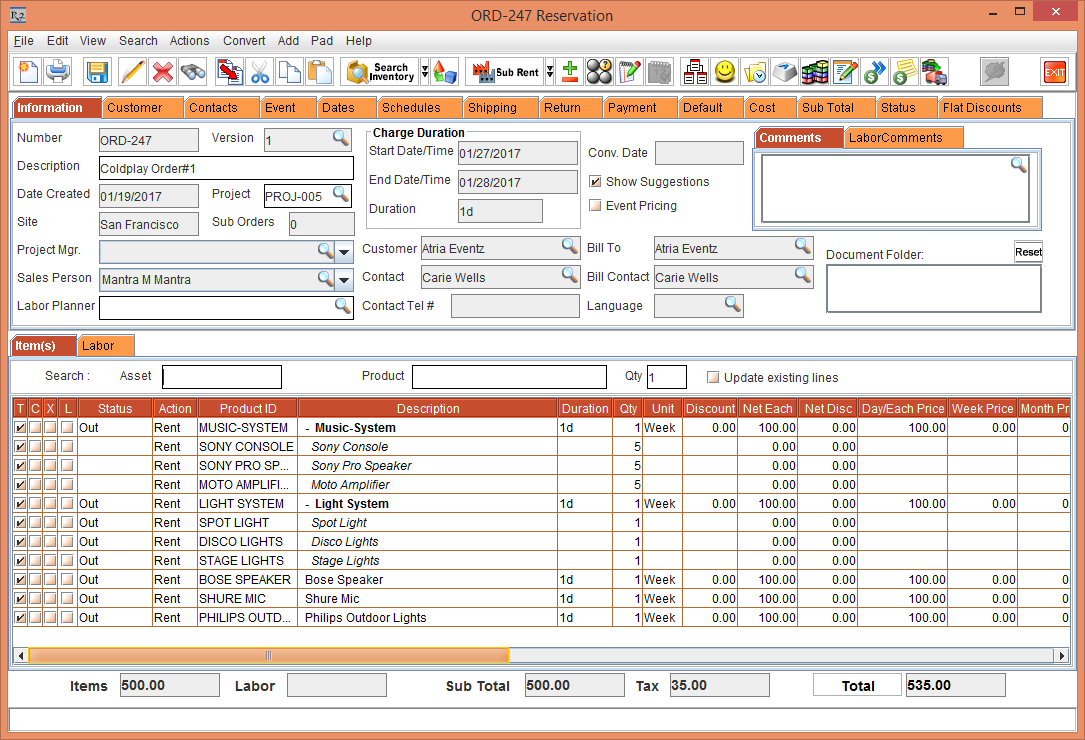
Figure 1.1 Order [Coldplay Order#2] for Event [Event Coldplay Tour] of Project [Project Summer Shows – 2017]
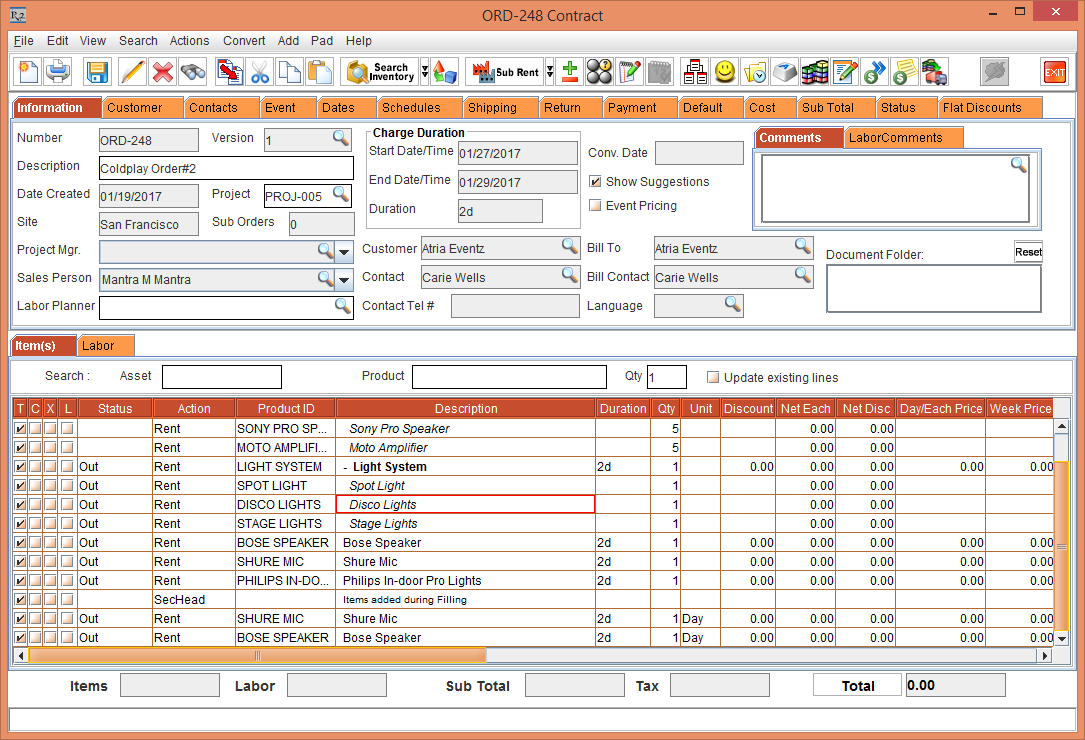
Figure 1.2 Order [Coldplay Order#3] for Event [Event Coldplay Tour] of Project [Project Summer Shows – 2017]
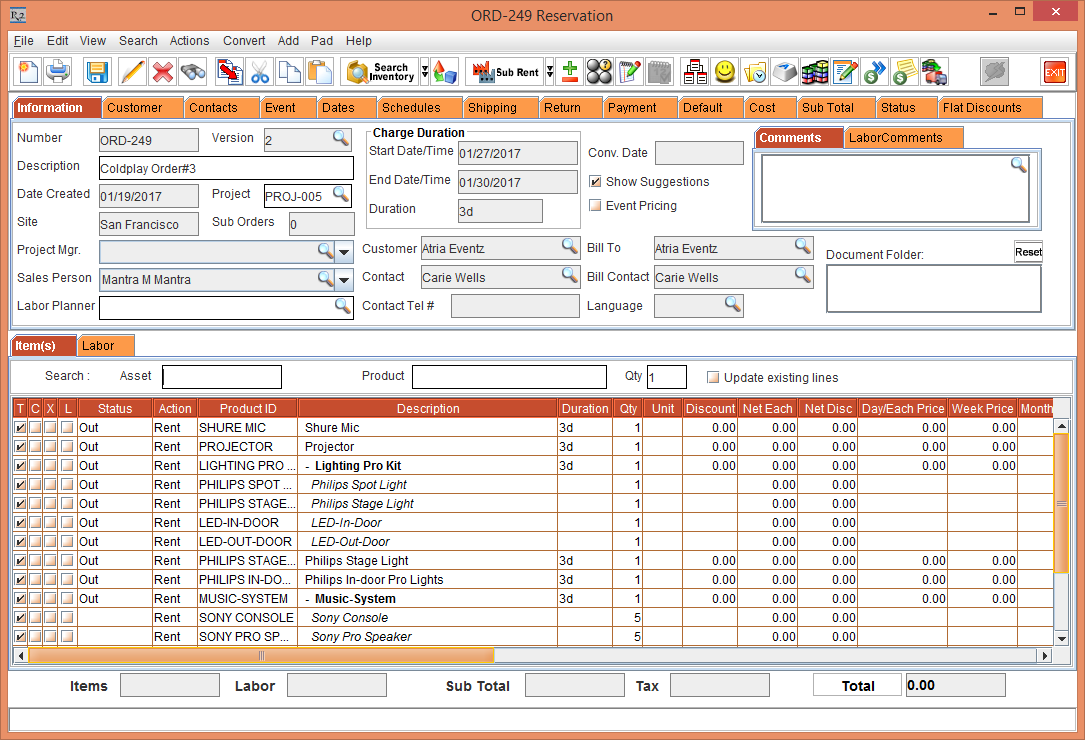
Figure 1.3 Order [One Direction Order#1] for Event [Event One Direction Tour] of Project [Project Summer Shows – 2017]
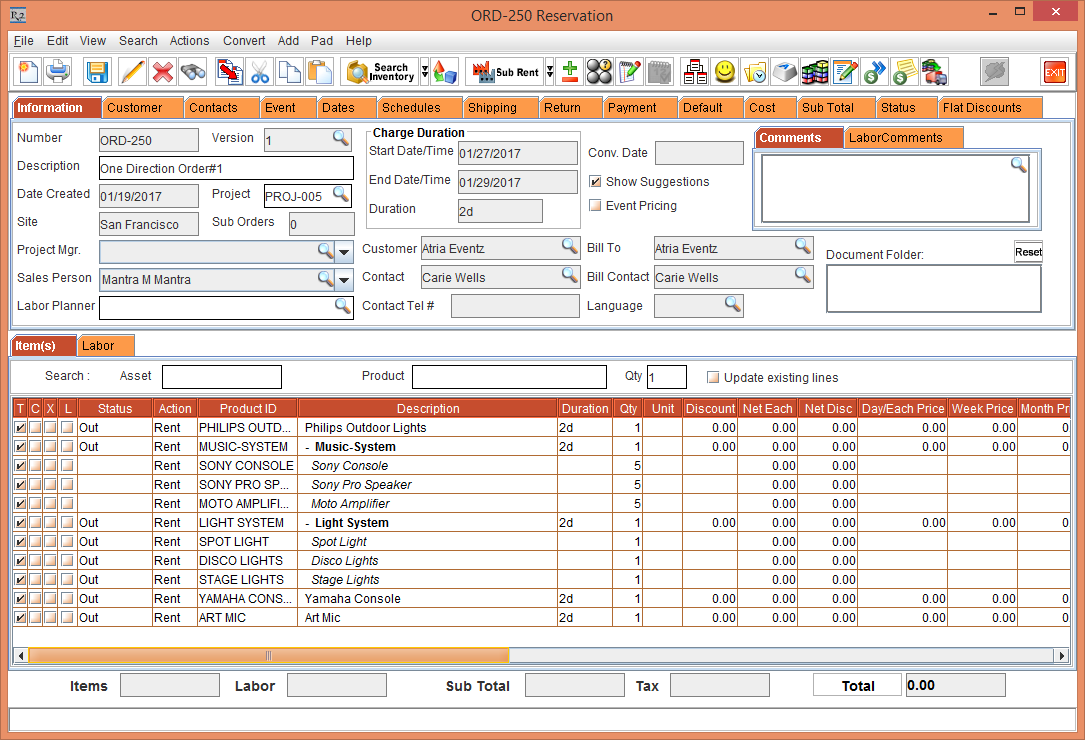
Figure 1.4 Order [One Direction Order#2] for Event [Event One Direction Tour] of Project [Project Summer Shows – 2017]

-
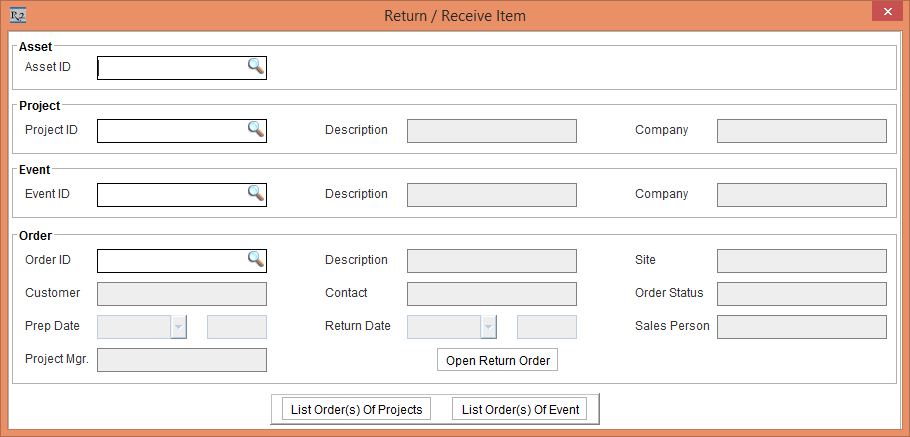
Select Warehouse module > Actions > Return / Receive Item or press CTRL + R from your keyboard. The Return/Receive Item dialog box is displayed as shown in the Figure 1.5.
Figure 1.5 The Return/Receive Item dialog box
-
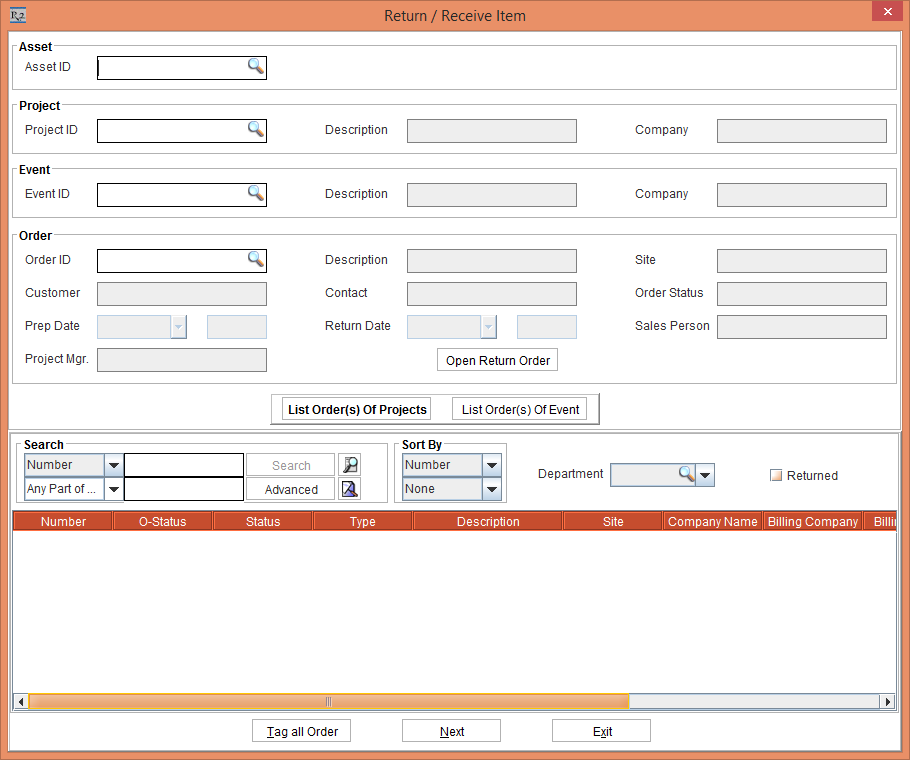
List Order(s) of Project – Displays the Project/Event Order List, where all Orders belonging to the Project is displayed.
Figure 1.6 List Order(s) Of Projects button in Return / Receive Item window
-
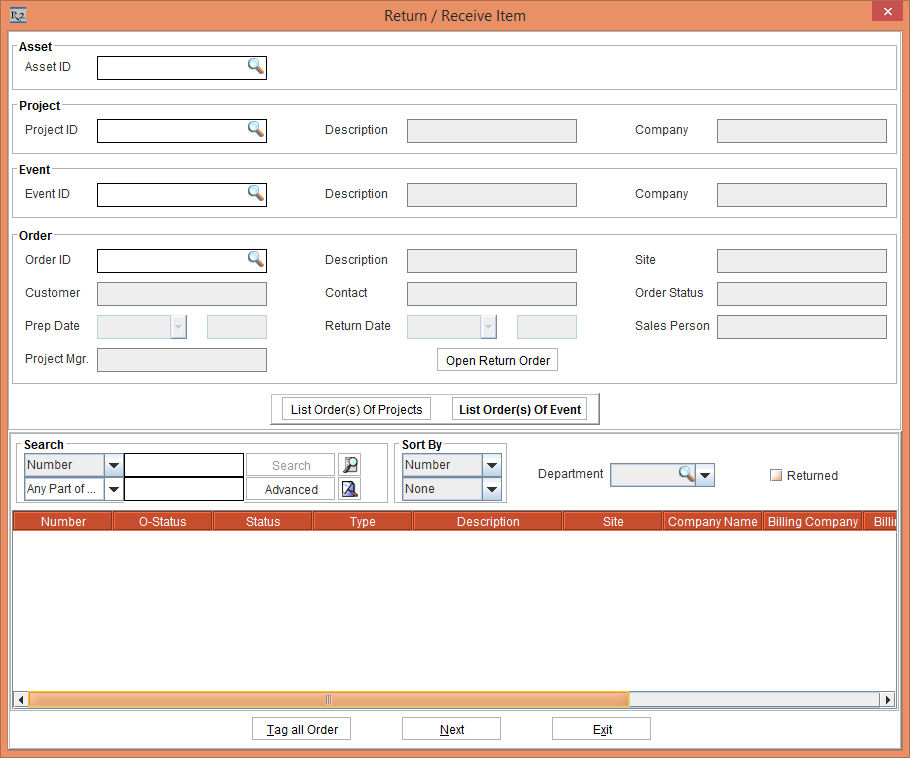
List Order(s) of Event – Displays the Project/Event Order List, where all Orders belonging to the Event is displayed.
Figure 1.7 List Order(s) Of Event button in Return / Receive Item window
-
Open Return Order – Displays the Return Order window, where you can scan and receive Assets, which is existing functionality.
-
Tag all Order - Clicking this, all orders will be tagged irrespective of the search filters applied.
-
Next- Clicking this will display Return Multiple Orders window.
-
Scan and Tag the Asset [BOSE SPEAKER ASSET001] which is out on Order [Coldplay Order#1] in the Asset ID field. All other Information is displayed in the Return/Receive Item dialog box as shown in the Figure 1.8.
Figure 1.8 Asset [BOSE SPEAKER ASSET001] in the Return/Receive Item dialog box

Note : If the Asset entered is not in Out Status then a tool tip is displayed as shown below:

-
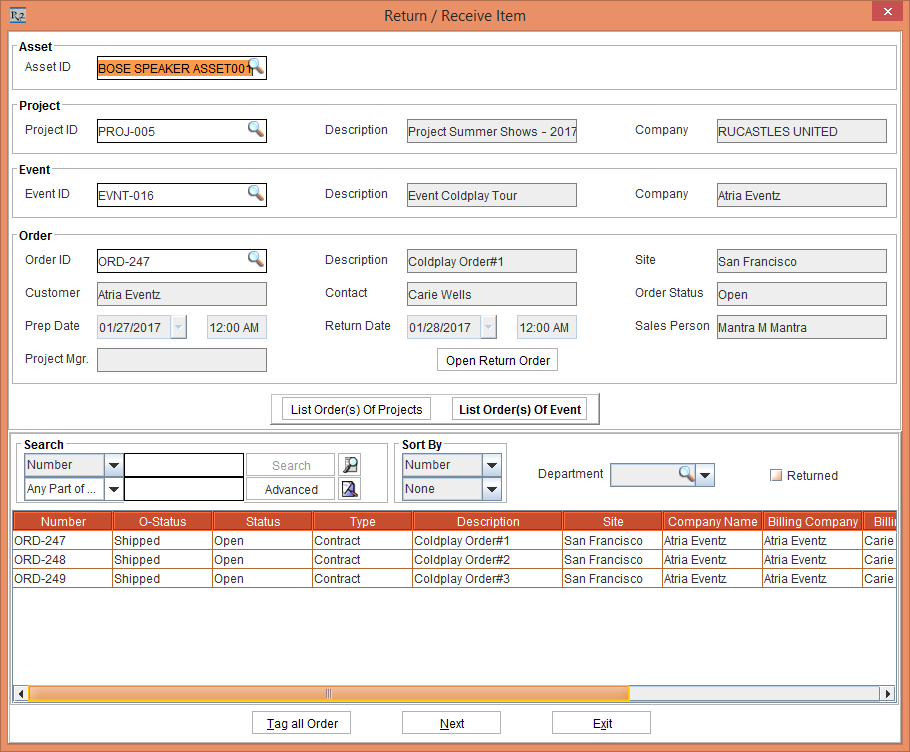
Click the List Order (s) Of Event button. The List of Orders of Events are displayed as shown in the Figure 1.9
Figure 1.9 List Order (s) Of Event
-
Tag the Orders [ORD-247], [ORD-248] and [ORD-249] as shown in the Figure 1.10.
Figure 1.10 Orders tagged in the List Order (s) Of Event

-
Click the Next button. This will display Return Multiple Orders window as shown in the Figure 1.11.
Figure 1.11 Return Multiple Orders window

-
Enter the Asset ID [BOSE SPEAKER ASSET001] in the Enter ID field and press Enter. The Status of the Asset will be Returned and the Asset line will be displayed in Bold text as shown in the Figure 1.12.
Figure 1.12 Return Asset ID [BOSE SPEAKER ASSET001]

-
Scan the Kit Asset ID [SR370728] which is Out on the selected orders that is [ORD-247]. Hence the Kit is received to the Inventory on the same order and the Kit is displayed at the top in bold text.
NOTE: Scanning any child Asset of the Serial Kit will also return the Kit and the returned Kit will be displayed at the top in bold text. The window label is changed from BOSE SPEAKER ASSET001 Return Multiple Orders to SR370728 Return Multiple Orders after the Returning.
Figure 1.13 Return Multiple Orders window with Kit displayed at the top in bold text

Case 1: Different Assets found on selected order (Multiple Assets of the Product found on selected Orders)
-
Scan the Asset ID [BOSE SPEAKER ASSET002] in the Return/Receive Item dialog box and Tag the Orders [ORD-247] or [ORD-248] in the List Order (s) Of Event window.
-
Scan the Asset ID [MI020] which is not Out on either of the selected orders (that is [ORD-247] or [ORD-248]) in the Return Multiple Orders window.
-
The Asset [MI020] is Out on another order [ORD-253] of the same project.
-
Among the Orders selected (that is [ORD-247] or [ORD-248]), there are other Assets Out. The system displays the following window:

-
The prompt at Step 15 will be displayed only if the flag ‘Auto swap with same product on return’ is not selected in the Returning Site (site where it is scanned) and the Department of the Asset scanned. This is as shown in Figure 1.14
Figure 1.14 Auto Swap Option

-
If the Auto Swap check box is selected in the Returning Site (site where it is scanned) and the Department of the Asset scanned, then system will automatically swap with any one of the asset. The comments are written to both the order lines as mentioned below.
-
Choosing Select manually for swapping radio button will bring the list of Assets of the same product which is Out on the selected Orders. User can select any of these assets to swap with the scanned asset. User can search for any other asset belonging to the same exchange group or any other Asset which is Out on selected Order to swap. Select the Asset ID [MI001].
Figure 1.15 Swap Assets window

NOTE: On swapping with the selected Asset successfully comment will be written on both the Order lines.

-
Return the Asset on the Order and return to Current Site Inventory - the Asset is returned from its Order.
-
Do Nothing – no action is taken.
Case 2: Different Asset found on selected order (This is the Only Asset of the Product found on selected Orders)
-
In Case 1, if the Asset ID [MI020] is the only Asset of the product [MI BANDS] which is Out on the selected orders [ORD-252] or [ORD-253], then the system automatically swaps the assets. The Asset [MI020] will be returned in the Order [ORD-252] and the Asset [MI001] will be Out in the Order [ORD-253].
-
Comments will be written to both the order lines.
Case 3: Scanning Asset which is not dispatched on any of the Orders of the selected Project
-
Scan the Asset ID [MI003] which is not dispatched on any of the Orders of the selected Project [Project Summer Shows – 2017] .
-
Then system displays a prompt message, as shown below.

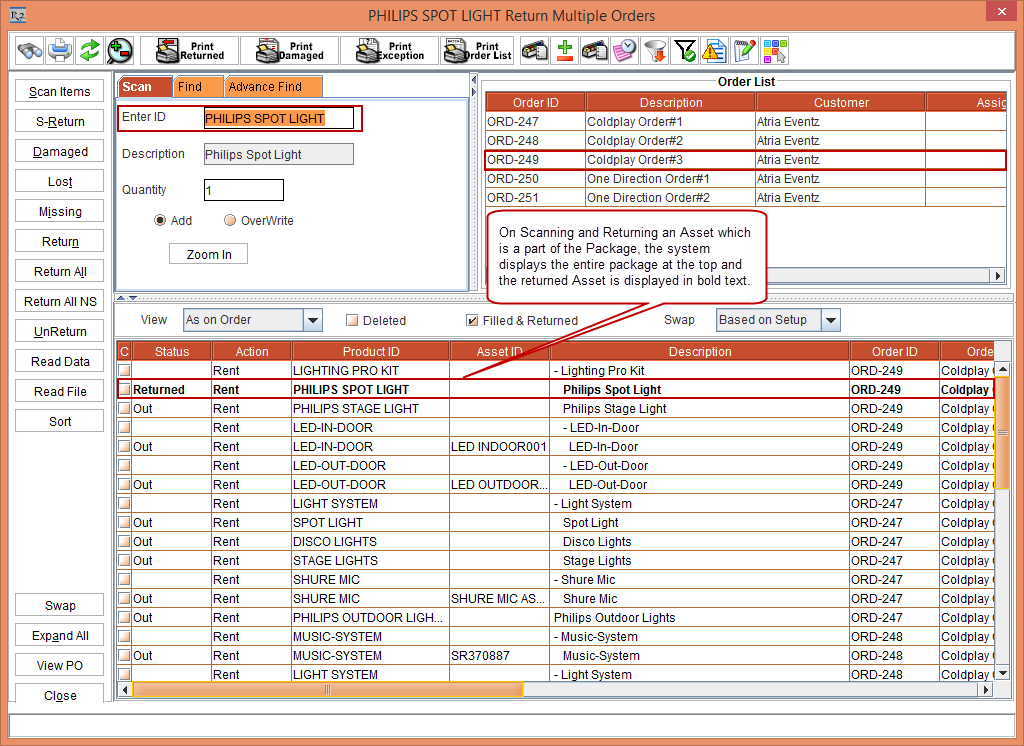
For scanning an Asset/Item that is added to a Package [LIGHTING PRO KIT], scan the Product ID [PHILIPS SPOT LIGHT] which is one of the child items of the Package [LIGHTING PRO KIT]. The system displays the Package at the top with the received Asset in bold text. This is as shown in the following Figure 1.16:
Figure 1.16 Return Multiple Orders window
Scanning Non-Serial Items
Non-Serial Product on selected Orders when scanned will return quantity based on the following:
-
Highlighted Line
-
Partial Returned Packages
-
Selected Order Sequence
NOTE: When the Non-Serial product is not dispatched on the selected Orders, the system does not take any action but write the exception as "Product is not on order".
-
Highlight a Non-Serial Item line and Receive:
Select the Non-Serial Item [PHILIPSAUDIOSYSTEMNS] added to the Order [ORD-254] and receive 5 quantities out of the 10 quantities that are shipped. Enter the Product ID [PHILIPSAUDIOSYSTEMNS] > enter 5 in Quantity field in the Scan tab > press Enter button on keyboard. The system returns 5 Quantity of the Item to the Inventory and displays the Package at the top with the received Item highlighted in bold text. The rest 5 Quantity of the Partially Returned Package will appear in the next line with value 0 in Returned column. This is shown as in Figure1.17.
Figure 1.17 Highlighting and partially receiving the Non-Serial Item added to Package

-
Scan and receive Non-Serial Item without Highlighting:
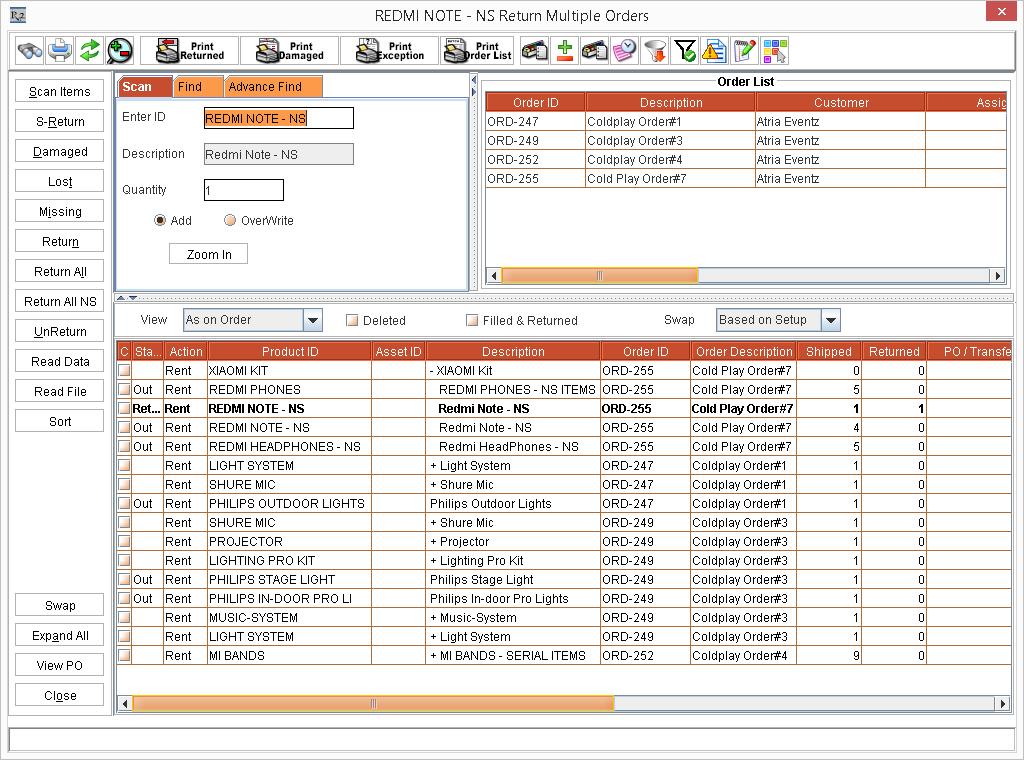
Scan the Non-Serial Item [REDMI NOTE - NS] without highlighting any line. The system returns from the Package [XIAOMI KIT], since the Item is the part of the Package [XIAOMI KIT]. When no line is highlighted, the preference is given to partially returned Packages. The system will continue receiving from all partially returned Packages where the Item is present till it has received to the extent of the scanned quantity. This is shown in the following Figure 1.18.
Figure 1.18 Non-Serial Item without Highlighting
Swap Assets of a partially returned Kit with the Assets of another partially returned Kit
Support is provided for swapping the Serial Items of one Non-Serial Kit which is in Partially Return status with the Serial Items of another Non-Serial Kit which is also in Partially Return status to change the status of the second Non-Serial Kit to Completely Return status.
-
Open the Rental Reservation Order [ORD-256] in the Return Multiple Orders window comprising of the following:
-
[LIGHT SYSTEM KIT 1] - [SONY CONSOLE] and [SONY PRO SPEAKER]
-
[SONY CONSOLE] - [SONY CONSOLE ASSET033]
-
[SONY PRO SPEAKER] - [SONY P SPKR032]
-
[LIGHT SYSTEM KIT 2] - [SONY CONSOLE] and [MOTO AMPLIFIER]
-
[SONY CONSOLE] - [SONY CONSOLE ASSET014]
-
[MOTO AMPLIFIER] - [MOTO AMP ASSET032] This is shown in the following Figure 1.19.
Figure 1.19 Non-Serial Kits with Serial Items

-
Scan the Item Asset [MOTO AMP ASSET032] which is in the Out status of the Non-Serial Kit [LIGHT SYSTEM KIT 2]. The Status of the Item Asset [MOTO AMP ASSET032] is modified to Returned and the Non-Serial Kit [LIGHT SYSTEM KIT 2] is now partially returned. This is shown in the following Figure 1.20.
Figure 1.20 Asset [MOTO AMP ASSET032] in Returned status and the Non-Serial Kit [LIGHT SYSTEM KIT 2] in partially returned status

-
Scan the Item Asset [SONY CONSOLE ASSET032] which is in the Out status of the Non-Serial Kit [LIGHT SYSTEM KIT 1]. The system modifies the Status of the Item Asset [SONY CONSOLE ASSET017] to Returned and the Non-Serial Kit [LIGHT SYSTEM KIT 1] status to partially return. The status of the Non-Serial Kit [LIGHT SYSTEM KIT 2] is which was partially returned is modified to completely return by swapping the Assets. This is shown in the following Figure 1.21.
Figure 1.21 Asset [SONY CONSOLE ASSET032] in Returned status and the Non-Serial Kit [LIGHT SYSTEM KIT 2] in complete return status

Viewing MFG Serial Number in the Return Multiple Orders window
The MFG Serial Number column is added in the Return Multiple Orders window displaying the Asset's MFG Serial Number tagged to the Order.
-
Select the Maintenance module > Items tab.
-
Create a Serial Item [SALMONOMEGA] and receive some Assets.
-
Select the Asset [SALMONOMEGA-2] and enter the MFG Serial# [SOM#2]. Create a Rental Reservation Order [ORD-802] with the Duration [2d] for the Company [AMWAY].
-
Open the Rental Reservation Order [ORD-802] in the Return / Receive Item window.
-
The Return Multiple Orders window with the Serial Item [SALMON OMEGA] and Asset [SALMONOMEGA-2] is displayed.
-
The MFG Serial Number column of the Asset’s MFG Serial Number [SOM#2] is displayed. This is shown in Figure 1.25.
Figure 1.25 MFG Serial Number in the Return Multiple Orders window
