
Planning Order Restrictions
Booking Line Grid
Access Path: Main Menu > Planning > Orders > Planning > Booking Line Grid
-
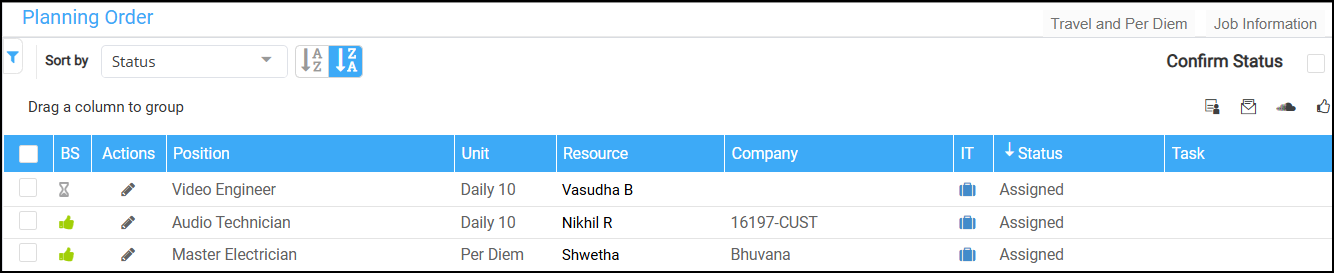
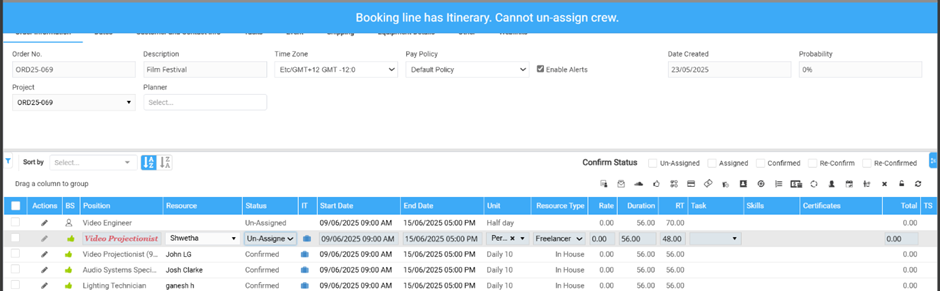
Resource, Company Fields: These fields are not editable when an Itinerary exists.
-
Message: "Booking line has Itinerary. Cannot un-assign crew."
-
-
Status: Allows changes to any status except 'Un-Assigned'.
-
Message: "Booking line has an existing Itinerary. Status cannot be changed to 'Un-Assigned'."
-
-
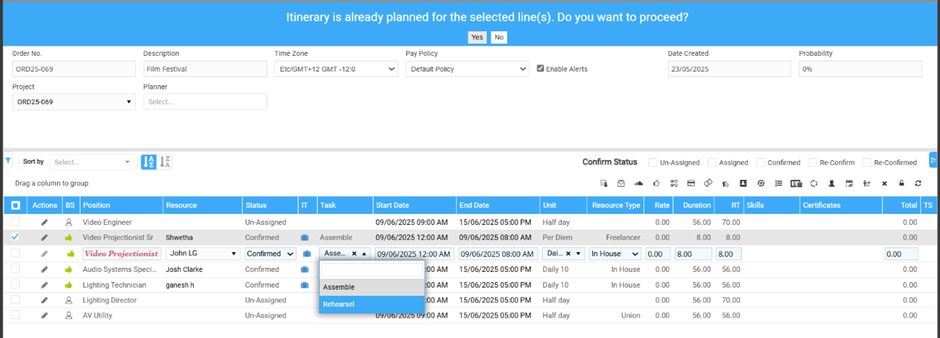
Task Field: When attempting to change the task, a prompt notifies that an Itinerary exists, confirm whether to proceed with the task change
-
Message: "Itinerary is already planned for the selected line(s). Do you want to proceed?"
-
More Information
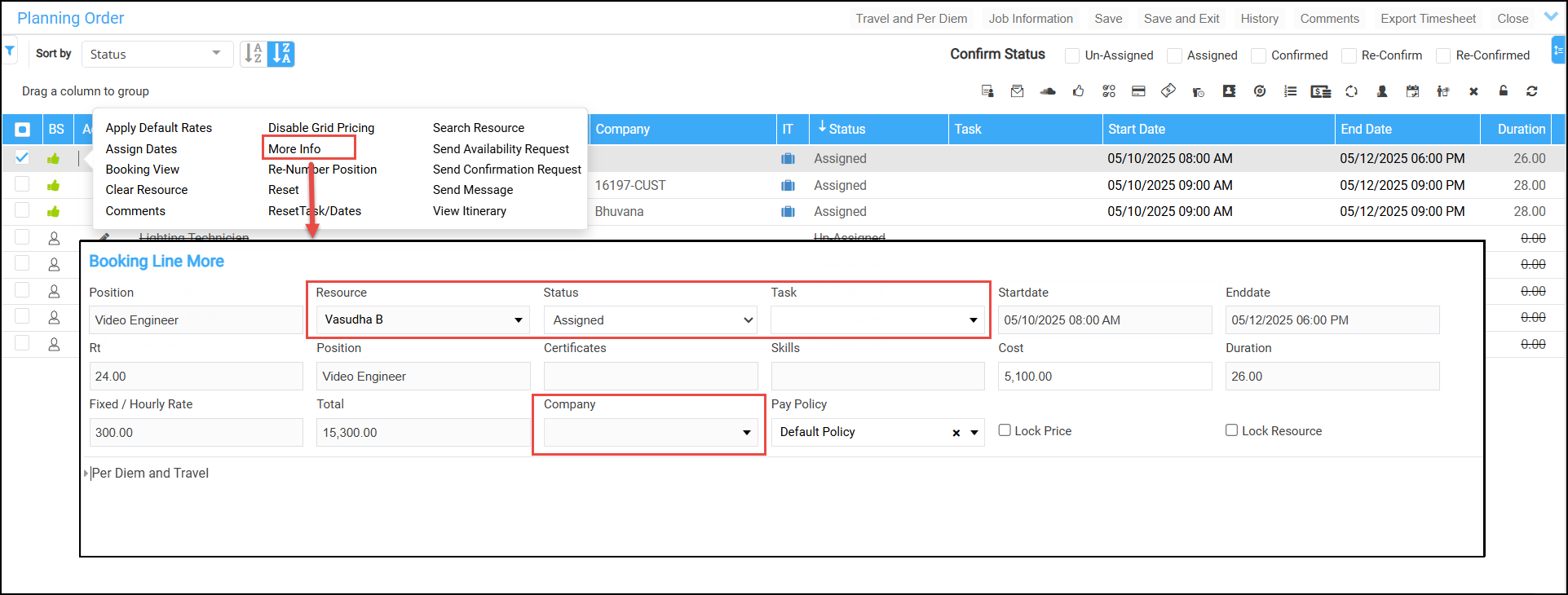
Access Path: Main Menu > Planning > Orders > Planning > Booking Line Grid > Edit Icon > More Information
-
Resource, Company Fields: Not editable if an Itinerary exists.
-
Status: Allows status change except to 'Un-Assigned'.
-
Message: "Booking line has Itinerary. Cannot un-assign crew."
-
-
Task Field: Prompts a notification that changing the task may impact the schedule.
-
Message: "Itinerary is already planned for the selected line(s). Do you want to proceed?"
-
Booking Line Actions
Main Menu > Planning > Orders > Planning > Booking Line Grid > Actions
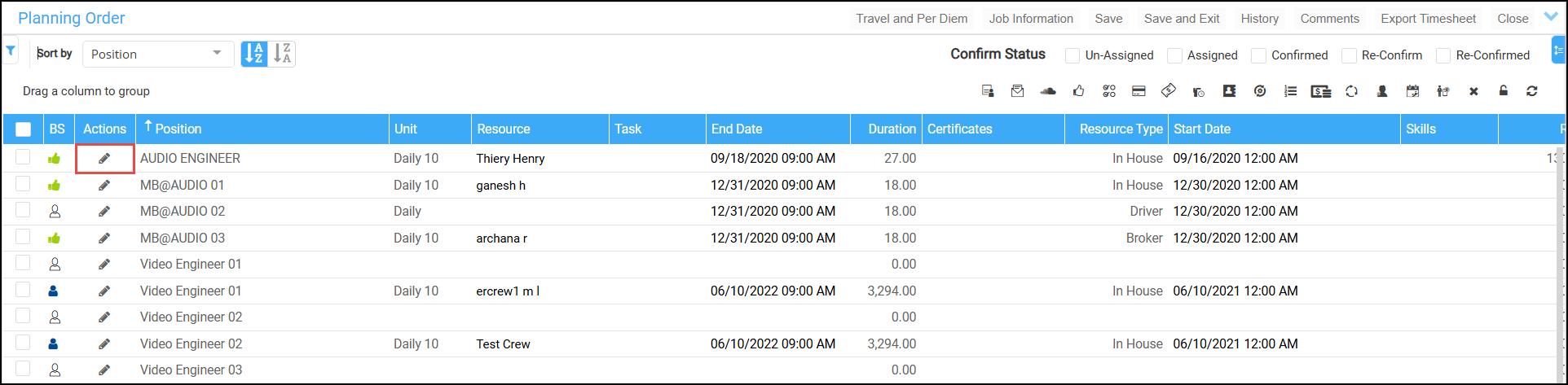
-
Clear Resource, Search Resource, and Reset: These actions are restricted. A message is displayed when attempted.
-
Reset Task/Date: A confirmation prompt will appear stating:
-
An itinerary is already associated with this booking line.
-
Confirm whether to proceed with the change
-
Message: "Itinerary is already planned for the selected line(s). Do you want to proceed?"
-
-
Assign Dates: The Assign Dates window opens as usual. On clicking OK, a confirmation prompt appears stating:
-
An itinerary is already associated with this booking line.
-
Confirm whether you want to proceed with the changes.
-
Confirmation prompts appear when:
-
Modifying EWT line details
-
Deleting the EWT line
-
-
Message: “Itinerary is already planned for the selected line(s). Do you want to proceed?”
-
-
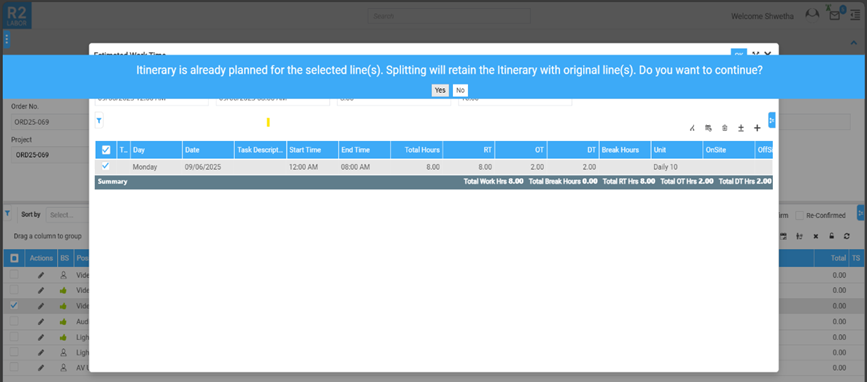
Split EWT Line: If you attempt to split a booking line with an itinerary, a confirmation prompt appears stating:
-
An itinerary is already associated with this booking line.
-
The itinerary will remain linked to the original line.
-
Confirm whether you want to proceed with the split.
-
Message: "Itinerary is already planned for the selected line(s). Splitting will retain the Itinerary with original line. Do you want to continue?"
-
Booking Line Toolbar Actions
Main Menu > Planning > Orders > Planning > Booking Line Grid > Toolbar

-
Reset (Single Line): If the selected booking line has an associated itinerary, the reset action is restricted, and a message is displayed.
-
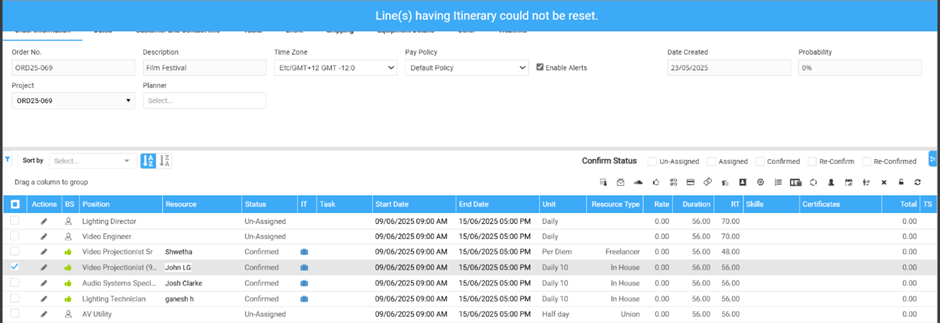
Reset (Multi-Line): The Reset action is applied only to booking lines without an itinerary. A message is displayed indicating some lines were excluded due to existing itineraries as shown below.
-
Message: “Line(s) having Itinerary could not be reset.”
-
-
Reset Task/Dates
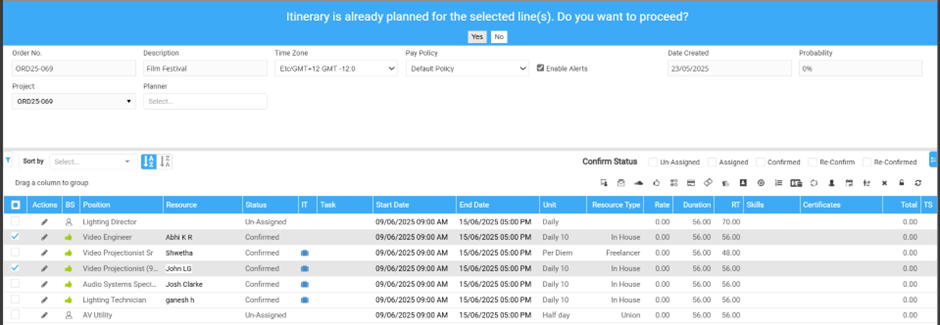
Both in Single line and Multi line** selection, a confirmation prompt will appear stating:
-
An itinerary is already associated with this booking line.
-
Confirm whether to proceed with the change
-
Message: “Itinerary is already planned for the selected line(s). Do you want to proceed?”
-
**In case on multiple line selection, the reset task/dates action is applied only to booking lines without an itinerary.
-
-
Assign Resource
-
Single Line: System does not assign the resource and throws a message.
-
Multi-line selection: System prompts a message stating
-
Message: “Booking line(s) has Itinerary. Cannot modify crew". Upon Yes, ‘the Assign Resource’ window opens. Resource gets updated only to the lines without itinerary
-
-
-
Clear Resource
-
Single line selection: System does not assign the resource and throws a message.
-
Multi-line selection: Resource can be cleared only for the lines without Timesheet and displays a message.
-
In both the cases, the following message is displayed Message: “Some of the line(s) could not be updated as they have Itinerary.”
-
-
-
Update Lines:
-
Single line selection:
-
Resource and Union/Broker/Pay Agent – Restricted and displays a message
-
Status – Same as Booking line grid > Status
-
Task - Same as Booking line grid > Task
-
-
Multi-line selection: Resource, Union/Broker/Pay agent (company), Status and Task fields updates only for the lines without Itinerary. You will also see the following message.
-
Message: “Some of the line(s) could not be updated as they have Itinerary.”
-
-
Assign Dates
-
Same as Actions in Booking lines> Assign Dates.
-
In case of multi-line selection, actions can be performed only for the lines without Itinerary.
-
Message: “Itinerary is already planned for the selected line(s). Do you want to proceed?”
-
-
-
Booking line > Right Click
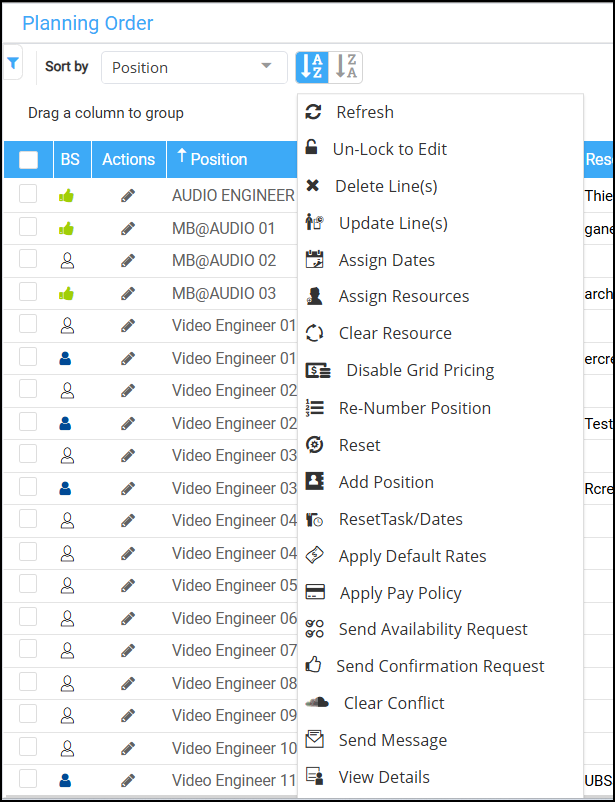
The following options behave identically to their counterparts in the toolbar:
-
Reset: The functionality is same as 'Reset' action in booking line tool bar.
-
Reset Task/Dates: The functionality is same as 'Reset Task/Dates' action in booking line tool bar.
-
Update lines: The functionality is same as 'Update lines' action in booking line tool bar.
-
Assign Dates: The behavior is same when performed from 'Actions' booking line tool bar.
Header > Task Tab
If you attempt to change the task, a confirmation prompt will appear stating:
-
An itinerary is already associated with this booking line.
-
Confirm whether to proceed with the task change.
Booking Line Delete
You cannot delete a booking line with an associated itinerary. A message is displayed.
Whiteboard Restrictions
Right-Click > Booking Line
-
Assign Resource: Functionality is same as Planning Order > Toolbar > Assign Resource.
-
Change Status
-
Single Cell Selection: Allowed to change status to Assigned, Confirm, or Re-Confirm.
-
Clear Resource is restricted with a message.
-
Multiple Cell Selection: Assigned, Confirm, Re-confirm: Regardless of the selected cells has itinerary, allow to change the status.
-
-
Unassign & Mark as Not Available
-
Single Cell Selection: Action is restricted with a message.
-
Multiple Cell Selection: Action applies only to lines without itineraries and message is displayed on the same.
-
-
Reset Task/Dates: The functionality is same as 'Reset Task/Dates' in Planning Order.
-
Update lines: The functionality is same as 'Update lines' in Planning Order.
-
Assign Dates: The functionality is same as 'Assign Dates' in Planning Order.
-
Split: The functionality is same as 'Split' in Planning Order.
-
Change Date-Time
If all the fields are modified in 'Change Date and Time' dialog window: System prompts a confirmation message.
-
An itinerary is already associated with this booking line.
-
Confirm whether to proceed with the change
Apart from 'Date' field, if all the other fields are modified in 'Change Date and Time' dialog window: The data will be updated for the dates irrespective of whether the itinerary exists or not
-
-
Booking line tool bar
-
Reset Task/Dates: The functionality is same as 'Reset Task/Dates' in Planning Order.
-
Clear Resource: Same as Booking> Right click> Clear Resource functionality.
-
Confirm: The functionality is same as 'Confirmation request' in Planning Order.
-
Re-Confirm: The functionality is same as 'Confirmation request' in Planning Order.
-
Graphical Scheduling Restrictions
You cannot drag and drop the booking bar to the crew (lower) section/ within the crew section if itinerary exists and displays a message.
Communicate Restrictions
If Itinerary exists, following actions/fields are restricted
-
UBA tab: U/B/A field is not editable for the lines.