
R2 PackNShip supports to generate and print reports that are necessary for operations.
-
During Prep operation, you can generate and print Pick List so that you have a list of items that you are prepping.
-
You can view the pick list report in the app
-
You can print the pick list report from the app
Pre-Requisite
-
The folder where all the UI Form reside, must be a shared folder, so that It can be accessed by PackNShip app via your R2 deployment and vice-versa.
-
Also, within the shared folder, one of the UI Forms must be tagged as ‘Default’ so that the PackNShip app consumes it whenever a picklist has to be generated.
-
The step of defining the ‘default’ is mandatory, because as of now the app does not have any method to chose a specific UI Form while generating the picklist.
-
-
Alongside, in most cases the above folder is configured locally within the deployment of R2, and modifying the file path for multiple UI forms can be a cumbersome task.
-
That's why we have an automated script available to modify file paths. Read more about it here.
And reach out to UBS Tech Support to help you with it.
Workflow
-
Go to Prep/Fill
-
Click on Picklist icon
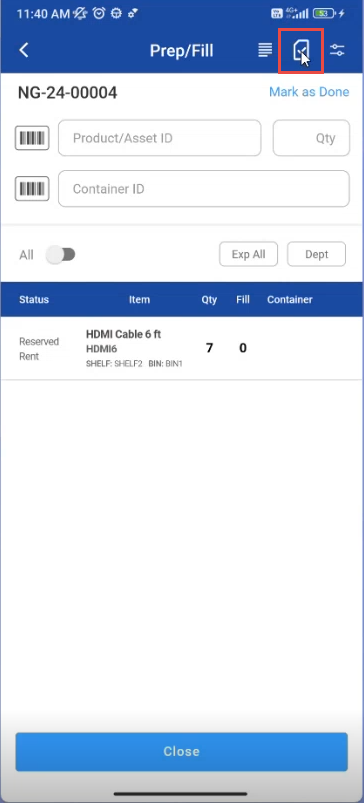
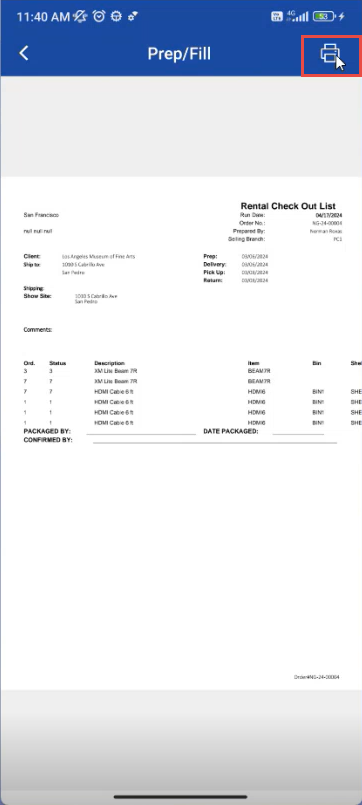
3. Click on Picklist Print option to print picklist
-
Picklist print report is generated
-
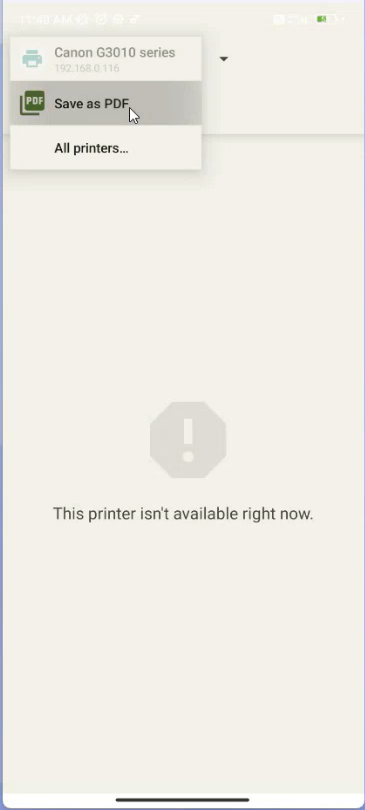
Select Print options
-
You can select “Save as PDF” or select printer device from the list.