
Overview
To add additional Asset IDs for Asset(s) in addition to the Primary Asset ID is provided. The Additional Asset IDs can be used in the following places:
-
While Filling and Returning an Asset on a Rental Reservation Order/Sale Order.
-
While Filling and Receiving an Asset on a Transfer Order.
-
While performing Physical Inventory.
When an Additional Asset ID (Barcode or RFID) is used during warehouse operations (Filling, Shipping, Returning, or Physical Inventory), the system does NOT swap it with the Primary Asset ID.
-
The Primary Asset ID remains unchanged.
-
The Primary Asset ID continues to be the authoritative identifier of the Asset.
-
Warehouse operations execute successfully irrespective of whether the Primary or Additional Asset ID is used. All transactional records, history, messages and exceptions always display and reference the Primary Asset ID.
-
Additional Asset IDs may be used through scan, RFID read, file upload, or data import. No swapping logic is executed during any warehouse or physical inventory workflow.
Warehouse operations through PackNShip or Asset Manager mobile app also successfully execute if scanned with Additional Asset ID. No swapping logic is executed and Primary Asset ID remains unchanged.
All transactional records, history, messages and exceptions always display and reference the Primary Asset ID
Creating Additional Asset IDs for an Asset
-
Open the Asset Edit window for the created Asset.
-
Click the Import button

-
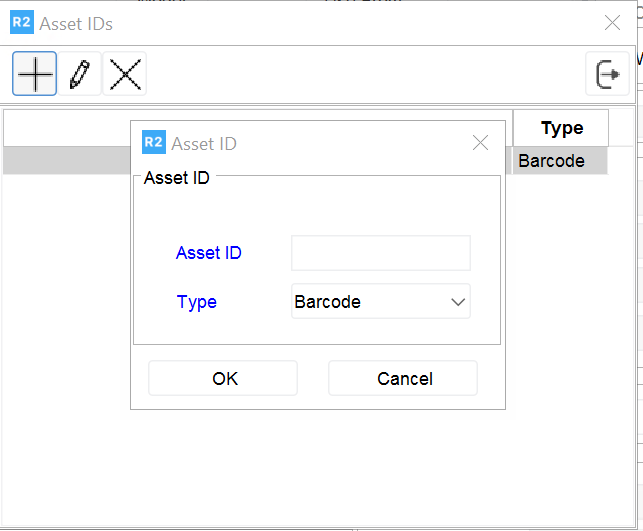
Click the Add icon. The Asset ID dialog box is displayed.
-
Enter an Additional Asset ID in the Asset ID field.
-
Select the Type: Barcode or RFID.
-
When creating an Additional Asset ID, the Type field is mandatory.
Available values:
-
Barcode
-
RFID
-
-
-
Click OK. The new Additional Asset ID is added to the list.
During the system upgrade from versions lower than 06.26.02-00, all existing Additional Asset IDs are automatically set to Type = Barcode. This can be updated as needed manually through interface or Additional Asset ID data conversion.
Using the Additional Asset IDs while filling and returning an Asset on a Rental Reservation Order
-
Create a Rental Reservation Order and add an item to it.
-
Select View> Fill Order> Fill Items.
-
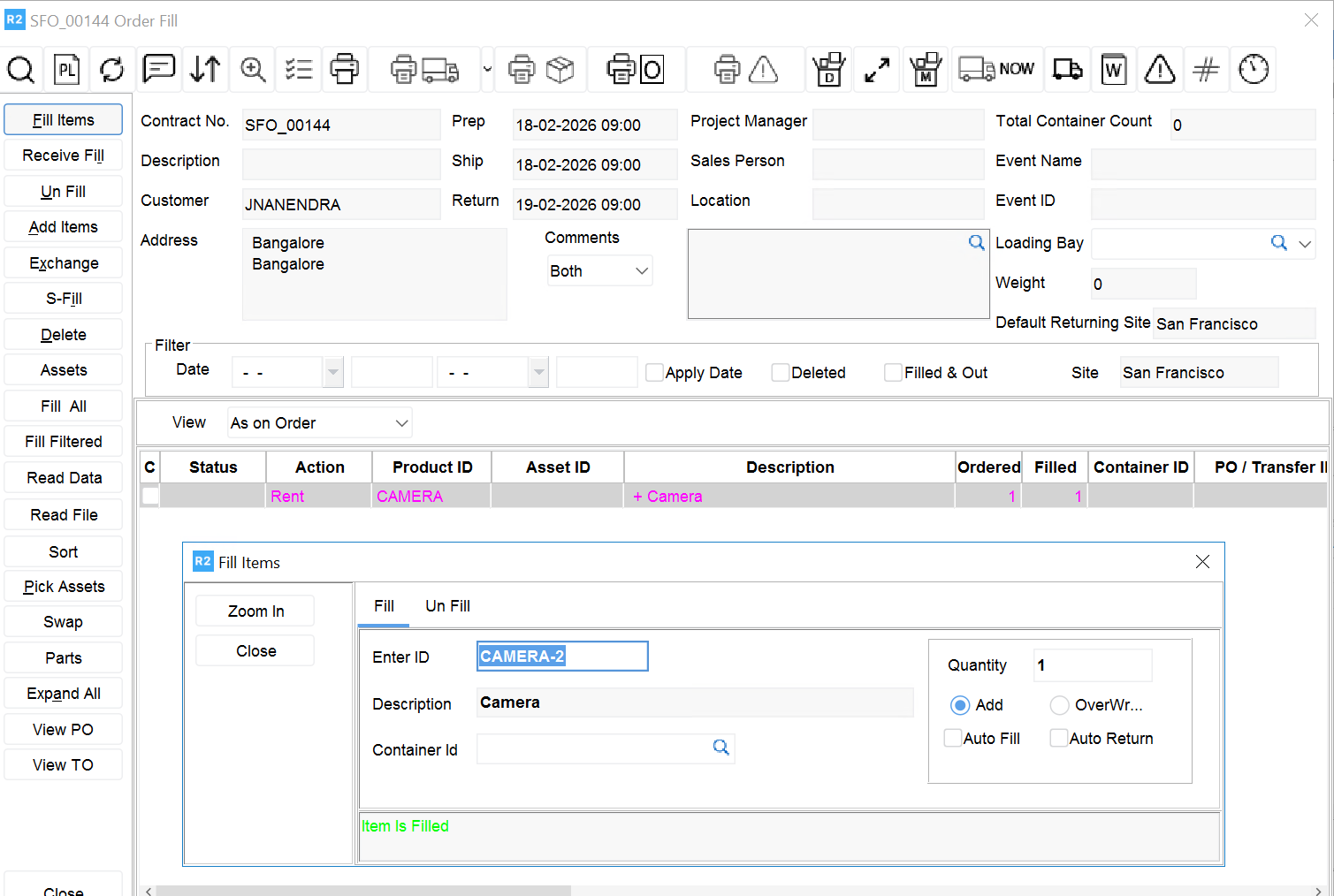
Enter the Additional Asset ID and press ENTER.
-
The Asset is filled successfully. The Item line displays the Primary Asset ID.
-
Ship the Item on the order.
-
Select View > Return Order> Scan Items.
-
Enter the Additional Asset ID while returning.
-
The Asset is returned successfully. The Primary Asset ID remains unchanged.
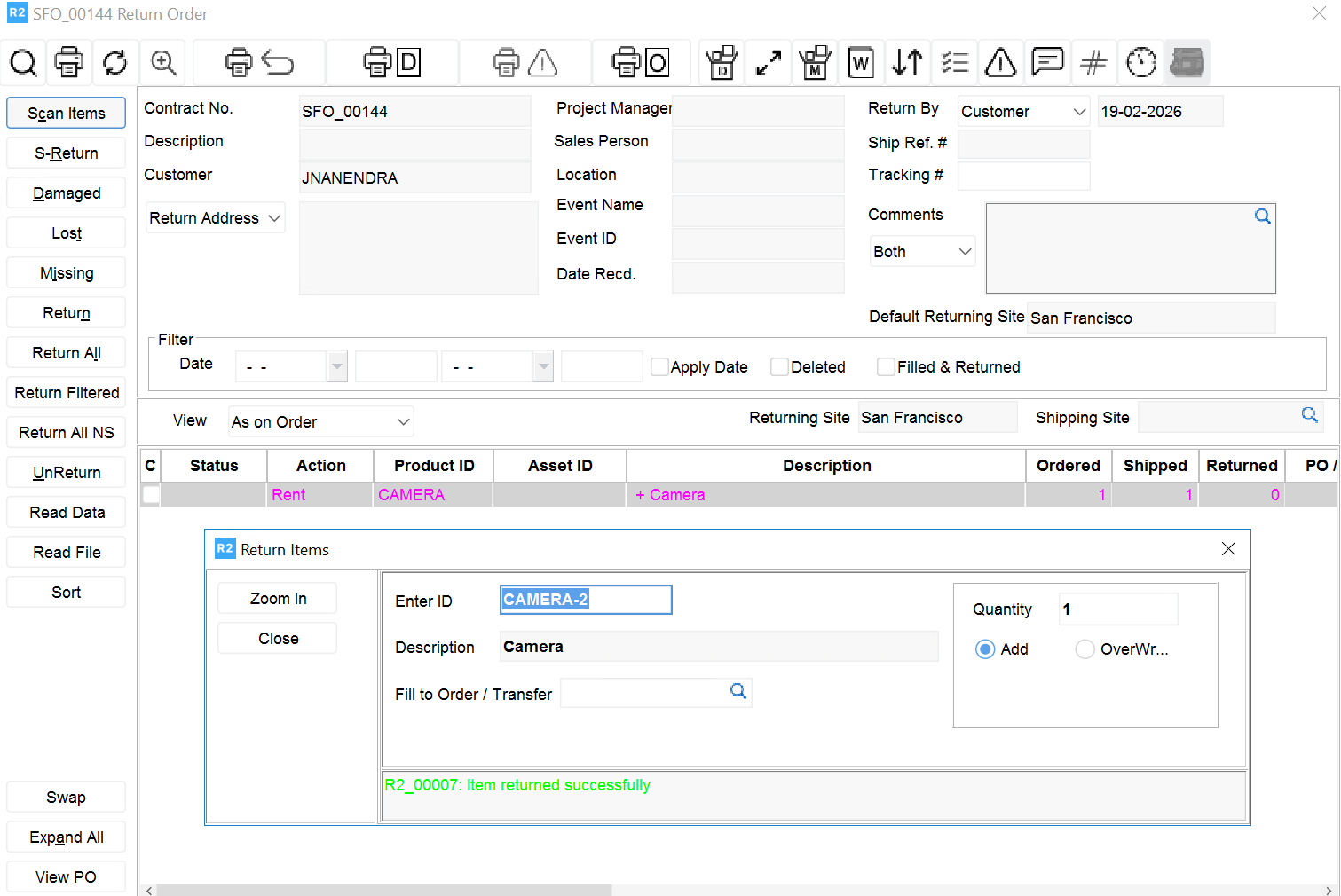
Scanning an Additional Asset ID identifies the Asset but does not replace the Primary Asset ID.
Using the Additional Asset IDs while filling and receiving an Asset on a Transfer Order
-
Create a one-way Transfer Order from one site to another.
-
Fill the Item by scanning the Additional Asset ID.
-
Ship the Transfer Order.
-
Log in to the transfer site and open the Transfer Order.
-
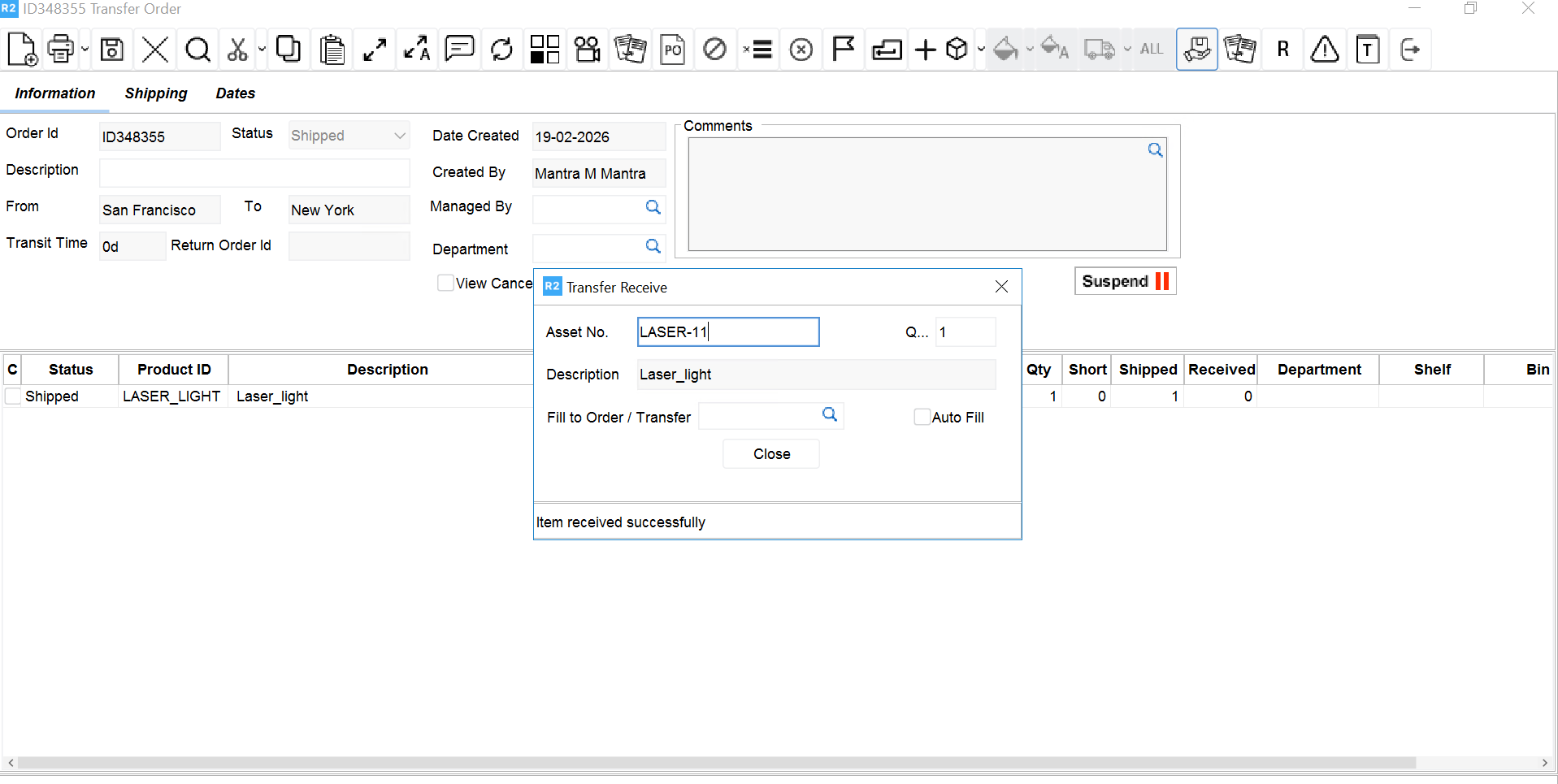
Receive the Item by scanning any valid Asset ID.
-
The Asset is received successfully. The Primary Asset ID remains unchanged.
Using the Additional Asset IDs while Performing Physical Inventory
-
Create a Physical Inventory and add Item.
-
Start the Physical Inventory.
-
Scan the Asset using the Additional Asset ID.
-
The Asset is identified successfully and displays Primary Asset ID in the Physical Inventory. The Primary Asset ID remains unchanged.
Upgrade updates on existing data
On upgrading from versions lower than 06.26.02-00:
-
Primary and Additional Asset ID on Asset master definition remains unchanged.
-
The Asset ID on transactional data updates to the Primary Asset ID on the respective Asset to ensure scanning works correctly after upgrade.
This update applies only to incomplete transactional records on Order, Transfer Order, or Physical Inventory with the statuses below. Updates occur only when the transaction's Asset ID differs from the current Primary Asset ID on the Asset Master.-
Filled
-
Out
-
Off-rent
-
Overdue
-
Lost
-
Missing
-
Repair
-
Active Physical Inventory
-