Table of Contents
Discount Groups: How-to setup Discount Groups
What is a Discount Group?
A Discount Group is a discount that is given on certain types of item transactions. By defining a group, you need only create it once, and can assign It to multiple Customers or Orders afterward.
A Discount Group contains one or more individual types of discounts that can apply to:
-
Rentals
-
Sales
-
Labor
-
Misc. Charges
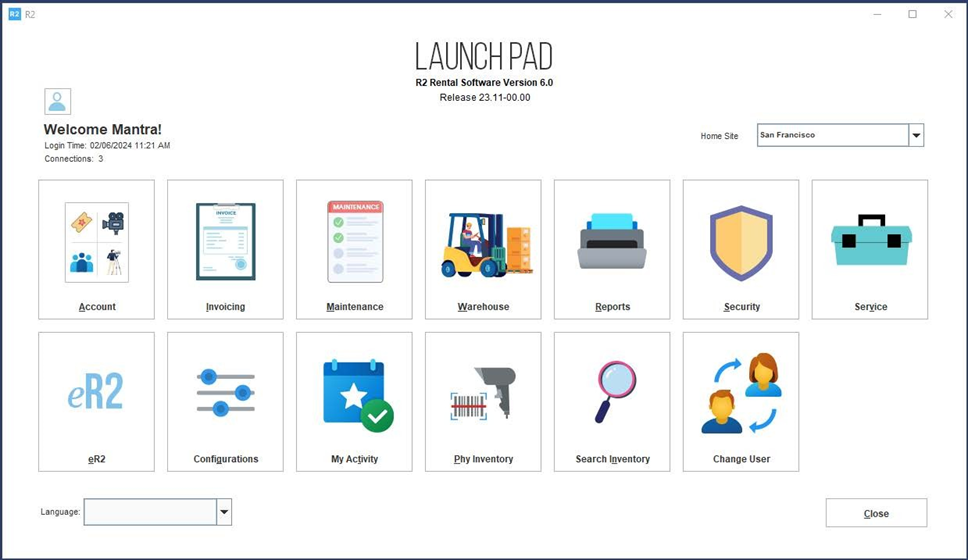
To access Discount Groups, begin by clicking on the Maintenance button from the Launch Pad:
From the Maintenance module, click on the EMPLOYEE tab along the top of the search area, then click on the DISCOUNT tab along the left side:
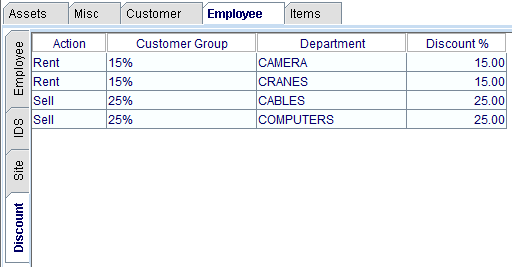
All existing Discount Groups will be immediately visible, no searching necessary.
Adding Discount Groups
Click on the Add icon to create a new ID:

The new Discount Group screen will open:
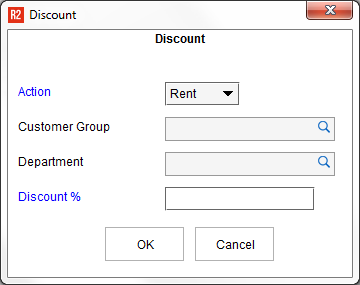
See below for a comprehensive description of each field on the Discount Group screen.
|
Field |
What it does |
|
Action |
The Action describes what the discount applies to. The options are: Rent: The discount applies to rental items on an order. Sell: The discount applies to sale items on an order. Misc.: The discount applies to misc. charges on an order. Labor: The discount applies to labor charges on an order.
|
|
Customer Group |
The Customer Group is the primary Discount Group name, and can be applied to a Customer or directly to an Order.
|
|
Department |
The item department. When selected, the discount applies only to items belonging to the selected department and Action. |
|
Discount % |
The discount per cent. |
Stack the Discounts: multiple Discount Groups can be created to work together with each other. When two or more Discount Groups have the same Customer Group then they stack together. Consider the following examples:

There are two Discount Groups created with the customer group of 15%. Because there are two with the same Customer Group, they work together when applied on an order. In this example, only items that belong to the Camera and Cranes departments will receive a 15% rental discount.

Also, in the example above, there are two Discount Groups with the customer group of 25%. When applied to an order, a 25% discount will be given to items in the Cables and Computers department, but only if they are being sold.
Applying Discount Groups
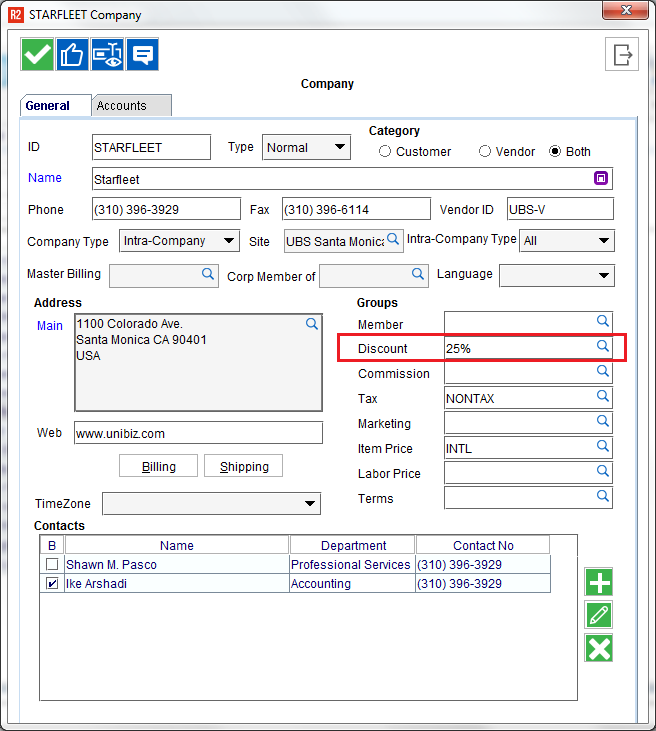
A Discount Group can be applied to a Customer or an Order. The Discount Group selected on a customer will be applied to new orders created for that customer.
Customer Discount Group
Edit the Customer and select a Discount Group:
Order Discount Group
From the Order’s Default tab, select (or delete) a Discount Group:
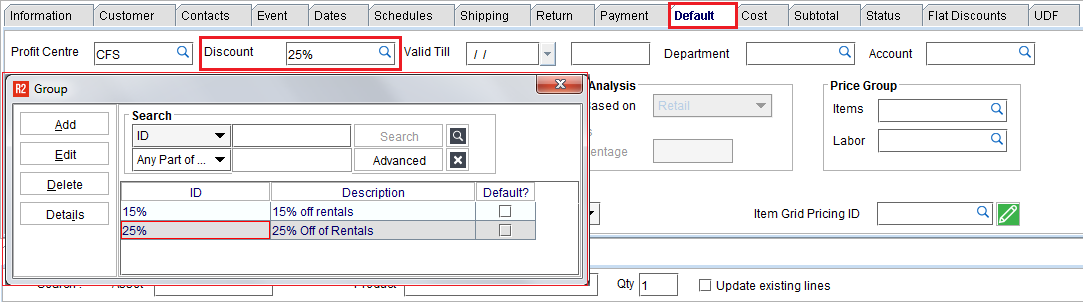
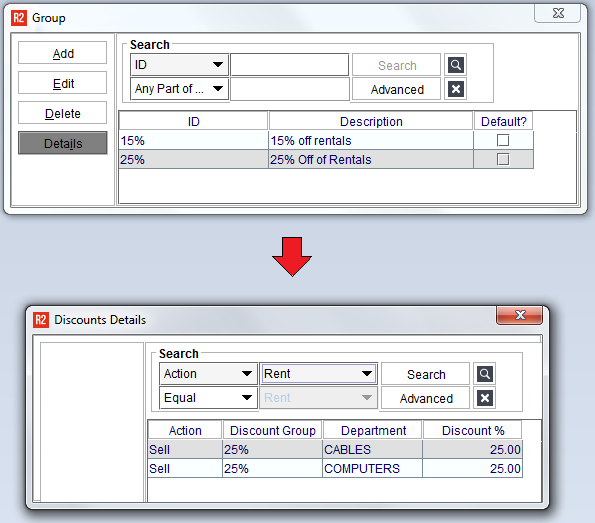
Click the Details button of the highlighted Discount Group, the stacked discounts will be shown: