
Table of Contents
R2 LICENSING
Who can import licenses?
Typically, UBS Project Managers or Support team are best equipped to assist with importing new licenses. To request assistance with importing a new license, email support@unibiz.com.
To access the R2 Licensing, begin by clicking on the Config button from the Launch Pad:
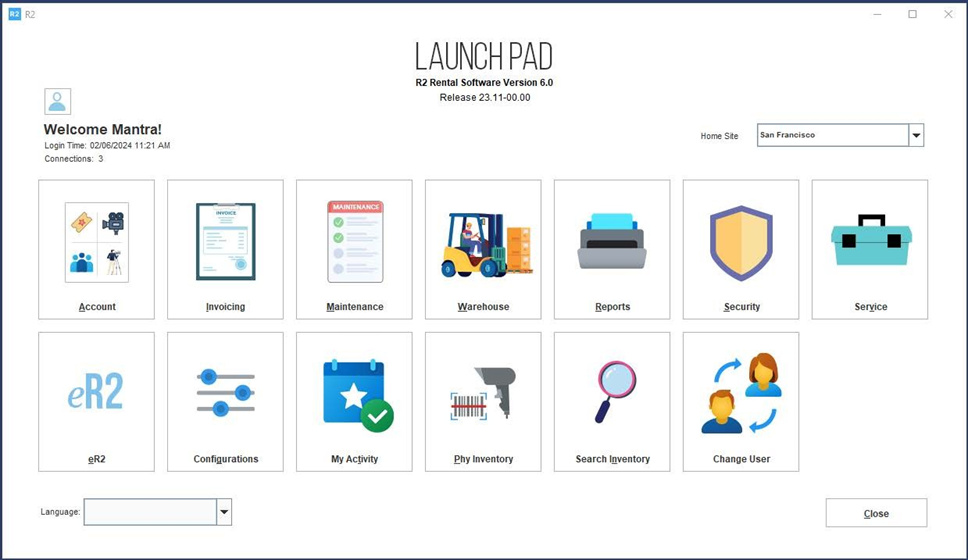
Click on the License Viewer icon:

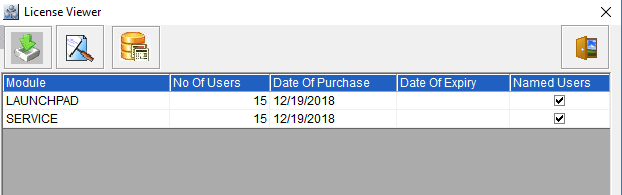
The License Viewer allows you to import a license file, a free pass code, and view the database ID, which is used for creating the license. The total license purchased will be visible from here.
See below for a comprehensive description of each field on the License Viewer screen.
|
Field |
What it does |

Import License |
When the license file is available from the Support team, it will be loaded here: 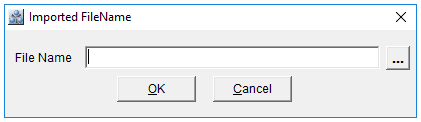
After loading the license file, the licence module and count will be displayed in the grid. 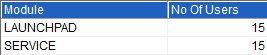
|

Free Pass |
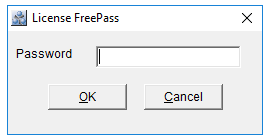
A License Free Pass is issued by the Support team, and is valid for upwards of 21 days. It allows an unlimited number of users to access the system and is used when a permanent license is not yet created and immediate access is required.
|

Database ID |
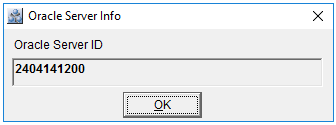
To create a license for a new or existing database, a pre-requisite is to provide the Oracle Database ID to the Support team:
|