
Table of Contents
Multi-Language Captions: How-to Change Field Labels
CHANGING CAPTIONS
One of the great aspects of R2 is the ability to change any caption, or label, in the program to a word that better represents your organizations terminology, or to create a new workflow for un-used fields.
To change a caption in R2, begin at the screen containing the label you wish to change.
To activate the caption change feature, press the F8 key on your keyboard:
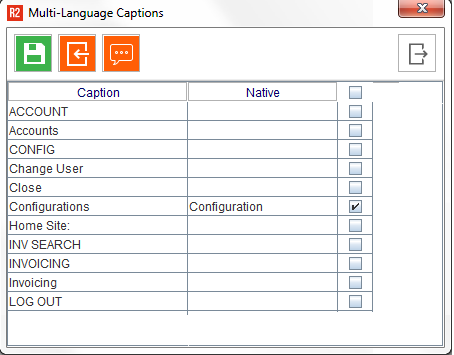
See below for the features available from this menu:
|
Module |
What it does |
|

Save |
Upon making any changes, click the save button before exiting. |
|

Export Captions |
This will export a list of all screen captions to an Excel file. 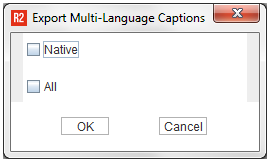
Save the file with an XLS extension: 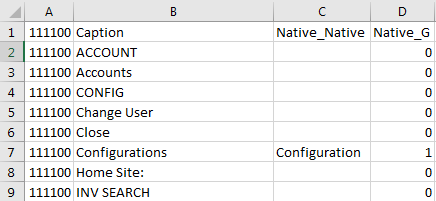
Changes can be made to this file, and later imported through this next feature.
|
|

Import Captions |
Allows the export file from this same area to be imported with your changes. |
|
Caption |
The Caption column displays the default R2 label so you always know what the original caption was. |
|
Native |
The “Native” field always exists and requires no setup. It represents your default language, whatever it may be. Type a new caption name into this field and R2 will begin using that label on the screen you are currently editing.
|
|
|
Check this box after changing a caption, if that caption should be changed everywhere else in the program. For example: 

The Caption “Configurations” has been changed to “Configuration”. Because the box is checked, then anywhere else in the program where R2 finds the caption “Configurations”, it will be changed to the new label.
|

Example using the ACCOUNT screen:
The COMPANY field caption should be changed to CUSTOMER:
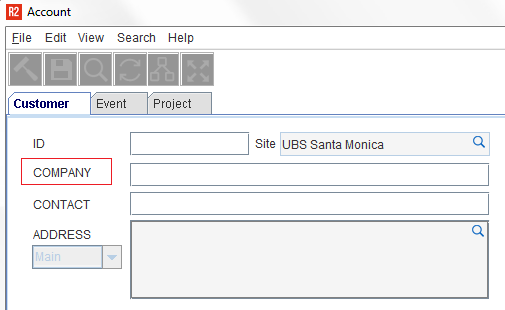
Begin at the Account screen.
Press the F8 key on your keyboard.
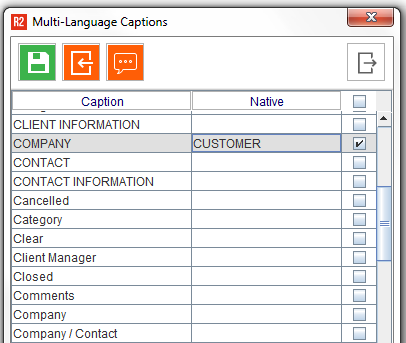
Look for the R2 caption “COMPANY”.
In the “Native” field next to the label, type the new caption name.
Click on the save icon.
Close the Multi-Language Captions screen.
Close the Account screen and open it again to view the changes:
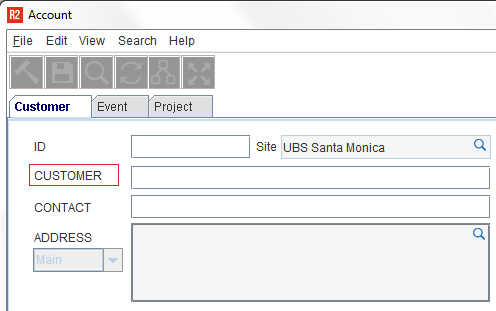
The label COMPANY has been changed to CUSTOMER.
MULTI-LANGUAGE CAPTIONS
The F8 label change feature allows for domestic language changes, but also allows you to setup your multi-language labels (must have at least one additional language defined in the Configuration module.)
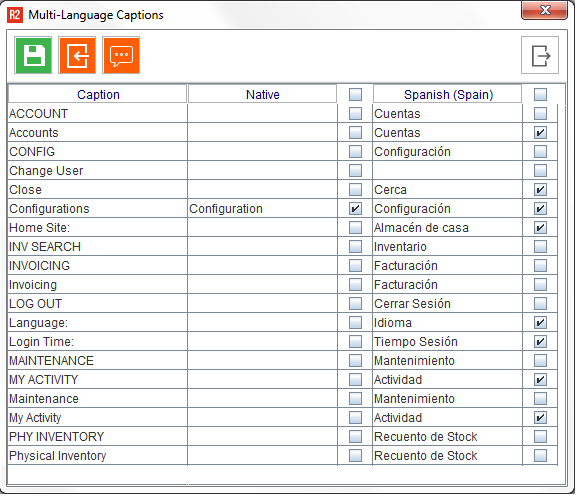
When multiple languages are configured, they will appear as additional columns. In the example here, there is one more language, “Spanish”.
Using this example, the Spanish word for each of the R2 “Captions” is entered into the Spanish column. Later, when the language is changed in R2, the on-screen labels will reflect the language captions.