
Table of Contents
Merge Customer: Merging Duplicate Customers or Vendors
Merge Company
Gracefully Merge Duplicate Records
Sometimes a company is entered into R2 in multiple ways, but it is the same company. R2 has a method of merging, what are in effect, duplicate customer (or vendor) records into one.
R2 allows you to select the remaining company as well as the source company that will be merged into the remaining one, and manage all contacts as well.
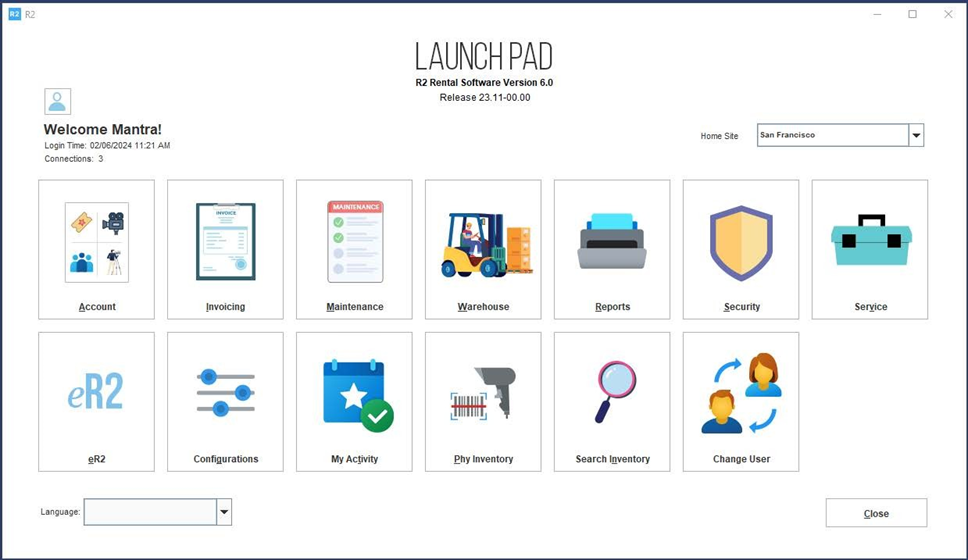
To Merge a Company, begin by clicking on the Maintenance button from the Launch Pad:
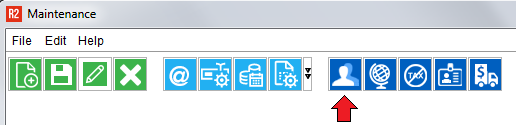
From the Maintenance module, click on the Merge Company icon:
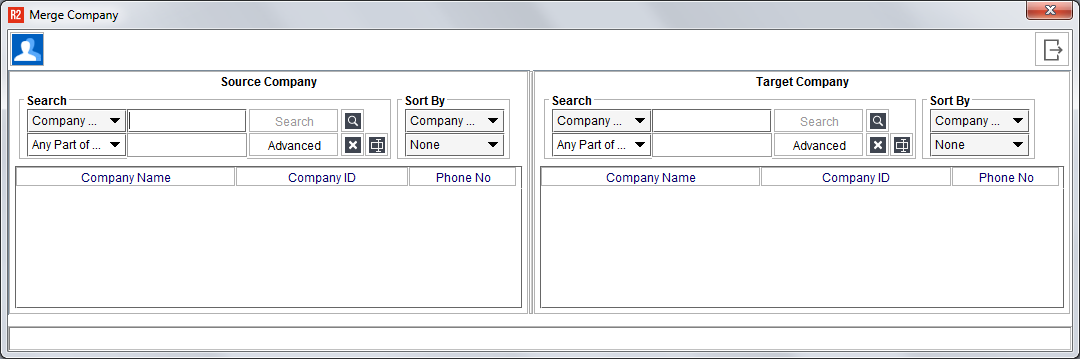
The Merge Company screen will open:
|
Step |
Explanation |
|
1 |
Search for the Source Company. This is the company that will be absorbed. 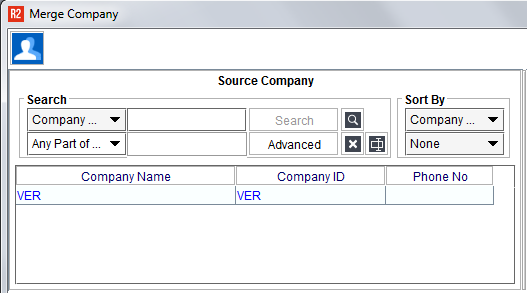
Double-click to select the company. The selected company will turn blue.
|
|
2 |
Search for the Target Company. This company will remain. 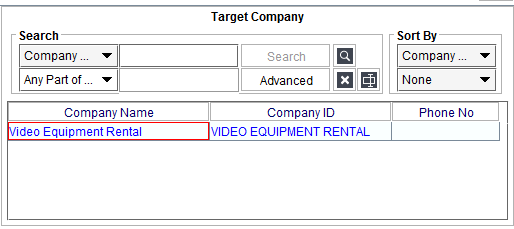
Double-click to select the company. The selected company turns blue. |
|
3 |
Click on the Merge Company icon 
Merge Company
|
|
4 |
A window will appear allowing you to resolve the contacts between the companies. The list of contacts in the Source Company will appear. 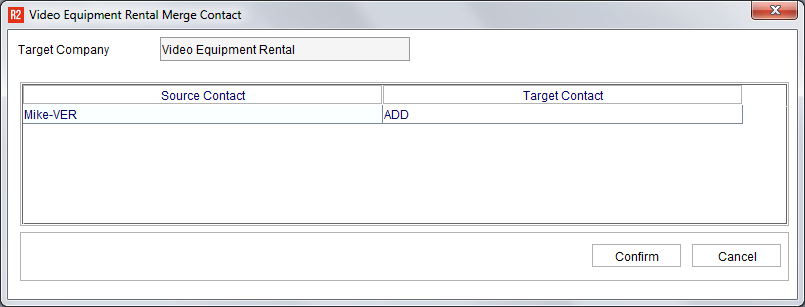
In this example, Mike is a contact of the company VER.
|
|
5 |
Click in the field under the Target Contact column: 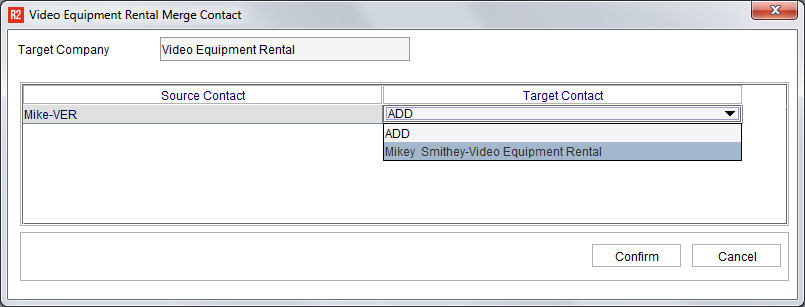
Select ADD to add the contact displayed into the Target company, or, Select one of the contacts in list (from the Target Company) that the contact should be merged into. 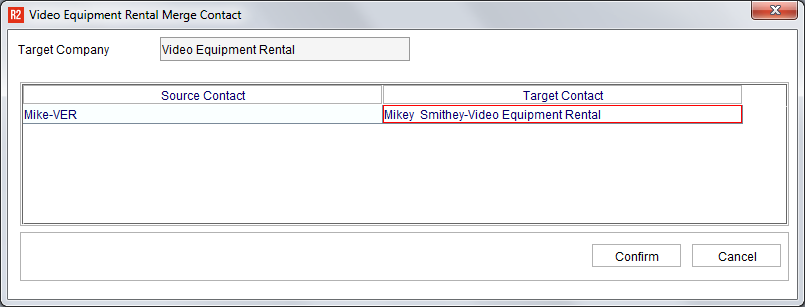
Click on the Confirm button to merge or Cancel to back out.
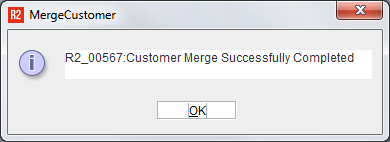
The Source Company no longer appears. All invoices, orders, and/or purchase orders will appear in connection with the Target Company.
|