
Content was last updated in 06.01.13-00
Revision History
Version No.
|
Reference No.
|
Changes
|
|
NA |
NA |
Content ported from previous release pertaining to the same topic |
Items that are unavailable can be assigned as sub-rentals, transfers, purchases or exchanges in either the Account module or Warehouse. Items not assigned when the order is created (as a Reservation, Hold or Contract) must be assigned in the Warehouse module before the item can be filled.
To assign an item within Warehouse:
-
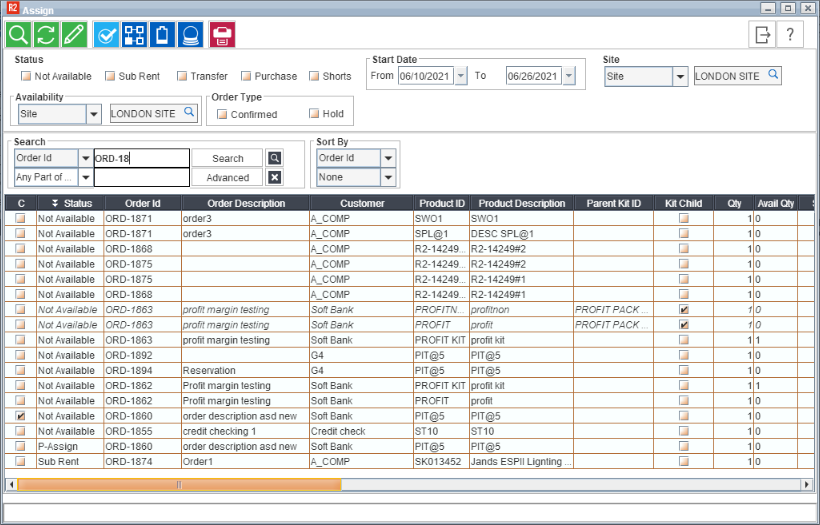
Click on the Assign icon or View > Warehouse > Assign to display the Assign window.
-
In the Assign window, click on the Search button to view all Items that need to be assigned or perform a search.
-
A list of Not Available items will appear.
-
Select the first Item you wish to assign. Select the line and click Assign icon on the toolbar OR right click the line and select Assign to display the Assign dialog.
-
Click on the radio button and select an Assign option.
-
Click OK.
-
Depending on your selection, this will return you to the Warehouse window or prompt you for additional information.
To Sub-Assign within warehouse
-
Follow the initial steps of assigning and in the step 5 select Sub-Rental in the Assign dialog.
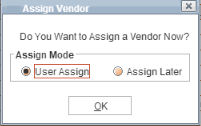
See Assign Vendor Dialog Window.
-
Select a vendor assign option.
-
Choose User Assign, if you want to designate a vendor from whom item has to be rent and create a Sub-rental PO.
-
Choose Assign Later, if you want to just indicate that the item needs to be sub-rented but assign a vendor and create a PO later.
-
Click OK.
-
If you have chosen Assign Later in previous step, the Sub-Rental Assign dialog will close and the item status will be changed to S-Rent. To generate a Sub-Rental PO, you will need to return to the Vendor Assign dialog and complete the steps for User Assign.
-
If you have chosen User Assign in previous step, the Purchase order dialog will appear. Select either — Use Existing Purchase Orders or Create New Purchase Order option.
-
Click OK.
-
Depending on your selection, you will now be able to choose which Purchase Order you would like to make additions to, or you will be prompted to create a new Purchase Order.
Using an Existing Purchase Order
-
On selecting Use Existing Purchase Orders option in step 4 above, the Purchase Order dialog will appear.
-
Click Search to view all the existing Purchase Orders, or perform a search.
-
Double click the Purchase Order you wish to use. The purchase order you selected will be displayed with the assigned item added to it.
Creating a New Purchase Order
-
On selecting Create New Purchase Order option in step 5 above, The company search screen will appear.
-
Perform search and double-click on a company name to assign it as the vendor for this item.
-
The status of the item will change to S-Assign and the item will be removed from the assign list. The Company dialog will close and the newly created Sub-Rental PO will be displayed for editing. If you wish you can edit the PO or just exit.
The sub-rental purchase orders that are generated in this manner can be searched for and viewed in the Sub-Rental window.
To Transfer-Assign within Warehouse
-
Follow the initial steps of assigning and in step 5 select Transfer In.
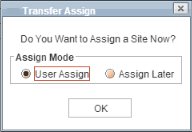
See Transfer Assign Window.
-
Select a transfer assign option
-
Choose User Assign if you want to select a site now from which item has to transferred in and create a Transfer Order. Choose Assign Later if want to just indicate that the item need to be transferred and create the Transfer order later
-
Click OK.
-
If you have chosen Assign Later in step 2, the Transfer Assign dialog will close and the item status will be changed to Transfer. To generate a Transfer Order, you will need to return to the Transfer Assign dialog and complete the steps for User Assign.
-
If you have chosen User Assign in step 2, the Transfer order dialog will appear. Select either Use Existing Transfer Orders or Create New Transfer Order option.
-
Click OK.
Depending on your selection in Step 3, you will now be able to choose which Transfer Order you would like to make additions to, or you will be prompted to create a new transfer order.
Use Existing Transfer Order
-
On selecting Use Existing Transfer Orders option in step 4 above,The Transfer Tag dialog appears.
-
Click Search to view all existing Transfer Orders or perform search to view the Transfer Order you wish to use.
-
Double click on the Transfer Order you wish to use. The transfer order you selected will be displayed with the assigned item added to it. Close the transfer order, you will return to Transfer Tag dialog. Click OK to close it.
Create New Transfer Order
-
Click Create New Transfer Order. The Transfer Order Information dialog will appear.
-
Enter a Description, From Site, To Site and Start Date/Time on the Ship tab. More button beside the From Site automatically supplies a list of sites, where the selected item is available for transfer.
-
Select the Return Order check box, if you want the Return Order be created for this Transfer Order.
-
If you opt for the Return Order to be created, you must enter a Return Date/Time on the Return tab. If your business is operating in ”r;Real Time” (as opposed to distributed databases), at the same time you generate a Transfer In order, a Transfer Out order will appear automatically in the selected Site’s database.
-
Enter the Transit Time to accurately track Item Availability. Transit Time is the time spent in transferring.
-
Click OK.
-
The Transfer Order dialog will appear, listing the item you are assigning.
-
Check your Transfer Order for accuracy.
-
If necessary, you may also use the Print icon to create a paper copy.
-
Click Exit to return to your order.
-
This officially reserves the item on the Transfer Order. The line status changes from Not Available to T-Reserved.
To Purchase-Assign an item within warehouse
Purchase assign is similar to Sub-assigning. Only difference is that you need to select Purchase option instead of Sub-Rental option on the Assign Vendor dialog.
The purchase order created after Purchase-Assign is of type Inventory and purchase order created after Sub-rental assign is of Sub-Rental type.
To Exchange an item
-
Follow the initial steps of assigning and in step 5 select the Exchange option in the Assign dialog.
-
Click OK. A search window appears initially listing all the items belonging to the exchange group of the item selected, of the current site. You can also exchange items with the items of this exchange group belonging to other sites also. Use Site, Region, Sub-Region, All filters to find for these items.
-
Select the items to be exchanged with and click OK. Those items will be replaced by the exchangeable item on the order.
Before you can exchange for an item, an exchange group must first exist for that item.
You can exchange a Serial Item with a Serial item, Non-Serial item with a Non-Serial item, Serial Kit with a serial kit and Package with a Package only.