
Search and sort products using a number of search options in the Warehouse > Assign window. This way, you can concentrate on resolving the product availability issue for a specific Category or Sub-Category of products at any given time.
The Category/Sub-Category description fields are multi-language enabled.
These four fields have also been added as new columns in the search grid on the Warehouse > Assign window.
Use the desired field as the Search Criteria in the drop down and then provide an appropriate search value.
Search can be done using more than one Search Criteria through the advanced option.

Sort Criteria in the drop down and then select either ascending or descending sort order.
Column Information
The following columns are in the Warehouse Assign Grid.
|
Column Name |
Description |
|
C |
If line comments have been given for the items in the order then these will be displayed. |
|
Status |
The status of the item on the order. |
|
Order ID |
The unique identification number of the order on which the item is unavailable. |
|
Order Description |
The description of the order |
|
Customer |
The name of the Customer for which the Order is created. |
|
Product ID |
The unique identification number of the item |
|
Product description |
The description of the item |
|
Qty |
The number of item that is required on the order. |
|
Avail Qty |
The total quantity present in the inventory across sites. |
|
Start Date /Time |
The date and time of the order prep date |
|
End Date /Time |
The date and time of the order return date |
|
Site |
The site where the order was created. |
|
Salesperson |
The salesperson as defined in the order. |
|
Assign To |
In this case, this will be the Project Manager as defined in the order window. |
|
Event Name |
The name of the event for the order, if any, for which the order was used. |
|
Amount |
This column displays the Order line amount after discount.
|
Right Click Actions
Selecting a line in the window and right-clicking will display a drop-down where you can perform a range of actions for the selected line.
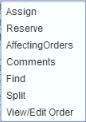
|
Menu Option |
Description |
|
Assign |
Opens the Assign dialog where the item can be assigned. |
|
Reserve |
By selecting this option, Items that are marked Not available on an order but for which stock has been received can be reserved. You can also mark more than one Not Available line at a time as Reserved by selecting multiple lines in the window. This option is given primarily to resolve the non-availability of items in the warehouse by utilizing the existing resources in the best possible manner. |
|
Affecting Order |
Opens the Affecting Orders window where an item which is reserved on an order can be send on another order and the status in the first can be made Not Available. |
|
Comments |
Selecting the comments option opens the comments window where line comments given for the selected item in the order will be displayed in the Read Only mode. |
|
Find |
Selecting this option opens the Find dialog where a refined criteria-based search can be performed in the window. |
|
Split |
You can use this feature to group Not Available items so that different functions can be performed on them. |
|
View/Edit Order |
Opens the respective order in read/write mode, in which the concerned item has been added. To see how this works, click here. |