
Reference No: R2-3551
Version No: 06.00.04-00
Now, the system does not allow you to post the Periodic Billing Order and Length Of Contract (LOC) Order that is in Red SignOff mode. This is achievable by the AllowPeriodicRedSignoffInvoiceToPost flag that is set to False by default.
If the AllowPeriodicRedSignoffInvoiceToPost flag is set to True, the system will allow you to post the Periodic Billing Order and Length Of Contract (LOC) Order that is in Red SignOff mode.
Update ConfigExt Set ConfigValue='1' Where ConfigName='AllowPeriodicRedSignoffInvoiceToPost';
The details are explained in the sample workflow given below:
Prerequisites
-
Select the Maintenance module > Items tab > Items tab.
-
Create Serial Items [LG LSA] and [LG WM] and receive 10 Qty.
-
Save and Exit the Maintenance module.
Sample Workflow
Scenario 1
-
Select the Account module. The Account window is displayed.
-
Tag a Company [LG].
-
Create a Rental Reservation Order [ORD-1257] for 7 days duration.
-
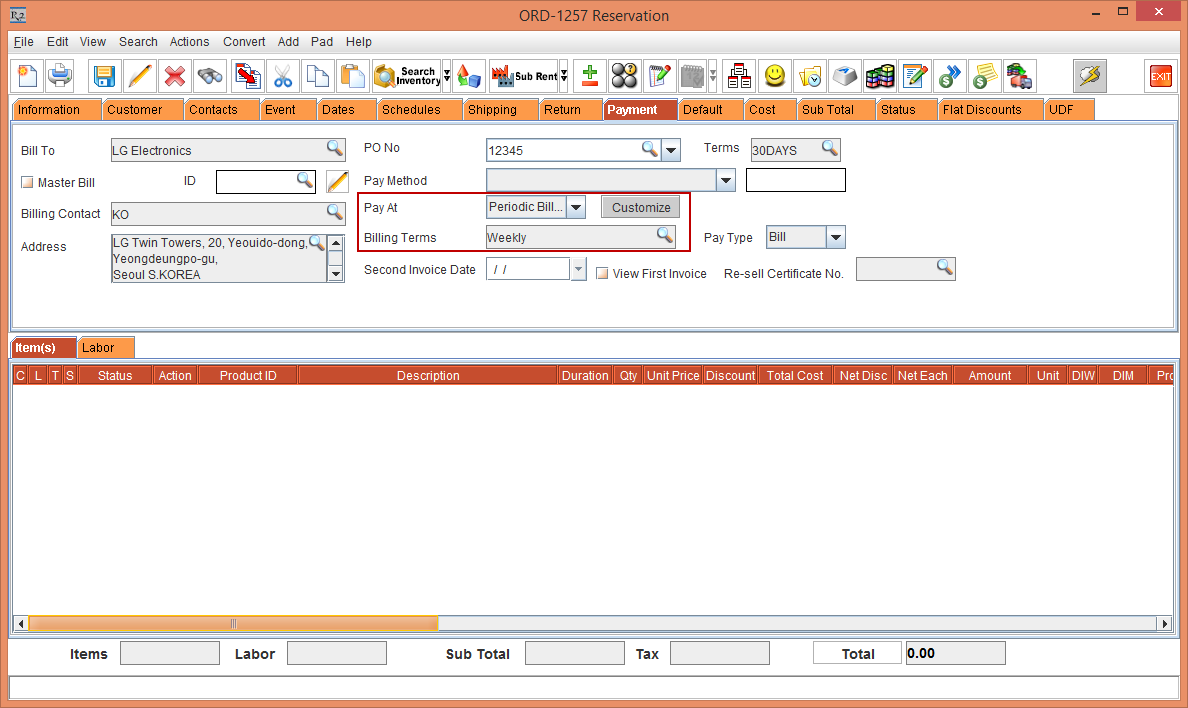
Select the Payment tab. Select the Pay At drop-down as Periodic Billing.
-
Select the Billing Terms importable button. The Billing Terms window is displayed.
-
Select the Billing Terms with the Description [Weekly].
-
Click OK. The Pay At drop-down as Periodic Billing and Billing Terms as Weekly is displayed in the Payment tab, as shown in Figure 1.0.
-
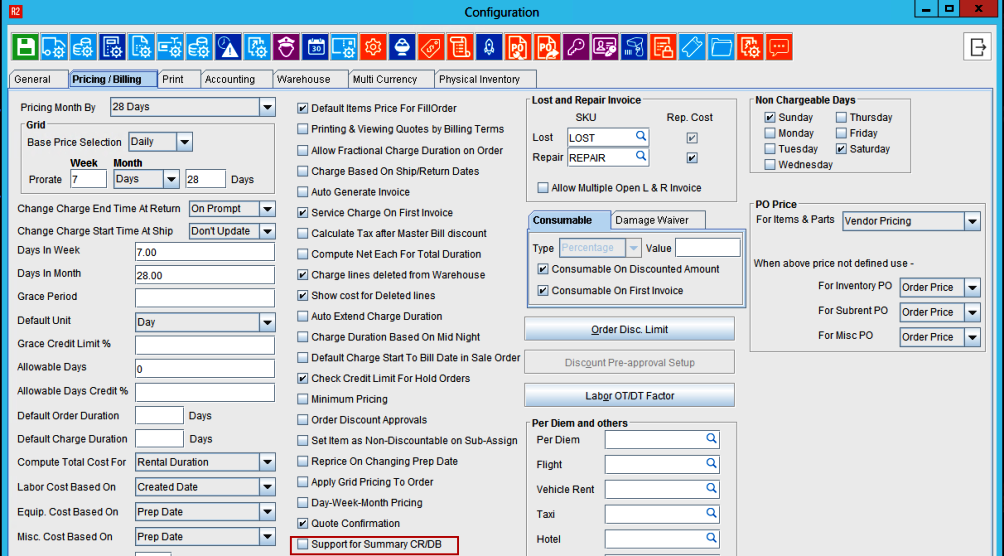
Add the Serial Items [LG LSA] and [LG WM] with the Qty as 2 and the Unit Price [300.00] respectively, as shown in Figure 1.1.
-
Click the Done icon to generate the Invoice. The Invoice [581471] is generated.
-
Open the Order [ORD-1257].
-
Modify the Serial Item [LG WM] Unit Price to 100.00.
-
Save the Order [ORD-1257]. The system displays a prompt to regenerate the Invoice with Yes and No buttons.
-
Click No and the Order [ORD-1257] is Auto Saved.
-
Exit the Order [ORD-1257].
-
Click the Search Orders button from the Account module. The Search Orders window is displayed.
-
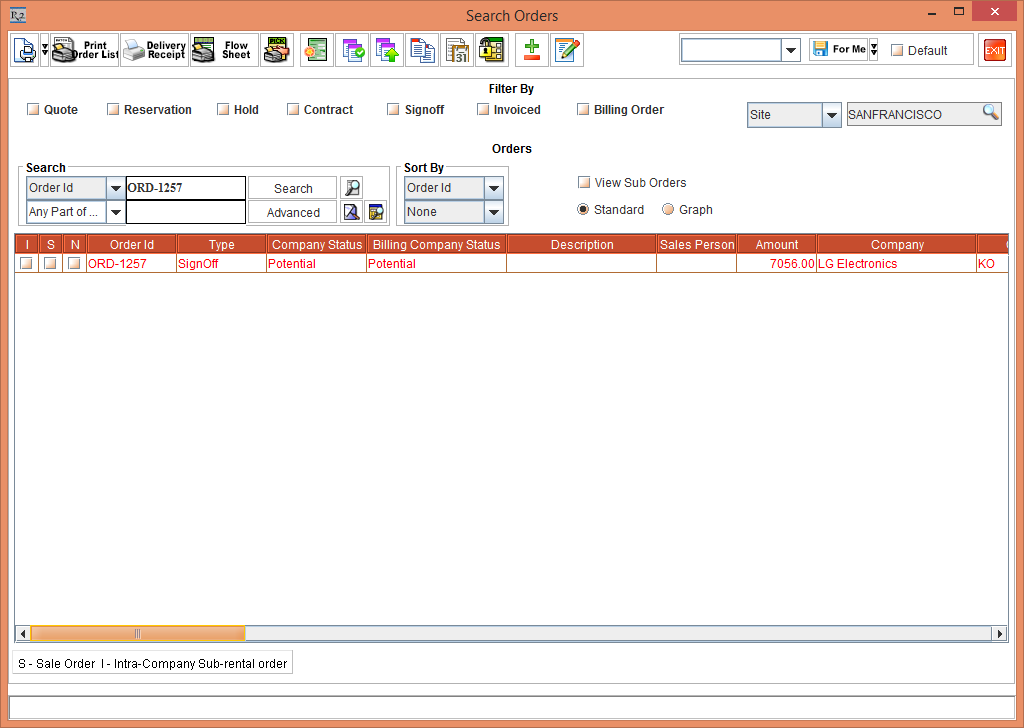
Search for the Order [ORD-1257]. The Order [ORD-1257] is displayed in the Red SignOff mode, as shown in Figure 1.2.
-
Exit Search Orders window.
-
Select the Invoicing module.
-
Select the Receivables tab. Click the New icon. The Invoice Batch window is displayed.
-
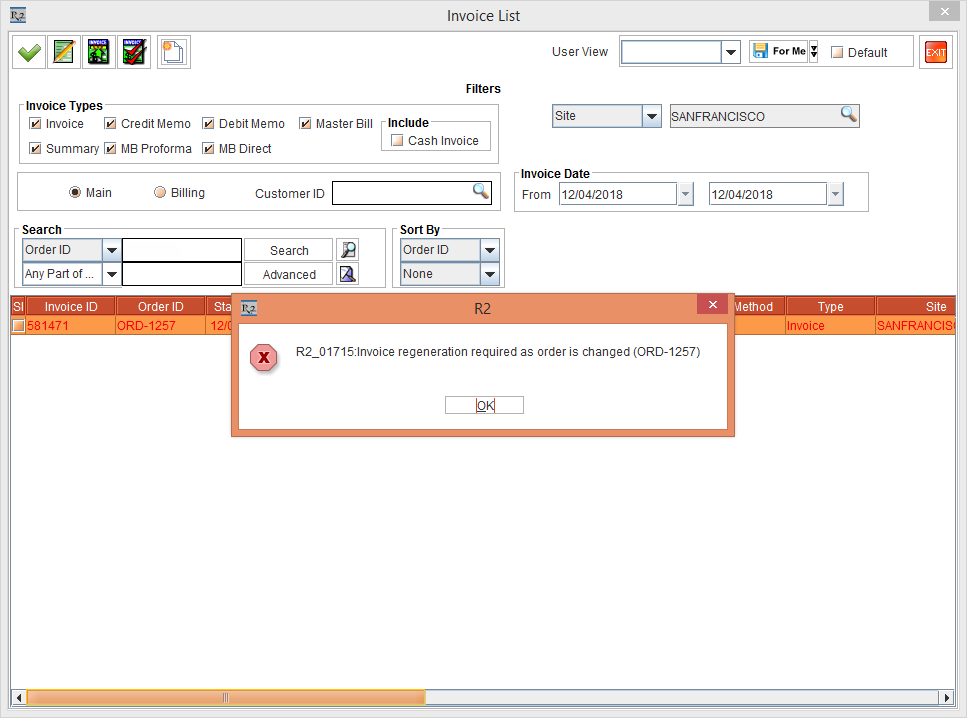
Click the Add Invoices button. The Invoice List window is displayed displaying the Invoice [581471] in Red SignOff mode, as shown in Figure 1.3.
-
Perform a double-click to tag the Invoice [580020]. The system displays a prompt with the message "R2_01715:Invoice regeneration required as order is changed (ORD-1257)" as shown in Figure 1.3.
-
Click OK.
-
Exit the Invoice List window.
Scenario 2
-
Select the Account module. The Account window is displayed.
-
Tag a Company [LG].
-
Create a Rental Reservation Order [ORD-1258] for 2 days duration.
-
Select the Payment tab. Select the Pay At drop-down as Periodic Billing.
-
Select the Billing Terms importable button. The Billing Terms window is displayed.
-
Select the Billing Terms with the Description [Weekly].
-
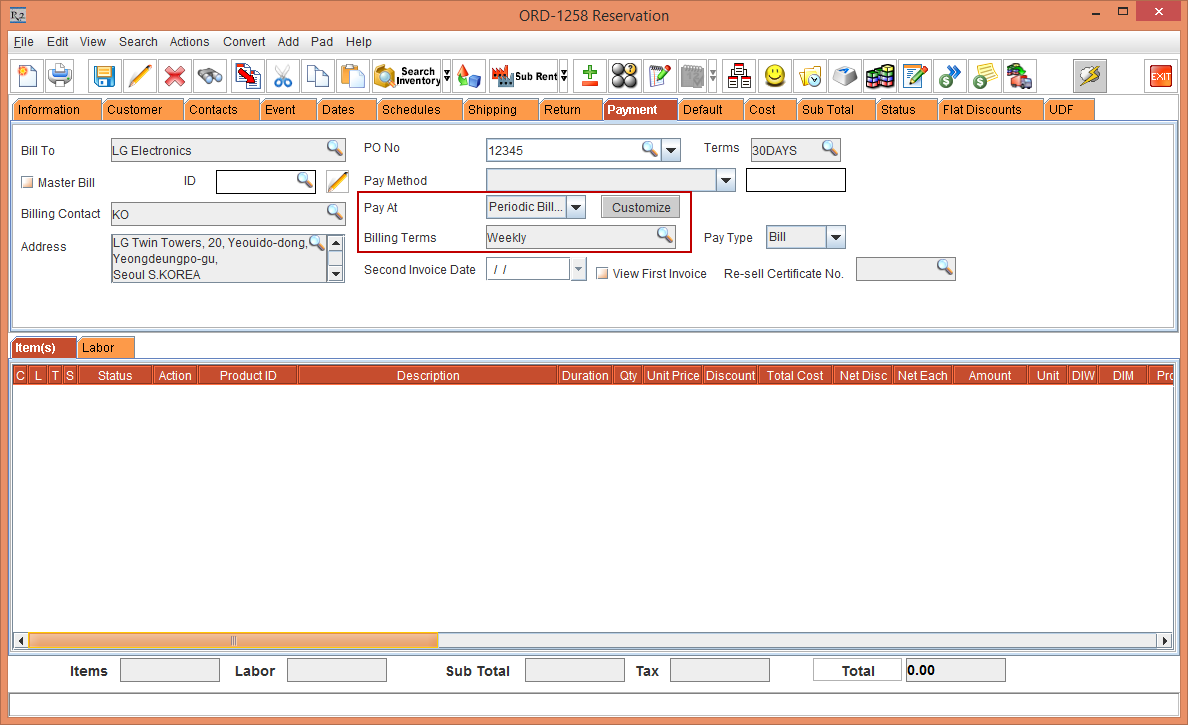
Click OK. The Pay At drop-down as Periodic Billing and Billing Terms as Weekly is displayed in the Payment tab, as shown in Figure 1.0.
-
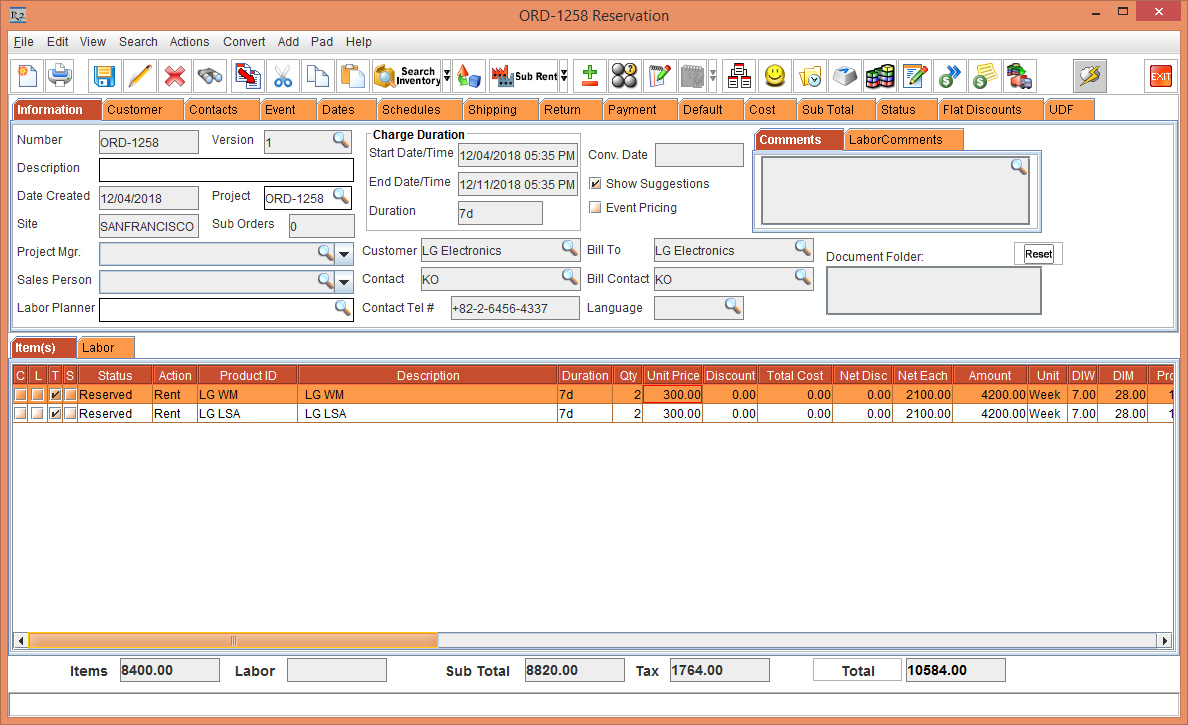
Add the Serial Items [LG LSA] and [LG WM] with the Qty as 2 and the Unit Price [300.00] respectively, as shown in Figure 2.1.
-
Click the Done icon to generate the Invoice. The Invoice [581643] is generated.
-
Select the Invoicing module.
-
Select the Receivables tab. Click the New icon. The Invoice Batch window is displayed.
-
Click the Add Invoices button. The Invoice List window is displayed displaying the Invoice [581643].
-
Double-click and tag the Invoice [581643] and click OK.
-
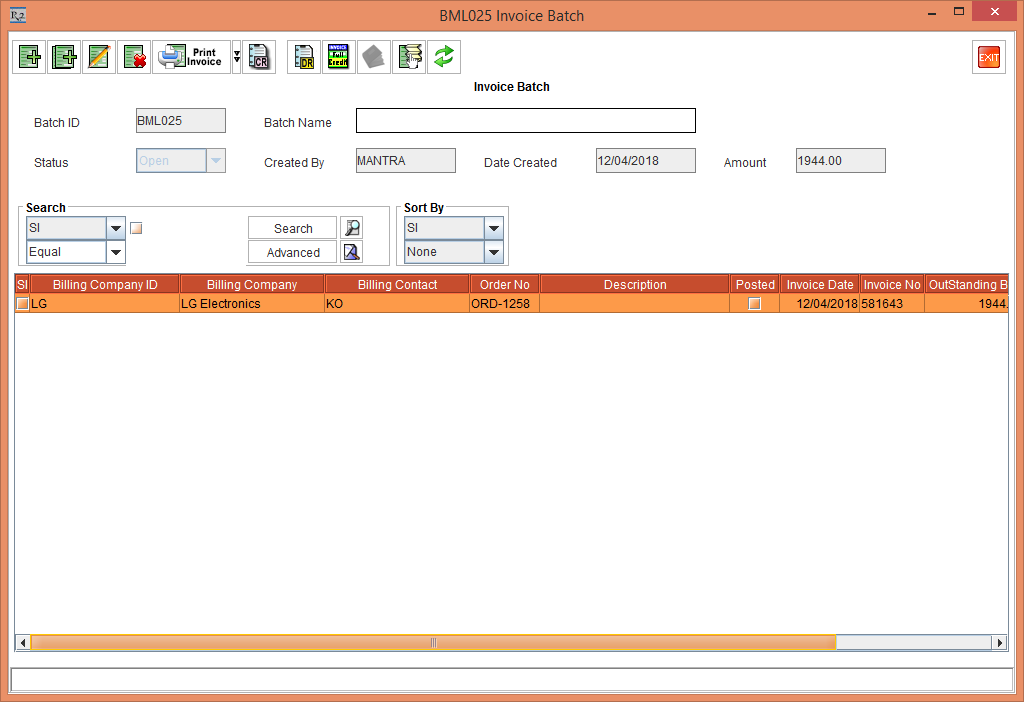
The Invoice Batch [BML025] is created, as shown in Figure 2.2.
-
Close the Invoice Batch [BML025].
-
Open the Order [ORD-1258].
-
Modify the Serial Item [LG LSA] Unit Price to 100.00.
-
Save the Order [ORD-1258]. The system displays a prompt to regenerate the Invoice with Yes and No buttons.
-
Click No and the Order [ORD-1258] is Auto Saved.
-
Exit the Order [ORD-1258].
-
Click the Search Orders button from the Account module. The Search Orders window is displayed.
-
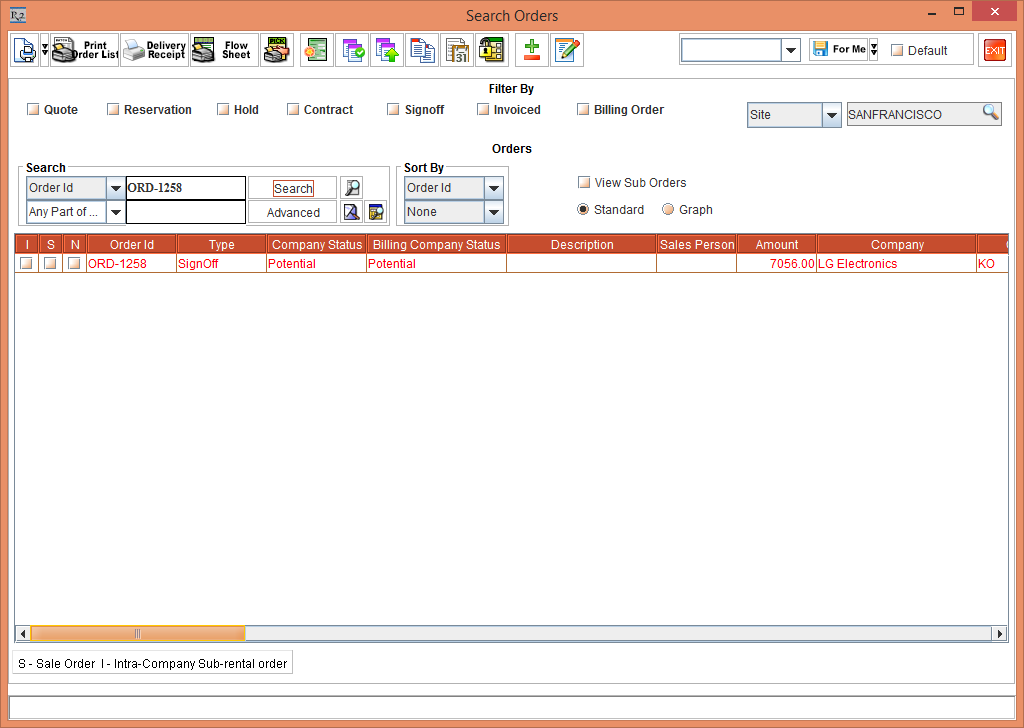
Search for the Order [ORD-1258]. The Order [ORD-1258] is displayed in the Red SignOff mode, as shown in Figure 2.3.
-
Exit the Search Orders window.
-
Select the Invoicing module.
-
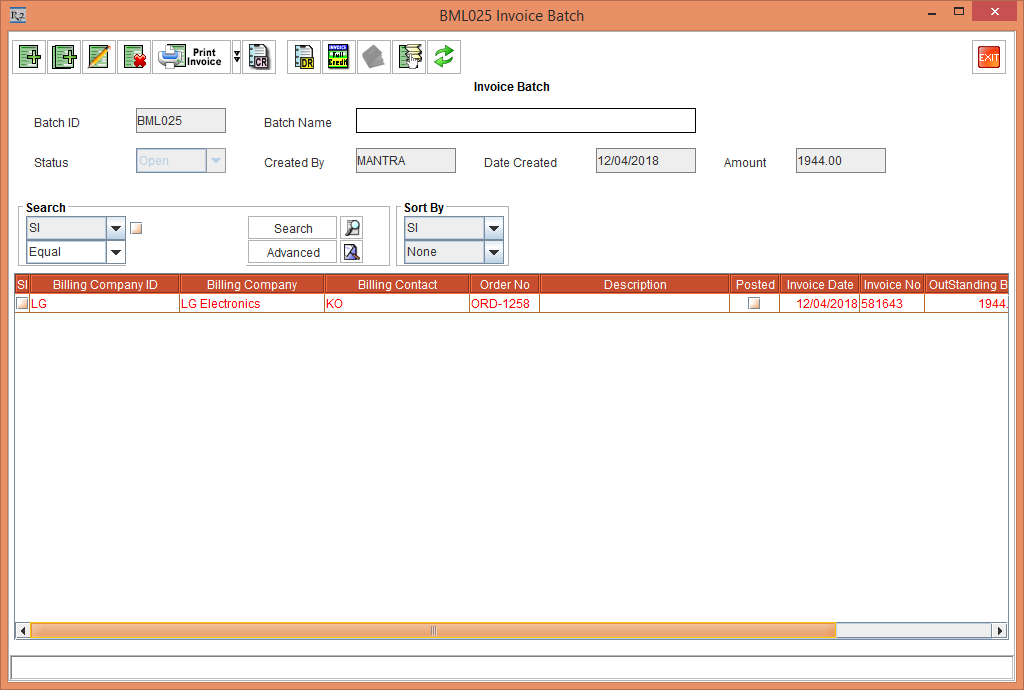
Search and open the Invoice Batch [BML025]. The Invoice is added to the Batch [BML025 Invoice Batch] window is displayed in Red SignOff mode, as shown in Figure 2.4.
-
Exit the Invoice Batch [BML025 Invoice Batch] window.
-
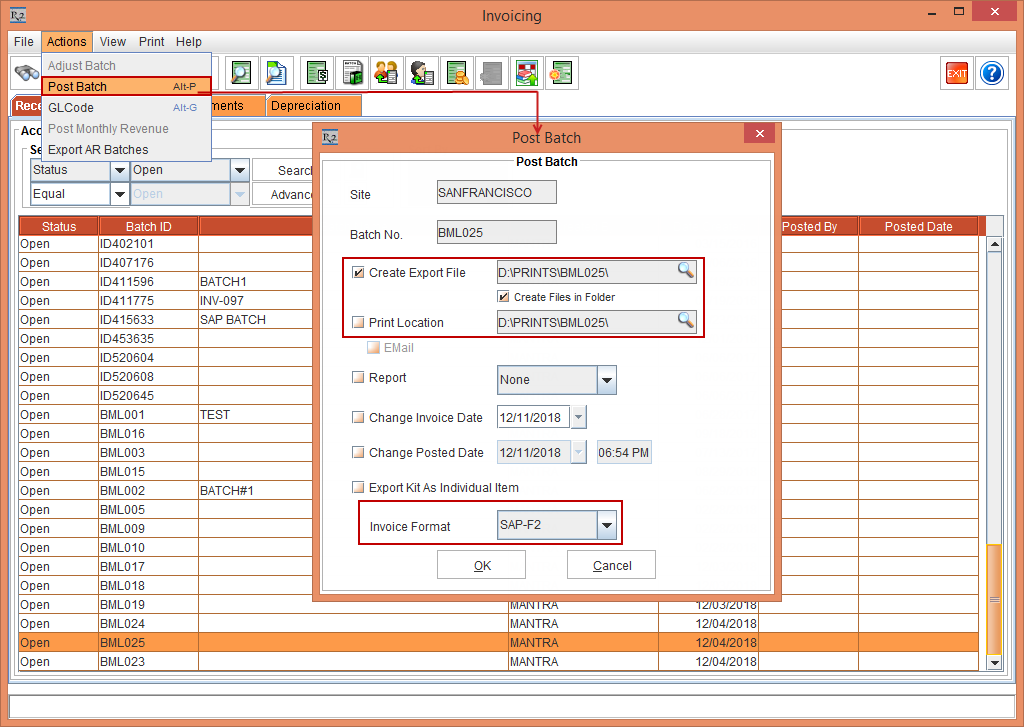
In the Invoicing window, select the Batch ID [BML025] and select the Actions menu > Post Batch option. The Post Batch window is displayed.
-
Select the Create Export File Path [D:\PRINTS\BML025\] and post the Invoice in SAP-F2 format, as shown in Figure 2.5.
-
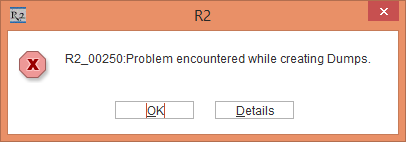
Click OK. The system displays a prompt with the message"R2_00250:Problem encountered while creating Dumps." with OK and Details button, as shown in Figure 2.6.
-
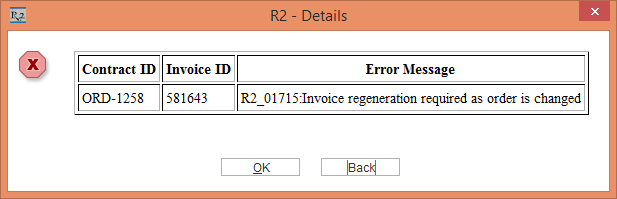
Click the Details button. The system displays the R2 - Details window with a table comprising of the Contract ID [ORD-1258], Invoice ID [581643] and the Error Message "R2_01715:Invoice regeneration required as order is changed" with OK and Back buttons, as shown in Figure 2.7.
-
Click OK to exit the R2 - Details window and click Back to return to the previous prompt.
-
Click OK.
-
Exit the Invoicing module.