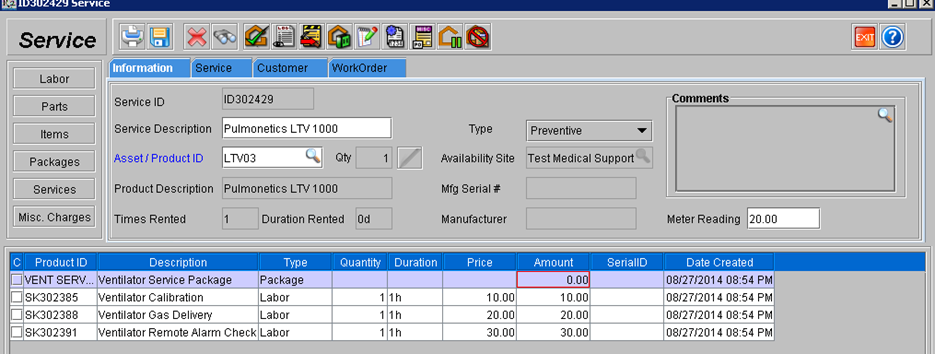
The service ticket will populate the internal cost of the labor, parts, and items. However, the work order will record the price that will be charged to the client if a work order is generated. Use the comments area to add detailed information about the repair.
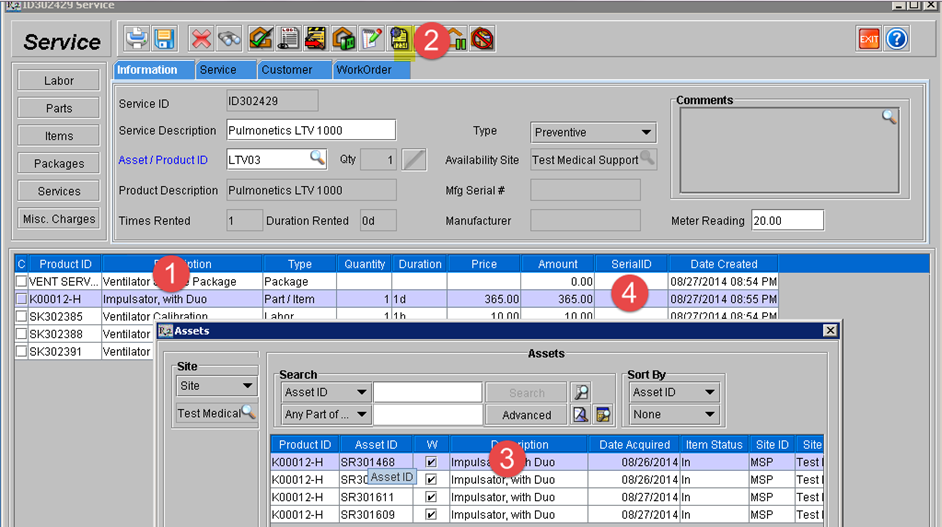
If serial parts were added to the service ticket, the asset ID must be filled in order to complete the ticket. To fill in a serial part on the service ticket:
-
Highlight the item
-
Click the assets button in the tool bar.
-
The assets available to fill the order will be displayed Select the one used to repair the asset.
-
The ID will be populated in the Serial ID column
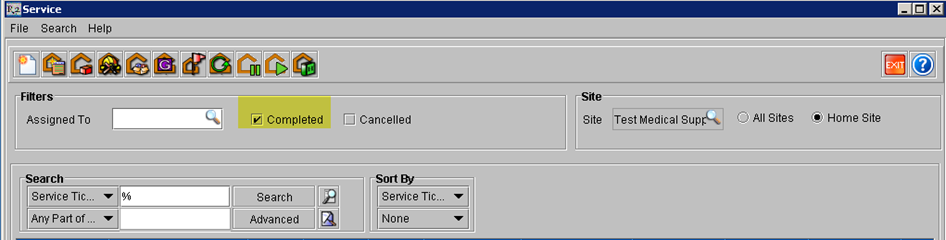
To complete the service ticket, search for the ticket in the service module. Then select the ticket to complete and click on the complete button 
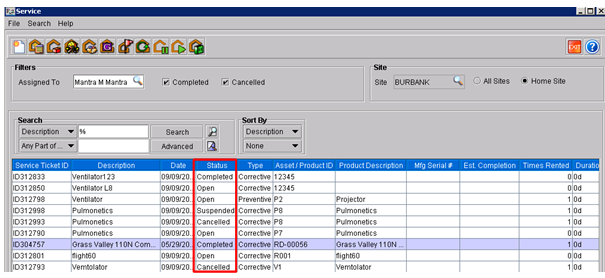
To search for completed tickets in the future, check the Completed box in the filters area.
Not all service tickets are completed, some may need to be or suspended or cancelled.
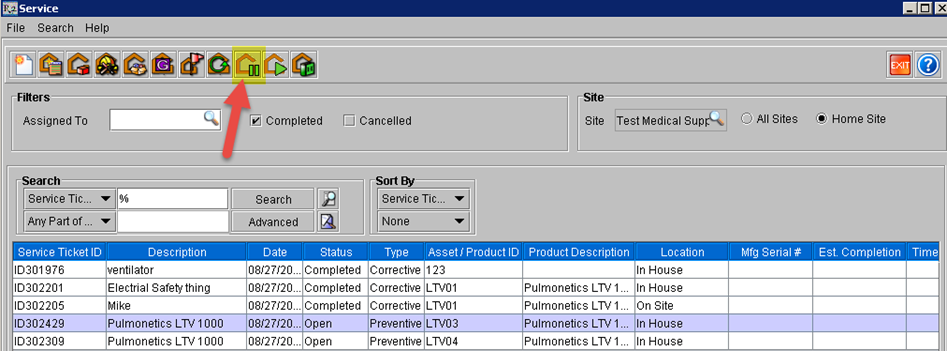
To suspend a service ticket, select the ticket and click the Suspend Service Ticket button.
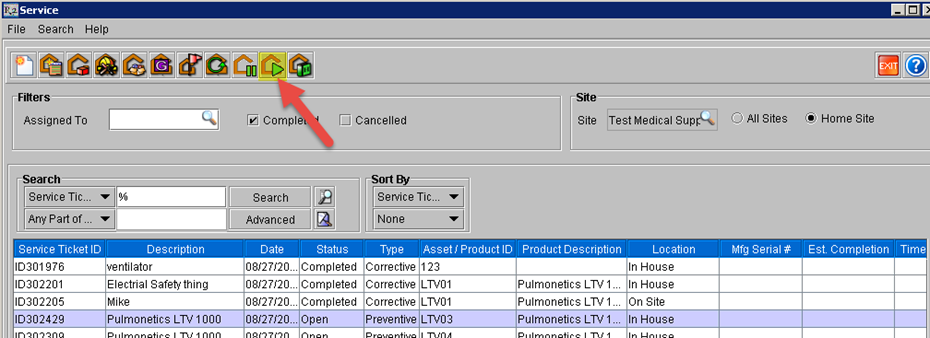
To resume a service ticket click the Resume Service Ticket button in the tool bar.
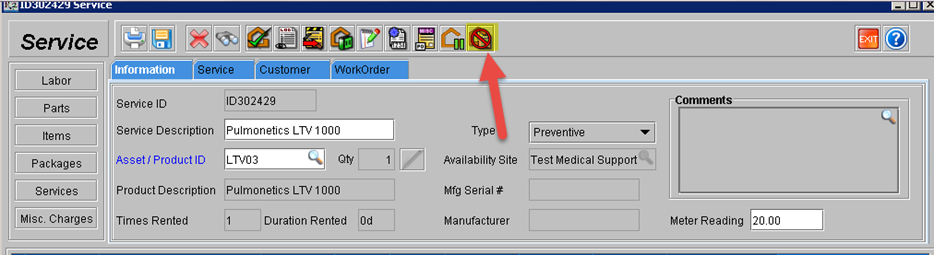
To cancel a service ticket, open the service ticket and click the Cancel button