From the Account module, locate the specific Order, double click to open the order.
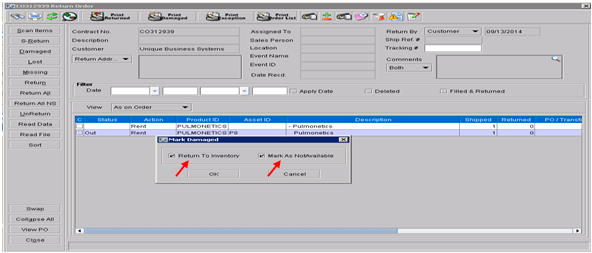
From the Return Order task, Expand All >highlight the damaged item>select Damaged.
From the Mark Damaged screen, select Return To Inventory and Mark As Not Available. Click OK.
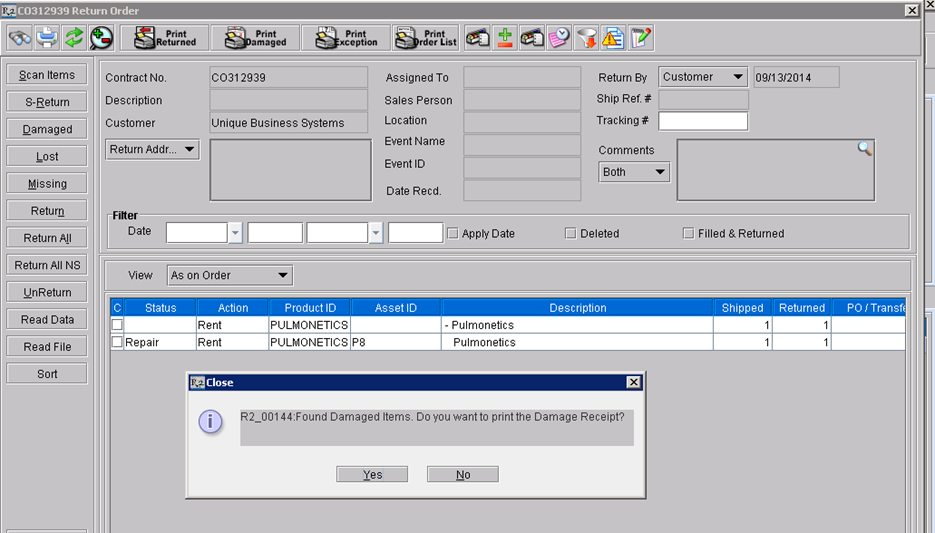
After clicking close, R2 will notify you that the damaged item was received. Print receipt if needed?
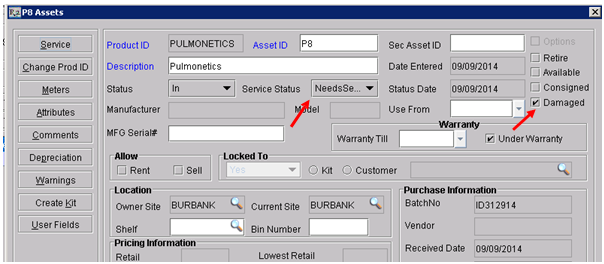
The asset will now show that service is required and the item will now be marked as Damaged.
From the Service screen, click on the Generate Service Ticket button to see the damaged assets needing to be serviced. Double click the Item/asset to generate a service ticket.
-
From the Generate Service Ticket screen, double click the Item/Asset to generate a service ticket. Click OK.
-
From the Assign Employee/ Group screen, select the employee or employee group. In the “Assigned To field” choose specific employee or group and site.
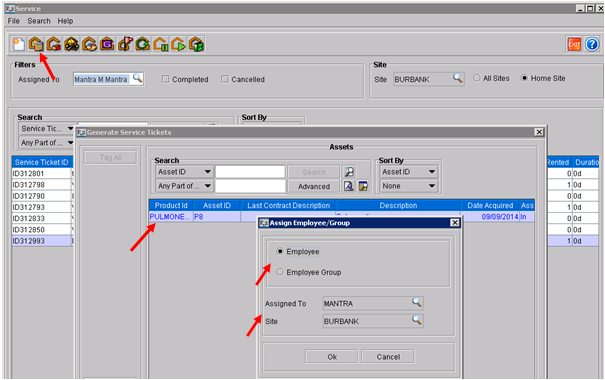
The service ticket(s) will be created and will be available for viewing in the main screen area of the Service Module.
The Service Ticket will have a status of Corrective.
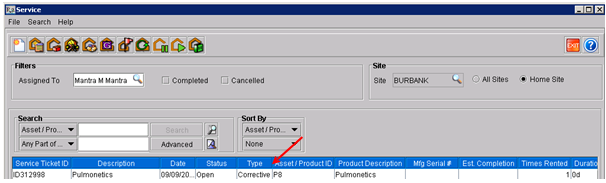
SERVICE TICKETS
By default, tickets assigned to the current user will be displayed. Tickets can be searched by various criteria and filtered by assigned to, completed, cancelled and by sites.
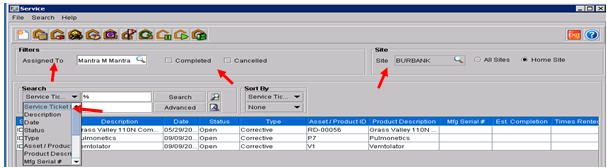
Once the service ticket has been found, double click to open it.
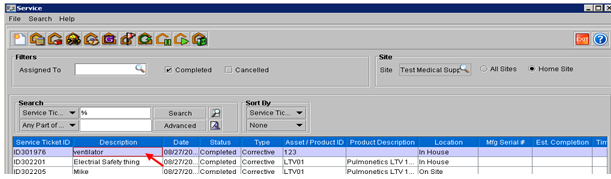
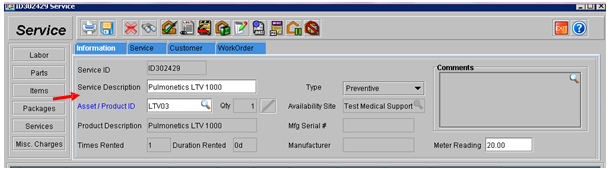
From the Service screen, the information tab provides details about the asset being serviced: asset description and type of service needed. Comment section can be used to detail work performed
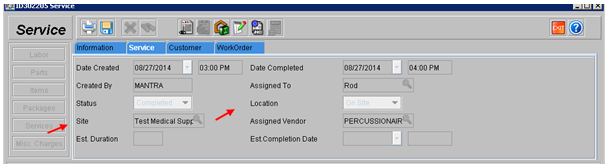
From the Service screen, the service tab provides information about the service ticket. Default setting will assign service to be performed “In House”. To change the service site location, click on the Assigned Vendor field select the company performing the repairs, which will switch the Location from In House to On Site. The Est. Duration field is used to enter a unit of time of the estimated time it will take to repair the asset or to receive it back from the vendor. The Est. Completion date will be auto populated based on the date created.
The following can be added to a service ticket
-
Labor (these are sell only)
-
Parts (these are sell only and call only be added to a service ticket if quantity is available)
-
Items (listed as sell only)
-
Packages (combination of Parts and Labor to be added as a kit)
-
Services (combination of Parts, Labor and Packages)
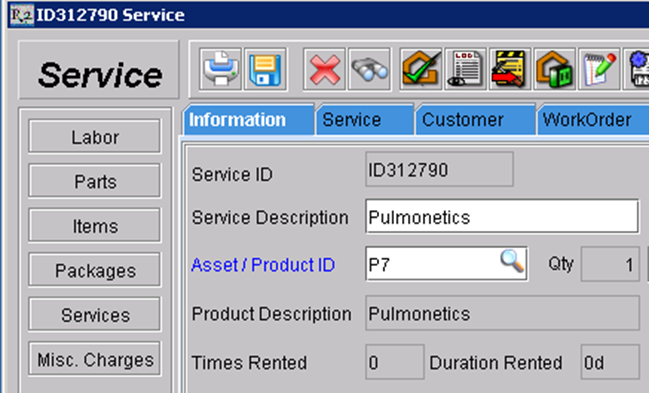
Note: In order to add Labor to the service ticket, labor positions must exist. These can be set up in the maintenance module.
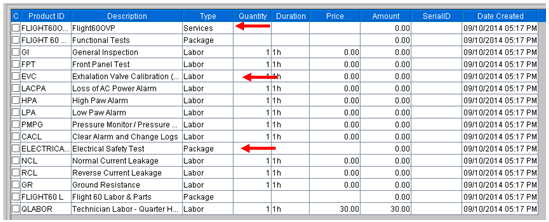
The following is an example of a service ticket that has been completed. It contains Service Groups, Service Packages, and Labor.