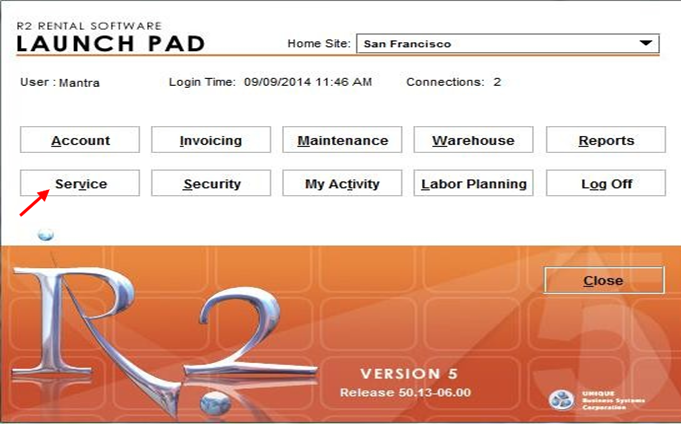
To access the service and repair module click on the Service icon located on the R2 launch pad.
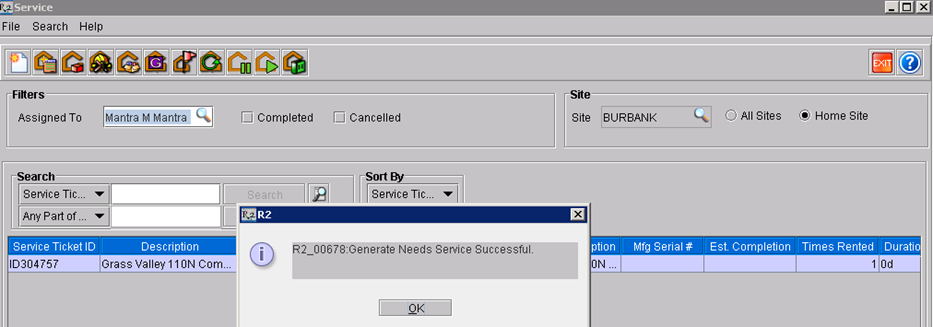
Click the Generate Needs Service button in the tool bar. The system will run a check on all Items associated with maintenance groups. Assets which have met the scheduled criteria to be serviced will be listed in the Generate Service Tickets screen after running the Generate Needs Service. It is recommended to continually run “Generate Needs Service” in order to have an accurate representation of assets that are due for service within the Generate Service Tickets screen.
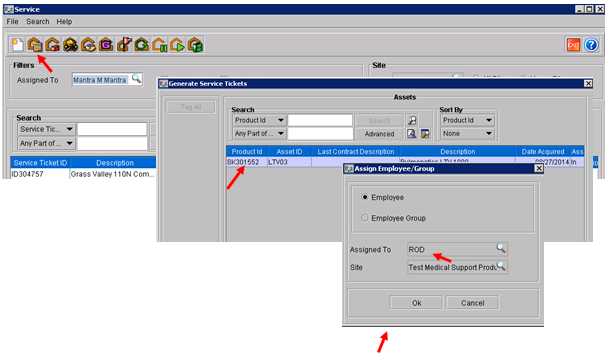
Click on the Generate Service Ticket button to see assets needing to be serviced. Double click the Item/asset to generate a service ticket.
-
From the Generate Service Ticket screen, double click the Item/Asset to generate a service ticket. Click OK.
-
From the Assign Employee/ Group screen, select the employee or employee group. In the “Assigned To field” choose specific employee or group and site.
The service ticket(s) will be created and will be available for viewing in the main screen area of the Service Module.
-
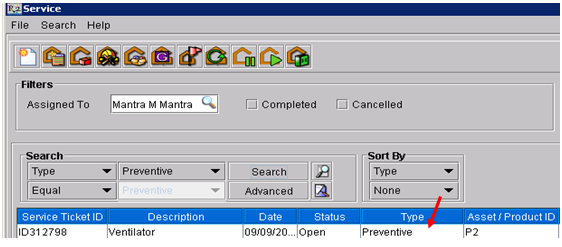
The Service Ticket will have a status of Preventative, if generated based on a Maintenance Group.