
Overview
In versions prior to 05.02.23-00, if the items having availability are sub assigned, purchase assigned or transfer assigned, system will generate an activity task for the sales person when the conflicts are generated.
Now, you can configure the options in R2 to opt whether, while generating conflicts, the activity task need to be created for Project Manager, Sales Person Sales Person and Project Manager, or to any additional employee(s). This can be achieved by defining appropriate rules using the feature Activity Rules present under the configuration module.
Steps for defining activity rules in Configuration module:
-
Access Configuration Module.
-
Click Activity Rules icon. Refer Figure 1.0 for illustration.

-
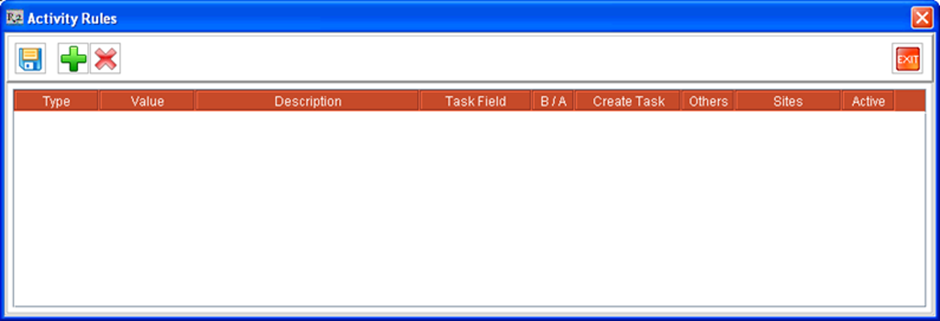
System displays Activity Rules window, as shown in Figure 1.1.
-
Click Add icon

-
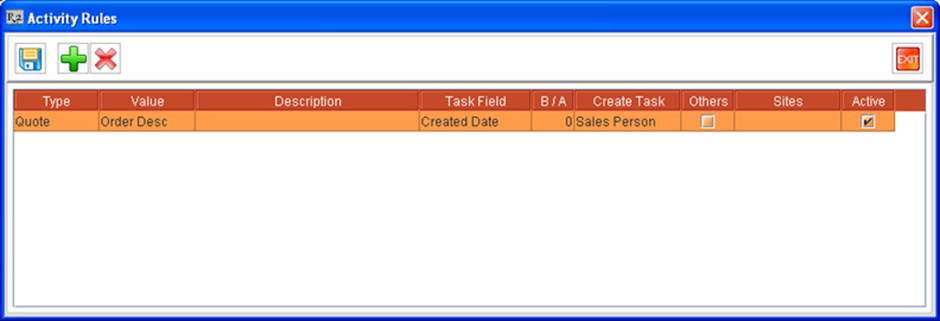
A new row will be displayed in the Activity Rules window with default values as shown in Figure 1.2.
-
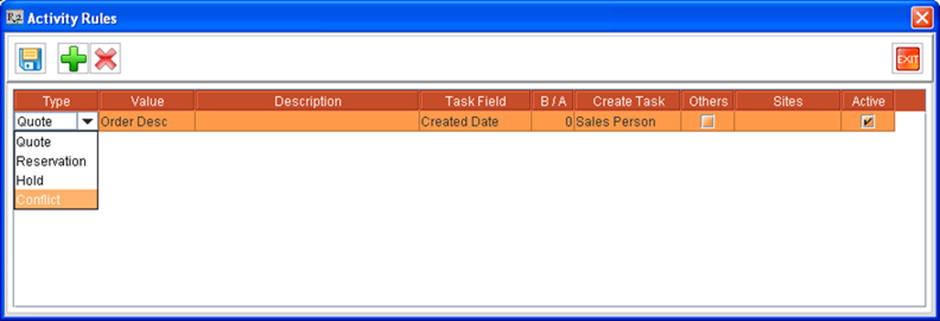
Select the Activity Rule type as 'Conflict'. To select, click inside the Type field and select the option 'Conflict'. Refer Figure 1.3 for illustration.
-
Define a description for the task by editing the Description field.
-
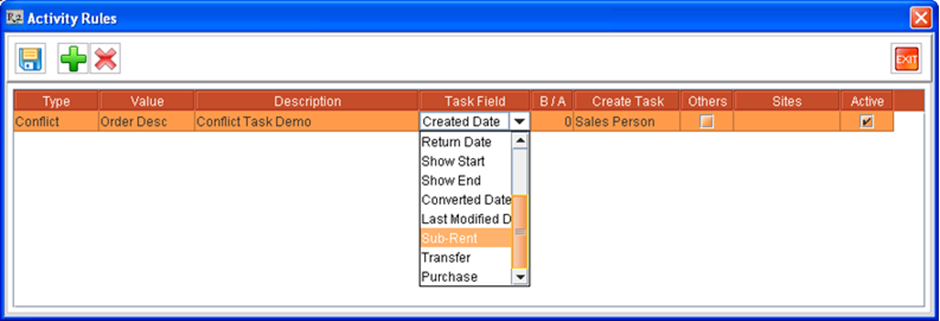
Select the item assign type in Task Field. You can select the options as 'Sub-Rent', 'Transfer' and 'Purchase Order'.
-
To select a assign type, click inside the field and scroll down to the end of the options and click on a option as per requirement. Refer Figure 1.4 for illustration.
-
-
Select for whom the activity task for assign conflict need to be created. You can select either Sales Person, Project Manager, Sales Person and Project Manager, or None. Refer Figure 1.5 for illustration.
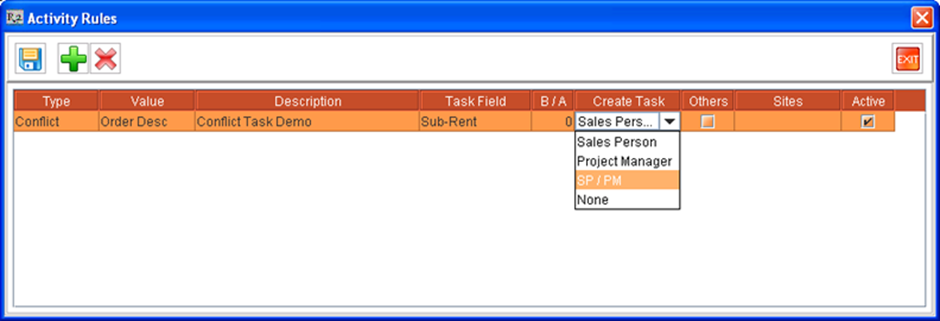
Figure 1.5 Selecting Employee for Activity Task -
On selecting the option in Create Task field, system will create the activity task for employees associated with the order as explain in the Table 1.0.
-
Table 1.0
|
Option |
Description |
|---|---|
|
Sales Person |
Activity task will be created for sales person associated with the order. |
|
Project Manager |
Activity task will be created for project manager associated with the order. |
|
SM/PM |
Activity task will be created for sales person and project manager associated with the order. |
|
none |
Activity task will not be created. |
-
Click in the Others field to select additional person to whom the task has to be assigned.
-
Click Save.
-
System will generate activity tasks for conflicts, when conflicts are generated using 'Generate Conflicts' feature in Warehouse module and also when the procedure 'Genconflicts' is executed based on scheduled program.
-
While generating conflicts, if any activity rule definition for conflicts is present, then system will generate the activity tasks, assigned to the employee as per the options tagged in Created By field and Other field, and with Created By user name as 'Mantra'. Refer Figure 1.6 for illustration.
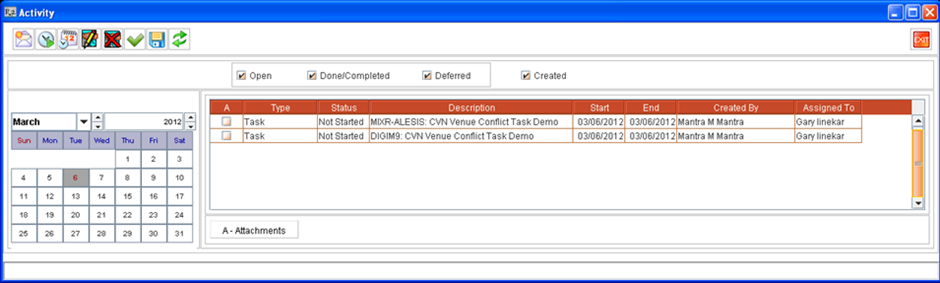
Figure 1.6 Activity Tasks created for Conflicts based on Activity Rules -
If no activity rule definition are found for conflicts, then system will create the activity task with Assigned TO and Created by displayed as Order - Sales Person. Refer Figure 1.7 for illustration.
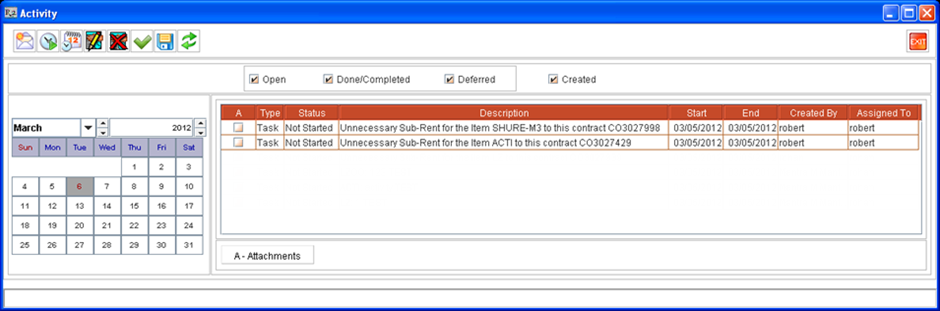
Figure 1.7 Activity Tasks created for Conflicts without Activity Rules -
On creating the Activity Task for conflicts, in addition to the option selected in value field and the description field, system will include the ID of the Product having conflict in the activity task.
-
When the procedure 'generateautomatedactivity' is executed based on a schedule program, to create activity tasks, system will ignore the activity rules of type 'Conflict'.
-
When conflicts are generated using 'Generate Conflicts' feature in Warehouse module or using the procedure 'Genconflicts' based on scheduled program, system will consider only the activity rule of type 'Conflict' and will ignore all other activity rule types.
-
On setting an activity rule as inactive in configuration module, system will not generate either the system generated or user defined tasks for the rule.
-
When tasks are generated based on Activity Rules for the Sub-assigned/Purchase-assigned/Transfer-assigned items which are having Availability, system will consider the sites which are tagged for the activity rules.
-
If any site / sites are tagged for an activity rule, then system create the task for the site / sites which are tagged in the activity rule.
-
If no site is tagged for an activity rule, then system will create the task for all sites when the task is created based on the activity rule.
-
-
If no activity rule is defined for generating conflict tasks, then system will create the task for sites as per the selection status of the option 'Generate Conflicts On All Sites' present in Configuration module.
-
When the option is selected, then system will create the activity tasks for all the sites, and if the option is de-selected, system will create the activity task only for the current site (logged-in site).
-
-