Reference No: 28298
Details
When assigning Dates to a Labor line, if the dates fall on a Holiday, the user is indicated of the same. The details are explained in the sample workflow given below:
Sample Workflow
Defining Holiday List from Configuration:
-
Select the Configuration module > General tab > click Holiday List button. The system displays the Holiday List dialog box where the user can define holidays, as shown in Figure 1.0.
Figure 1.0 Configuration module > General tab > Holiday List button > Holiday List Dialog Box
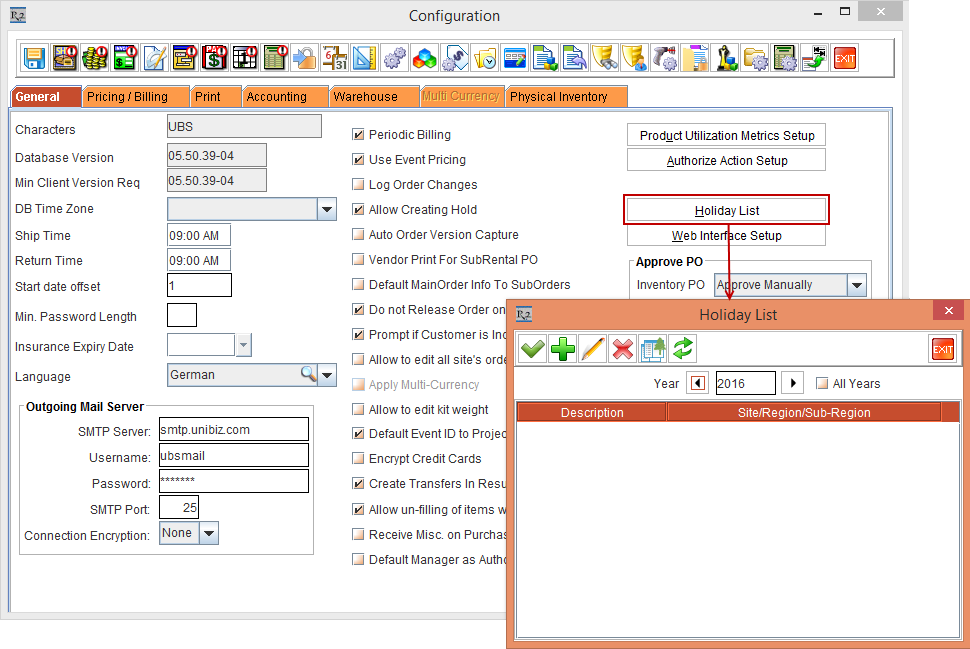
Note: When no holidays are defined, the dialog box will display blank list.
Table 1.0 Columns and Icons details in the Holiday List Dialog Box
|
Column name/Icon |
Description |
|
|
Clicking this saves the defined holiday list and exits. |
|
|
Clicking this, a new dialog box named Holiday is displayed where the user can create a new Holiday. |
|
|
Selecting a Holiday from the List and clicking Edit icon will display Edit window for making changes. |
|
|
Selecting a holiday line and clicking this, deletes the selected line. |
|
|
Selecting a Holiday from the list and clicking the Duplicate Holiday icon, the Choose Year for Duplicate dialog box will be displayed in which Year has to be entered for which a copy of the selected Holiday is created with the same details as the selected Holiday. However, the Holiday Description of the duplicated Holiday will be prefixed with “Copy of” followed by the original Holiday Description. The Start Date and End Date in the Range of Recurrence will be changed accordingly. |
|
|
Clicking Refresh icon will refresh the Holiday List. |

|
This scroll button can be used to set the Year. The current year is the default year. Selecting All Years check box will list all the Holidays falling in All the years. Clearing All Years check box will list Holidays for the selected Year. |
|
Description |
Displays the Holiday Description. Field type is read-only text field. |
|
Site/Region/Sub-Region |
Displays the Site/Region/Sub-Region the Holiday is applicable for. Field type is read-only drop-down list. Clicking, the drop-down arrow in the field, the list of Site(s), Region(s) and Sub-Region(s) the Holiday is applicable for is displayed. |


-
Click

Figure 1.1 Details of fields and icons in Holiday Dialog Box
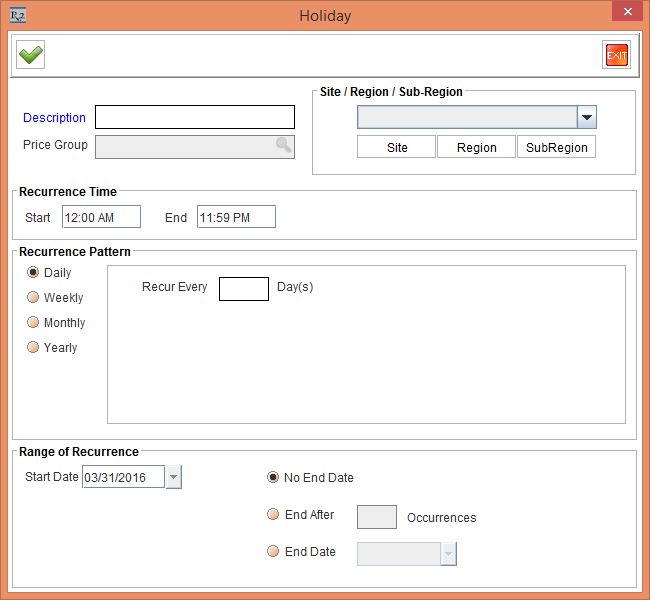
Note: By default values set on creating a new Holiday are as given below. However, you can modify it.
-
The Start and End Time - 12:00 AM and 11:59 PM respectively.
-
Recurrence Pattern – Daily.
-
Range of recurrence – current system date.
-
No End Date – set as selected.
Table 1.1 Details of fields and icons in Holiday Dialog Box
|
Field |
Description |
||||||||||
|
|
Clicking the OK icon, saves the holiday definition. |
||||||||||
|
|
Clicking this, exits the Holiday definition. However, a prompt message will be displayed to save the Holiday Definition or not. |
||||||||||
|
Description |
To enter Holiday Description. |
||||||||||
|
Price Group |
Will not be supported at present. For future use. |
||||||||||
|
Site/Region/Sub-Region |
To select the site/region/sub-region for which the holiday is applicable. Field type is importable text field. Three buttons are provided as given below:
Clicking these buttons, its respective dialog box (Site/Region/Sub-Region) is displayed where the Site(s)/Region(s)/Sub-Region(s) can be tagged to the Holiday. The tagged Site(s)/Region(s)/Sub-Region(s) will be displayed in Site/Region/Sub-Region field's drop- |
||||||||||
|
Recurrence Time
|
To set the Holiday start and end time. This is applicable for every occurrence of the holiday. |
||||||||||
|
Recurrence Pattern:
Note: Based on the Recurrence Pattern option selected, the fields/options corresponding to the selected option will be displayed. The options that will be displayed when different Recurrence Pattern options are selected are as shown in the below table: |
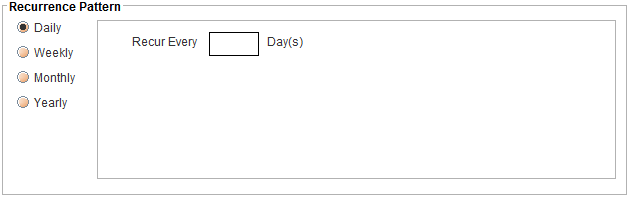
To select a recurrence pattern and to set how often the selected recur option should repeat. The Recur option will repeat by the numeric value set in Recur Every field. For example, if Recur option is set as Daily. And the Recur Every is set as 3 Days, then the defined holiday will recur every 3 days. Similarly, you can set for Weekly, Monthly and Yearly also. |
||||||||||
|
Field |
Description |
||||||||||
|
|||||||||||
|
Range of Recurrence |
|||||||||||
|
Start Date |
To set the Holiday Recurrence Start Date. |
||||||||||
|
No End Date |
Selecting this radio button will set recur the Holiday indefinitely. |
||||||||||
|
End after- occurrences |
To set the value for ending the Holiday after the defined number of occurrences. |
||||||||||
|
End Date |
To set an end date to the Holiday recurrence. |
||||||||||

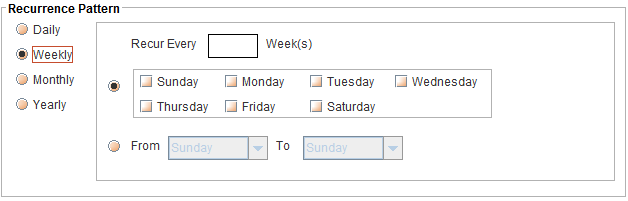
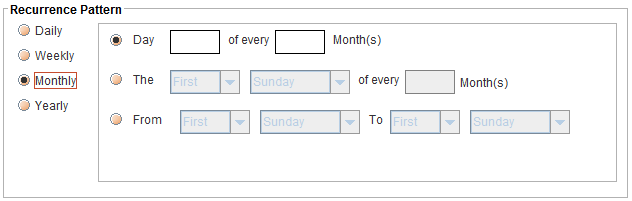
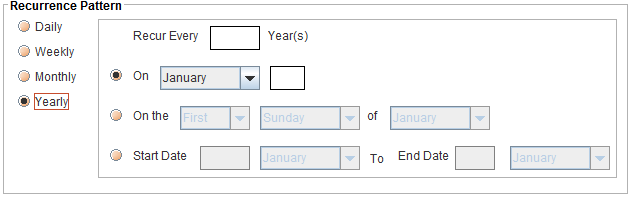
-
Enter details in the Holiday dialog box as shown in Figure 1.2.
Figure 1.2 Monthly Holiday Definition
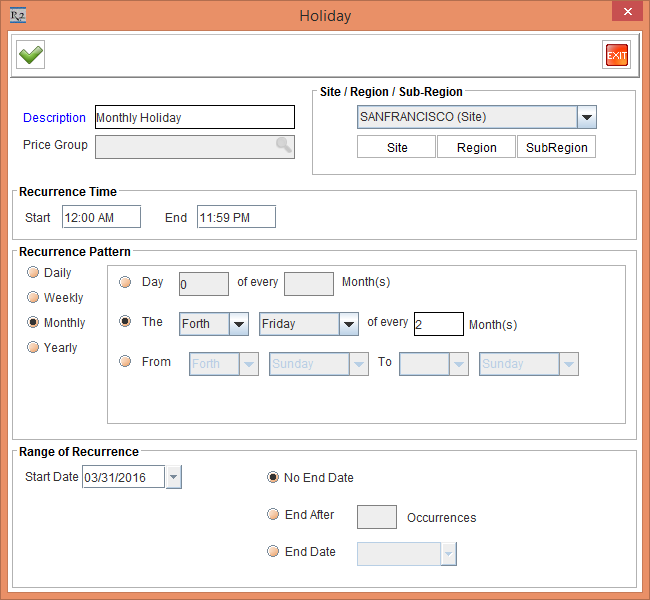
As per the Holiday definition – Monthly Holiday, every alternate month’s fourth Friday is a holiday. It is a full day holiday as the Start and End Time set are 12:00 AM and 11:59PM respectively. The holiday calculation starts from March 31, 2016 indefinitely and it is applicable only for Site - SAN FRANCISCO.
-
Click OK to save the newly created Monthly Holiday definition.
-
Similarly create another definition with details as shown in Figure 1.3.
Figure 1.3 Thanks Giving- Holiday Definition
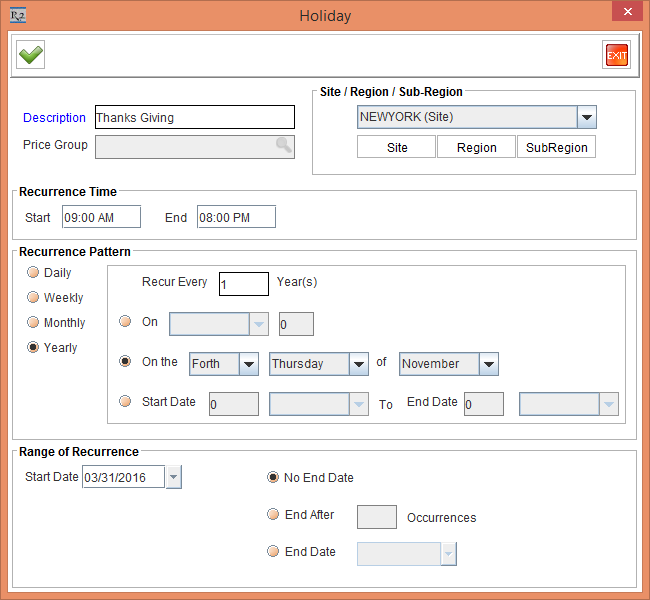
As per the Thanks Giving holiday definition, every year 4th Thursday of November from 09:00 AM to 08:00 PM hours is a Holiday. The definition calculation starts from March 31, 2016 indefinitely and is applicable to two Sites:the Site-NEW YORK and the Site -SAN FRANCISCO.
Note: Site/Region/Sub-Region field displays only the first name from the list is displayed. To view the complete list, click the drop-down arrow.
-
Click OK. The created definition gets saved.
-
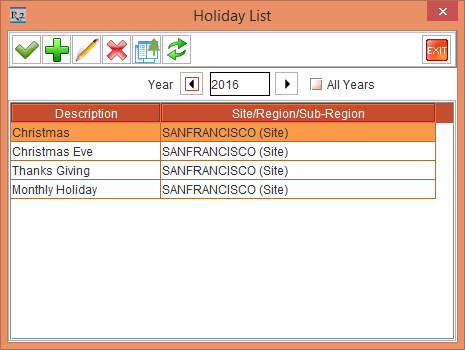
Similarly create more definitions as given in Table 1.2 and view the Definitions as shown in the Figure 1.4..
Table 1.2 More Holiday Definitions
|
Holiday Definition |
Definition 1 |
Definition 2 |
|
Description |
Christmas Eve |
Christmas |
|
Site |
San Francisco |
San Francisco |
|
Region |
|
USA |
|
Sub-Region |
|
North Bay |
|
Start and End time |
06:00 PM to 11:59 PM |
12:00 AM to 09:00 PM |
|
Recurrence Pattern |
|
|
|
Recurrence Range |
|
|
Figure 1.4 Created Holiday Definitions in the Holiday Dialog Box
-
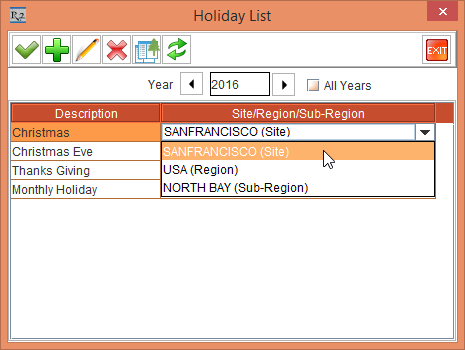
Click the Site/Region/Sub-Region column for a list to view the site(s), region(s) and sub-regions(s) tagged to it as shown in the Figure 1.5.
Figure 1.5 Site/Region/Sub-Region tagged to a Holiday- Christmas
-
Click

Assigning Dates to Labor Line in Order- Tagging a Task to the Labor Line:
-
Log-in to R2 from Site SANFRANCISCO and create an Order [ORD-188] from the Accounts module with Start Date as December 24, 2016 and End Date as December 26, 2016. The Prep and Return Date will also be the same.
-
Add the Labor Positions [CAMERATECHNICIAN] and [AVTECHNICALOPERATOR] to the Order [ORD-188].
-
Select the Labor line [CAMERATECHNICIAN] > click the Task column drop-down arrow and select the Task Call Out from the list.
-
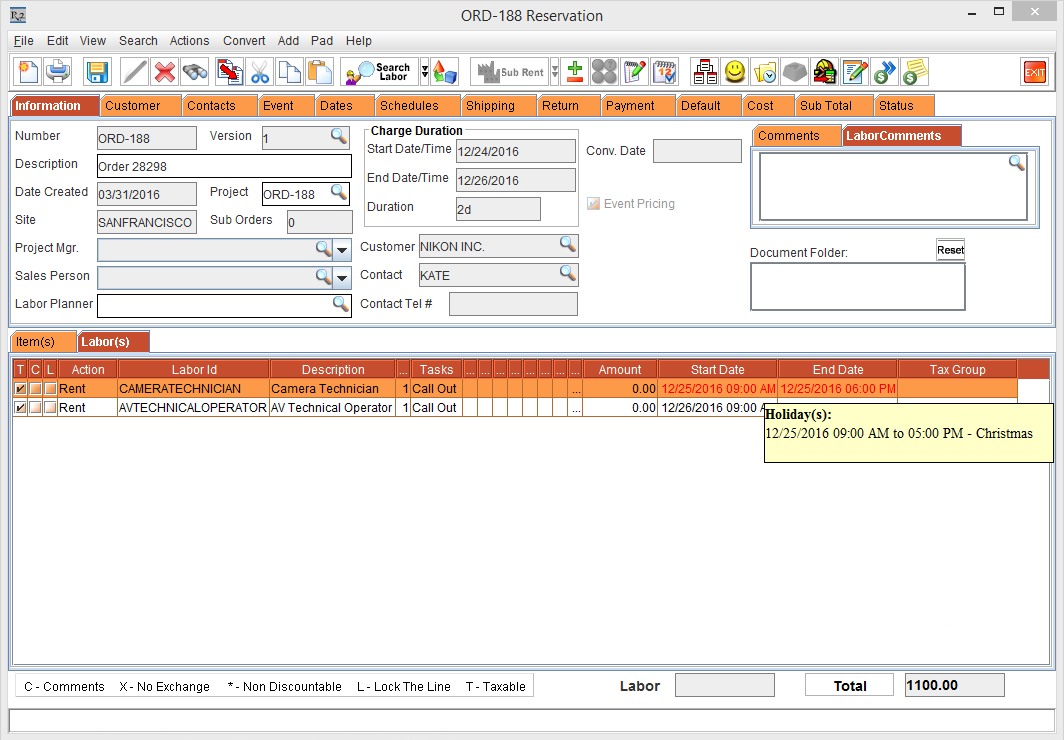
The Start Date and End Date for the Task are set as December 25, 2016. And since the dates are falling on a holiday [Christmas], the Start Date and End Date fields are displayed in red color indicating Holiday Date, as shown in Figure 1.6
Note: The Start Date and End Date for the Task are defaulted based on the dates defined for the Task in Configuration.
-
Click the Labor line’s Dates column, a tool tip is displayed with the details of the holidays.
Figure 1.6 Labor Line’s assigned Dates falling on a Holiday is indicated in Red Color with Holiday Details displayed in a Tool Tip
Assigning Dates to Labor Line from Estimated Work Time Dialog Box-Start and End Date Fields:
-
Right-click a Labor line [AVTECHNICALOPERATOR] > Assign Dates. The Estimated Work Time dialog box is displayed.
-
Set the dates in the Start Date and Time and End Date and Time fields as November 24, 2016, 09:00 AM to November 25, 2016, 06:00 PM.
-
Click OK. The set date and time is assigned to the labor line.
-
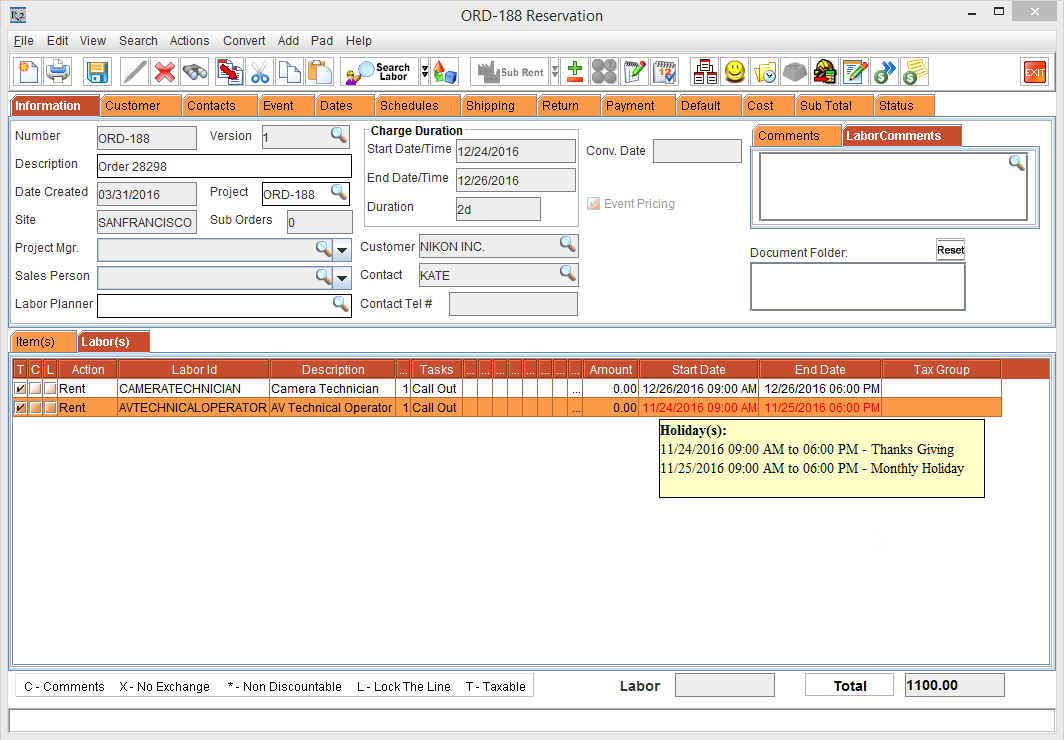
Since the dates assigned - as November 24, 2016, 09:00 AM to November 25, 2016, 06:00 PM, fall on holidays Thanks Giving and Monthly Holiday, the system displays the Start Date and End Date fields in red color text, as shown in Figure 1.7.
Figure 1.7 Start and End Date in red text indicating assigned dates fall on Holiday
Assigning Dates to Labor Line from Estimated Work Time Dialog Box-Split Lines
-
Right-click a Labor line [CAMERATECHNICIAN] > Assign Dates. The Estimated Work Time dialog box is displayed.
-
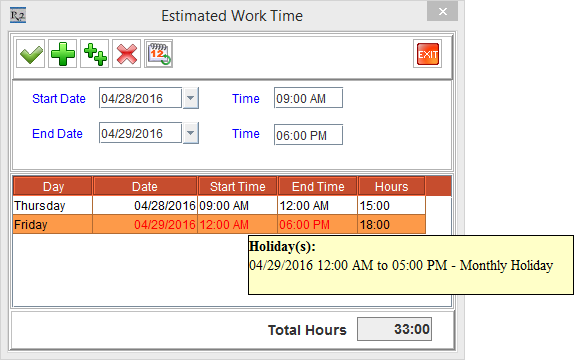
Click Add New Lines icon > set the dates in the Start Date and Time and End Date and Time fields as April 28, 2016 9:00 AM to April 29, 2016 06:00 PM and click OK.
-
The lines are split and displayed in the Estimated Work Time dialog box. And the line falling on a holiday [Monthly Holiday] is indicated in red color, as shown in Figure 1.8.
-
Click on the date line indicated in red color.
-
A tool tip with the Holiday Details [Monthly Holiday] of that date is displayed, as shown in Figure 1.8.
Figure 1.8 Date line falling on a Holiday displayed in Red Color in Estimated Work Time Dialog Box