
Overview
Scheduling Execution of Activity Rules with Recurrence
In earlier versions of R2(V5 version), on executing the procedure ’generateautomatedactivity’ manually or through Windows Task Scheduler, system generated the activity tasks as per the activity rules set in Configuration > Activity Rules.
With effect to the current version(V5.5 version), the Activity rules has been enhanced to schedule the execution of the activity rules at in R2 itself. Now, you can define the individual Activity Rules with recurrence pattern specific to it, based on which the rule will be executed.
The support for generating Activity Tasks based on Activity Rule by means of executing or scheduling (in Windows Task Scheduler) the procedure 'generateautomatedactivity' is discontinued. You can continue defining recurrence for Activity Tasks by using the Activity Rule > Task Recurrence feature.
Defining Activity Rule with Actions
In addition to the support for defining Activity Rules with Recurrence Pattern, now, you can also define the Activity Rules with an action that has to be taken on different types of orders. The actions can be scheduled to be performed on the Orders based on rule conditions such as Cancel Contract, Convert to Quote, Un-reserve all items.
Usage Illustration
In Rental business, on obtaining a contract from a customer with pre-defined condition applied for a specific duration, sometimes you may need to perform actions on the contract which would result in releasing of the contracts.
For example, consider an Order having discount offered to the Customer, if the order is confirmed within a particular date. If the customer does not confirm the order within the discount valid period, then actions need to be performed on the contract so that the discount offered is revoked.
In R2, you can automate the process of releasing orders, by pre-defining activity rules along with actions to be performed on orders in Configuration > Activity Rules feature. For more details, refer the functionality explained below:
Pre-defining activity rules along with actions to be performed on orders
Prerequisite:
The below listed tasks has to be performed once in the R2 Schema to enable R2 to scheduling of tasks with recurrence.
-
The Create Job right has to be granted to the R2 Schema. Syntax : Grant Create Job to R2 Schema Name;
-
The procedure ActivityRulePack.SetRulePrograms should be executed in the R2 Schema. Syntax : Exec ActivityRulePack.SetRulePrograms;
In Configuration > Activity Rules feature (Refer Fig 1.0 for illustration), you can pre-define the actions along with the custom conditions (Activity Rules) based on which the actions need to be performed on the orders and subsequently release the items.
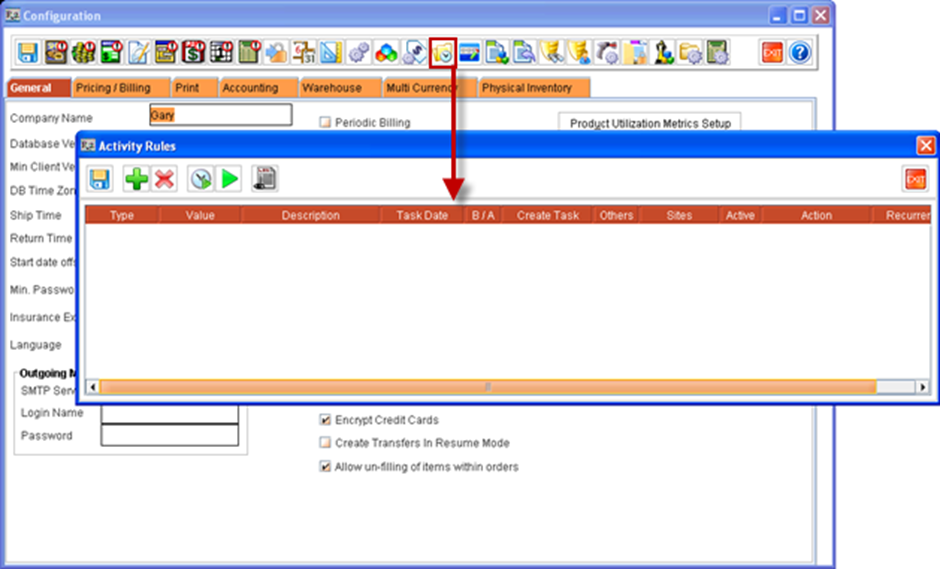
The definition of custom conditions (Activity Rules) primarily includes the below configurations:
-
Selection of Order type: The selection of Order type determines the order type for which the activity rule has to be applied.
-
Selection of action date: The selection of action date allows to select a date based on which the rule should be activated and executed.
-
Defining Action: The selection of action determines the action that need to be performed.
-
Defining execution recurrence pattern: The selection of execution recurrence pattern determines when the rules will be executed and the frequency of execution.
Steps to create new Activity Rule for performing automated action on Orders
-
Access Configuration Module.
-
Click on Activity Rule icon.
-
System displays Activity Rules window as shown in fig 1.0.
-
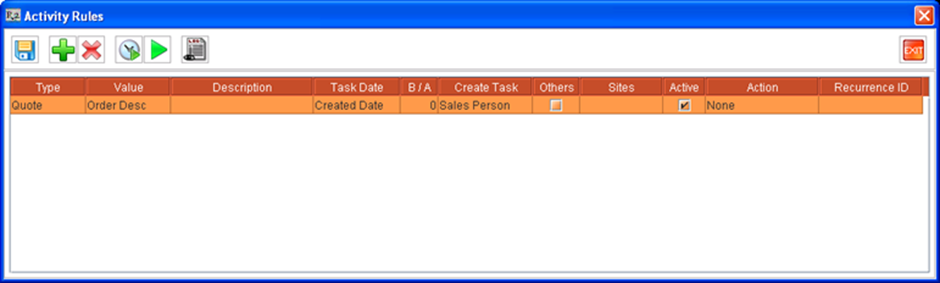
Click on Add icon

-
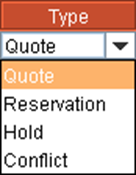
Set the type of the order for which the rule has to be created. For example, if rule has to be created for ”r;Quote Orders”, select ’r;Quote’ from the drop down list. Similarly, rules can be created for Hold and Reservation orders also by selecting respective options from the drop down list. Refer Fig 1.2 for list of options available in type field.
-
Select the Action Task date in the Date field.
-
The action date selected, along with the interval of days defined (in B/A column) will be considered as the criteria for activating and executing the activity rule.
-
The user will be able to select an action date in the Task date field with any of the below listed date types :
-
Created Date - Selecting this option will set the rule to be activated based on order created date.
-
Valid Till – Selecting this option will set the rule to be activated based on order valid till date.
-
Charge Start Date – Selecting this option will set the rule to be activated based on the Charge Start Date of the order.
-
Charge End Date – Selecting this option will set the rule to be activated based on charge end date of the order.
-
Prep Date – Selecting this option will set the rule to be activated based on order prep date.
-
Return Date - Selecting this option will set the rule to be activated based on order return date.
-
Show Start – Selecting this option will set the rule to be activated based on the Order Show Start Date.
-
Show End- Selecting this option will set the rule to be activated based on the Order Show End Date.
-
Converted Date – Selecting this option will set the rule to be activated based on the Order Converted Date.
-
Last Modified Date - Selecting this option will set the rule to be activated based on the Order Last Modified Date.
-
-
-
Define the interval of days to define when the rule has to be activated, with reference to the rule date selected.
-
You can select the interval of days in the B/A column, as a negative value (if the rule needs to be activated prior to the rule date selected), positive value (if the rule needs to be activated post the rule date) or as zero (if the rule needs to be executed on rule date). For example, if the rule date selected is ’r;Valid Till’ and value is defined in the B/A column as -3, then the rule will be activated 3 days prior to the valid till date defined. In similar, if the value in B/A column is defined as 3, then the rule will be activated and executed 3 days after the valid till date defined for the order.
-
If the value is defined as zero in B/A column, then the rule will be activated and executed on the same day of Order valid till date defined.
-
-
Select the site(s) in which the rule has to be applied in Sites field.
-
On selecting site/sites for an activity rule, then system will apply the rule only in the selected sites. If no Site is selected in the Sites field, then the activity rule will be applied for all the sites.
-
To Select a Site, click in the Sites field, click on the ellipses button to display the site dialog box, and select an individual site or multiple sites as per choice. If multiple sites are selected, site list will be displayed in the Sites field separated by comma (,).
-
-
Select the Action that need to be performed on the orders.
-
You can set the action to be performed on orders as either None, Cancel, Un-reserve all items or Convert to quote. Refer Table 1.0 for function of each action against order type selected. See also Usage Illustrations .
-
Table 1.0
|
Action |
Applicable Order Type |
Functionality |
|---|---|---|
|
Convert to Quote |
Reservation, Hold |
Converts the Reservation, Hold Orders as Quote. |
|
Un-reserve all items |
Reservation, Hold |
Marks the items which are reserved in Reservation and Hold orders as Not-available. |
|
Cancel |
Quote, Reservation , Hold |
Cancels the Order. |
|
None |
Quote, Reservation , Hold |
No specific action will be performed based on activity rule created. |
-
Select the execution recurrence pattern for the Activity Rule. The selection of execution schedule for a rule determines when the rule has to be executed and also the frequency of execution.
Steps for tagging pre-defined Recurrence Setting to an activity rule
Note : For information on how to create new Recurrence Setting, see Defining Recurrence Settings.
-
Highlight an Activity Rule.
-
Click on Task Recurrence icon .
-
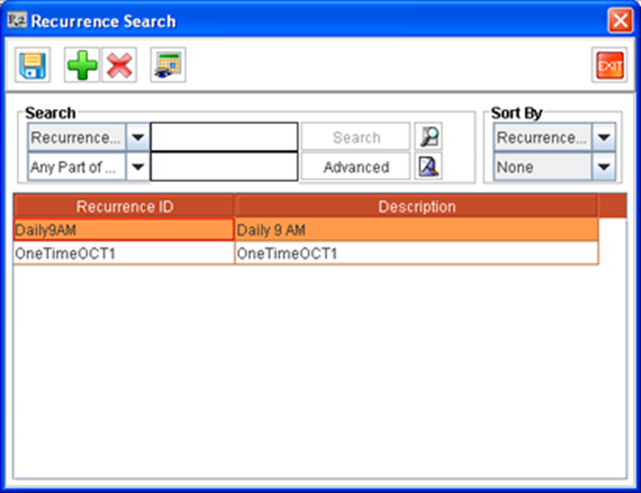
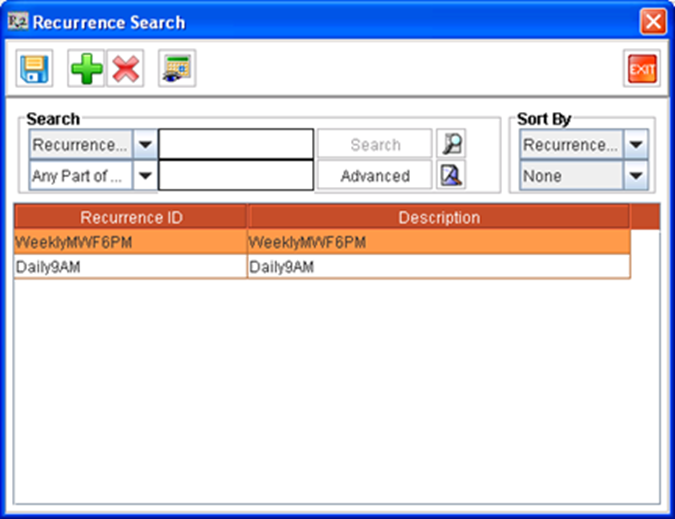
System displays Recurrence Search window with existing definitions. (Refer Fig 1.3 for illustration).
-
Double click on a recurrence definition to select.
-
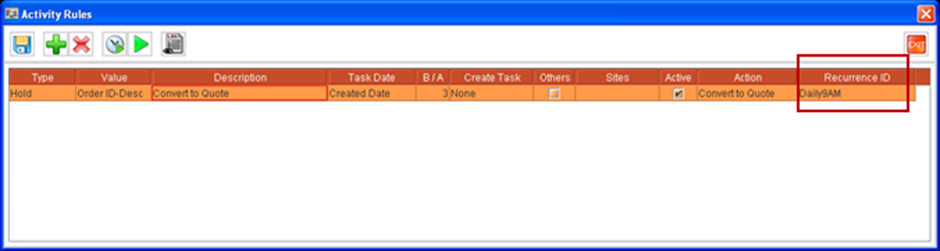
The selected recurrence definition will be displayed in the Activity Rule in the Recurrence ID field as shown in Fig 1.4.
-
Click Save icon

-
The Task Field options Sub-Rent, Transfer and Purchase are not applicable/ relevant when Activity Rules are created of Types Quote, Reservation and Hold. For functionality of these options, click here.
-
On selecting a Designation option (Sales Person, Project Manager, SP/PM) in Create Task field and when employees are tagged in Others field, system will continue to create the Tasks in My Activity when Activity Rule is manually executed or through recurrence setup.
Defining Recurrence Settings
You can create new Recurrence settings that can be tagged for the activity rules, from within Recurrence Search window. For more information, refer below mentioned steps.
Steps to define a new Recurrence settings definition
-
Access Recurrence Search window. To access, click on Task Recurrence icon

-
Click Add icon

-
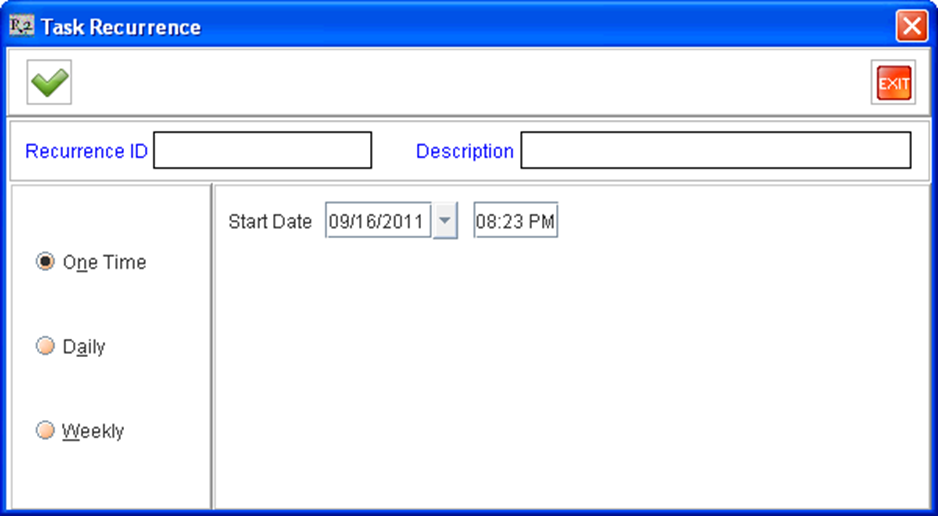
System displays Task Recurrence window as shown in Fig 2.0.
-
Enter ID and Description for the new schedule setting.
-
Select task recurrence pattern. You can select the recurrence pattern as One Time, Daily or Weekly. For more information, refer Recurrence Pattern details explained below.
Recurrence Pattern
-
One Time - Select this option, if the rule has to be executed only once on a specified date and time (Start Date field). (Refer Fig 2.0 for illustration)
-
Daily - Select this option, if the rule needs to be executed on a daily basis starting from the Start date and Time selected. The daily settings can also be further configured based on a fixed interval of days. Refer Fig 2.1 for illustration.
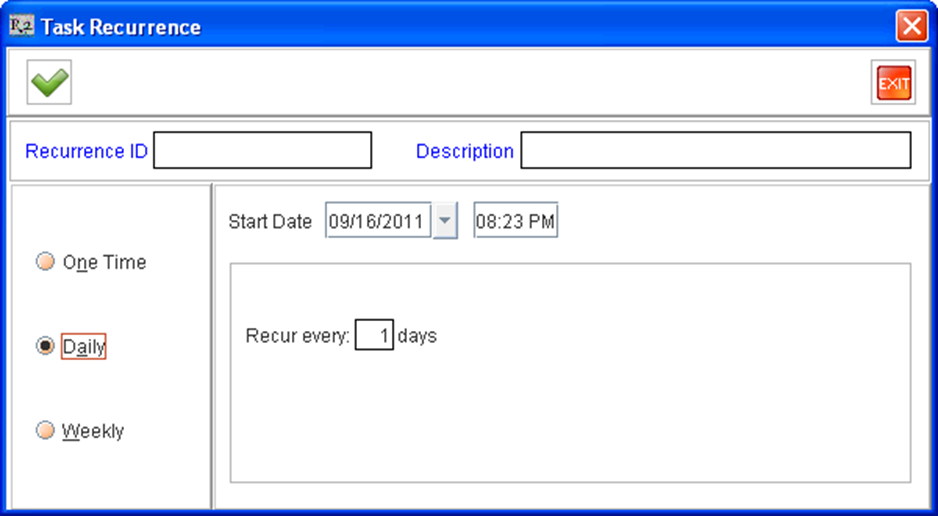
For example, if you want the rule to be executed on every alternate day, enter the value 2 in the Recur every field.
-
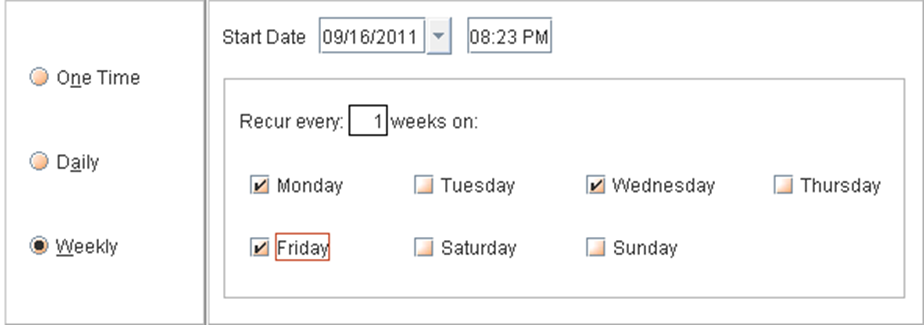
Weekly - Select this option, if the rule needs to be executed on weekly basis starting from the Start date and time selected. The weekly settings can be also further configured based on fixed interval of weeks and also the days of week on which the rule has to be executed. Refer Fig 2.2 for illustration
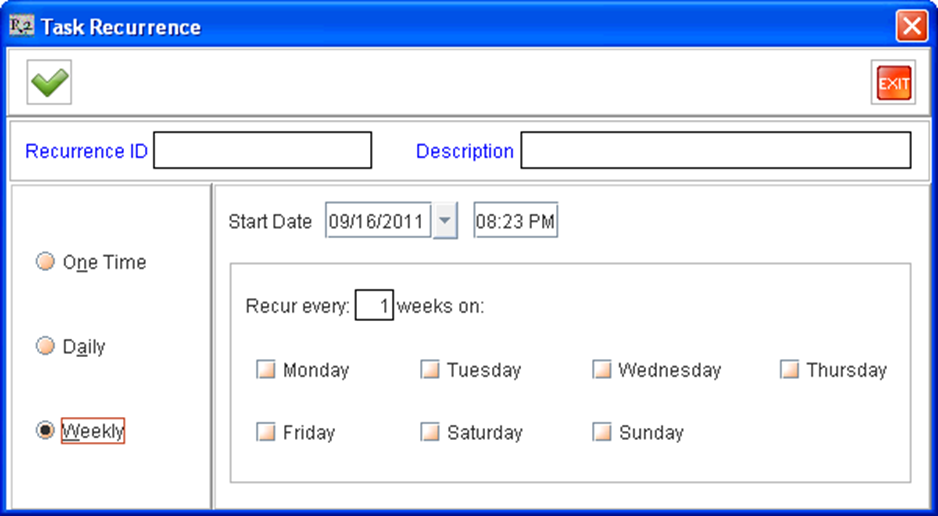
For example, if you want the rule to be executed every week on Monday, Wednesday and Friday, configure the weekly schedule settings as shown in Fig 2.2.1.
-
Once the recurrence settings are configured, click OK icon to save and exit.
-
The newly defined task recurrence setting definition will be displayed in Recurrence Search window, which can be tagged to an activity rule. Refer Fig 2.3 for illustration.
Manual Execution of Activity Rules
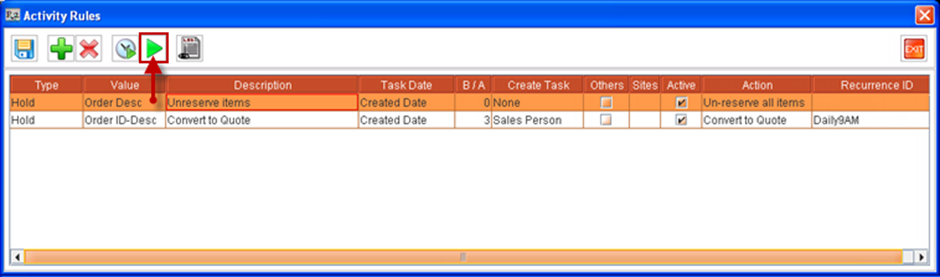
In addition to the method of scheduled execution of Activity Rules (using Task Recurrence), you can also execute an Activity Rule manually. This can be done from within Activity rules window, by selecting a Rule definition and then clicking the Run icon. Refer fig 3.0 for illustration.
Viewing Execution Log of Activity Rules
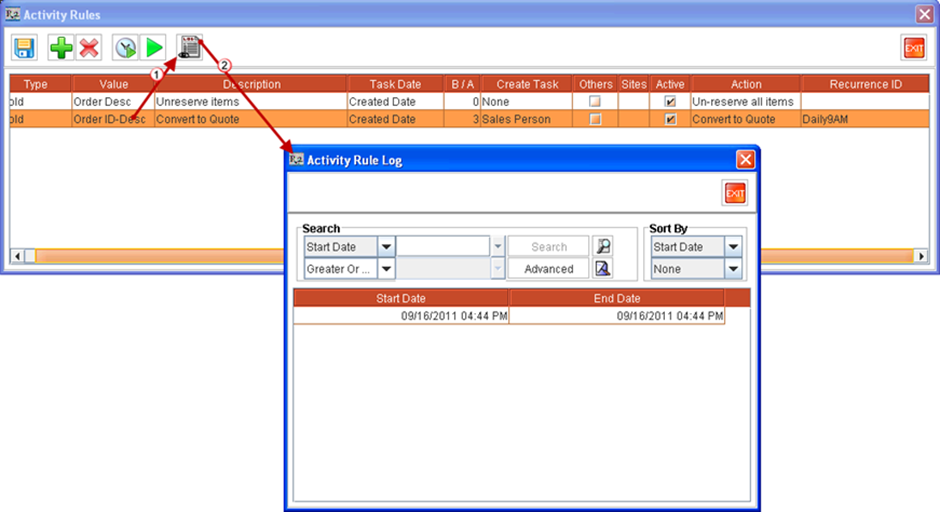
You can also view the Activity Rule - Execution Log, to view the date and time on when an Activity Rule is executed. This can be done by highlighting a Rule and followed by clicking View Log icon. Refer Fig 4.0 for illustration.
Usage Illustration
Scenario - 1
-
Consider a scenario when a hold order is created with the expectation of receiving confirmation from the customer on a specific date (valid till date). If the customer does not give confirmation for the order or if no response is received, then you may need to cancel the order , un-reserve the items or convert the order to quote, so that the items added to the order are available for usage in other orders.
-
By using the Activity rules feature in R2, you can achieve this by setting rules as below:
Rule definition (for cancelling hold orders which are expired / exceeded the valid till date defined)
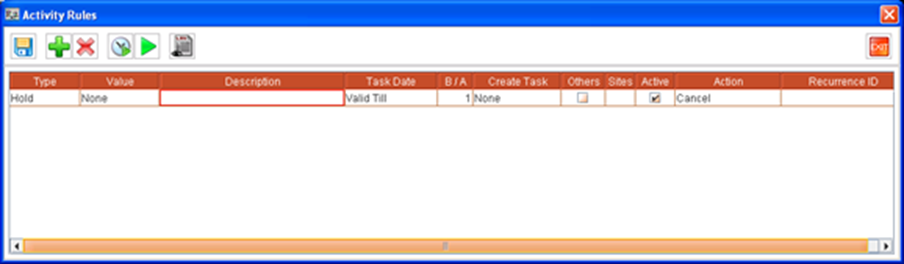
With the above rule settings, system will automatically cancel all Hold Orders having Valid till date defined is lesser than the current date. You can also set the hold orders to be expired on the same day, by entering the value in B/A as 0. Here, the value 1 is entered for the rule to provide 1 day of grace period for the order customer.
As you can see that, the above rule is defined without selecting any Schedule settings. Hence, the rule has to be manually executed from within Activity rule window by selecting the Run icon .
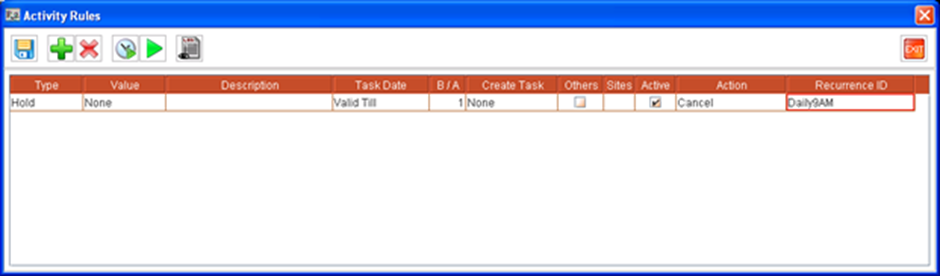
You can set the rule to be executed in a scheduled manner, by pre-defining schedule settings and tagging it to the rule. For example, if you tag a schedule which set as Daily 9:00AM for the rule, then the rule will be executed every day at 9:00 AM. Refer Fig 5.1 for Activity Rule Illustration with Recurrence Settings.
Rule definition (for un-reserving items present hold orders which are expired / exceeded the valid till date defined)
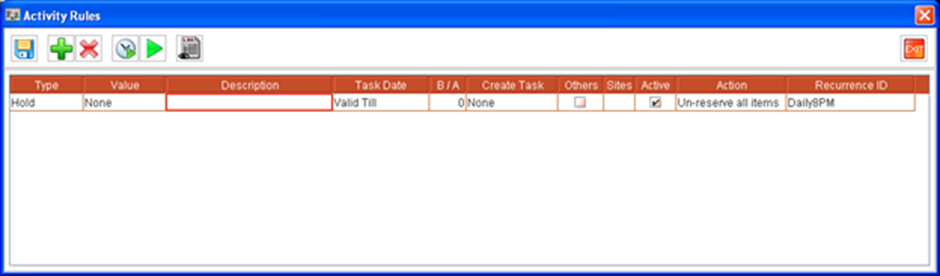
With the above rule settings, the rule will be executed every day at 8:00 PM, finding all Hold orders having valid till date equal to the current date and following un-reserving all items present in orders (the items will be marked as Not-available on orders).
Rule definition (for converting Hold Orders to Quote which are expired / exceeded the valid till date defined)
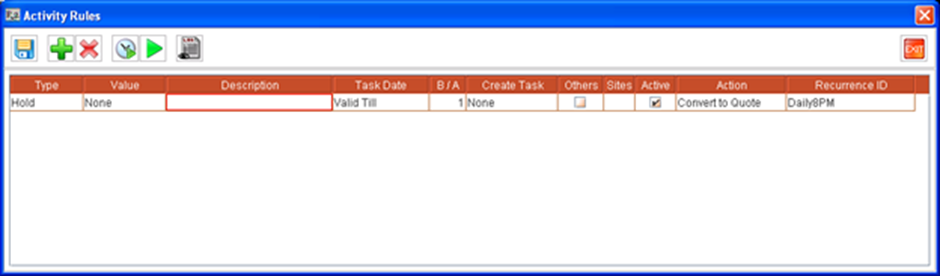
With the above rule settings, the rule will be executed every day at 8:00 PM, finding all hold orders having valid till date lesser than the current date and subsequently converting the orders as Quote orders.
Scenario - 2
-
Consider a quote order which is created for a customer with additional discounts offered, if the order is confirmed within a particular date, and no response or confirmation is received from the customer even after the valid till date defined. In this case, you may need to cancel the quote, so that a new quote can be created for the customer with new discounts / without any discounts.
-
In the above case, you can automate the process of cancelling quote order based on validity defined so that system will automatically cancel all the quote orders which have expired (valid till date is exceeded).
Rule definition (for cancelling Quote orders which are expired / exceeded the valid till date defined)
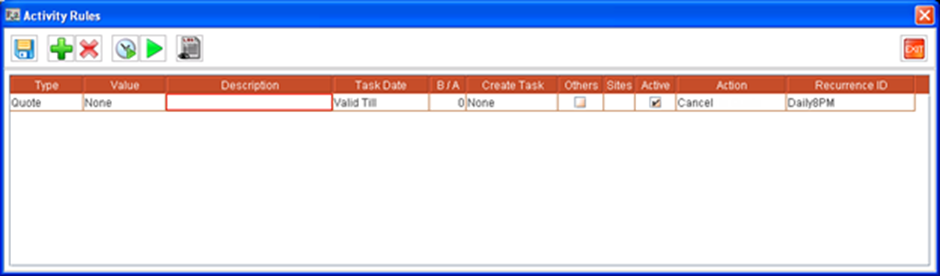
With the above rule settings, the rule will be executed every day at 8:00 PM, by which all quotes having Valid Till date equal to the current date will be automatically cancelled.
Scenario - 3
-
Consider a scenario when rental reservation is created for a customer and the order is not used even after 3-4 days from created date. In this case, you may need to un-reserve the items on the order, so that the items would be available for use in other orders.
-
This can be achieved in R2, by creating an Activity rule for Order type ’r;Reservation’ as illustrated in Fig 9.0.
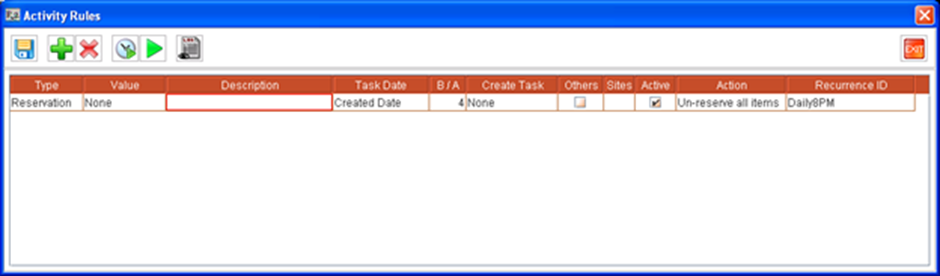
On creating the Activity Rule with the above settings, the rule will be executed every day at 8:00 Pm, by finding all reservation orders which is in the same status (in reservation) after 4days starting from created date and marking the items in the order as un-reserved.