
This page explains about the overview of the sections present in the screen.
User roles—such as Report Admin, Designer, and Viewer— View the layout and content displayed on the R2 Reports Home screen.. Click here to view the role-specific permissions.
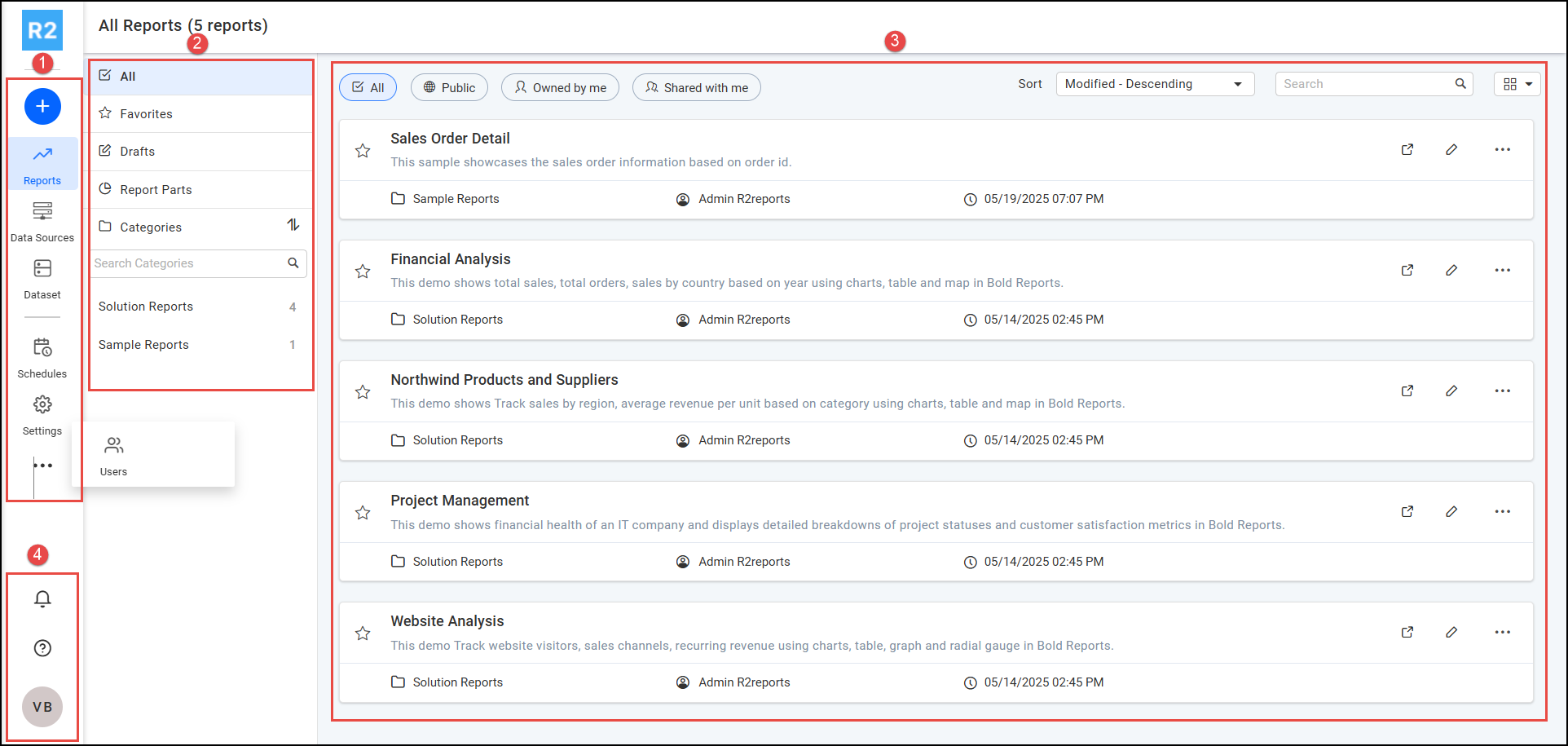

Menu
-
Create: Designers and Report Admins has access to Create Reports. Click the "+" button to create a new report.
-
Reports: Shows all reports created by everyone.
-
Data Sources: Designers and Report Admins has access to Data source to view. Data sources connects with the server/database of R2 which is used in reports.
-
Dataset: Designers and Report Admins has access to Dataset, to create, retrieve, structure, and use data for generating reports, performing analysis, and processing information effectively.
-
Schedules: Designers and Report Admins has access to Schedule, to set delivery schedules of reports (e.g., daily, weekly) and send notifications to specified people.
-
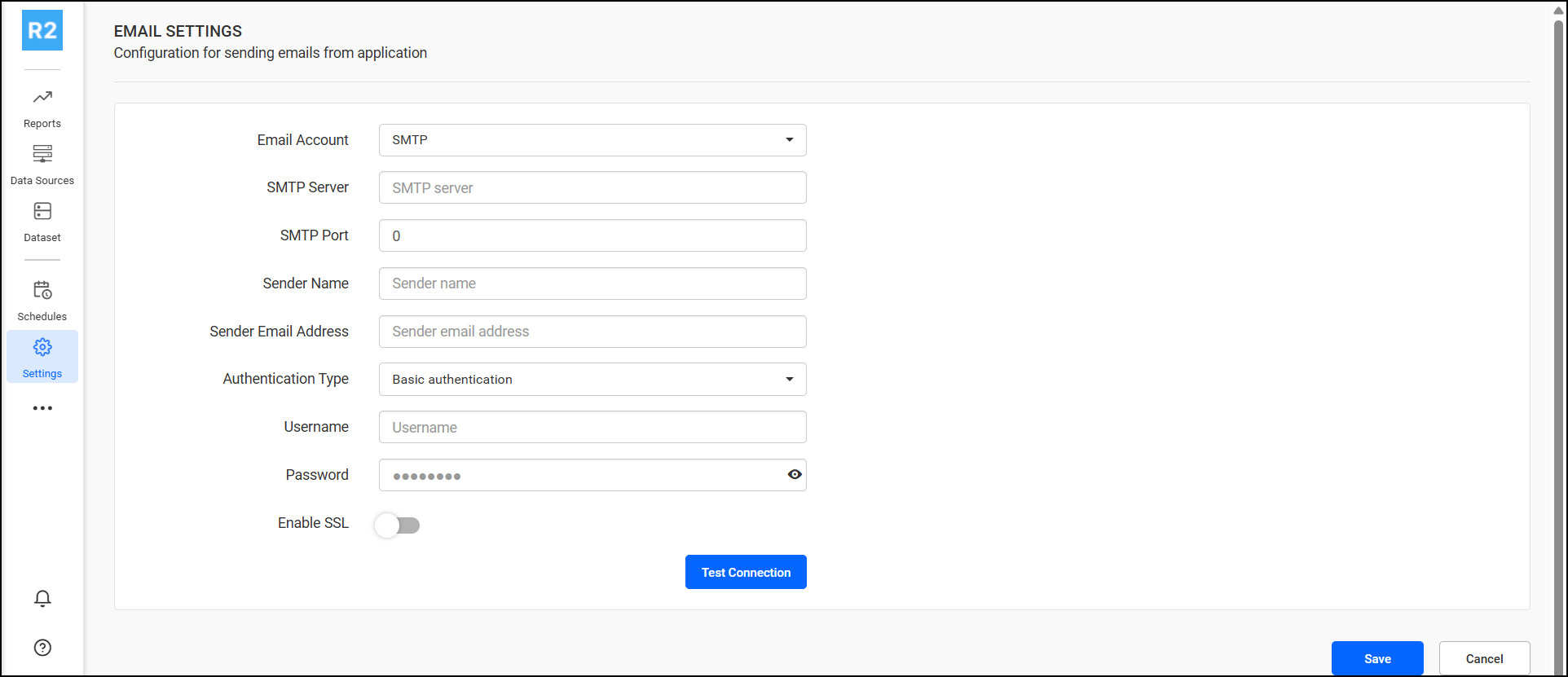
Settings: This provides information about report server and account settings, Report Admin can see the settings and test/save the connection using password. For SMTP server, Port contact UBS support.
-
More options: Report Admins has access to More Options sections
-
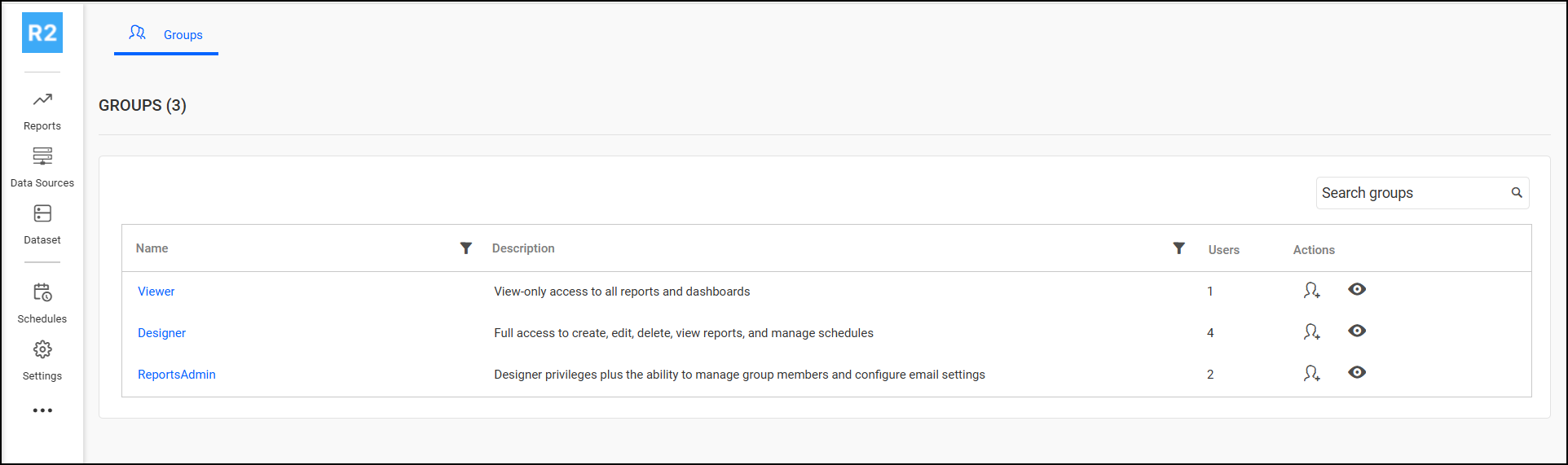
User > Groups: This provides the group details and person details of each person logged into the Reports, Report Admin can add users to the group, view each person roles and details, he can add person as designer/viewer
-

Quick links
-
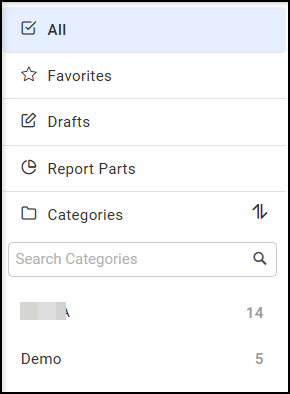
All: Default view showing all reports.
-
Favorites: Access reports you’ve marked as favorites.
-
Drafts: View and manage unfinished reports.
-
Report Parts: Access individual components or sections(header, footer, body) of reports.
-
Categories: Organize and filter reports by category such as: Finance, Sample Reports, Labor, Demo: Subcategories with report counts (e.g., 3 Finance reports, 3 Sample Reports).

Display area
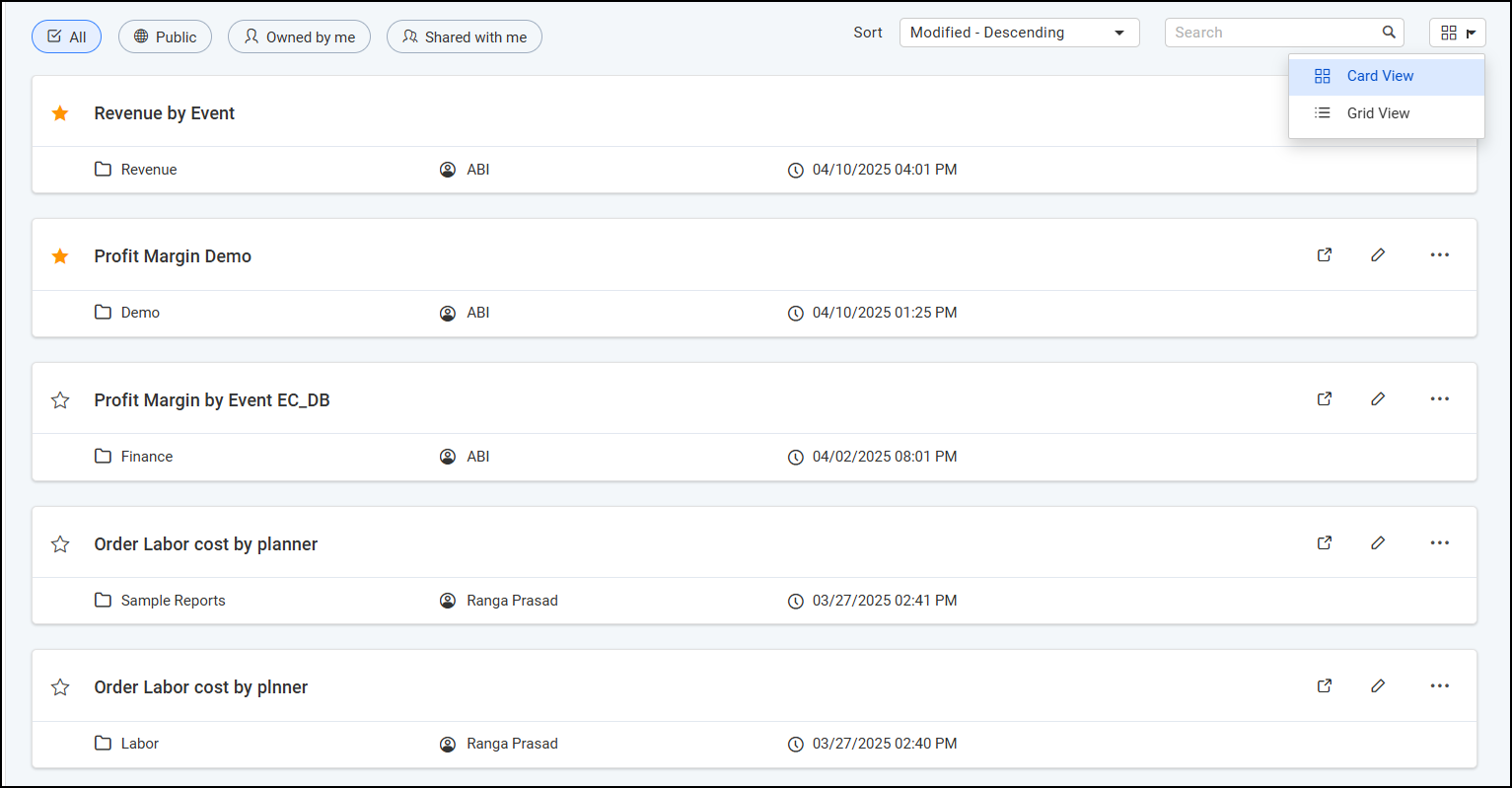
Sort and Search
-
Tabs: Switch between "All," "Public," "Owned by me," and "Shared with me".
-
Sort: Use the dropdown (e.g., "Modified - Descending") to sort reports by modification date or other criteria.
-
Search: Enter keywords in the search bar to find specific reports.
Display view type: You can see report list in Grid view/ List view

Profile
-
About your profile
-
Software version / support
-
Notification