
You can Ship the items that are prepped/filled using this app.
Features of Ship Operation
-
Tap on individual items and Ship them
-
Scan (barcode) item IDs and submit them to ship.
-
Scan the container Id to ship all items associated/mapped with the container.
-
View items of set of departments by applying department filter and ship within filtered list of department items
-
View the order info and comments from the schedule
You can ship filled items directly from the Prep screen, to know more details click here.
Workflow
-
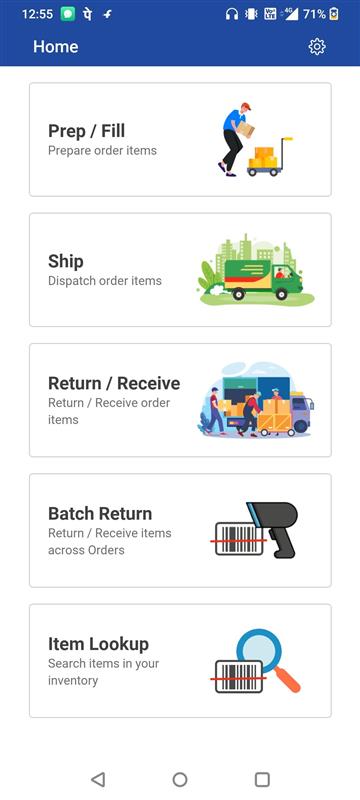
Click on Ship.
-
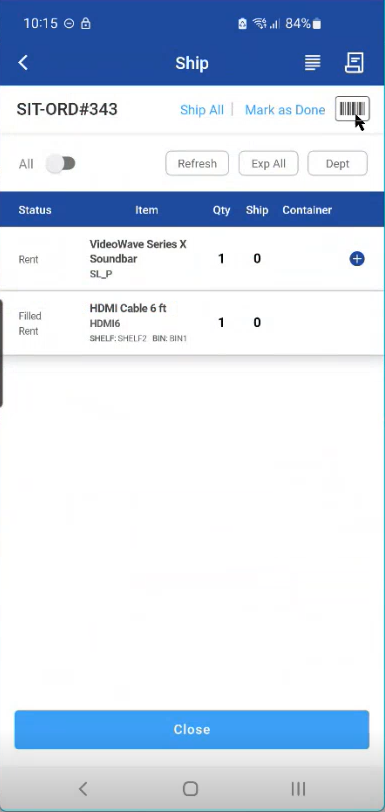
Shipping list is displayed
-
Tap any order item to ship, select yes if you wish to ship the item
-
Select any order and here you can scan or enter Asset ID to ship the items.
-
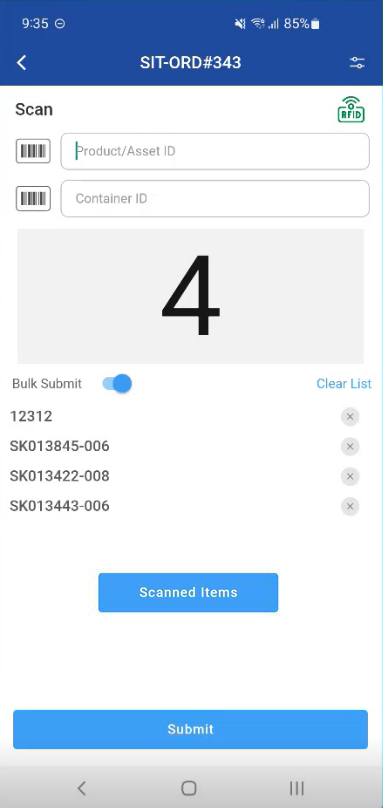
When Bulk Submit is ON
-
Allows scanning and submitting multiple items at once.
-
Scanned Items button is enabled. Know more
-
Supports all inventory types unless remediation is needed.
-
Remediation prompts will appear when applicable.
-
-
When Bulk Submit is OFF
-
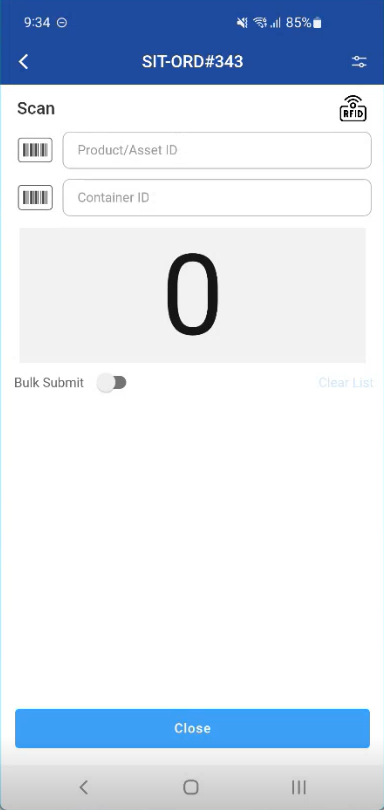
Each item is submitted immediately after scan.
-
-
-
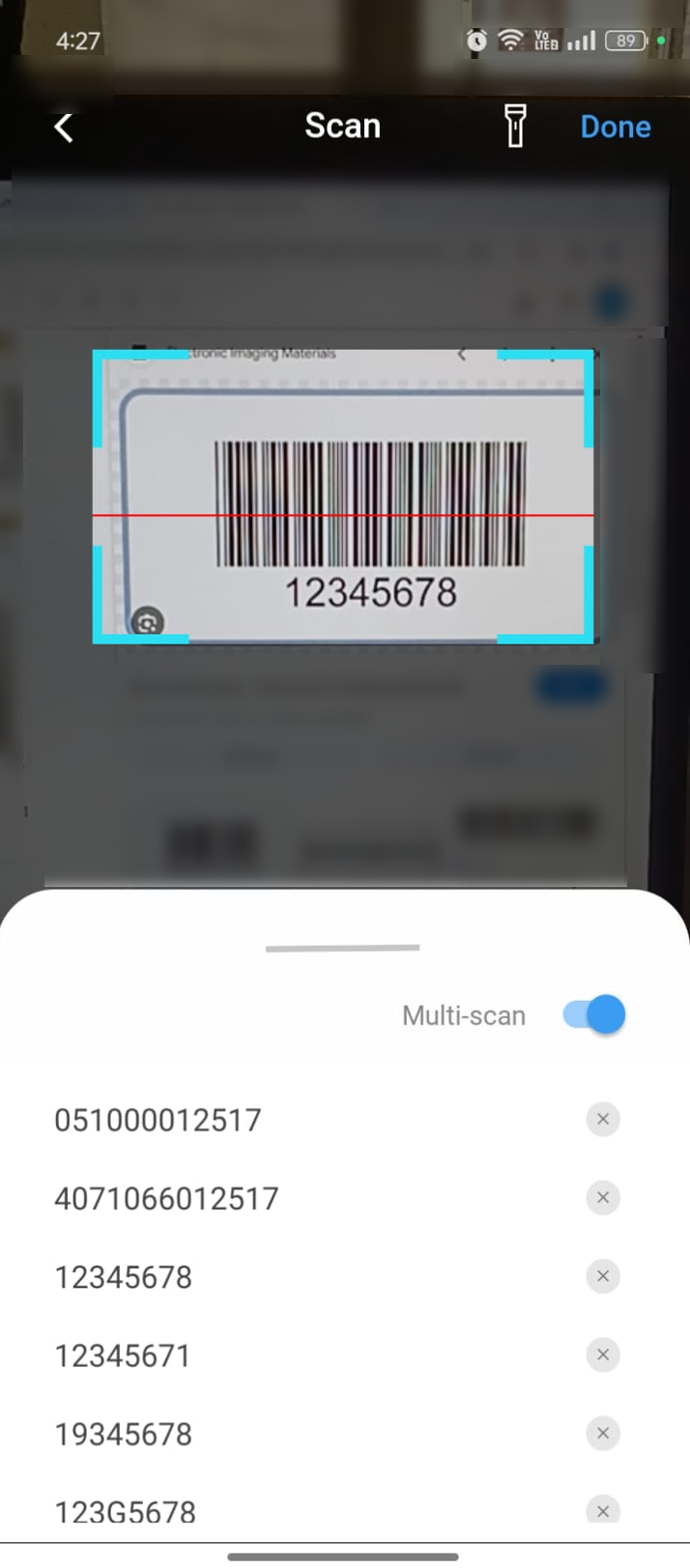
When you start scanning, you'll see a toggle button with 'Multi-scan' enabled. You can turn it off if you don't want to scan multiple items continuously.
-
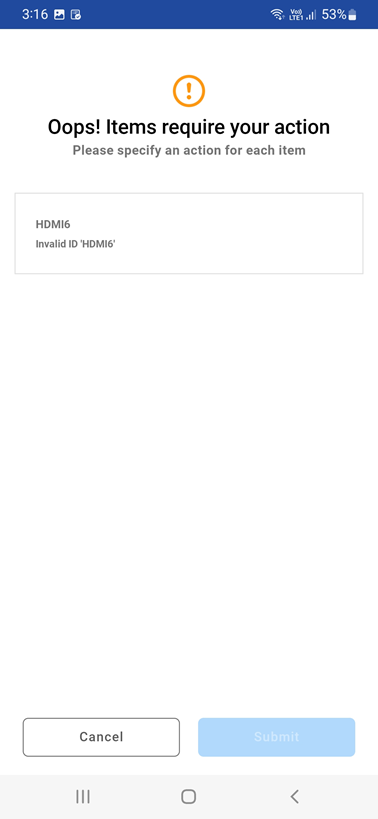
If Item not available in the list, the error is displayed as shown below
From the Ship Order screen you can also generate a document called Delivery Receipt.
To generate one, please click on the icon.
If scans are received through an RFID gate:
-
Bulk Submit toggle is automatically turned ON and disabled. However, you should be able to select as needed.
-
Bulk Submit toggle should be disabled when at least one scan is done into the list with Bulk Submit ON mode until you submit the scanned list.