
You can Ship the items that are prepped/filled for a Transfer Order.
Features of the Shipping transfer orders:
-
You can specify the quantity to be shipped in case of non-serial.
-
The exceptions are prompted if there is any mistake in the entry.
-
If Asset/Item/Container does not exist.
-
If Asset/Item/Container is not in Filled status.
-
If Asset/Product/Container is invalid.
-
In case of non-serial item, if excess quantity is scanned then it shows an appropriate message
-
If Order is unlocked it fails to ship.
-
You can ship filled items directly from the Prep screen, to know more details click here.
Ship Transfer Orders
-
Go to Ship Operation and tap on any item in the order list
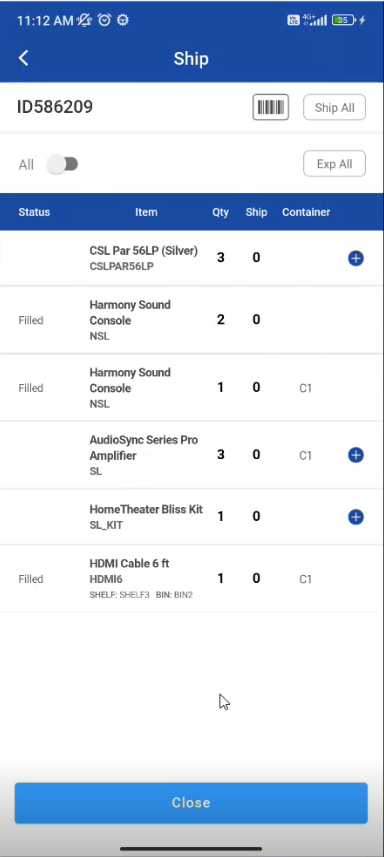
Figure: 1.0 Ship Transfer Order
-
Select Yes to ship items for serial items.
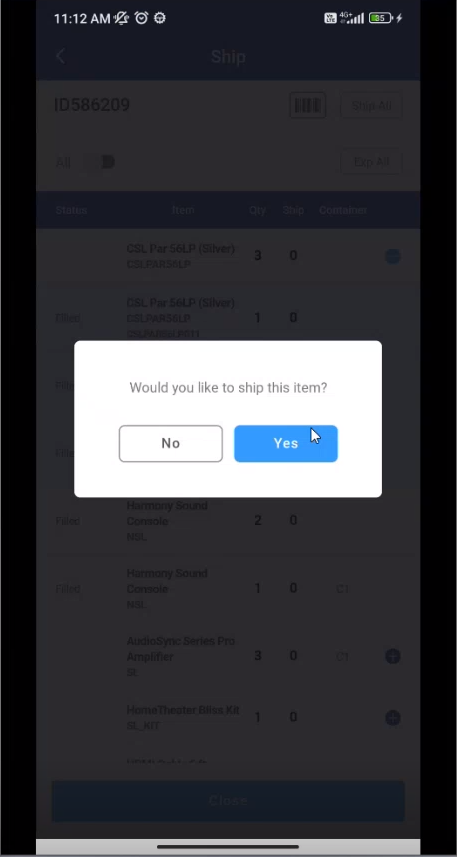
Figure: 1.1 Select from Prompt
-
For non-serial items in Transfer orders enter the quantity and select ‘Ship’.
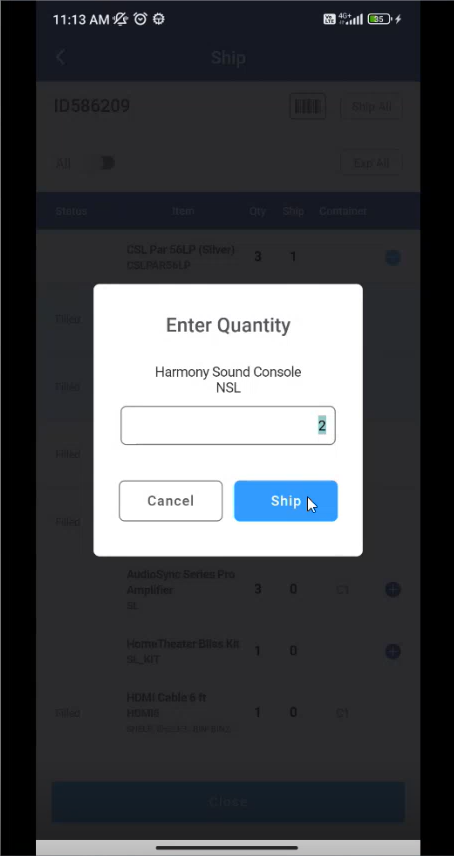
Figure: 1.2 Enter Quantity -
You can scan the items one by one or continuously.
-
When you start scanning, you'll see a toggle button with 'Multi-scan' enabled. You can turn it off if you don't want to scan multiple items continuously.
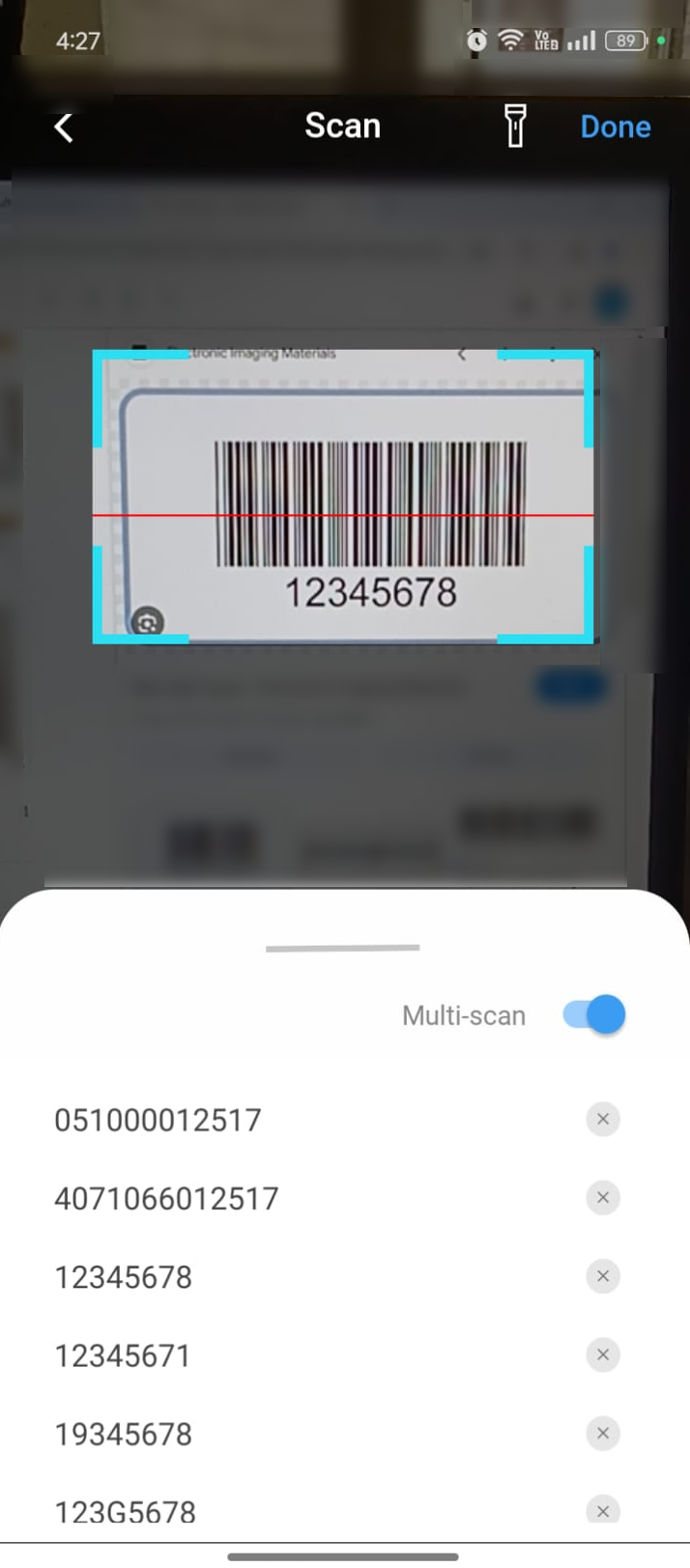
Figure 1.4: Continuous scan -
Items showing as Shipped
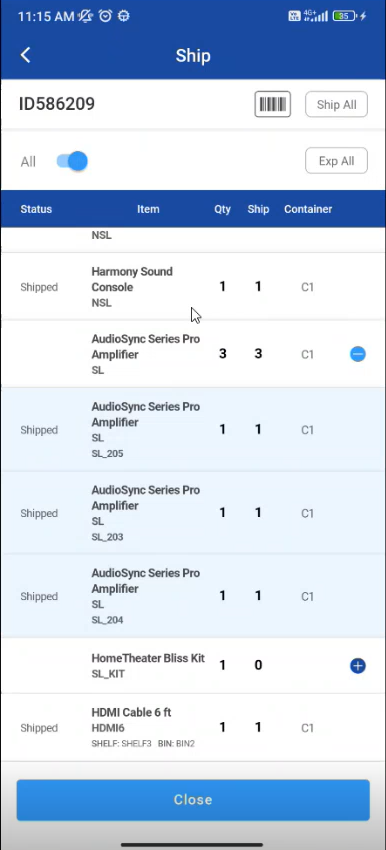
Figure: 1.4 Shipped list