
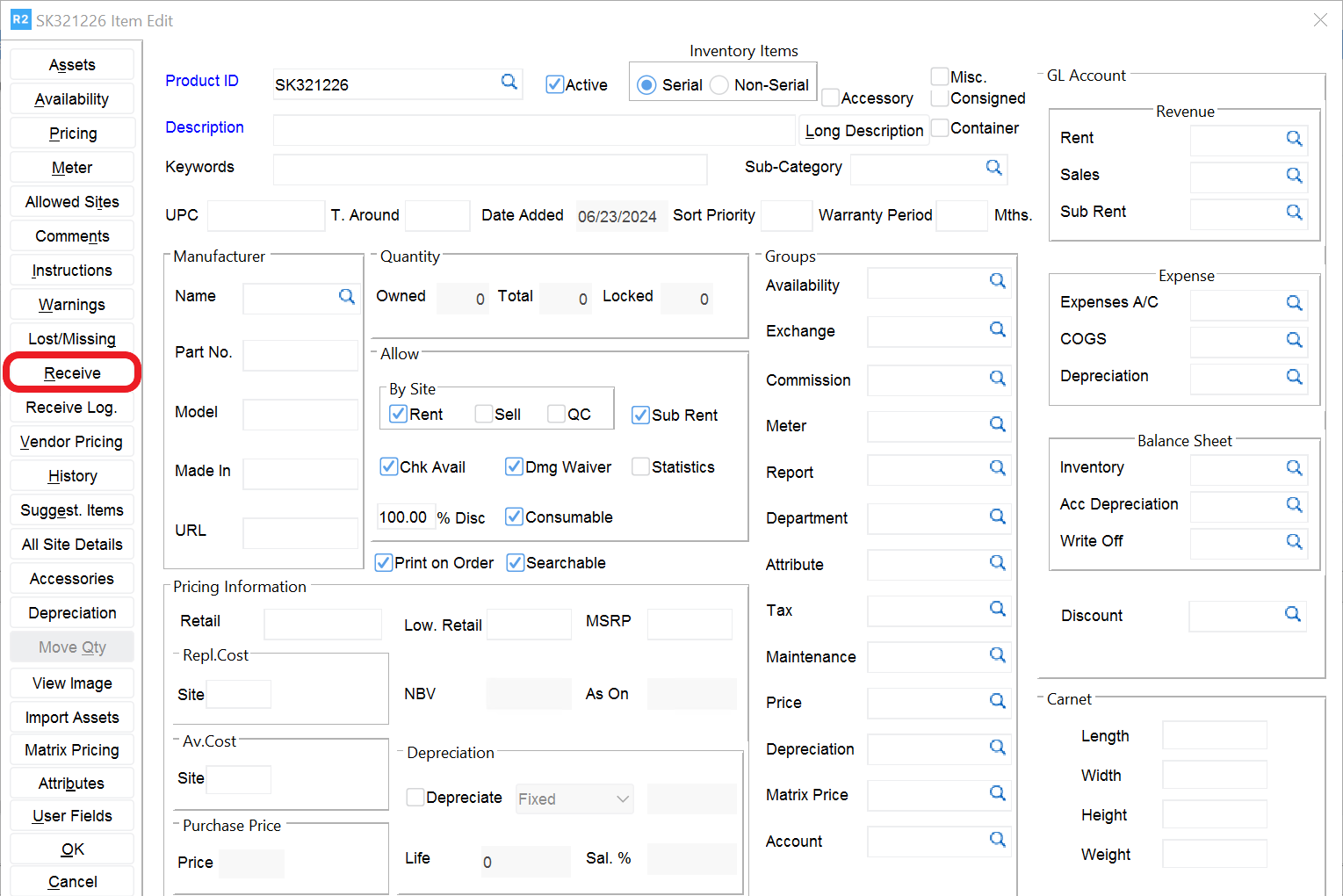
To receiving stock for a product, from the Account Screen, go to Search > Items, find the product and click on Edit. The Item Edit screen will open. Click on the Receive Button.
The Scan Items Screen will open. Enter the Qty to Receive and the Cost if available.
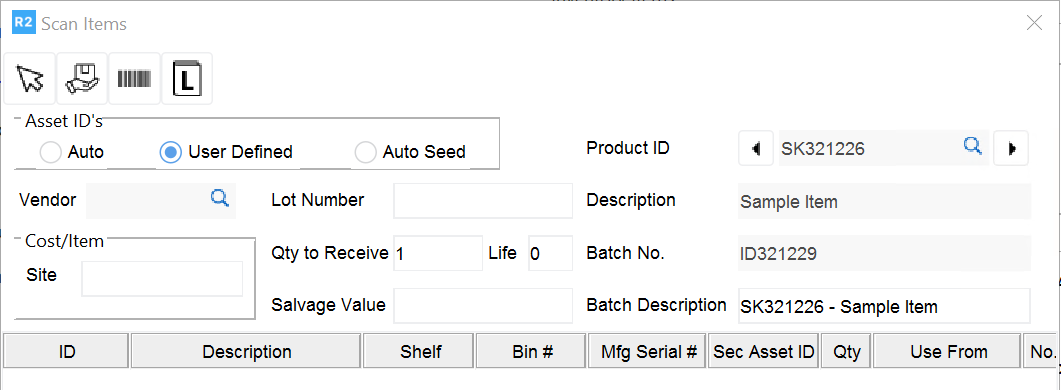
Next, click on the Receive button 
User Defined option:
If the item is serial, the Enter Asset# screen will show and the user will be prompted to enter the asset id (barcode)
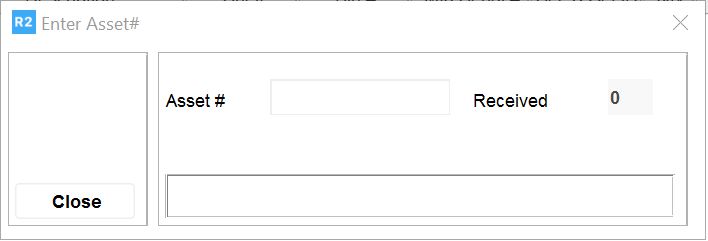
Enter the barcode by scanning or typing. Continue to scan or type as many barcodes as it was indicated on the Qty To Receive field.
Note: if the barcode is typed, press enter
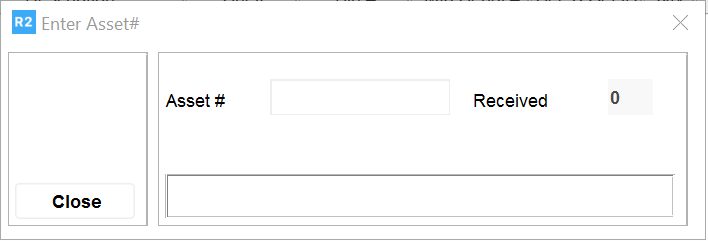
Enter the barcode by scanning or typing. Continue to scan or type as many barcodes as it was indicated on the Qty To Receive field.
Note: if the barcode is typed, press enter
Auto option:
If the item is serial, the Asset# will automatically show.
If the item is non-serial, the Enter Asset# screen will not show
If the item is serial the manufacturer serial item should be entered in the column labelled Mfg Serial #
Click on the Accept key 