Reference No: 27636
Table of Contents
Details
The serial Items' Assets availability can be viewed in R2 as timebars in Serial Item View window. The Serial Item View window also displays the details of the Assets' Product ID, Serial ID, Current Status, and Current Site.
Accessing Serial Item View Window and viewing Assets Availability
The serial Items' Assets availability can be viewed in R2 as timebars in Serial Item View window which is accessed from Search Inventory window. This Search Inventory window has to be opened directly from R2 Launchpad.
Configuring R2 for Viewing Search Inventory Button in R2 Launchpad (for Accessing Serial Item View Window)
The Search Inventory button in R2 Launchpad can be used to view Search Inventory window. Selecting one or more Serial Items in this Search Inventory window and clicking Serial Item View icon (or press ALT + R), displays their Assets' availability as timebars in Serial Item View window. The steps for configuring R2 Launchpad to display Search Inventory button are:
Log in to R2.
Open Configuration module and click Customize Launchpad 
Click Add button. A new row gets added in the grid of Customize Launchpad window.
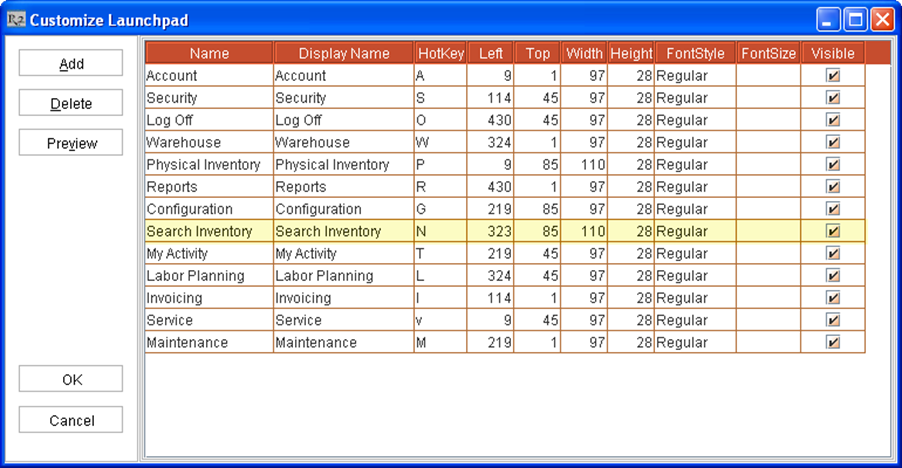
Select Search Inventory from the drop-down list under Name column and enter appropriate values for fields under other columns, as shown in Figure 1.0.
Figure 1.0 Adding Search Inventory in Customize Launchpad Window
Click OK, save and exit from Configuration module. Log out from R2.
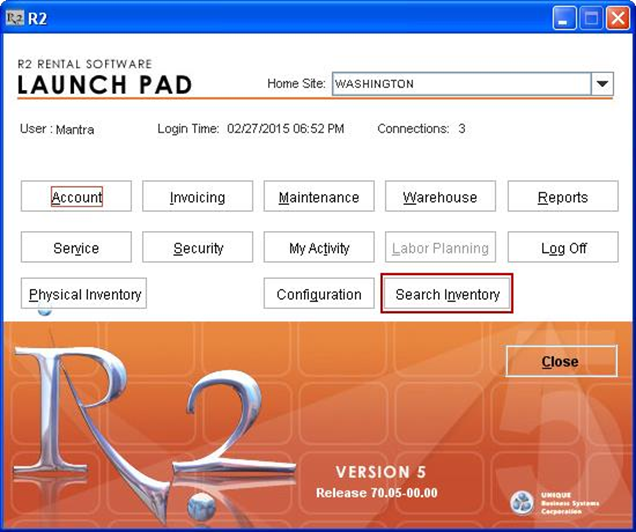
Log in to R2 again. The Search Inventory button gets displayed in R2 Launchpad, as shown in Figure 1.1.
Figure 1.1 Search Inventory button displayed in R2 Launchpad