
Overview
R2 restricts the deletion of order lines that are linked to a Purchase Order (PO) when the PO is in Pending Approval status. This prevents changes to purchase orders that are currently under approval.
Deleting an Order Line linked to a Pending Approval PO
-
Open the Order.
-
Select the order line that is linked to a Purchase Order.
-
Click Delete.
-
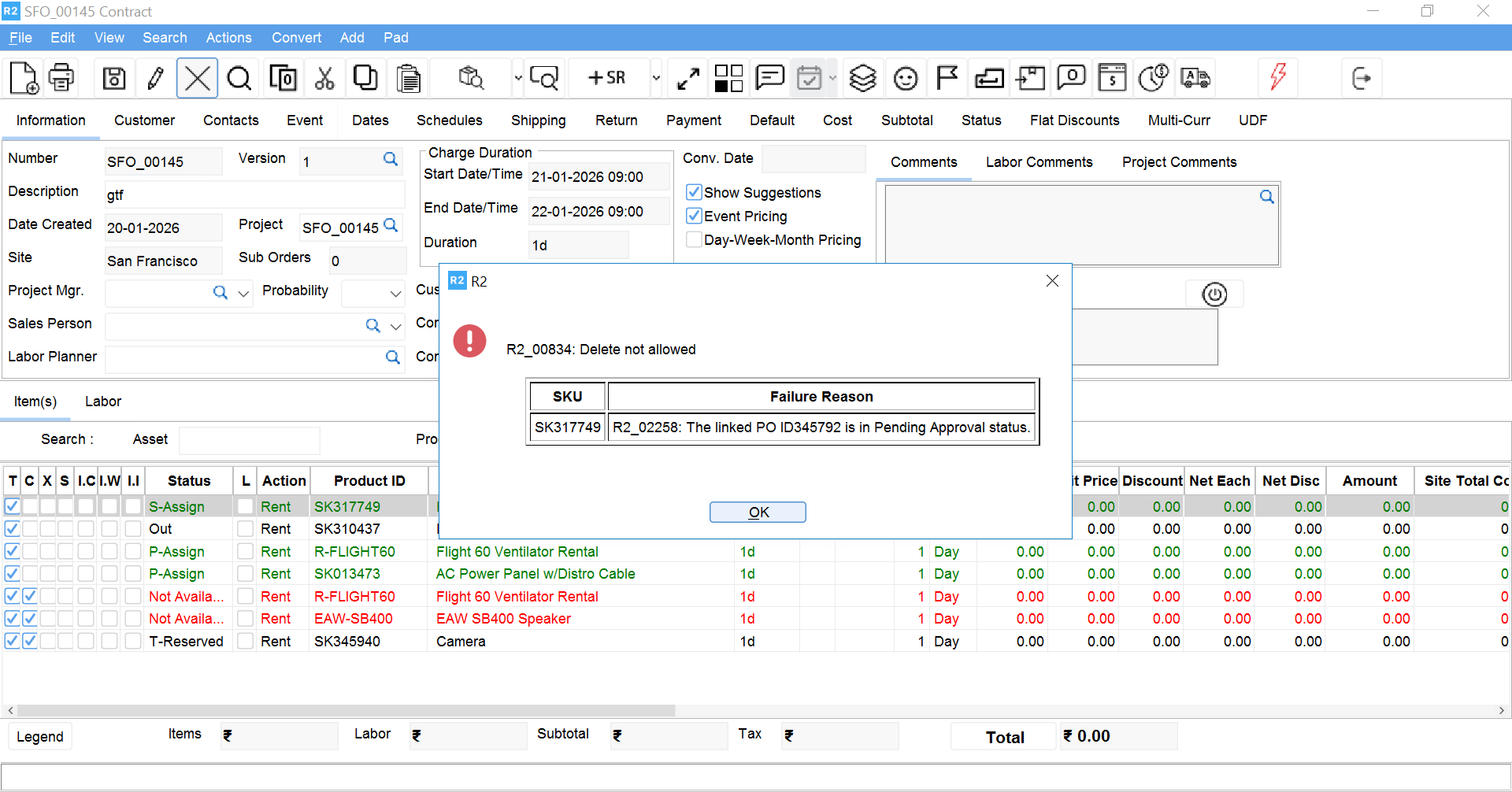
R2 checks the status of the linked Purchase Order.
-
If the Purchase Order is in Pending Approval status, the deletion is restricted.
-
An error message is displayed indicating that the order line cannot be deleted while the Purchase Order is pending approval.
Deleting an Order Line linked to a Non-Pending Approval PO
-
Open the Order.
-
Select the order line linked to a Purchase Order.
-
Verify that the linked Purchase Order is not in Pending Approval status.
-
Click Delete.
-
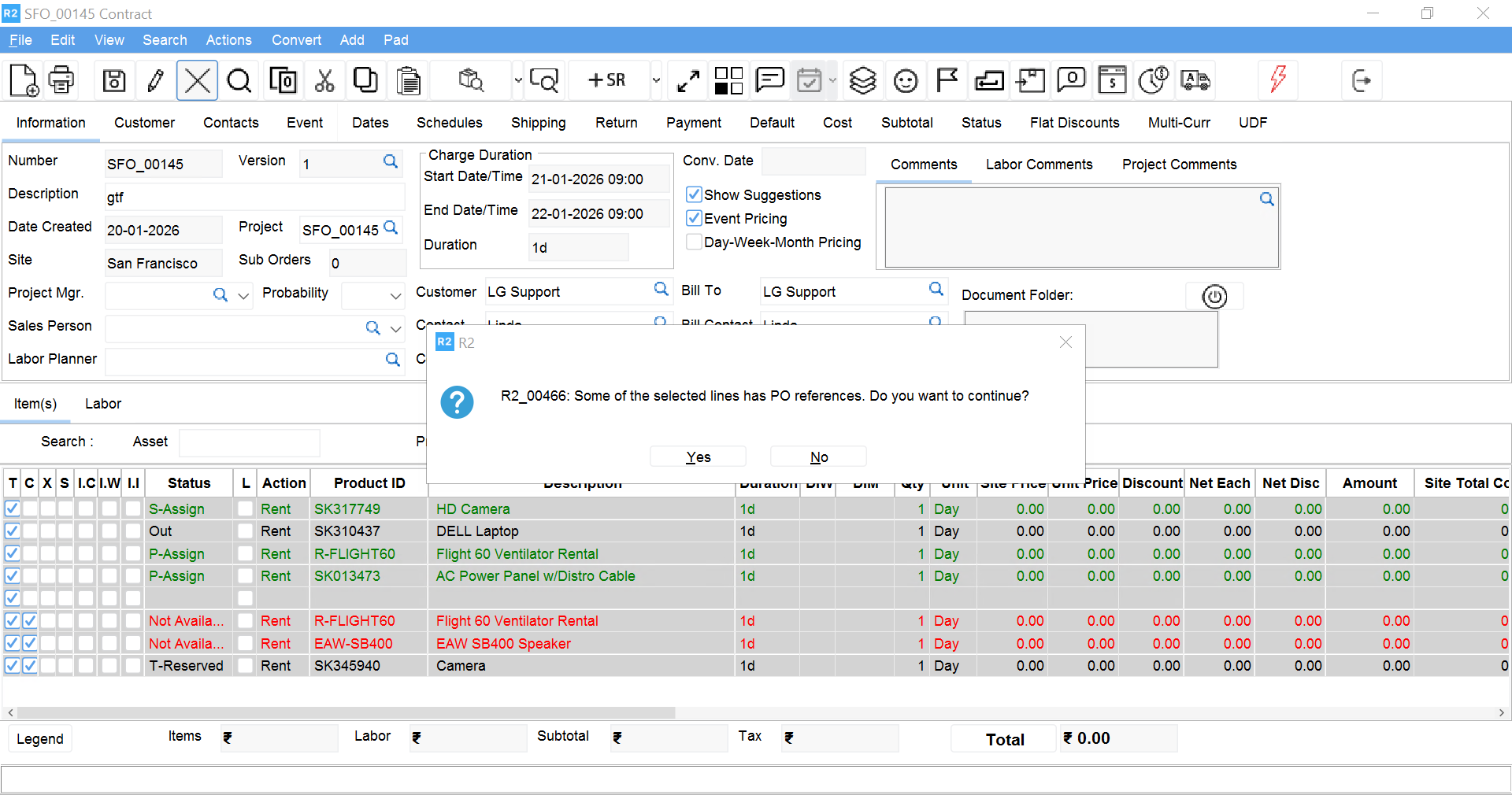
A confirmation prompt is displayed.
-
Click Yes to confirm.
-
The order line is deleted.
Deleting an Order Line linked to an Approved PO
-
Open the Order.
-
Select the order line linked to a Purchase Order.
-
Verify that the linked Purchase Order is Approved status.
-
Click Delete.
-
A confirmation prompt is displayed.
-
Click Yes to confirm.
-
The approved order line is deleted.
Changing the Quantity of an Order Line linked to a Pending Approval Purchase Order
-
Open the Order.
-
Select the order line linked to a Purchase Order.
-
Modify the Quantity value.
-
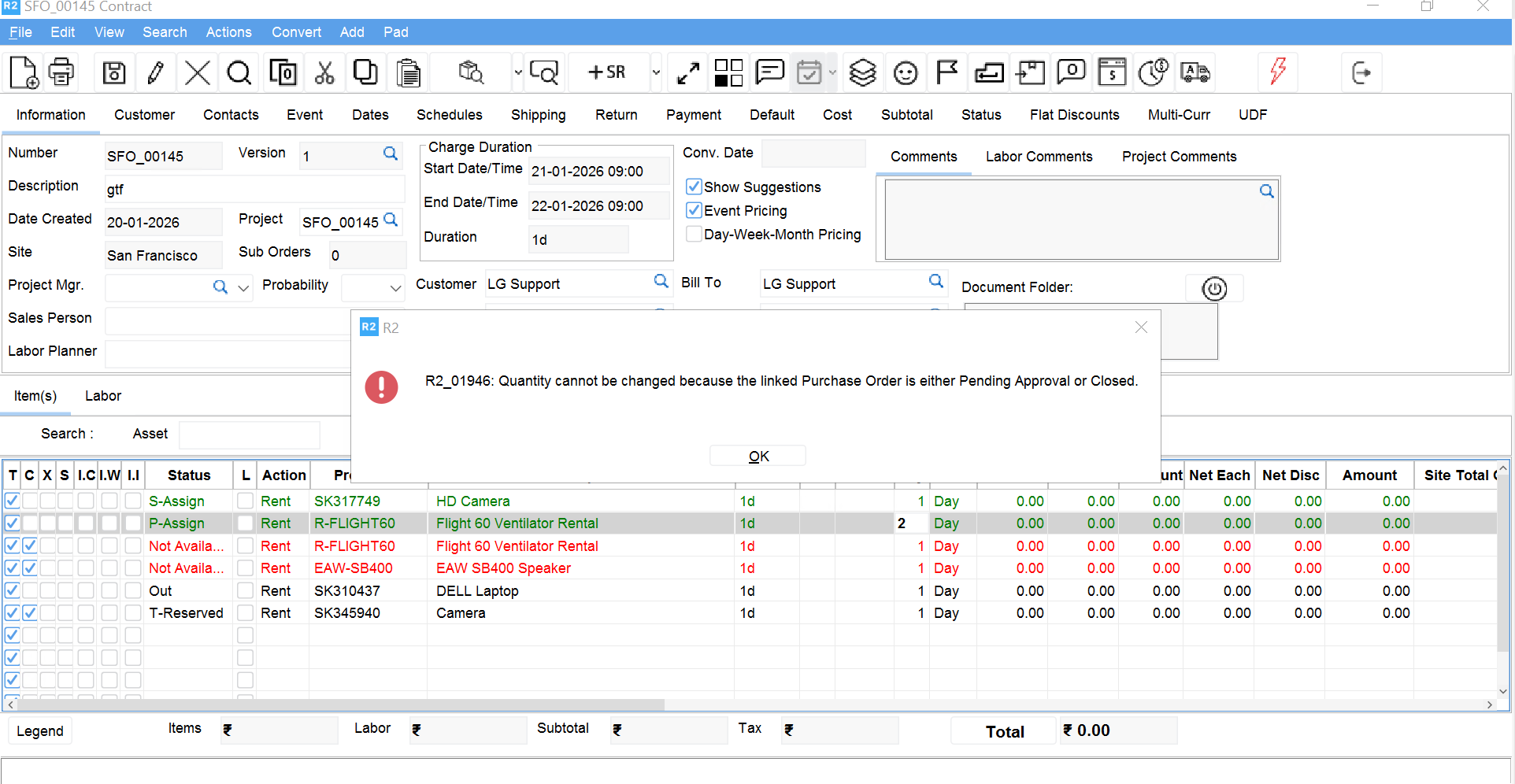
R2 displays a confirmation message indicating that the linked Purchase Order cannot be updated.
-
Click OK to continue.
Changing the Quantity of an Order Line linked to a Purchase Order
-
Open the Order.
-
Select the order line linked to a Purchase Order.
-
Modify the Quantity value.
-
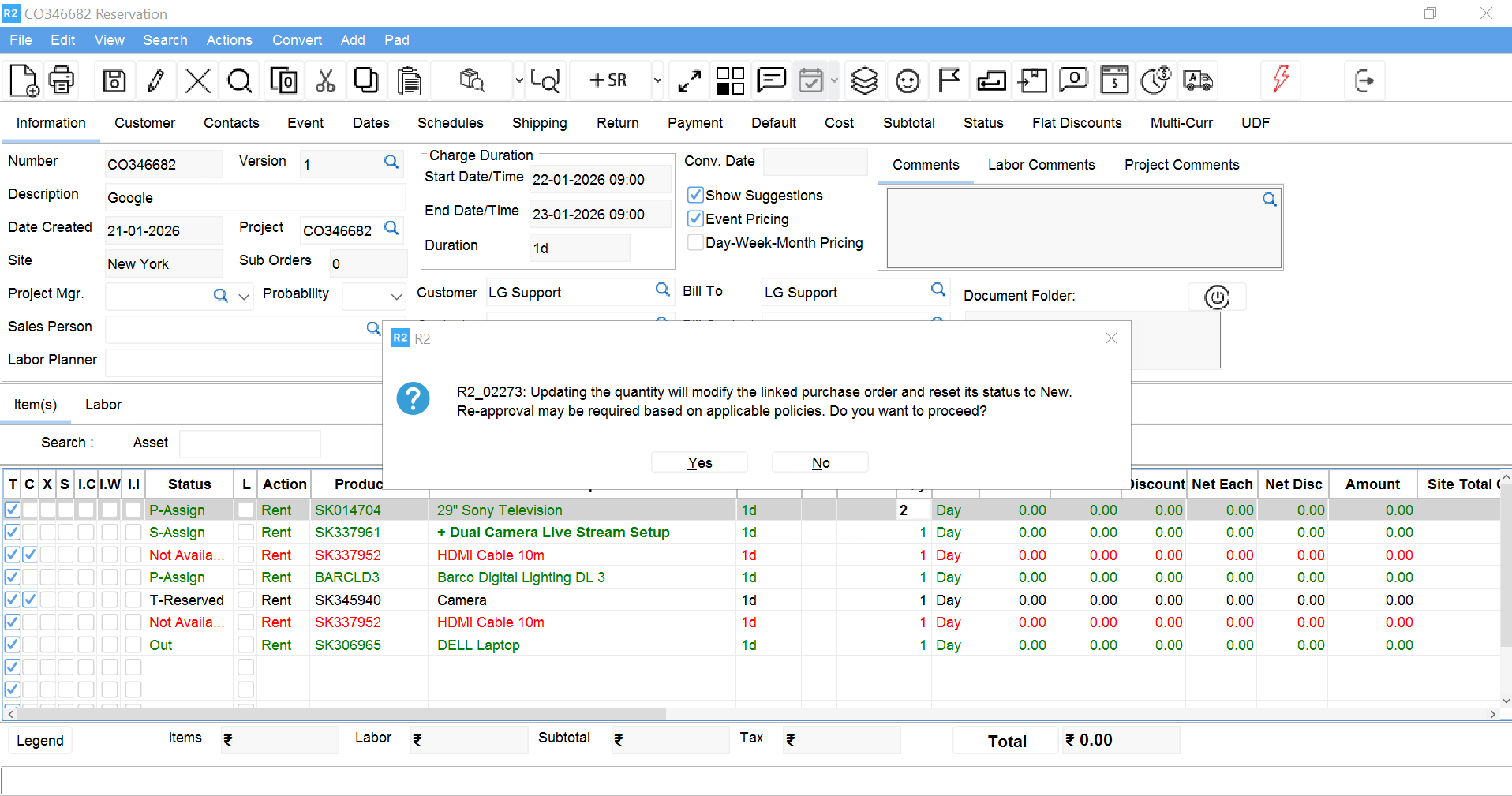
R2 displays a confirmation message indicating that the linked Purchase Order may be updated.
-
Click Yes to continue.
When a purchase order is in Open status, the quantity can be updated.
-
The quantity is updated on both the Order and the linked Purchase Order.