
Table of Contents
Item Availability
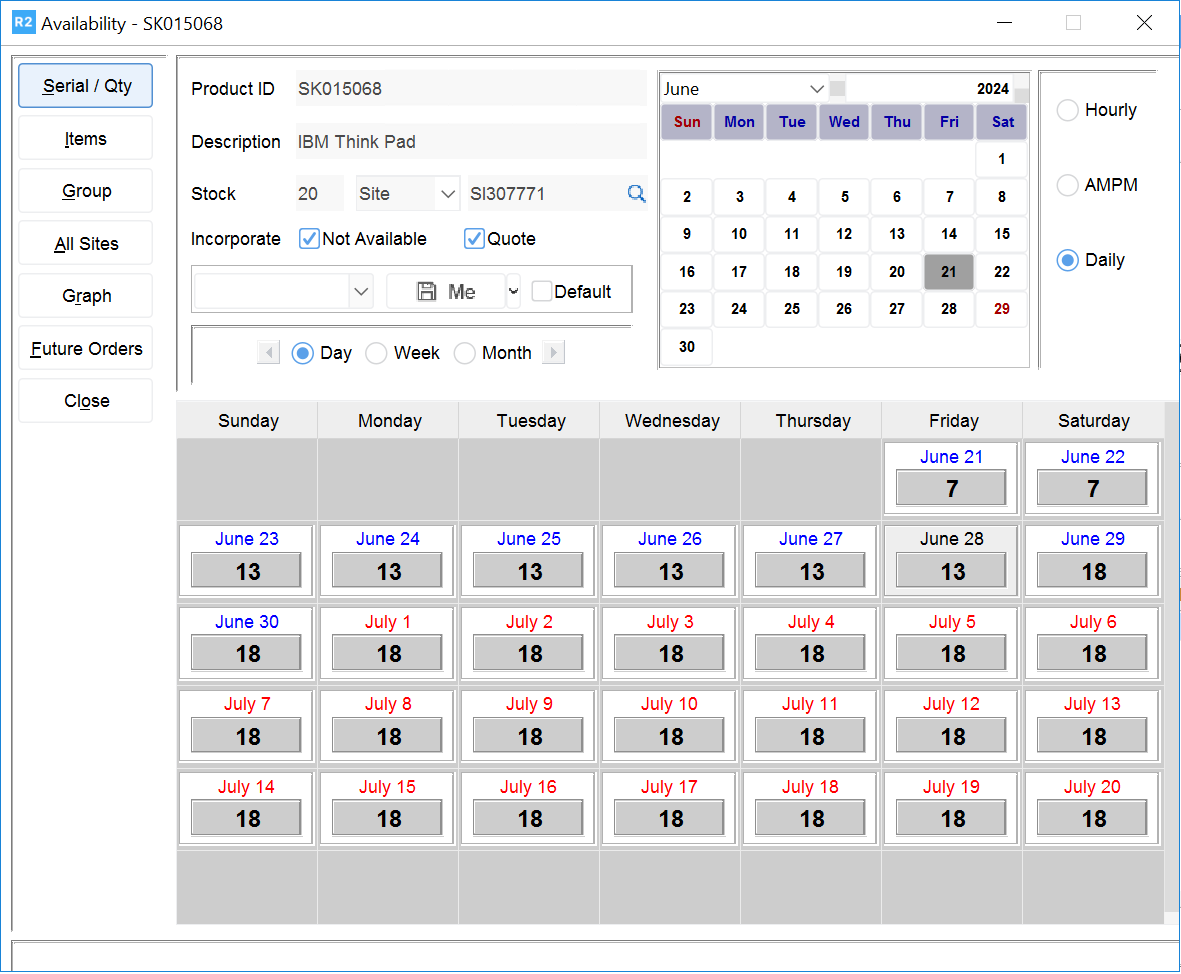
R2 tracks the status of each Product ID or item Group. Each item's status can be viewed at the Availability window. Initially the Availability window shows the total number of units available on a particular date. The Availability window can also be used to track serial items, view an availability breakdown or even look at the details of an order tying up an item that you need.
You can access the Availability window directly from an item line, or through the Item Search dialog.
To view item availability directly from an item line
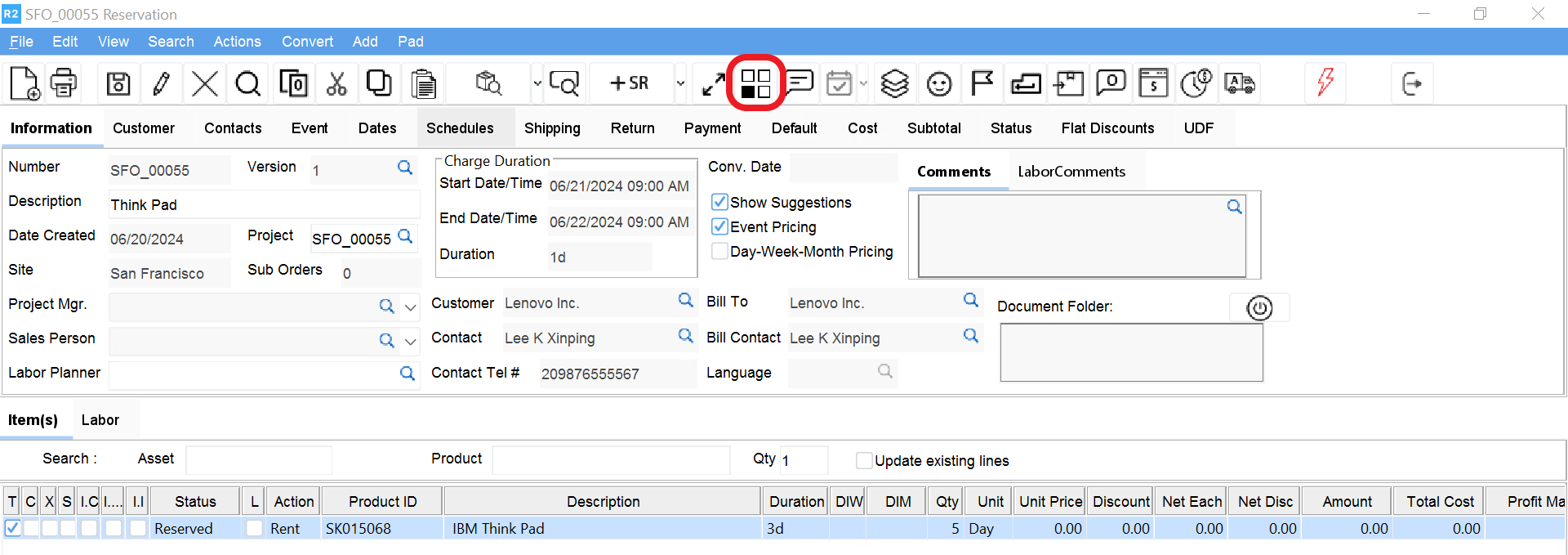
Within an order window, click on the item row header.
This highlights the item line.
Select the View > Availability option from the upper menu line. The Availability window appears for the item you selected.
To access the Availability window through the Item search dialog
From the Account window, select Search > Items or press the Inventory button. The Items search dialog appears.
Search for the item for which you want to check availability. Double-click on the item.
This highlights the item row. Click on the Availability button.
This button is located in the upper left of the Items dialog. The Availability window appears. From here you can view an Availability break- down and view order details for Reserved, Held or Out items. You can also change the Site or Item for which you are viewing data.
To view availability breakdown for an item
-
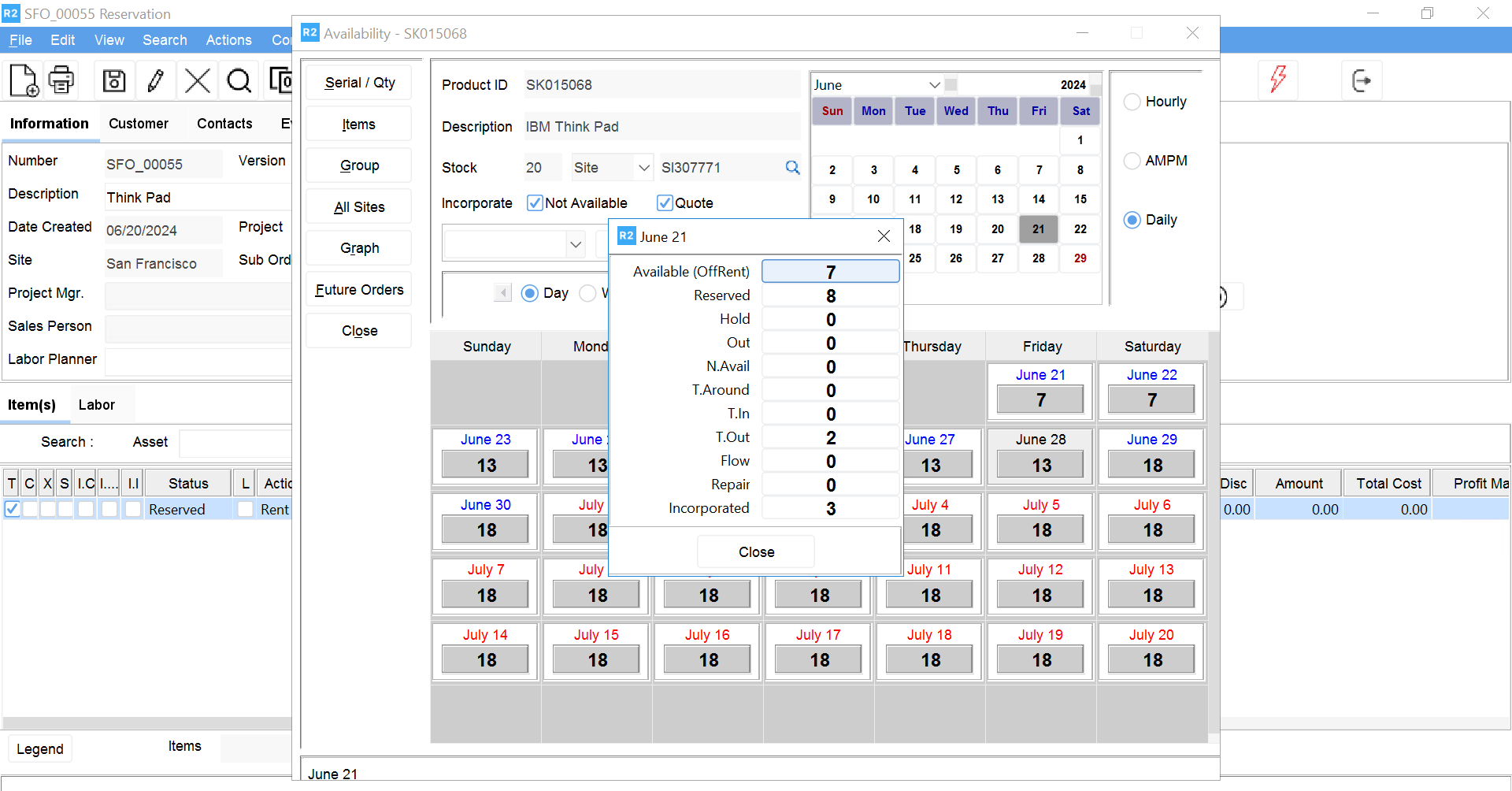
Begin at the Availability window.
A dialog window appears displaying an item's availability break- down. Specifically, how many units of the item are Available, Reserved, on Hold, Out, Not Available (Damaged, Lost, or in Repair) and the item's Turn Around (prep time once returned). The date and time (if applicable) appear as the dialog title.
To view order details for Reserved, Held or Out items
From within the Availability breakdown dialog, click on either the Reserved, Hold or Out quantities.
A dialog window appears listing the orders associated with the unavailable items.
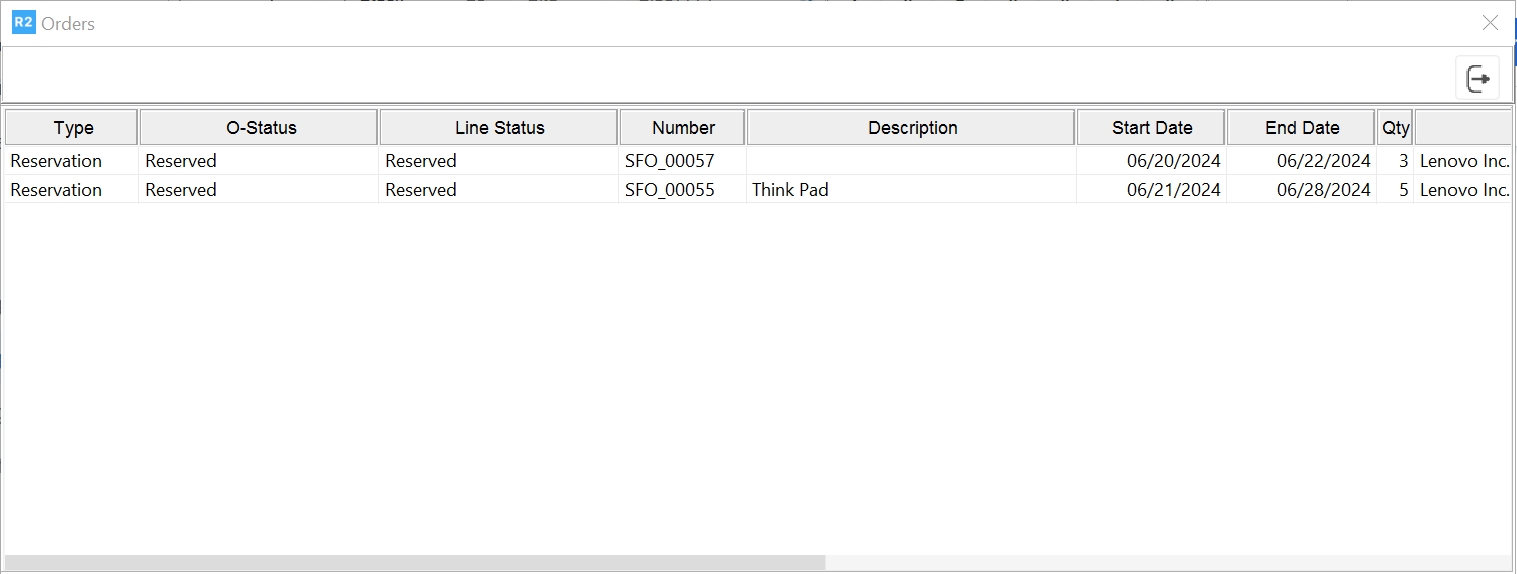
Double-click on an order row.
The Reservation View Only dialog appears, highlighting the item for which you are checking availability. Note that for large orders you may need to scroll down to view the item.
Click on Close to return to the Availability Breakdown dialog.
View details for another order, or click on Close to return to the Availability window.
Availability Header Information Area
In the header information area, R2 identifies the item for which avail- ability is shown by SKU (Product ID) and Description. The remaining header fields let you choose a Site or Region, Date, and whether you view availability by Day, Hour or AM/PM.