
Content was last updated in 06.01.17-00
Revision History
Version No.
|
Reference No.
|
Changes
|
|
06.01.17-00 |
R2-17740 and R2-17895 |
Change in Design how PAT Testing is executed. |
|
06.00.04-00 |
R2-3520 |
Prompts displayed during PAT validation. |
|
NA |
R2-23 |
Configuring 'Effective Date' for Maintenance Schedules |
|
NA |
NA |
Content ported from previous release pertaining to same topic. |
Support has been provided to skip the prompt displayed while scanning the Asset in QC Status from a Transfer Order window.
Sample Workflow
-
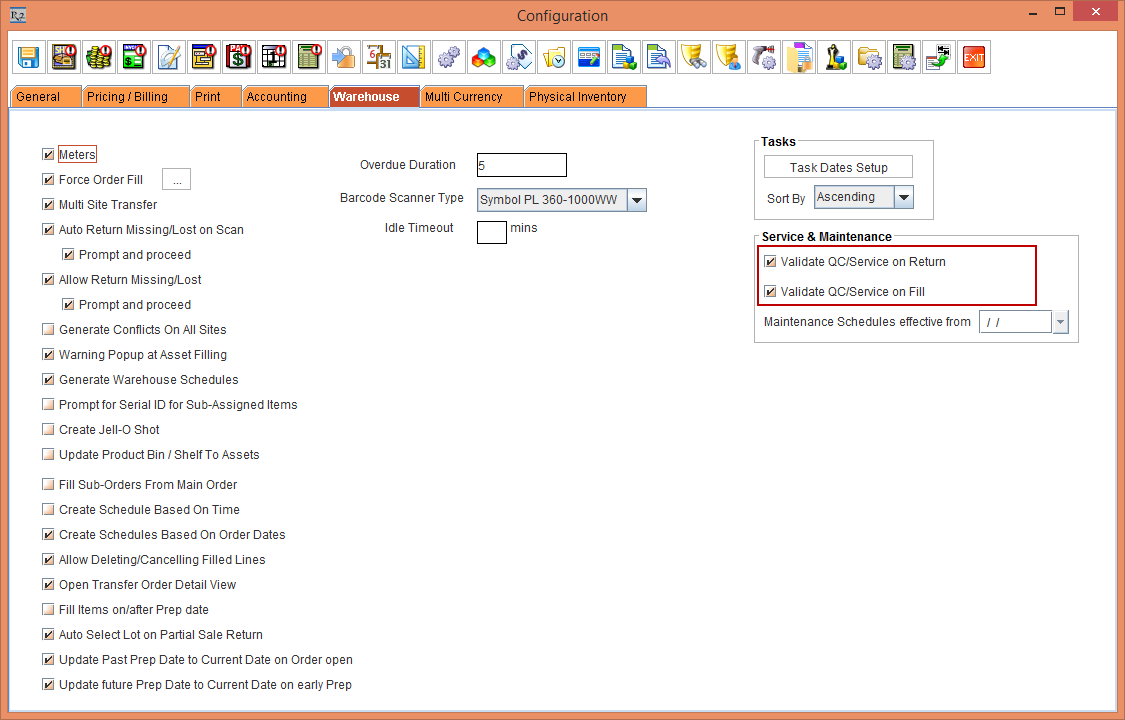
Select the Warehouse tab > select the check boxes Validate QC/Service on Return and Validate QC/Service on Fill, shown in Figure 2.0.
-
Save and exit the Configuration module.
-
Login to R2 application as Employee [JAMES].
-
Create a Serial Item [CRANE#K].
-
Tag Maintenance Group [PERIODIC90DAYS] with Maintenance Schedule Periodic 90Days to Item [CRANE#K], as shown in Figure 3.2.

-
Receive the Assets [CRANE#K01] and [CRANE#K02] for [CRANE#K] on the Date [15-Jan-2019]. Based on Maintenance setup, the Asset is on QC on [15-April- 2019].
-
On the Date [15-April- 2019], open Service module and click Generate Needs Service button. The Assets [CRANE#K01] and [CRANE#K02] Status will be set as QC.
-
Create a Transfer Order [TO-203] from [SANFRANCISCO] to [NEWYORK] with Prep, Ship and Receive dates as [15-April-2019].
-
Search and add the Serial Item [CRANE#K] with 2 Qty.
-
Click the Fill Items icon. The Transfer Fill dialog box is displayed.
-
Scan the Asset [CRANE#K01].
-
The system displays a prompt with the message "R2_01553: The Item is in QC. Do you want to Fill?" with "Apply this setting to all future scans in this session" check box and Yes and No buttons, as shown in Figure 2.2.

Select Yes option to Fill the Asset.
-
Select No option to ignore the scan.
-
Select the "Apply this setting to all future scans in this session" check box to apply the same settings during all the future scans in this session.
-
Select the "Apply this setting to all future scans in this session" check box and click the Yes button. The system displays the Status bar message "Item filled successfully" in the Transfer Fill dialog box.
-
In the Transfer Fill window, scan the Asset [CRANE#K02] that is in QC Status to fill it.
-
The system does not display any prompt with message, as the "Apply this setting to all future scans in this session" check box was selected during the scan of the Asset [CRANE#K01]. Hence, while scanning the Asset [CRANE#K02] in the same session, the system displays the Transfer Fill dialog box Status bar message"Item filled successfully" as shown in Figure 2.3.

-
Close the Transfer Fill dialog box. The system displays the Print Exception prompt with the message "R2_00134:Exceptions found during scanning. Do you want to view it now?" with Yes and No buttons.
-
Click Yes. The Print Type dialog box is displayed with the Exception and FullPrint radio buttons.
-
Click the Exception radio button and click OK. The Exceptions are printed and displayed in MS Word format, as shown in Figure 2.4.

-
The Status of the Item [CRANE#K] is modified to Filled in the Transfer Order [TO-203] and the Status of the Assets [CRANE#K01] and [CRANE#K02] will be modified to In Transfer.