
Reference No: 29522
Details
A function based custom report Rep_AssetStats is supported to display the Revenue and Time Utilization Statistics details from the Reports module.
The details are explained in the sample workflow given below:
Prerequisites
-
Select the Configuration module > click the Configure Reports icon. The Report Assistant Configuration window is displayed.
-
Configure the Report Definition for the Function Based Report as REP_ASSETSTATS with the Category UTILIZATIONSTATISTICS.
-
Exit the Configuration module.
-
Relaunch the R2 application.
-
Select the Maintenance module > Items tab > click the New icon.
-
Create a Serial Item [LG WM] and receive some Assets.
-
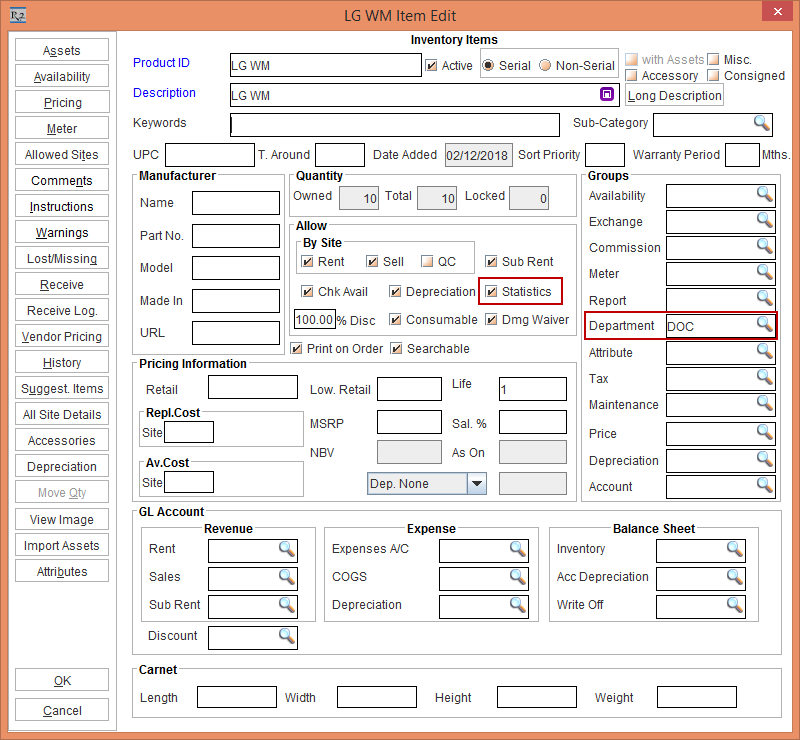
In the Serial Item [LG WM Item Edit] window, select the Statistics check box and tag the Department [DOC], as shown in Figure 1.0.
-
Click OK.
-
Save and Exit the Maintenance module.
Sample Workflow
-
Select the Account module. The Account window is displayed.
-
Tag a Company [LG].
-
Create an Order [ORD-1108] for the Duration [30d] with the Start Date [01-Jan-2018] and End Date [31-Jan-2018].
-
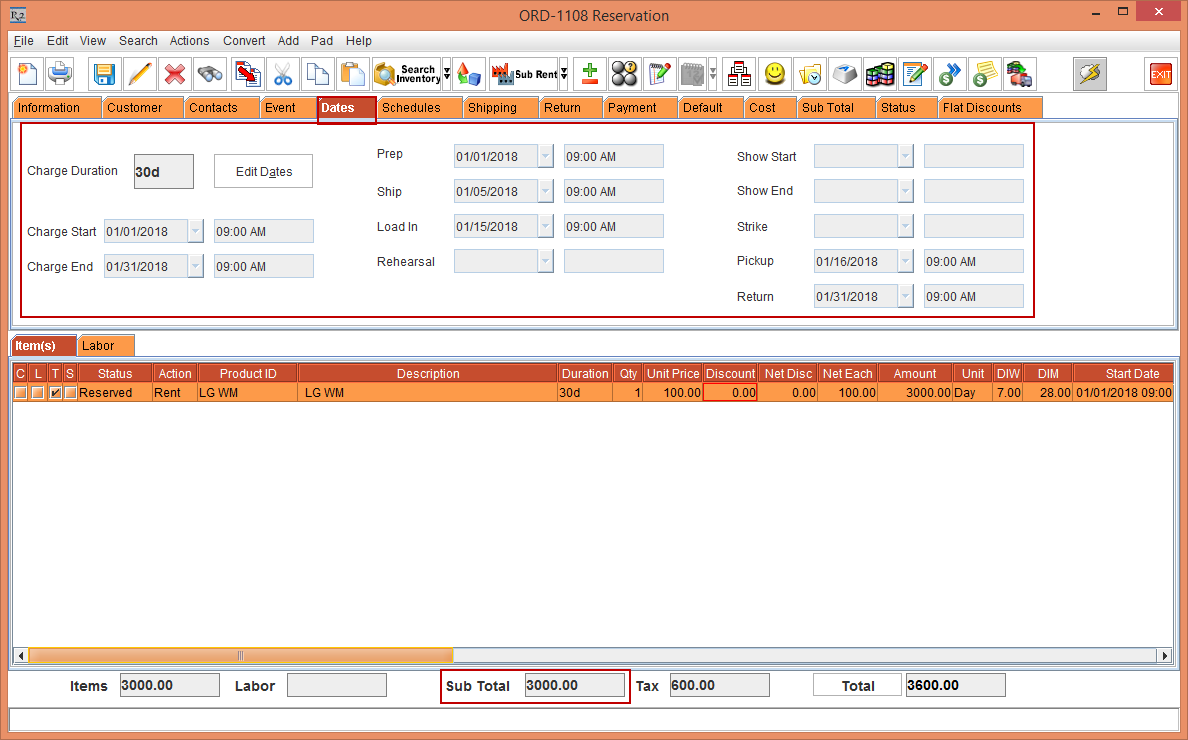
Add the Serial Item [LG WM] with 1 Qty and Unit Price [100.00], as shown in Figure 2.0.
-
Select the Dates tab > Edit Dates button > Order Dates window is displayed. Modify the Dates as mentioned in the table and as shown in Figure 2.0.
|
Field |
Date and Time |
|
Charge Start |
01-Jan-2018 |
|
Charge End |
31-Jan-2018 |
|
Prep |
01-Jan-2018 09:00 AM |
|
Ship |
05-Jan-2018 09:00 AM |
|
Load In |
15-Jan-2018 09:00 AM |
|
Pickup |
16-Jan-2018 09:00 AM |
|
Return |
31-Jan-2018 09:00 AM |
-
Select the Serial Item [LG WM] line > right-click > Assign option. The Assign window is displayed.
-
Select the Purchase radio button > click OK. The Assign Vendor window is displayed.
-
Select the Assign Mode as User Assign. The Purchase Order window is displayed.
-
Select Create New Purchase Order option > click OK. The Supplier window is displayed.
-
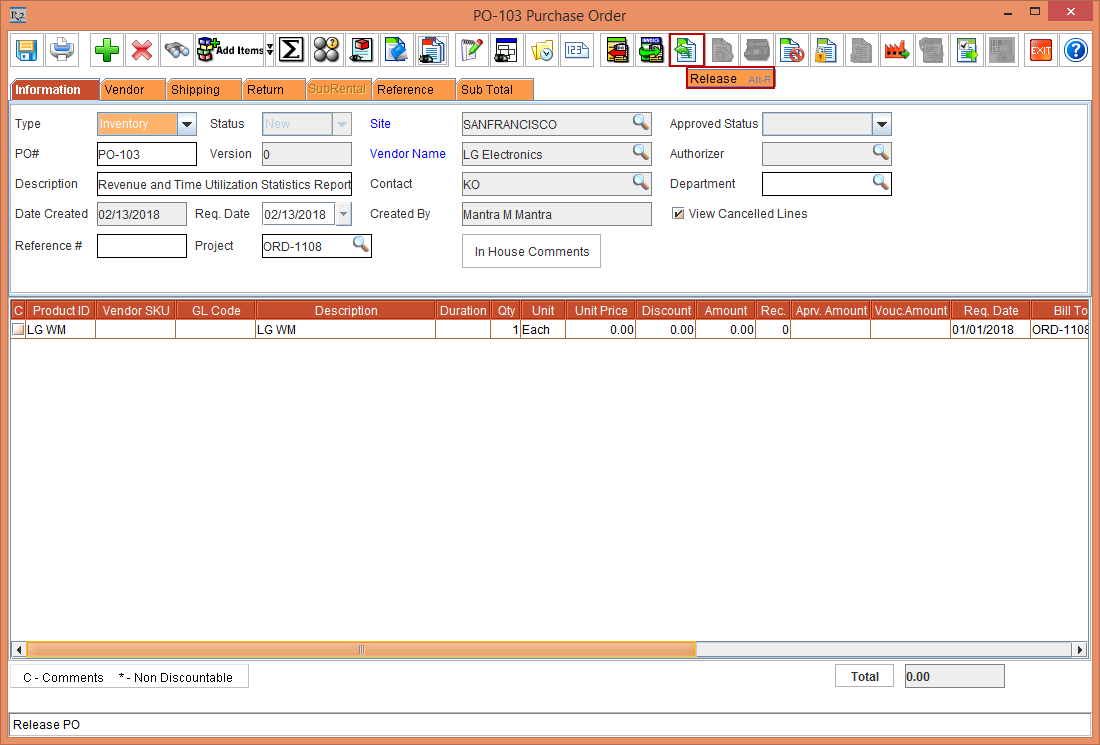
Select and tag the Supplier [LG]. The Purchase Order [PO-103] is generated, as shown in Figure 2.1.
-
Click the Release icon to release the Purchase Order [PO-103], as shown in Figure 2.1.
-
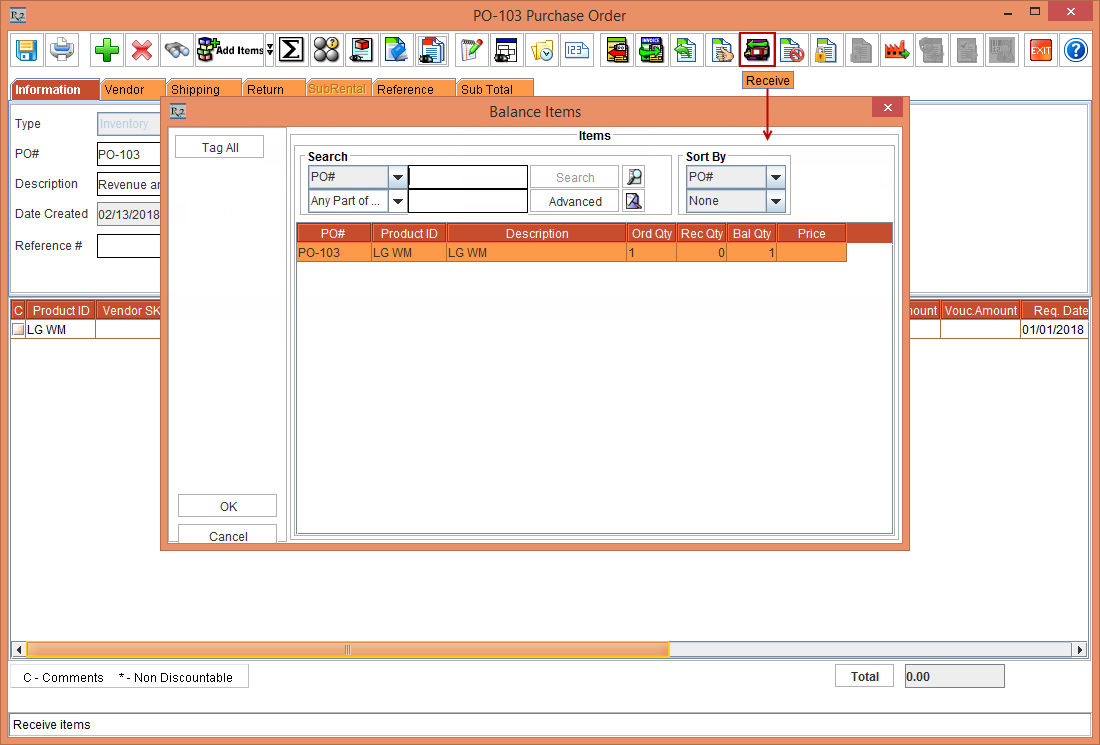
Click the Receive icon. The Balance Items window is displayed.
-
Select and tag the Product ID [LG WM] and click OK, as shown in Figure 2.2.
-
The Scan Items window is displayed. Create and scan the Asset [LG WM-11].
-
Exit the Purchase Order [PO-103].
-
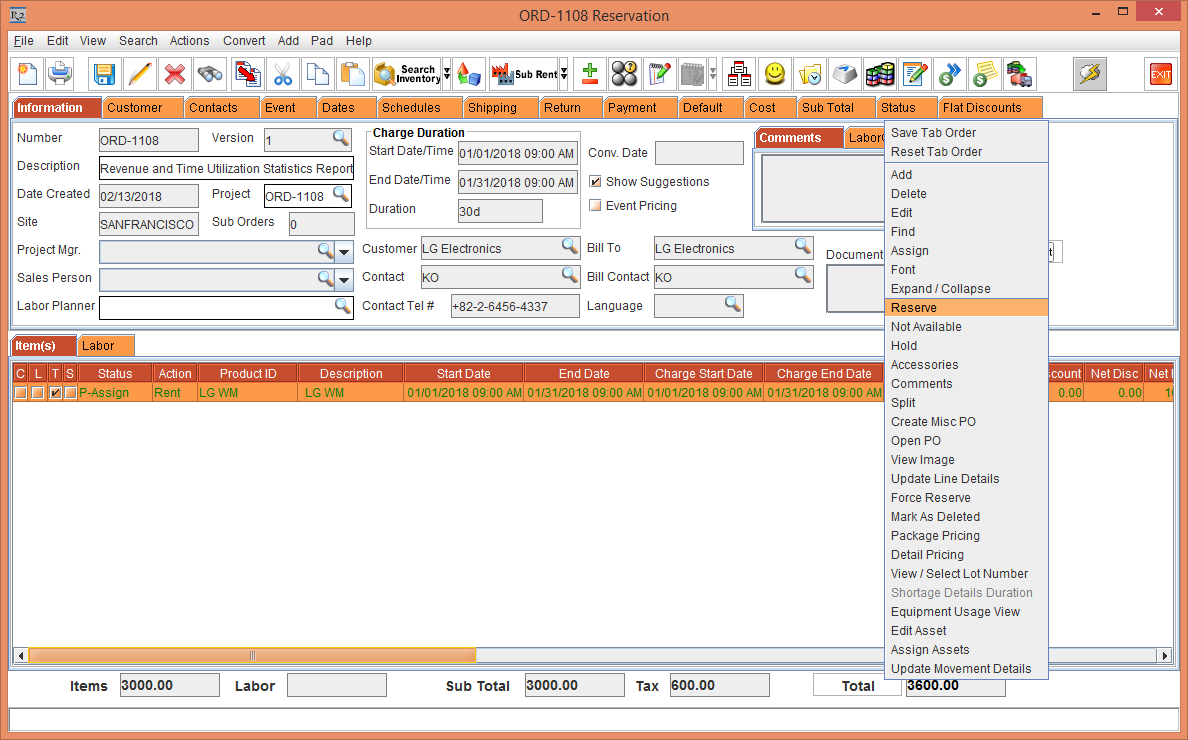
Verify the Order [ORD-1108]. The Serial Item [LG WM] Status is now modified to P-Assign, as shown in Figure 2.3.
-
Select the Serial Item [LG WM] line > right-click > Reserve, as shown in Figure 2.3.
-
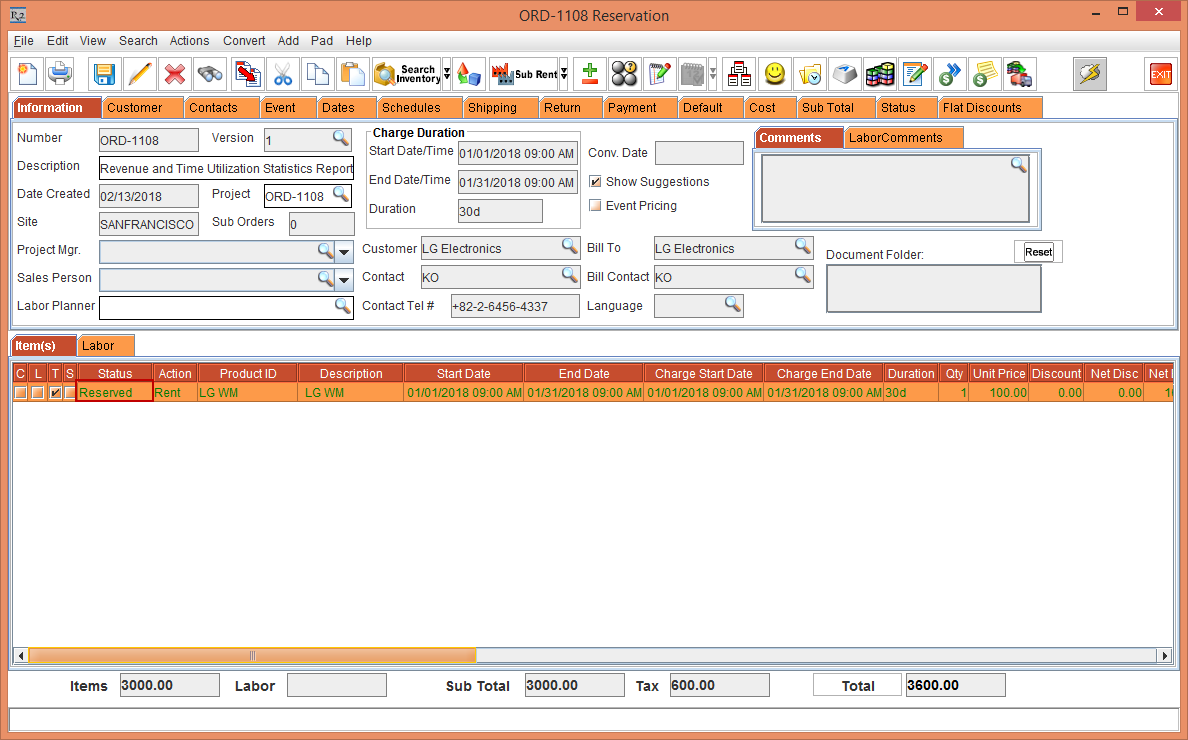
The Serial Item [LG WM] Status that is in P-Assign is now modified to Reserved, as shown in figure 2.4.
-
Select the View menu > Fill Order option. The Fill Order [ORD-1108 Order Fill] window is displayed.
-
Fill the Asset [LG WM-11]. The Status of the Item is modified to Filled.
-
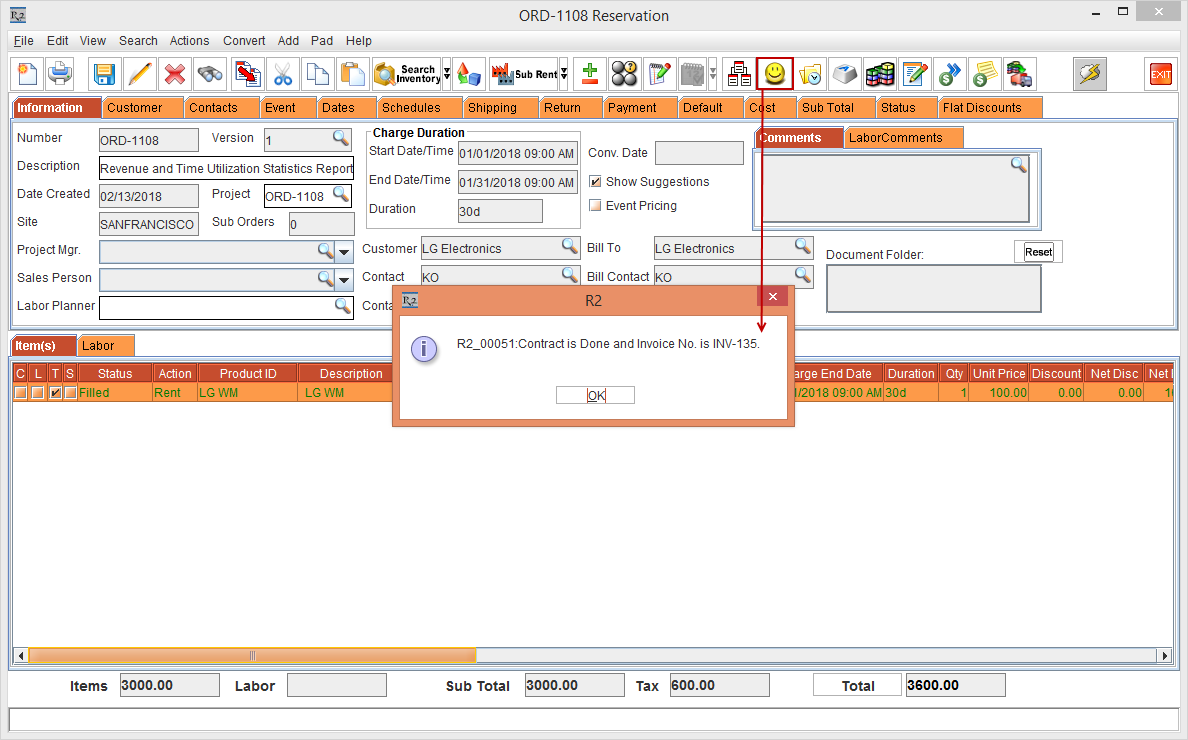
Click the Done icon and Invoice the Order [ORD-1180]. The Invoice [INV-135] is generated, as shown in Figure 2.5.
-
Select the View menu > Invoices option. The Invoice List window is displayed.
-
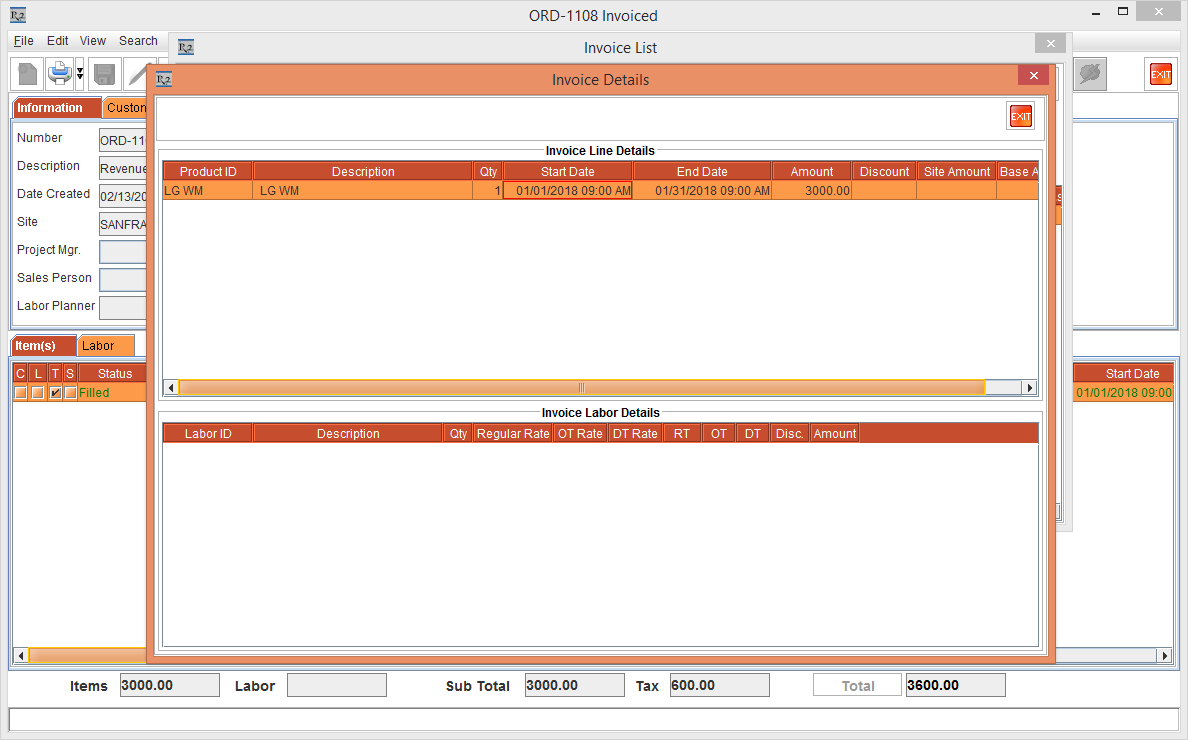
Select the Invoice line [INV-135] and click the Edit icon. The Invoice Details window with the Invoice Amount [3000.00], Invoice Start Date [01-Jan-2018] Time [ 09:00 AM] and End Date [31-Jan-2018] Time [ 09:00 AM] are displayed, as shown in Figure 2.6.
-
Exit the Invoice [INV-135].
-
Select Run > connect to the Schema as follows:
sqlplus User Name/Password@ServiceName
-
Execute the below Asset Utilization Statistics program:
-
Program format
exec AssetUtilizationStatistics_Pkb.AssetUtilizationStatistics(ProductID, StartDateCount , EndDateCount);
Parameter Details
The Parameter details are as follows:
-
Product ID is the ID of the Item or the Product
-
StartDateCount And EndDateCount is the Statistics Period. By default it will run for past 90 days and future 90 days with respect to the current day.
-
Sample Execution
The Sample Execution can be executed for a Single Product or All the Products, as follows:
-
Single Product
Run the below Asset Utilization Statistics program if you want to execute for a single product with a certain duration.
exec AssetUtilizationStatistics_Pkb.AssetUtilizationStatistics(‘ProductID’, 60,60);
where the Product ID is the ID of the Item or the Product and 60 is the days with respect to the current day.
-
All Products
exec AssetUtilizationStatistics_Pkb.AssetUtilizationStatistics;
By default, the above program is used to execute all the products for past 90 days and future 90 days with respect to the current day.
All Products with defined duration
Run the below program to execute all the products for certain duration with respect to the current day.
exec AssetUtilizationStatistics_Pkb.AssetUtilizationStatistics(null, 60,60);
NOTE: Set the Windows Scheduler to run the batch file comprising the above mentioned commands as required on daily basis, when no users are logged in.
-
Select the Reports module. The Report Generator window is displayed.
-
Select the File menu > Custom Reports option. The Reports Assistant - Reports Menu window is displayed.
-
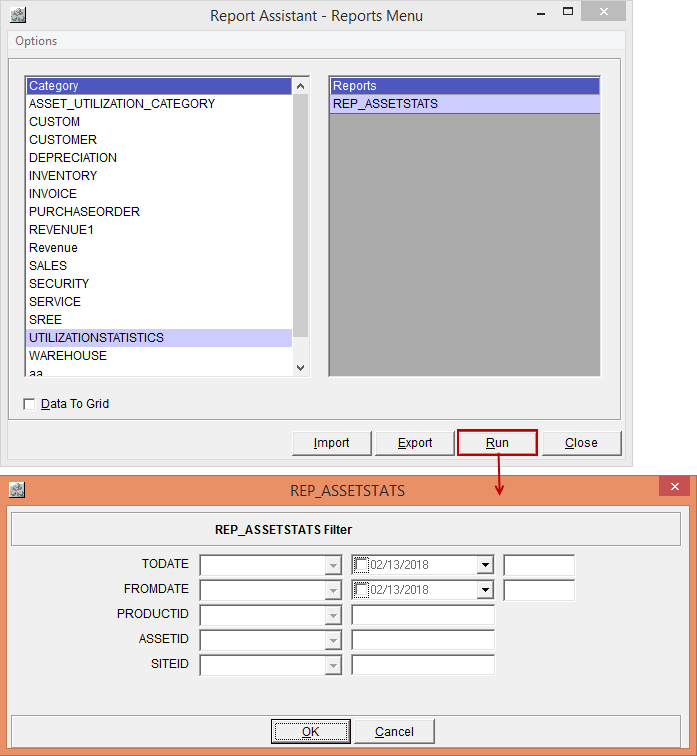
Select the Category [UTILIZATIONSTATISTICS], Reports [REP_ASSETSTATS] and select the Run button. The REP_ASSETSTATS window is displayed, as shown in Figure 2.7.
-
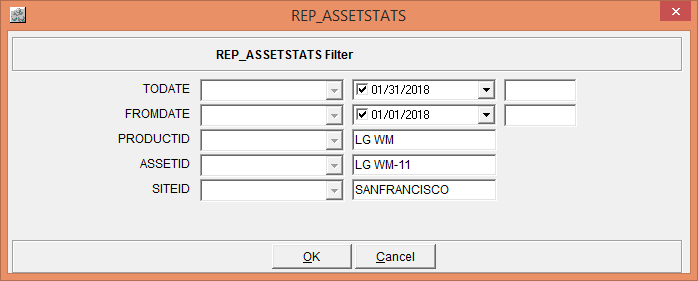
Enter the details in the REP_ASSETSTATS window, as shown in Figure 2.8.
-
Click OK to preview the report.
-
In the report preview mode, click on Save button to save the report. The Report [Daily AssetStats] will get generated based on the date, as shown in Figure 2.9.

-
On generating the Report [Daily AssetStats] that is created as per the steps above, the details in different fields will be updated as given in Table 1.0.
Table 1.0 Report Column Details
|
Column Name |
Description |
|
ITEMID |
This column displays the Item ID of the Asset [LG WM]. |
|
ITEMDESCRIPTION |
This column displays the Item Description [LG WM]. |
|
ASSETDESCRIPTION |
This column displays the Asset Description [LG WM-11]. |
|
PONUMBER |
This column displays the Purchase Order Number. In the above Figure 2.8, the PO Number is displayed as PO-103. |
|
DATEOFPURCHASE |
This column displays the Date of Purchase [02-13-2018]. |
|
ITEMCOST |
This column displays the Site Cost from Asset Edit window. In the above Figure 2.8, the Item Cost is displayed as 100, as the cost is considered from the Purchase Order. |
|
ITEMTYPE |
This column displays the Department ID [DOC] from Item Edit window. |
|
TOTALTRANSITDAYS |
This column displays the Total Transit days [27 Days]. The Transit Day is considered from the Ship Date to the Load In Date and Pickup Date to Return Date that is entered in the Order line. In the above Figure 2.8, the Ship Date [05-Jan-2018] Time [9.00 AM] to Load In Date [15-Jan-2018] Time [9.00 AM] and Pickup Date [16-Jan-2018] Time [09:00 AM] to Return Date [31-Jan-2018] Time [09:00 AM] , the Total Transit Days is displayed as 27 Days.
Scenarios:
Similar conditions are applicable for the Transit Days between Pickup Date to Return Date. |
|
TOTALREVENUEDAYS |
This column displays the Total Revenue Days. The Total Revenue Days are the days the Asset is charged on the Invoice. In the above Figure 2.8, the Asset [LG WM-08] charged on the Invoice is 30 Days and the Total Revenue Days is displayed as [30 Days]. For Example:
|
|
TOTALREVENUE |
This column displays the Total Revenue. The Total Revenue is considered from the Invoice line as 3000.00. For Example: Consider the Invoice Line Start Date [01-Jan-2018] Time [9.00 AM] and Invoice Line End Date [11-Jan-2018] Time [9.00 AM] with the Total line amount [100.00]. The Revenue days will be considered from the Date [01-Jan-2018] to the Date [10-01-2018] and each day Revenue will be [10.00] where the line total amount is equally distributed to for each day. |
NOTE: The amount columns in the above view are pre-tax amount.
-
Click Close. This will close the Report Assistant - Report Wizard window.
Additional Information
-
The Order line reserved by Asset ID and Product lines in the Filled or above status is considered for Statistics.
-
If the Invoice is not generated for the Order line, the Revenue and Revenue Days will be Zero.
-
The Configuration flag Allow Fractional Charge Duration selected is not supported.
-
On running the above report for a Date range the TotalTransitDays, TotalRevenueDays, TotalRevenue column will provide the sum of those in the selected date range.
-
The Statistics is displayed only for the products with the Statistics check box selected in Item Edit window.
-
The Order lines display the data for the Time Utilization and the Invoice lines displays the data for the Revenue Utilization.