
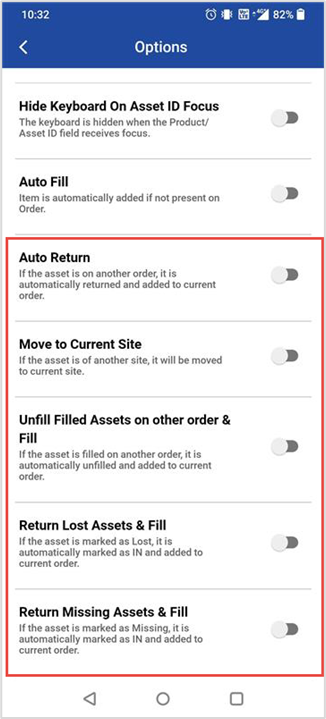
These settings ensures that Force Fill – In, Filled, Out and Lost / Missing Items configuration are considered when filling serial items and serial kit assets on a Transfer Order. This determine how assets are handled when they are already associated with other site orders
Force Fill Settings Overview
|
Option |
Description |
True (Enabled) |
False (Disabled) |
|
Auto Return |
Returns asset from other site rental order and moves to current site and fill to order |
Asset is filled automatically |
Prompt message for confirmation |
|
Move to Current Site |
Moves asset from another site to current site |
Asset is moved automatically |
Prompt message for confirmation |
|
Unfill Filled Assets on Other Order & Fill |
Unfills asset from rental order and moves to current site and fill to order |
Asset is filled automatically |
Prompt message for confirmation |
|
Return Lost Assets & Fill |
Marks lost asset as 'IN' and moves to current site and fill to order |
Asset is filled automatically |
Prompt message for confirmation |
|
Return Missing Assets & Fill |
Marks missing asset as 'IN' and moves to current site and fill to order |
Asset is filled automatically |
Prompt message for confirmation |
Prerequisites
Ensure Force Fill and Lost/Missing Items settings in R2 are enabled with detailed configurations for the above options in PackNShip app to work.
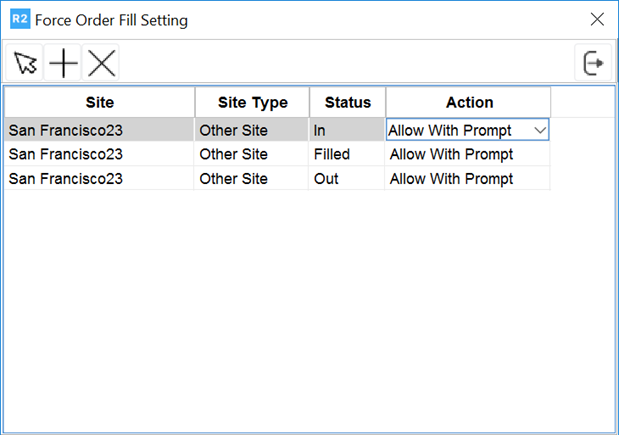
Force Fill Settings
-
When Allow with Prompt is configured, the PackNShip app prompts you to confirm the fill action.
-
When Allow without Prompt is configured, the PackNShip app proceeds automatically.
-
When Don’t Allow is configured, the PackNShip app must fail the action with an appropriate error message.
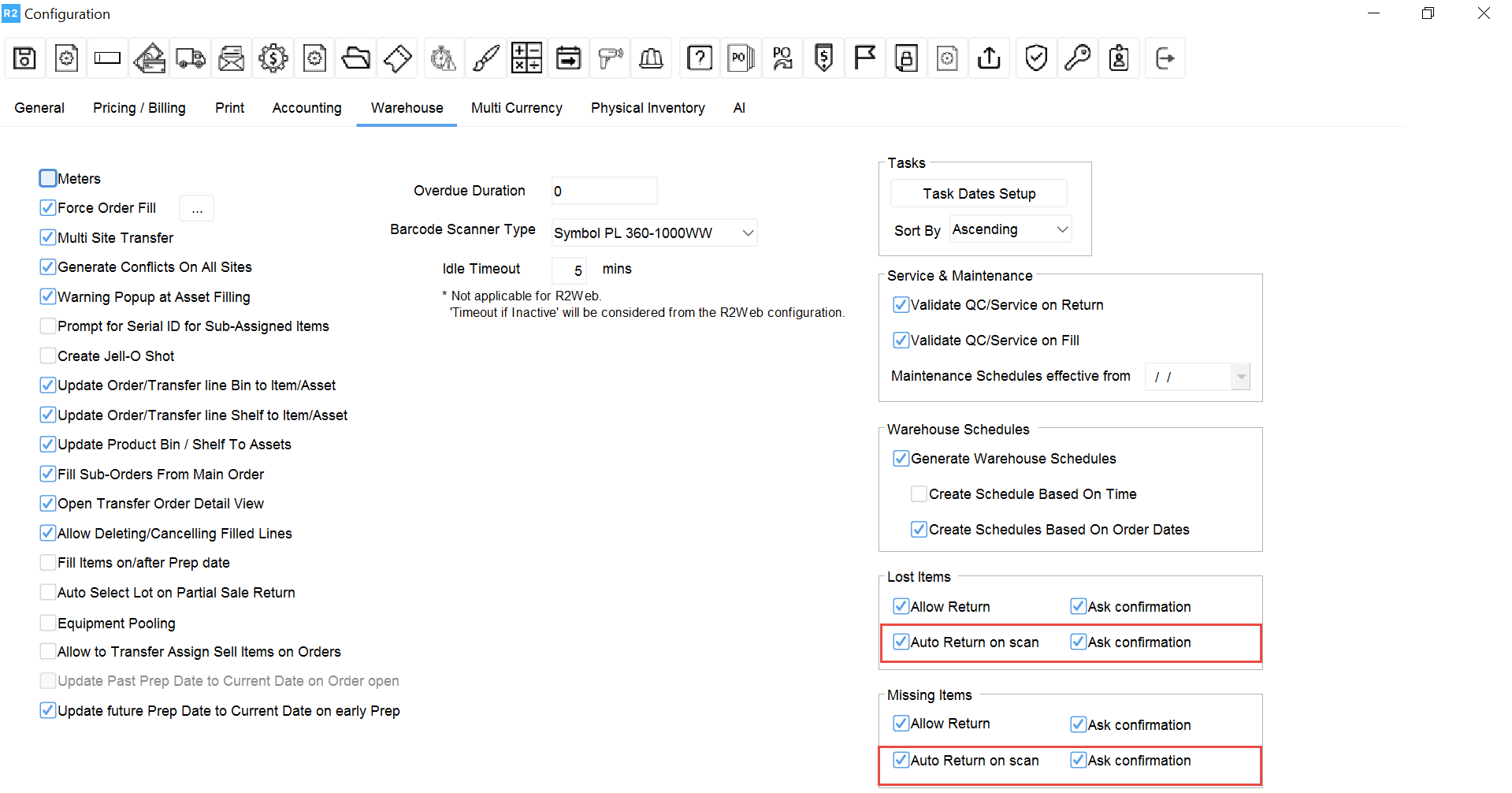
Lost/Missing Items settings
-
When Ask Confirmation is false, PackNShip app performs the action without any prompts automatically.
-
When Ask Confirmation is true, PackNShip app prompts you before performing the action, provided in the option settings you have not enabled the related flags.
Step-by-Step Instructions
Auto Return
-
Create a Rental Order in other site (LA)
-
Add serial item to the Order
-
Dispatch the item
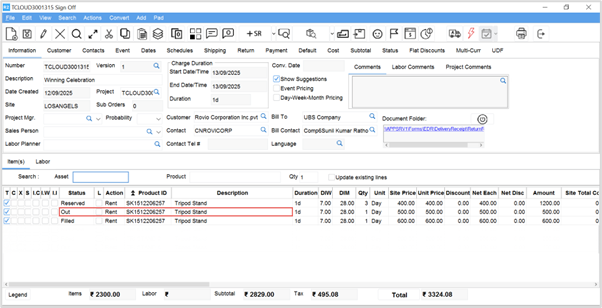
Figure 2.0: Item dispatched -
Create a Transfer Order in SA from (SA to Sydney)
-
Add the same serial item to Transfer Order
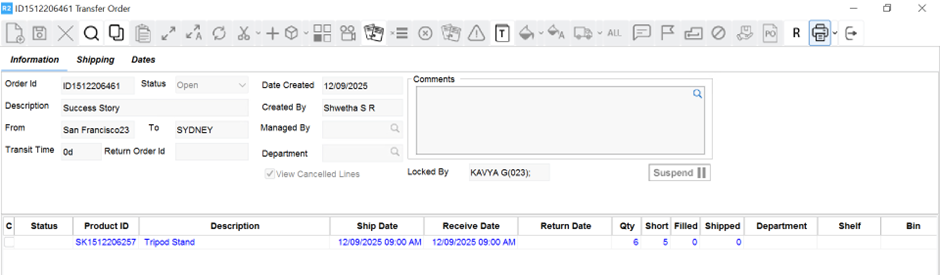
Figure 2.1: Transfer Order -
Log in to PackNShip app
-
Open the Transfer Order
-
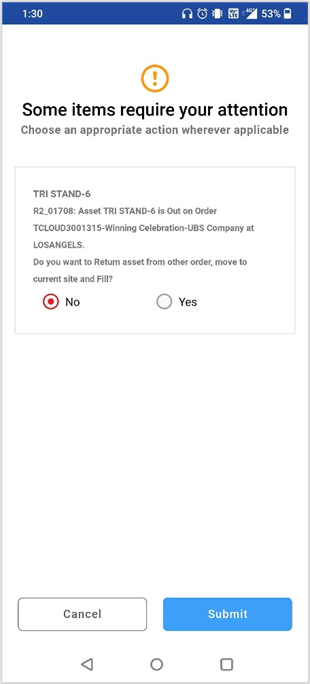
Enter the Asset ID which is Out on other site order
-
Click Submit to return asset from rental order and move to current site and fill to Transfer Order.
Move to Current Site
-
Create a Rental Order in other site (LA).
-
Create a Transfer Order in SA from (SA to Sydney).
-
Log in to PackNShip app.
-
Open the Transfer Order.
-
Enter the Asset ID which is reserved on other site order.
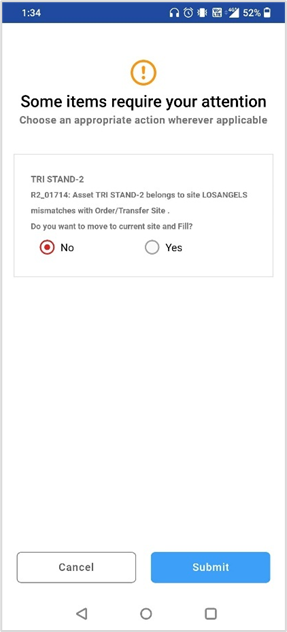
Figure 3.0: Asset belonging to other site message -
Click Submit to move asset from other site to current site and fill to Transfer Order.
Unfill Filled Assets on Other Order & Fill
-
Create a Rental Order in other site (LA).
-
Add serial item to the Order.
-
Fill the item. (Refer Figure 2.0).
-
Create a Transfer Order in SA from (SA to Sydney).
-
Add the serial item to Transfer Order (Refer Figure 2.1).
-
Log in to PackNShip app.
-
Open the Transfer Order.
-
Enter the Asset ID which is filled on other site order.
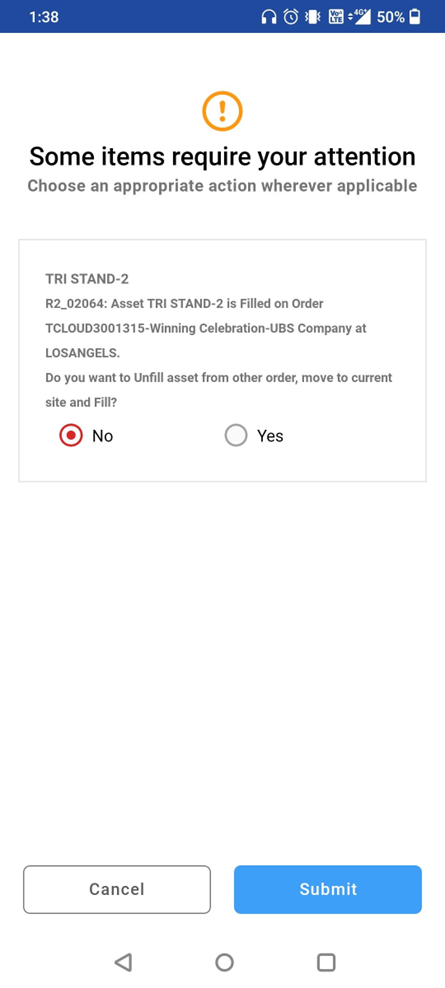
Figure 4.0: Unfill asset from other site order message -
Click Submit to unfill asset from rental order and move to current site and fill to Transfer Order.
Return Lost Assets & Fill
-
Mark the asset as Lost on other site (LA).
-
Create a Transfer Order in SA from (SA to Sydney).
-
Add the serial item to Transfer Order (Refer Figure 2.1).
-
Log in to PackNShip app.
-
Open the Transfer Order.
-
Enter the Asset ID which is marked as Lost in other site.
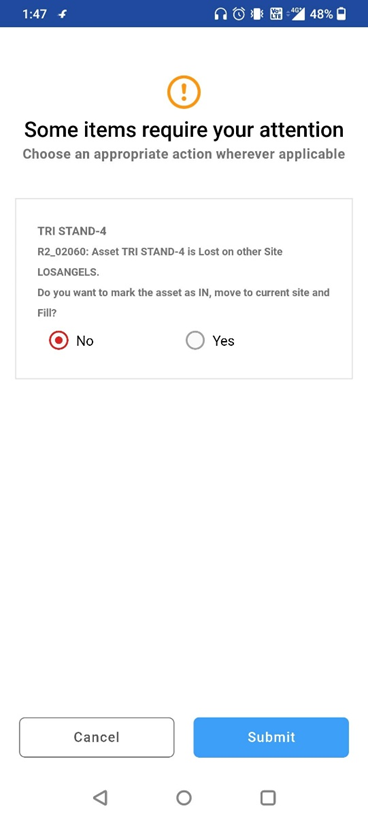
Figure 5.0: Lost asset message -
Click Submit to mark lost asset as 'IN' and move to current site and fill to Transfer Order.
Return Missing Assets & Fill
-
Mark the asset as Missing in other site (LA).
-
Create a Transfer Order in SA from (SA to Sydney).
-
Add the serial item to Transfer Order (Refer Figure 2.1).
-
Log in to PackNShip app.
-
Open the Transfer Order.
-
Enter the Asset ID which is marked as Missing in other site.
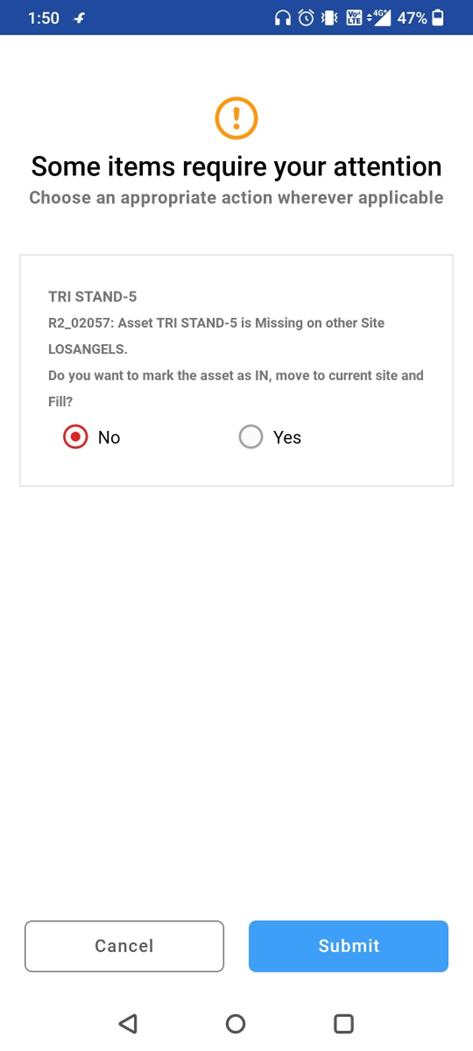
Figure 5.0: Missing asset message